
Patients - How to enroll and intake a patient

A Patient Enrollment includes two parts:

  • Referral, which includes gathering consent, assigning a care team, and assigning measurement bundles
  • Active Treatment, which begins when initial measurements are sent out and encompasses everything until discharge

Thus, when this page says "Enrollment", it means patients in either the Referral or Active Treatment phases.

Enrollment​

Navigating to an unenrolled patient’s record

There are two easy ways to identify a patient who is not enrolled:

1.) On the patient search page, patients who are not enrolled in collaborative care will have “Unenrolled” badge in the Status column
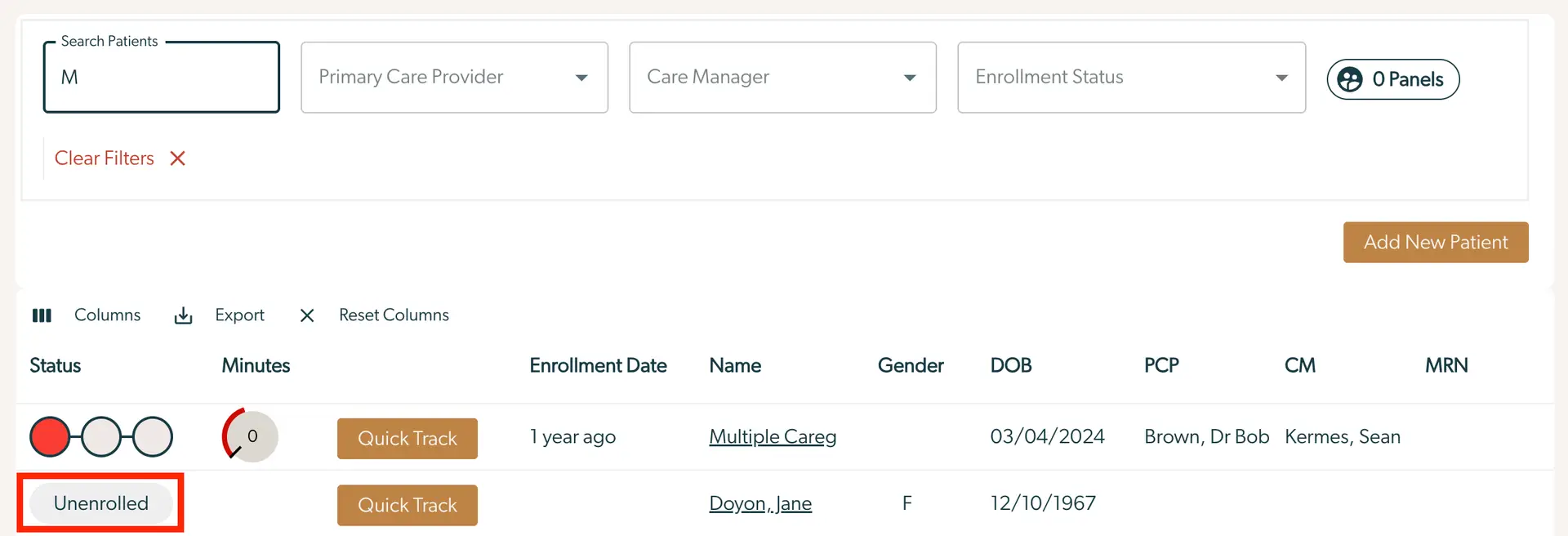
The screenshot displays the patient management interface of Mirah Collaborative Care, focusing on enrolling and intaking patients. At the top, there is a search bar labeled 'Search Patients' with the letter 'M' entered. Next to it are dropdown filters for 'Primary Care Provider', 'Care Manager', and 'Enrollment Status'. A 'Clear Filters' option is available to reset the filters. On the right, a button labeled 'Add New Patient' allows users to add a new patient to the system. Below, there is a table with columns for 'Status', 'Minutes', 'Enrollment Date', 'Name', 'Gender', 'DOB', 'PCP', 'CM', and 'MRN'. The 'Status' column shows a visual indicator with a label 'Unenrolled'. The 'Quick Track' button is available for each patient entry, providing a quick action option. The interface is designed to streamline patient enrollment and management processes.

2.) On the patient details page, patients who are not enrolled in collaborative care will have an “Unenrolled” badge in place of the status badge. Only unenrolled patients will have the “Enroll” button enabled to start the enrollment workflow.
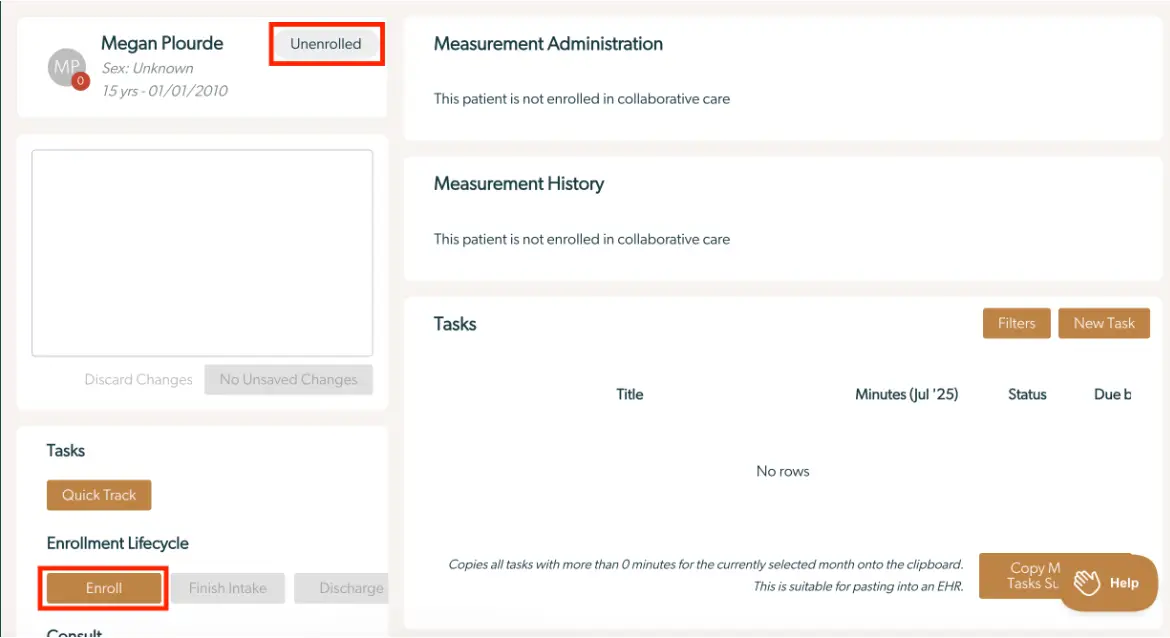
The screenshot displays a patient profile page within the Mirah Collaborative Care platform, focusing on the enrollment and intake process. The top left section shows the patient's name, age, and enrollment status, which is currently 'Unenrolled'. Below this, there is a blank area for notes and buttons labeled 'Discard Changes' and 'No Unsaved Changes'. On the left, under 'Tasks', there is a 'Quick Track' button. The 'Enrollment Lifecycle' section includes buttons for 'Enroll', 'Finish Intake', and 'Discharge', with 'Enroll' highlighted. The right side of the screen shows 'Measurement Administration' and 'Measurement History', both indicating the patient is not enrolled in collaborative care. The 'Tasks' section is empty, with options to 'Filters' and 'New Task' on the top right. A note at the bottom explains task copying functionality. A 'Help' button is located at the bottom right.

How to enroll a patient in CoCM​

Patient Enrollment includes the process of bringing a new patient into the CoCM treatment model which includes program referral, gathering consent, assigning a care team, and sending intake measures.

*Note - Before enrolling a patient, it is useful to add related people to the patient’s profile (parents, caregivers, teachers) in order to facilitate the intake process.

1.) Click the “Enroll” button on the patient’s record.
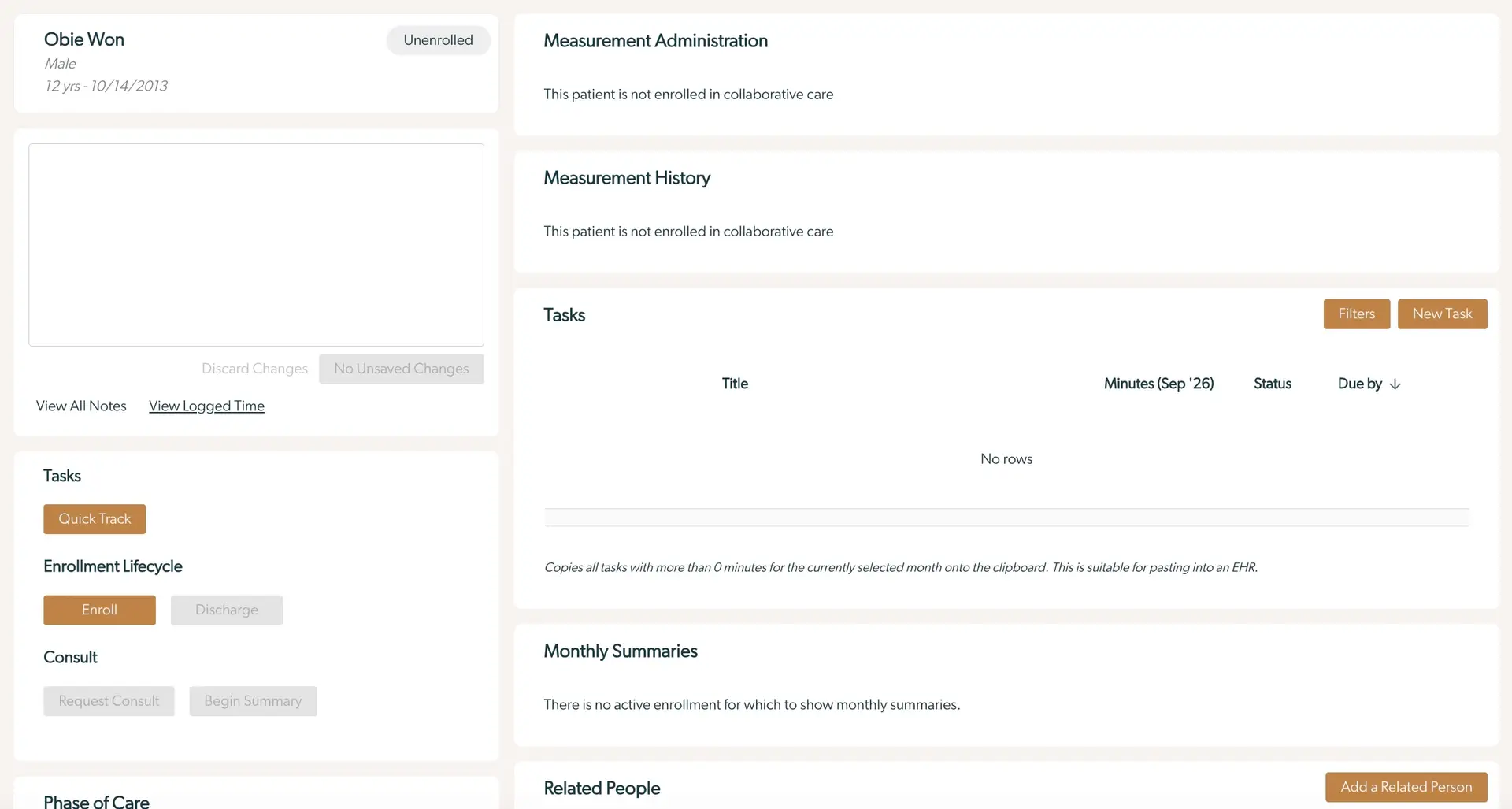
The screenshot displays a patient management interface for Mirah Collaborative Care. At the top left, the patient's name, gender, and birthdate are shown, with an 'Unenrolled' status button. Below, there is a text area for notes with 'Discard Changes' and 'No Unsaved Changes' buttons beneath it. Links for 'View All Notes' and 'View Logged Time' are also present. The 'Tasks' section includes a 'Quick Track' button. The 'Enrollment Lifecycle' section has 'Enroll' and 'Discharge' buttons, with 'Enroll' being active. The 'Consult' section includes 'Request Consult' and 'Begin Summary' buttons, both inactive. The 'Measurement Administration' and 'Measurement History' sections indicate the patient is not enrolled in collaborative care. The 'Tasks' section on the right shows a table with columns for Title, Minutes, Status, and Due Date, but no tasks are listed. There are 'Filters' and 'New Task' buttons at the top right of this section. The 'Monthly Summaries' section states there is no active enrollment for summaries. The 'Related People' section has an 'Add a Related Person' button.

2.) Populate Treatment Details - this includes the Panel, Primary Care Provider, Care Manager, Enrollment Date and Unit.
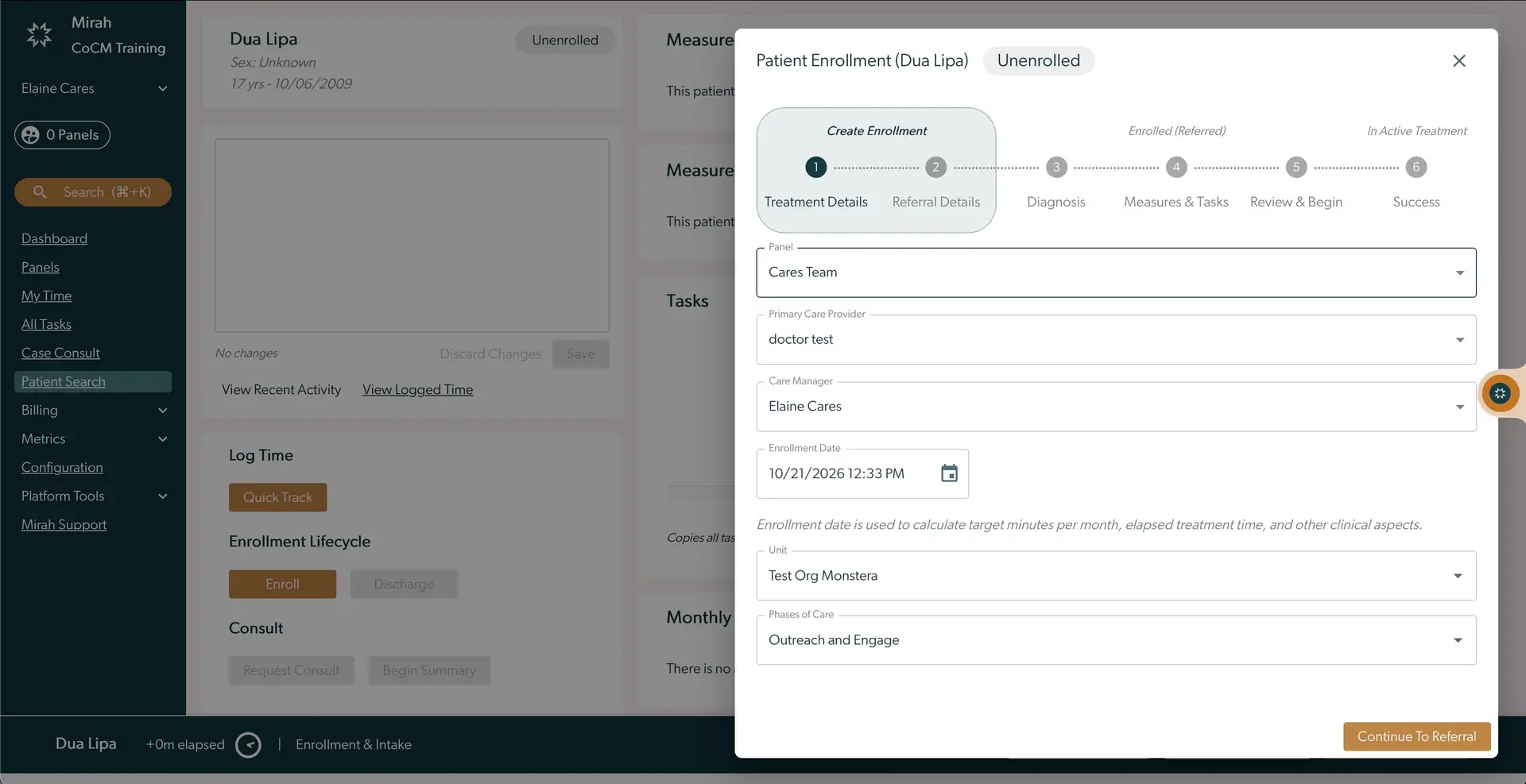
The screenshot displays the 'Patient Enrollment' interface for enrolling a new patient named Dua Lipa in the Mirah Collaborative Care system. The enrollment process is shown as a multi-step progress bar at the top, with the current step being 'Create Enrollment'. The form includes fields for selecting the 'Care Team', 'Primary Care Provider', 'Care Manager', and 'Enrollment Date', with dropdown menus for each. The 'Enrollment Date' field includes a calendar icon for date selection. Additional fields include 'Unit' and 'Phases of Care', both with dropdown options. At the bottom right, there is a 'Continue To Referral' button to proceed to the next step. The left sidebar contains navigation options such as 'Dashboard', 'Panels', 'My Time', 'All Tasks', 'Case Consult', and 'Patient Search'.

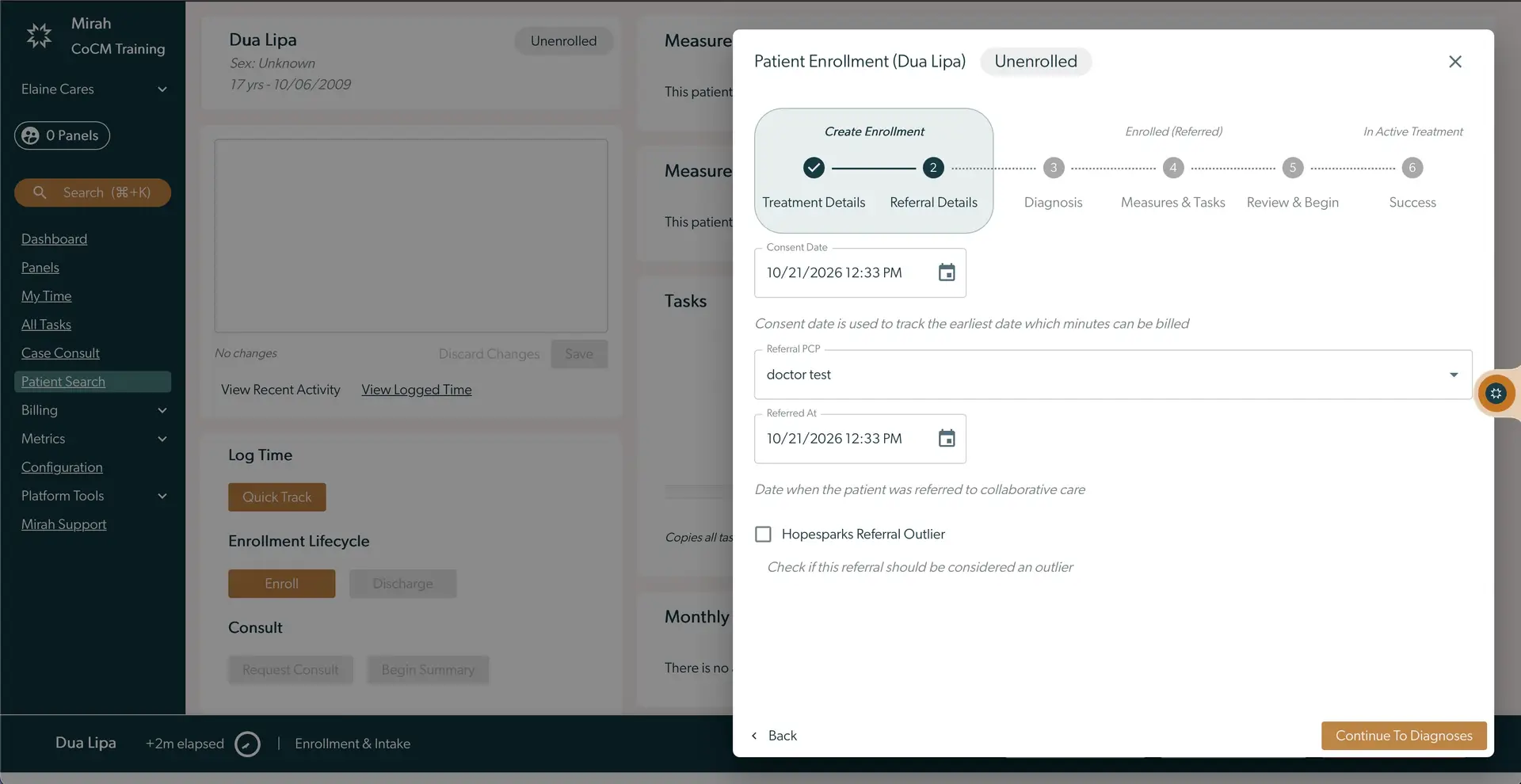
3.) Populate Referral Details - this includes consent date and referral details for the patient

  • After clicking "Continue to Diagnoses," the app will automatically start tracking a timer called "Referral Confirmation" if automatic task creation is enabled for your institute.
  • *Note - Mirah and the CoCM app does not collect the consent or store the records of consent having been collected. Instead, this screen asks the user to confirm that consent has been collected already following your organization’s standard policies/procedures. The screenshot displays the 'Patient Enrollment' interface for enrolling a new patient named Dua Lipa in the Mirah Collaborative Care system. The top section shows the enrollment progress with steps: Create Enrollment, Enrolled (Referred), and In Active Treatment. The current step is 'Create Enrollment,' specifically focusing on 'Referral Details.' Fields include 'Consent Date' with a date and time picker set to 10/21/2026 12:33 PM, 'Referral PCP' with a dropdown menu currently displaying 'doctor test,' and 'Referred At' with another date and time picker set to 10/21/2026 12:33 PM. There is a checkbox labeled 'Hopesparks Referral Outlier' for marking the referral as an outlier. At the bottom right, there is a 'Continue To Diagnoses' button to proceed to the next step. A 'Back' button is located at the bottom left. The left sidebar contains navigation options such as Dashboard, Panels, My Time, All Tasks, Case Consult, and Patient Search, with 'Patient Search' highlighted. Additional options include Billing, Metrics, Configuration, Platform Tools, and Mirah Support.
4.) Optionally search for or create diagnosis codes. These will appear on the monthly billing summary for these patients. Diagnosis can always be added, removed, or modified at any time later. If automatic task creation is enabled, you will see the "Referral Confirmation" timer at the bottom of the page. If it is not, this banner will not be present. You can skip adding a diagnosis by clicking "Continue to Measures & Tasks"
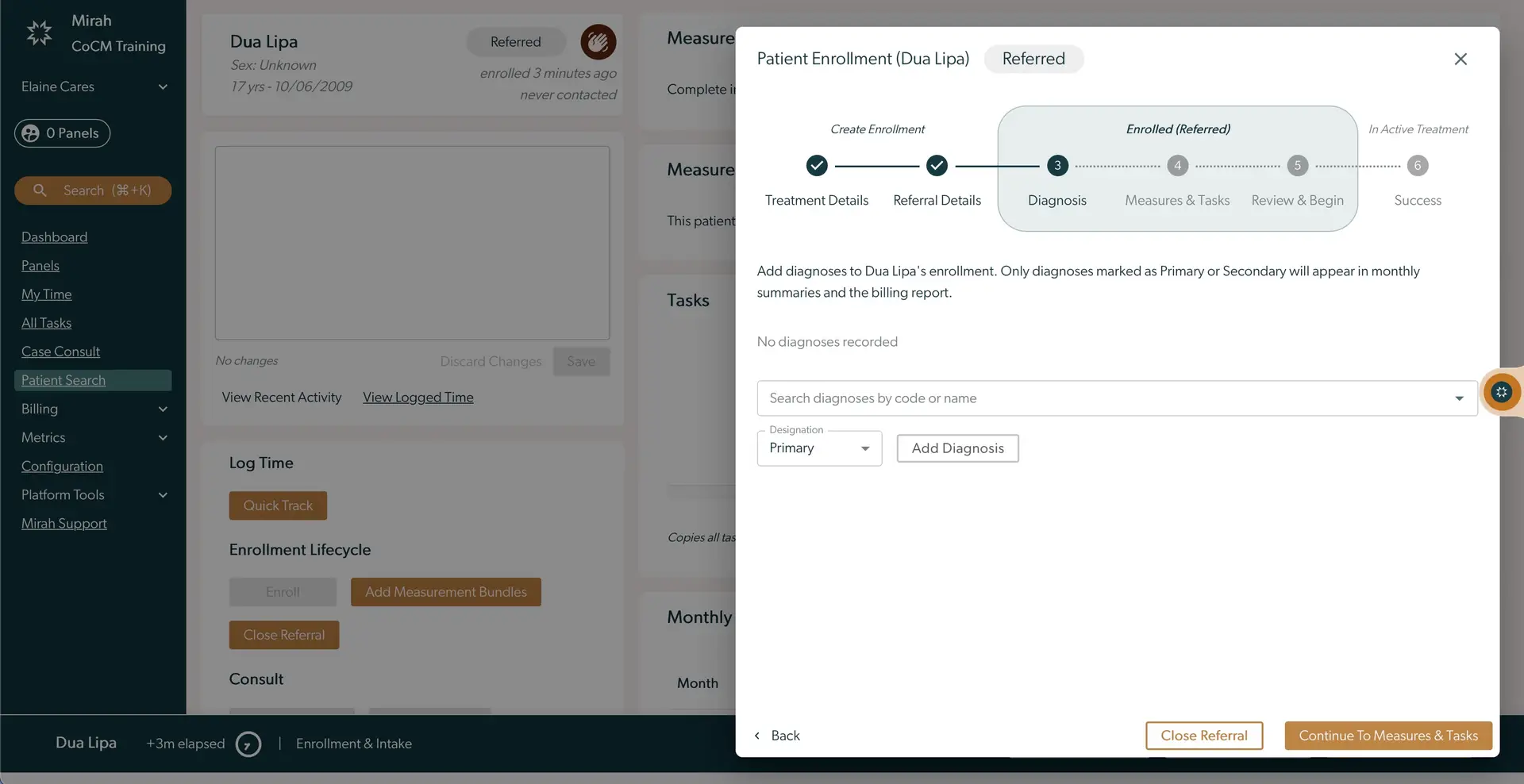
The screenshot displays the 'Patient Enrollment' interface for a patient named Dua Lipa within the Mirah Collaborative Care platform. The enrollment process is shown as a progress bar at the top, highlighting the 'Diagnosis' step as the current stage. Users can add diagnoses to the patient's enrollment by searching for diagnoses by code or name using a search field. There is a dropdown menu to designate the diagnosis as 'Primary' or 'Secondary'. The 'Add Diagnosis' button is located next to the dropdown for adding the selected diagnosis. At the bottom right, there are two buttons: 'Close Referral' and 'Continue To Measures & Tasks', which allow users to either close the referral or proceed to the next step in the enrollment process. A 'Back' button is located at the bottom left to return to the previous step. The left sidebar contains navigation options such as Dashboard, Panels, My Time, All Tasks, and Patient Search, among others.

5.) Populate Targets & Tasks - the initial measurement bundles for the patient. If you are not ready to enroll the patient here, you can click “Save and Close” to save the Treatment, Referral, and Diagnosis details now and enter the bundles at a future time. "Save and Close" does not save your bundle selection.

If you are ready to proceed to measurement collection, type in the search box to select the measurement bundles and click on the check mark to add them to the patient. To see the preview of the measurements, click outside of the list of bundles. Once you have confirmed these are the bundles you want, click on "Continue to Review & Begin." If you have automatic task creation enabled, this will create the "Enrollment and Intake" task and automatically start tracking time for it.
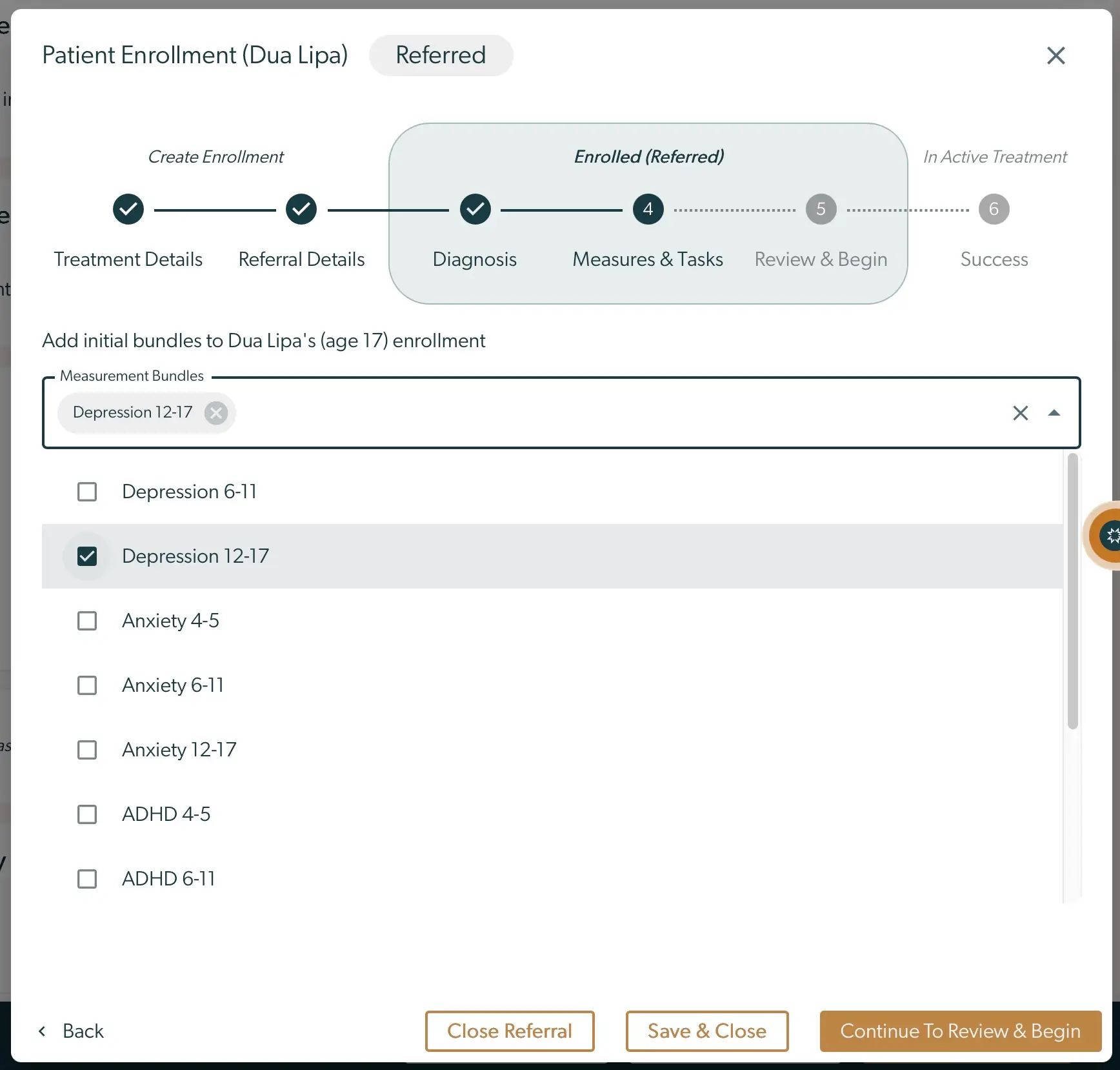
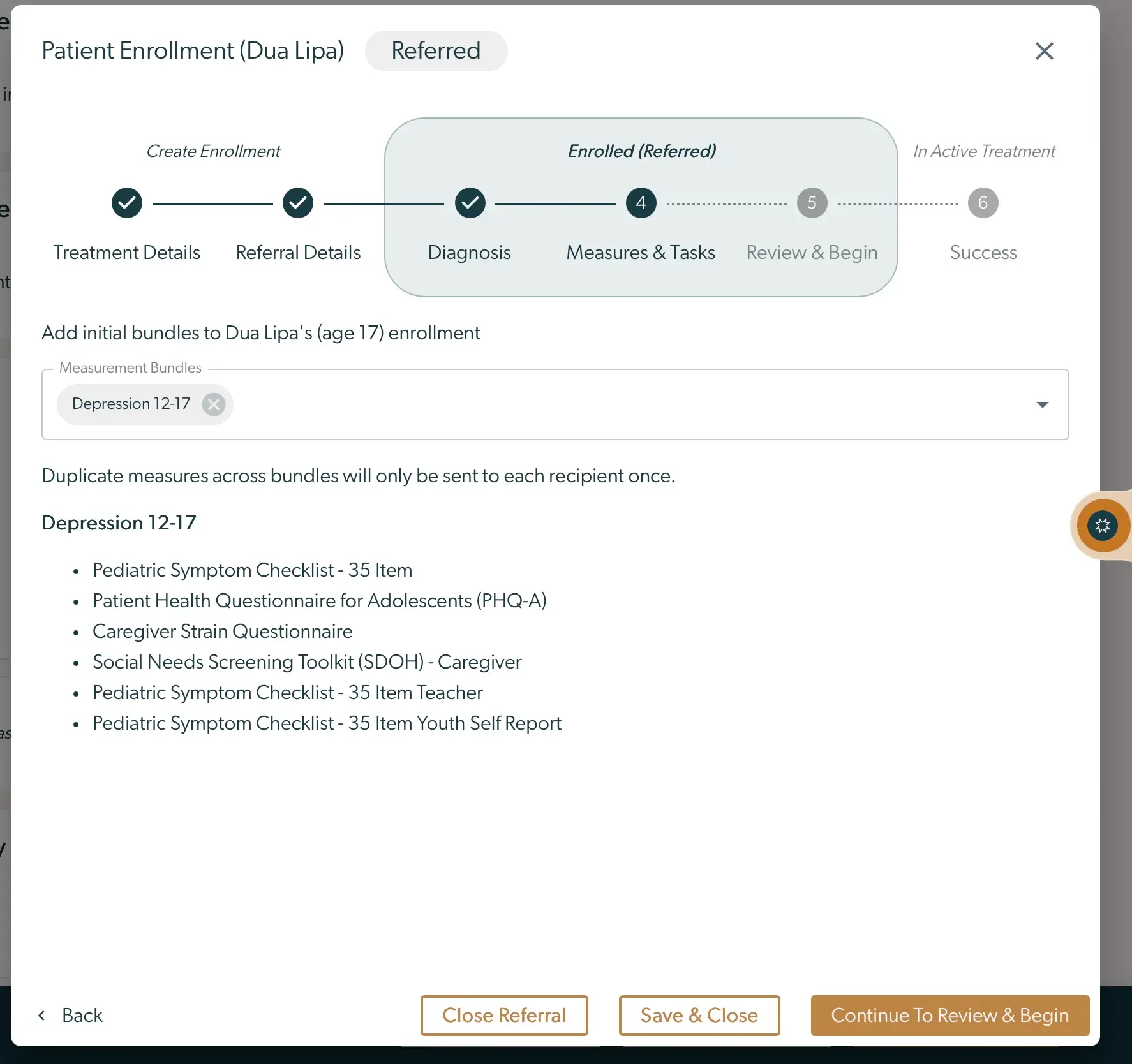
The screenshot displays the 'Patient Enrollment' screen for a patient named Dua Lipa, specifically in the 'Referred' stage of the enrollment process. The top section shows a progress tracker with steps: Treatment Details, Referral Details, Diagnosis, Measures & Tasks (highlighted as the current step), Review & Begin, and Success. Below, there is a section titled 'Add initial bundles to Dua Lipa's (age 17) enrollment' with a dropdown labeled 'Measurement Bundles' showing 'Depression 12-17' as a selected bundle. A list of checkboxes allows selection of various bundles such as Depression 6-11, Anxiety 4-5, Anxiety 6-11, Anxiety 12-17, ADHD 4-5, and ADHD 6-11, with 'Depression 12-17' checked. At the bottom, there are three buttons: 'Close Referral' on the left, 'Save & Close' in the center, and 'Continue To Review & Begin' on the right.The screenshot displays the 'Patient Enrollment' interface for enrolling a patient named Dua Lipa, who is referred for care. The top section shows a progress tracker with steps: Treatment Details, Referral Details, Diagnosis, Measures & Tasks (highlighted as the current step), Review & Begin, and Success. Below, there is a section to add initial bundles to the patient's enrollment, with a dropdown menu labeled 'Measurement Bundles' showing 'Depression 12-17' selected. The bundle includes various checklists and questionnaires such as the Pediatric Symptom Checklist and Patient Health Questionnaire for Adolescents. At the bottom, there are three buttons: 'Back' on the left, 'Close Referral' and 'Save & Close' in the center, and 'Continue To Review & Begin' on the right, which allows the user to proceed to the next step.

6.) If the patient has opted out of the program for any reason and you do not wish to continue with the enrollment, you can click "Close Referral". This button is available to you anytime after you have completed steps 1 & 2. This will prompt you for a reason from a list configured by your administrator.
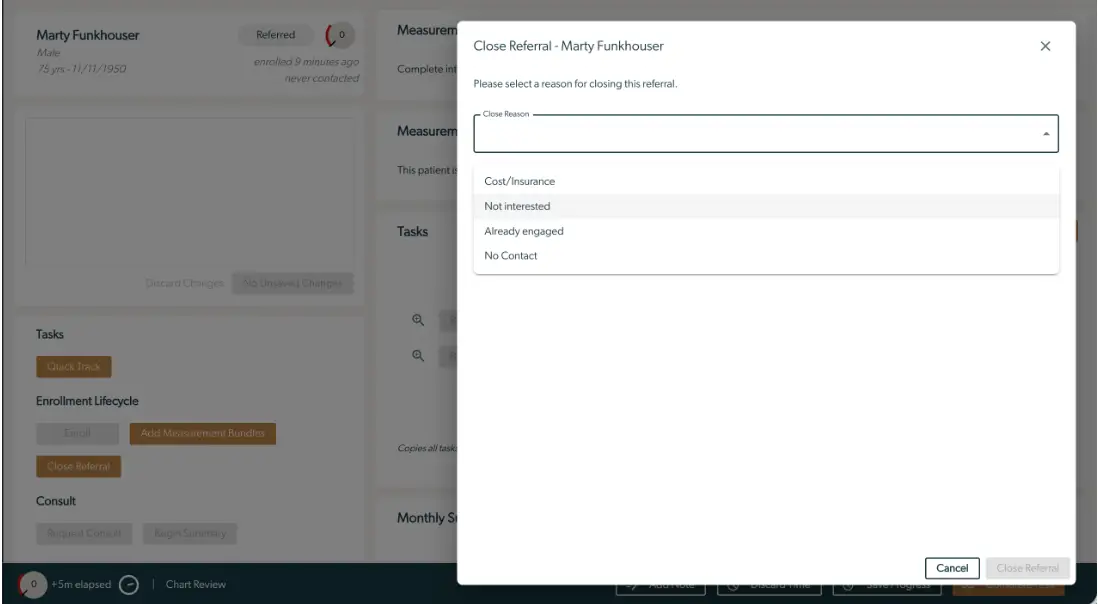
The screenshot displays the 'Close Referral' dialog for a patient named Marty Funkhouser within the Mirah Collaborative Care platform. The dialog prompts the user to select a reason for closing the referral, with options including 'Cost/Insurance', 'Not interested', 'Already engaged', and 'No Contact'. The dropdown menu for 'Close Reason' is located at the top of the dialog. At the bottom, there are two buttons: 'Cancel' on the left and 'Close Referral' on the right. The background shows the patient's details, including their name, gender, age, and enrollment status, along with sections for tasks, enrollment lifecycle, and consult options.

7.) Review Participants - This screen has you review the participant(s) that will receive measurements via text or email.
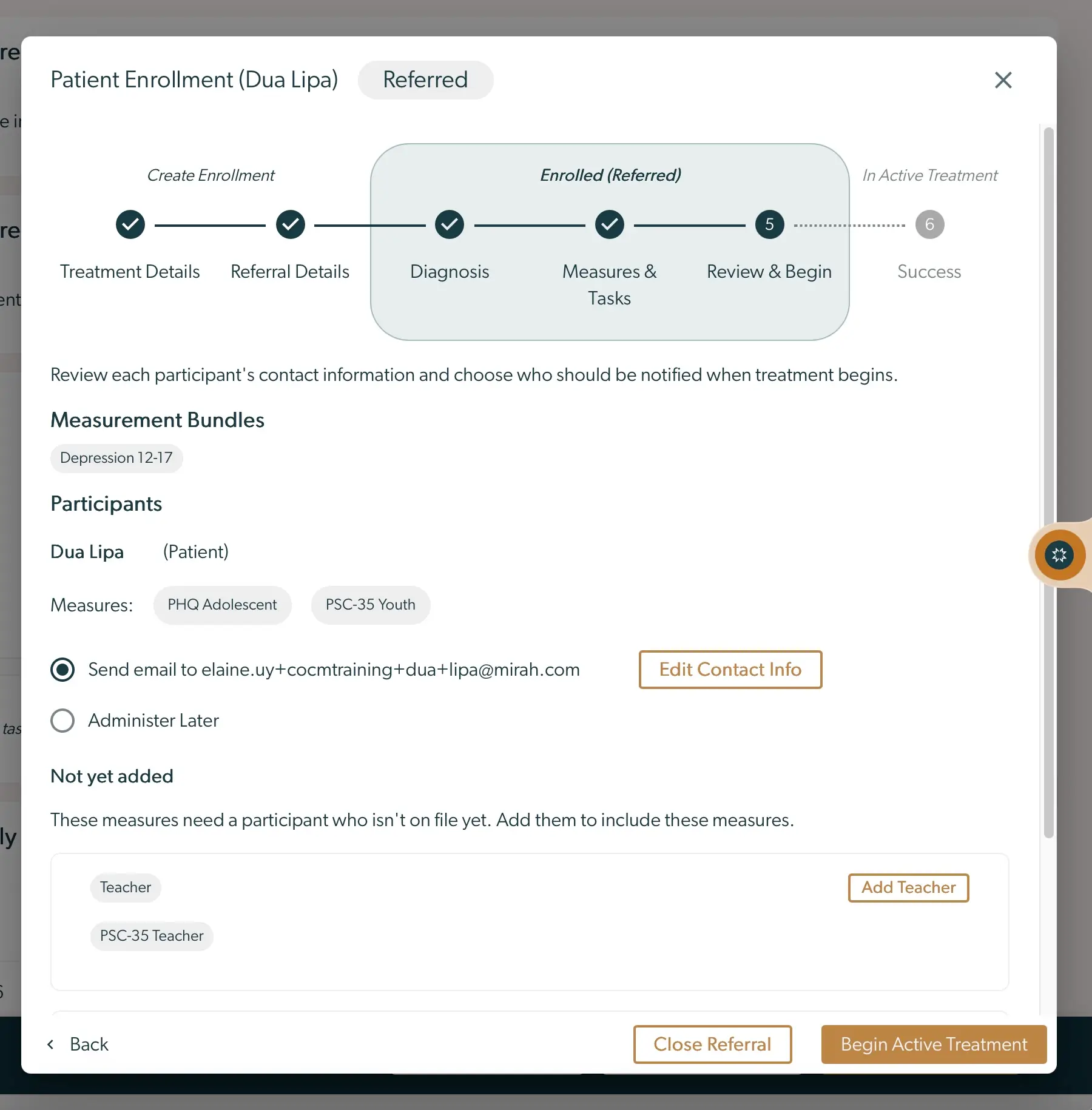
The screenshot displays the 'Patient Enrollment' interface for a referred patient in the Mirah Collaborative Care system. The top section shows a progress tracker with steps: Treatment Details, Referral Details, Diagnosis, Measures & Tasks, Review & Begin, and Success. The current step is 'Review & Begin' under the 'Enrolled (Referred)' phase. Below, it lists 'Measurement Bundles' with 'Depression 12-17' and 'Participants' with the name 'Dua Lipa' labeled as 'Patient'. Measures include 'PHQ Adolescent' and 'PSC-35 Youth'. There are options to 'Send email to elaine.uy+cocmtraining+dua+lipa@mirah.com' or 'Administer Later'. The 'Edit Contact Info' button is located next to the email option. The 'Not yet added' section indicates measures needing a participant not on file, with options 'Teacher' and 'PSC-35 Teacher'. The 'Add Teacher' button is available for adding participants. At the bottom, navigation buttons 'Back', 'Close Referral', and 'Begin Active Treatment' are present.

The contact information for the participant can be edited by clicking the “Edit Contact Info” button if it appears incorrect on the screen.
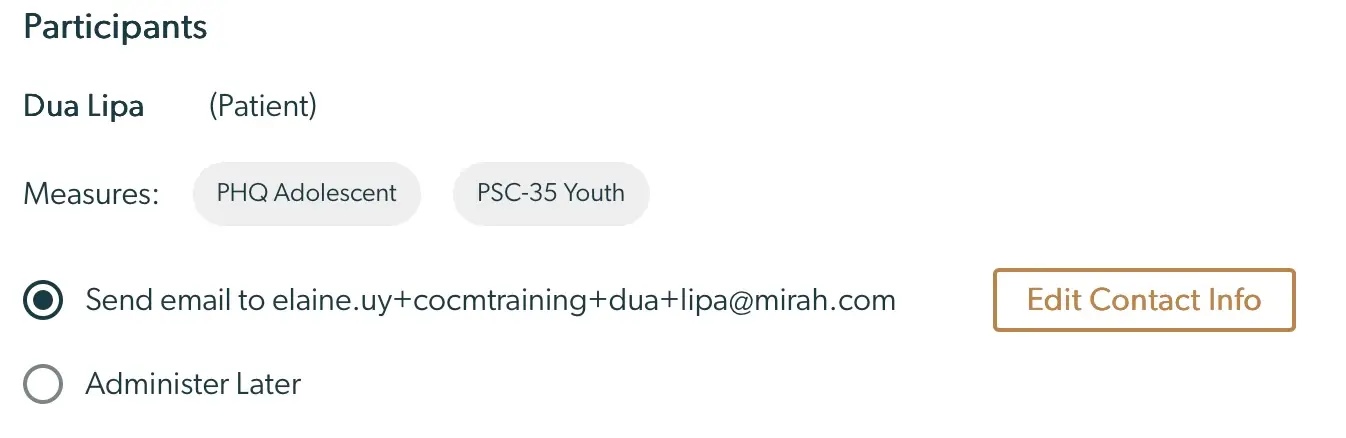
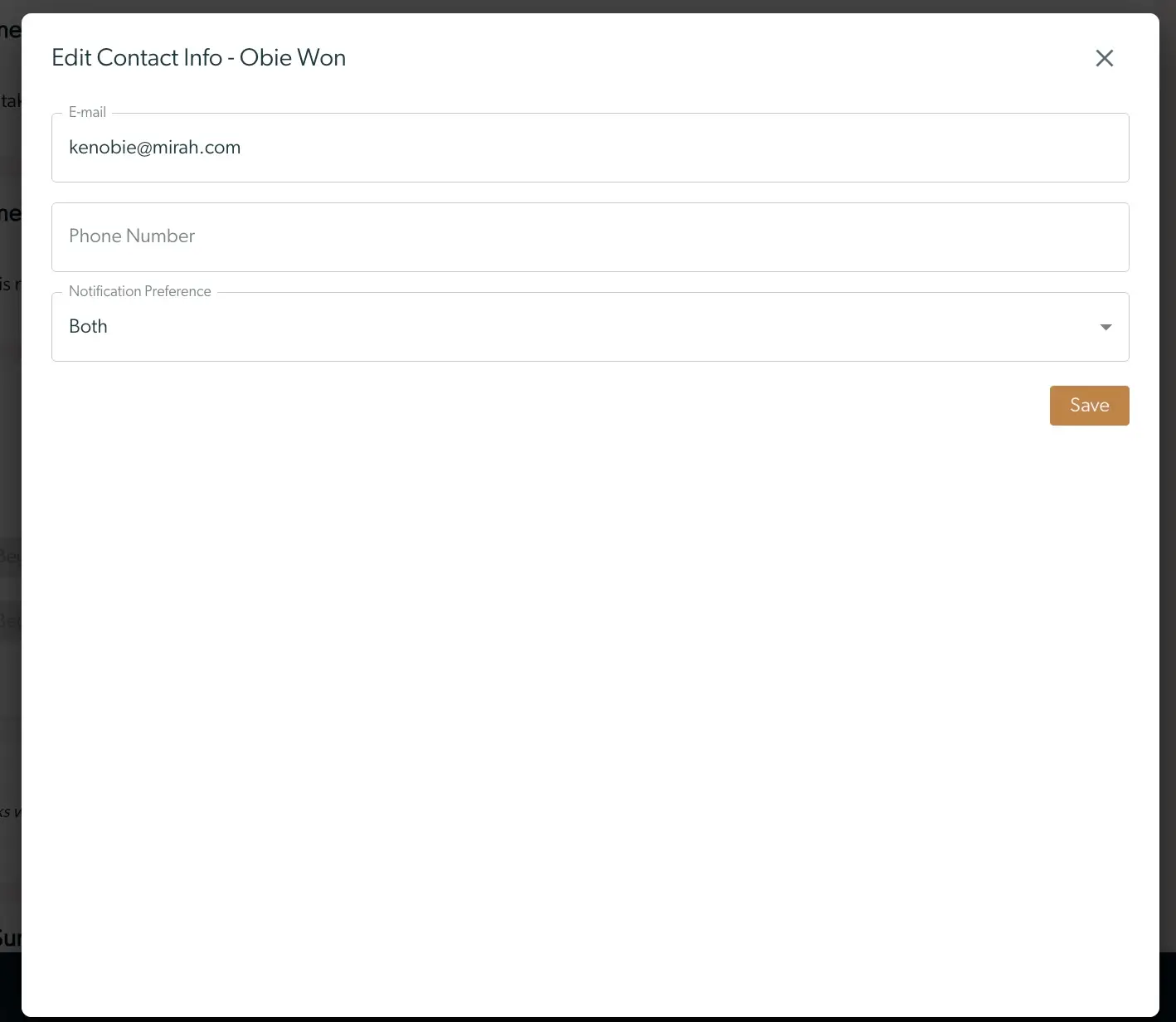
The screenshot displays a section of the Mirah Collaborative Care platform focused on enrolling and intaking a patient. The section is titled 'Participants' and lists a participant named 'Dua Lipa' with the label '(Patient)'. Below the name, there are two measures listed: 'PHQ Adolescent' and 'PSC-35 Youth', indicating the assessments assigned to the patient. Two radio button options are available: 'Send email to elaine.uy+cocmtraining+dua+lipa@mirah.com', which is selected, and 'Administer Later'. To the right, there is a button labeled 'Edit Contact Info' for modifying the patient's contact details.The screen is titled 'Edit Contact Info' for a patient named Obie Won. It is part of the patient enrollment and intake process in Mirah Collaborative Care. The interface includes a text field labeled 'E-mail' with the email address 'kenobie@mirah.com' already filled in. Below it is a text field labeled 'Phone Number' which is currently empty, allowing the user to input or edit the patient's phone number. There is a dropdown menu labeled 'Notification Preference' with the option 'Both' selected, enabling the user to choose how the patient prefers to receive notifications. At the bottom right corner, there is a 'Save' button in orange, which the user can click to save any changes made to the contact information. A close button, represented by an 'X', is located at the top right corner to exit the screen without saving changes.

If measures require a related person such as a guardian/caregiver or teacher, you can add them here as well. If there is an additional related person that should be added for notifications, you can add them using the generic “Add Caregiver” button.
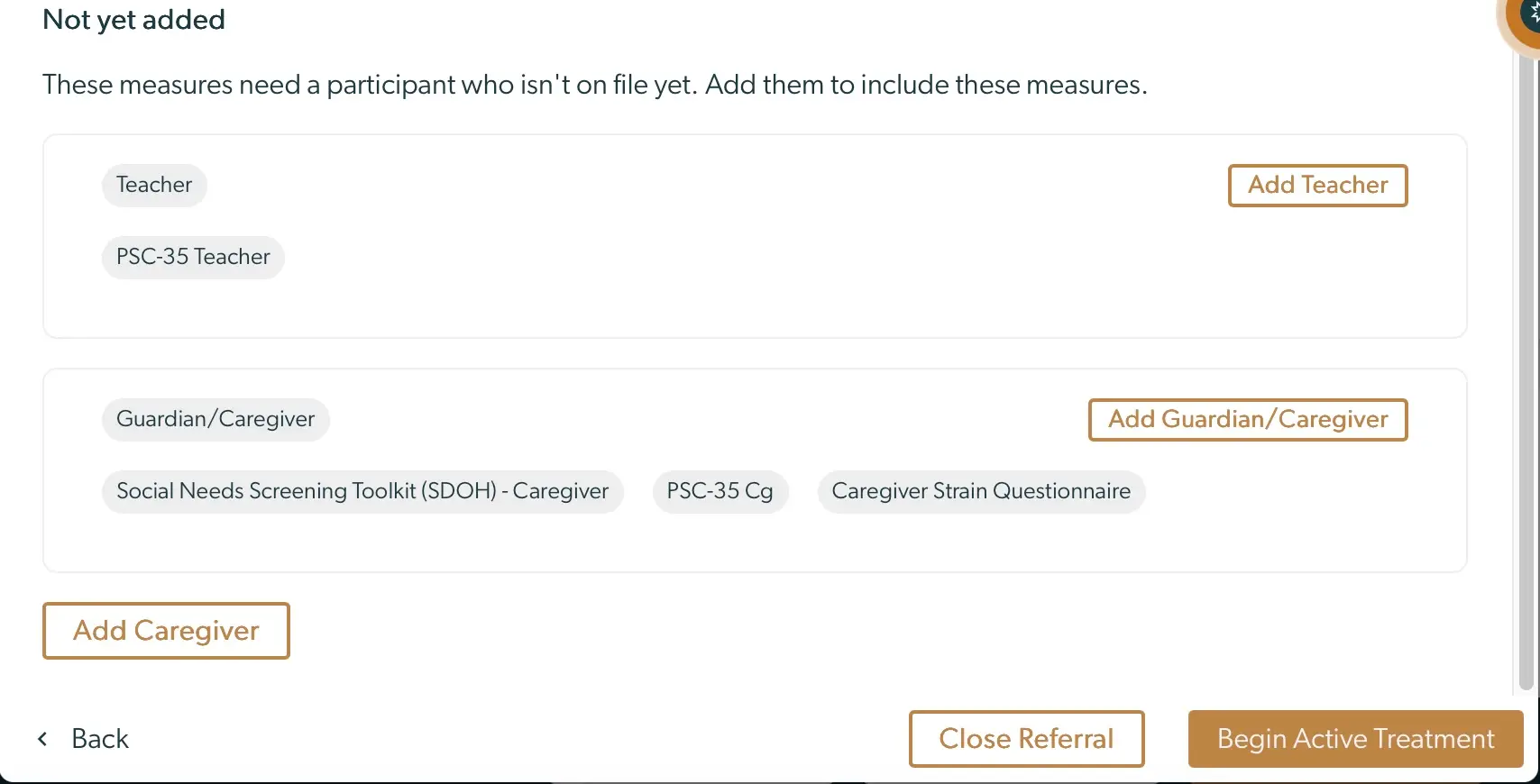
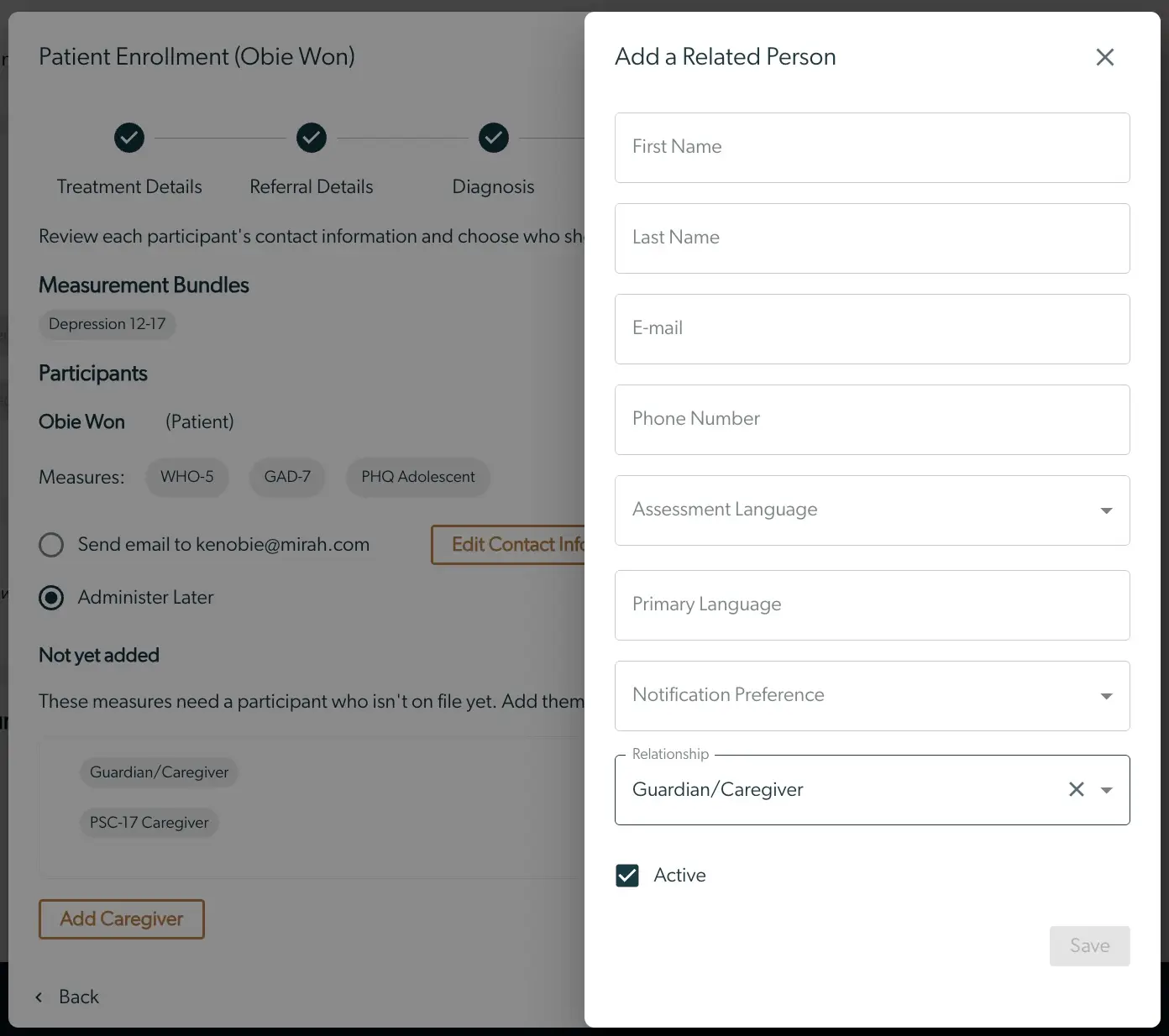
The screenshot displays a section of the Mirah Collaborative Care platform focused on enrolling and intaking a new patient. It highlights measures that require participants not yet on file, prompting the user to add them. There are two categories: 'Teacher' and 'Guardian/Caregiver'. Under 'Teacher', there are measures labeled 'Teacher' and 'PSC-35 Teacher', with an 'Add Teacher' button on the right. Under 'Guardian/Caregiver', measures include 'Social Needs Screening Toolkit (SDOH) - Caregiver', 'PSC-35 Cg', and 'Caregiver Strain Questionnaire', with an 'Add Guardian/Caregiver' button on the right. At the bottom, there are two buttons: 'Add Caregiver' on the left, 'Close Referral' in the center, and 'Begin Active Treatment' on the right. A 'Back' button is located at the bottom left corner.The screenshot displays the 'Patient Enrollment' interface for a patient named Obie Won, focusing on the process of adding a related person. The left side shows the enrollment progress with steps like Treatment Details, Referral Details, and Diagnosis marked as completed. It lists Measurement Bundles for Depression 12-17 and the participant Obie Won with measures WHO-5, GAD-7, and PHQ Adolescent. Options are available to send an email to kenobie@mirah.com or administer later. The 'Edit Contact Information' button is present for updating details. Below, there is a section for adding a caregiver, with a button labeled 'Add Caregiver'. The right side features a form titled 'Add a Related Person' with fields for First Name, Last Name, E-mail, Phone Number, Assessment Language, Primary Language, Notification Preference, and Relationship, which is set to Guardian/Caregiver. There is a checkbox for 'Active' and a 'Save' button at the bottom, currently inactive.

For each participant, you can pause notifications by selecting "Administer Later.” This would give you the opportunity to talk to the patient before their phone receives a notification. You are also able to administer the first measurements via interview on the next page or opt to send notifications.
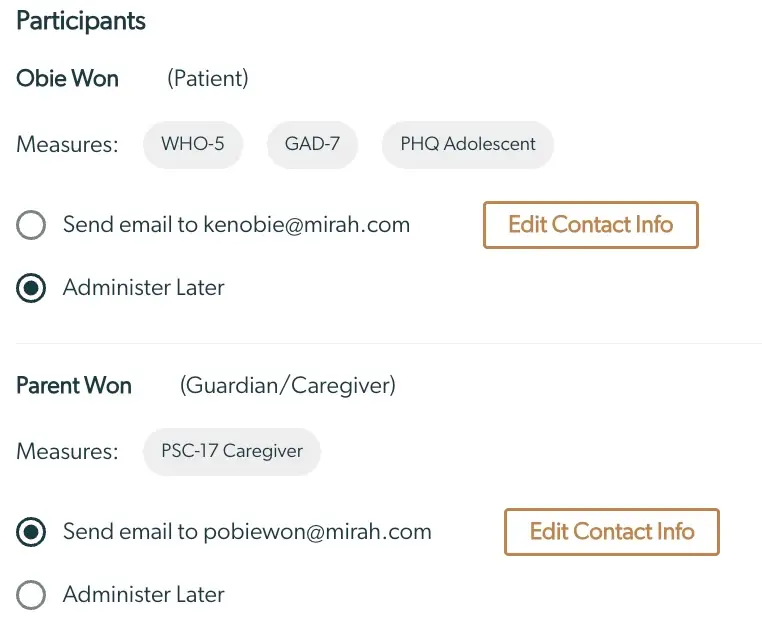
The screenshot displays the 'Participants' section for enrolling and intaking a patient in the Mirah Collaborative Care system. It lists two participants: 'Obie Won' identified as a 'Patient' and 'Parent Won' identified as a 'Guardian/Caregiver'. For 'Obie Won', the measures listed are WHO-5, GAD-7, and PHQ Adolescent. There are two options: 'Send email to kenobie@mirah.com' with a radio button, and 'Administer Later' with another radio button, which is selected. An 'Edit Contact Info' button is located to the right of the email option. For 'Parent Won', the measure listed is PSC-17 Caregiver. The options are 'Send email to pobiewon@mirah.com' with a selected radio button, and 'Administer Later' with another radio button. An 'Edit Contact Info' button is also present to the right of the email option.

If you notice there is an incorrect caregiver receiving notifications, you can also deactivate a caregiver by clicking on the deactivate button to turn off receipt of any notifications (but you can only re-active a care giver from the related person table on the patient details page).
Once you have reviewed all the participants and their notifications, click on “Begin Active Treatment” to send all applicable notifications and collect measurements.

Success​

You have completed enrollment. You can close this window if you are done or you can use this screen to finish up any intake you did not complete now. The next screen lists the surveys included in the measurement bundles you selected during enrollment.

Important Note on Initial Measurement Bundles: During enrollment, you are prompted to complete the predefined measurement scales for the selected bundle. Customization of individual scales outside of scales included in these bundles is not available at this stage. You send other scales by clicking out of this window by clicking "Send Measurement" on the top right of the patient profile. See article here. Note you can re-enter the Intake flow after sending this scale.
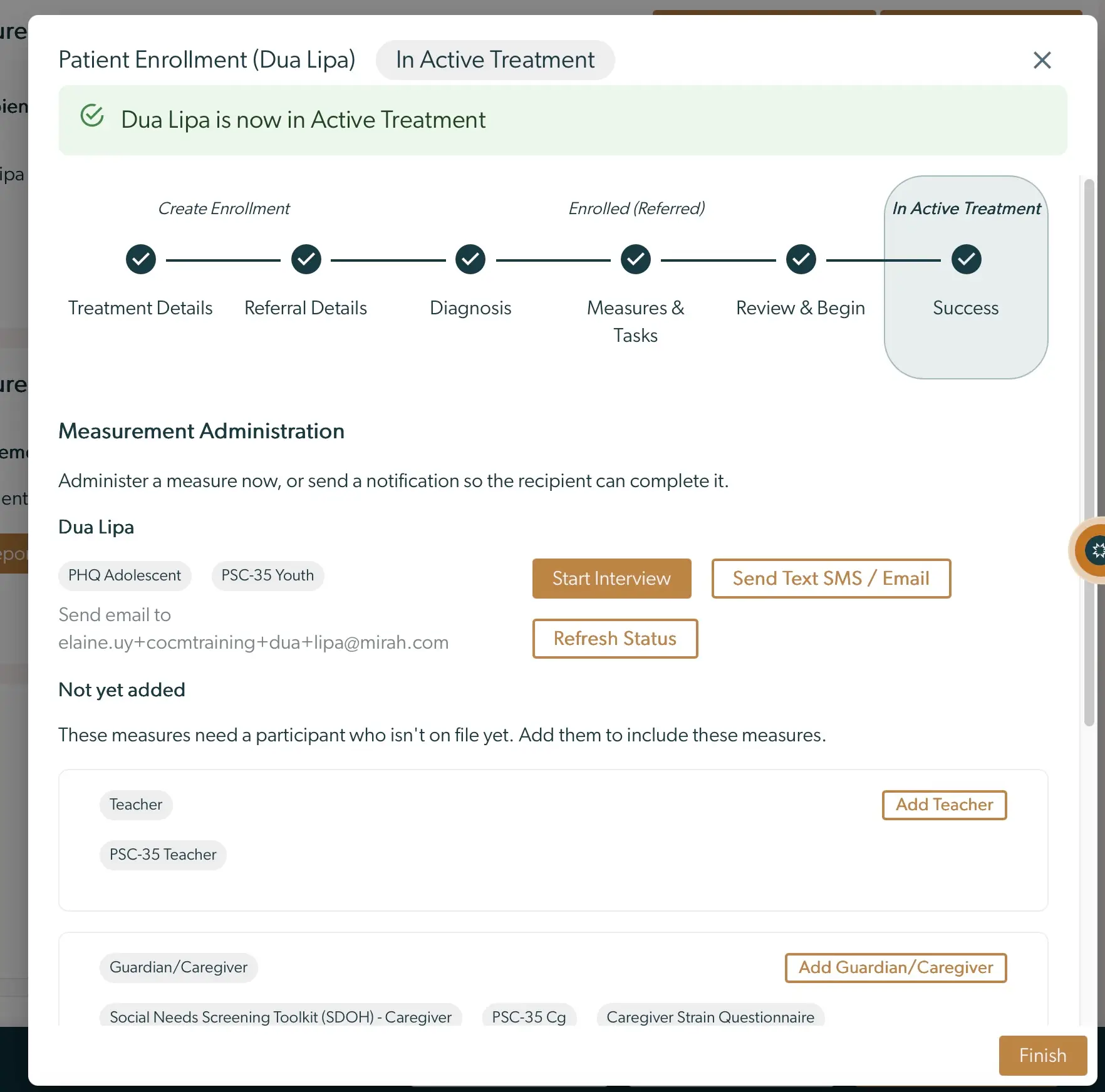
The screenshot displays the 'Patient Enrollment' interface for Mirah Collaborative Care, specifically showing the status 'In Active Treatment' for a patient. At the top, there is a progress tracker indicating the stages of enrollment: Treatment Details, Referral Details, Diagnosis, Measures & Tasks, Review & Begin, and Success, with the current stage highlighted as 'In Active Treatment'. Below, the 'Measurement Administration' section allows users to administer measures or send notifications. It lists the patient's name with associated measures like 'PHQ Adolescent' and 'PSC-35 Youth'. There are buttons for 'Start Interview', 'Send Text SMS / Email', and 'Refresh Status', all located to the right of the measures. An email address is provided for sending notifications. The section 'Not yet added' suggests adding participants for measures not yet on file, with options to 'Add Teacher' and 'Add Guardian/Caregiver'. Each option has associated measures listed. The 'Finish' button is located at the bottom right corner.

Measurements

For participants you selected “Administer Later”, you have the option to “Start Interview” and complete the survey in person with the patient and related people (if applicable), or to “Send Text SMS/Email” to the patient and related people (if applicable) for them to take the survey at a later time. Important note, if you add a related person (caregiver or teacher) in the Success screen, there is no way to delay notifications.

Make sure to update the Enrollment and Intake timer appropriately, as this timer will still be in progress until you “Save Progress” or “Complete” the timer.
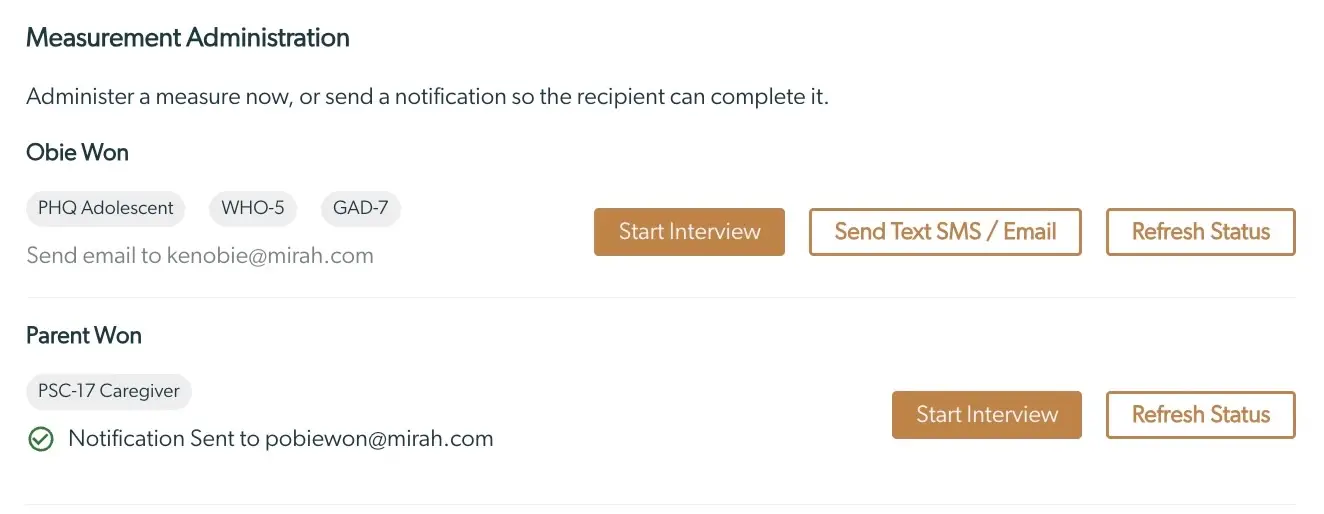
The screenshot displays the 'Measurement Administration' section of the Mirah Collaborative Care platform, which allows users to administer measures or send notifications for completion. It includes two patient entries: 'Obie Won' and 'Parent Won'. For 'Obie Won', there are three measures listed: PHQ Adolescent, WHO-5, and GAD-7, with an option to send an email to kenobie@mirah.com. There are three buttons on the right: 'Start Interview', 'Send Text SMS / Email', and 'Refresh Status'. For 'Parent Won', the measure listed is PSC-17 Caregiver, with a notification already sent to pobiewon@mirah.com. Two buttons are available: 'Start Interview' and 'Refresh Status', located on the right.

Clicking on the “Start Interview” will open a new window to administer the measurements for that participant
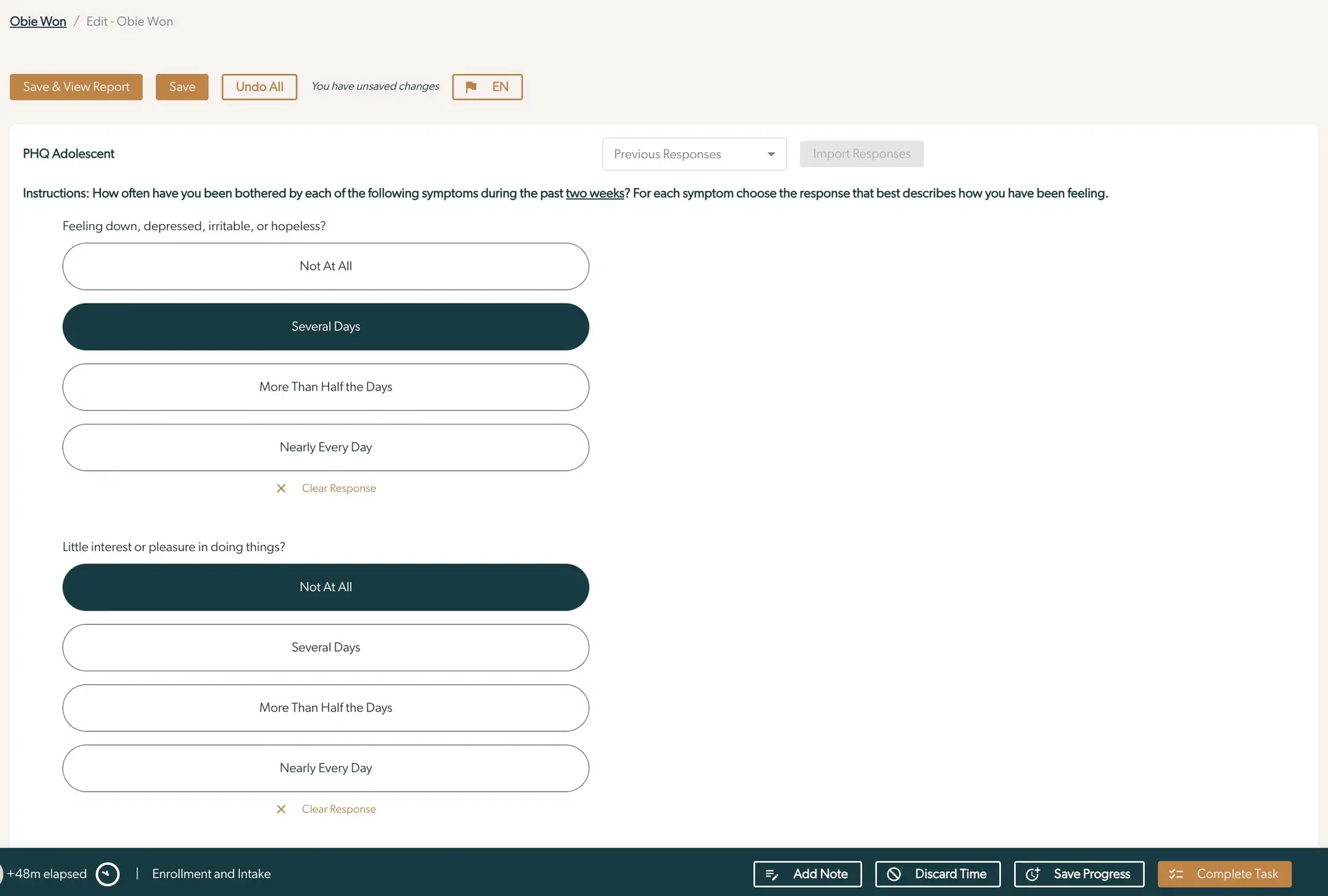
The screenshot displays a patient intake form for the PHQ Adolescent assessment within the Mirah Collaborative Care platform. The top navigation shows the patient's name with an option to edit. There are buttons for 'Save & View Report', 'Save', 'Undo All', and a language toggle labeled 'EN'. A notification indicates unsaved changes. The form includes questions about symptoms experienced over the past two weeks, with response options such as 'Not At All', 'Several Days', 'More Than Half the Days', and 'Nearly Every Day'. Each question has a 'Clear Response' option. The interface allows users to view previous responses or import them. At the bottom, there are buttons for 'Add Note', 'Discard Time', 'Save Progress', and 'Complete Task'. The footer indicates the time elapsed and the current workflow stage, 'Enrollment and Intake'.

Populate the answers, then click “Save” or “Save & View Report"

Once you have saved the answers, you can close this open window. Navigate back to the enrollment window where you clicked Start Interview originally. Now, if you click on the “Refresh Status” button, you should see a green check mark to indicate we have received the data from the measurement survey.
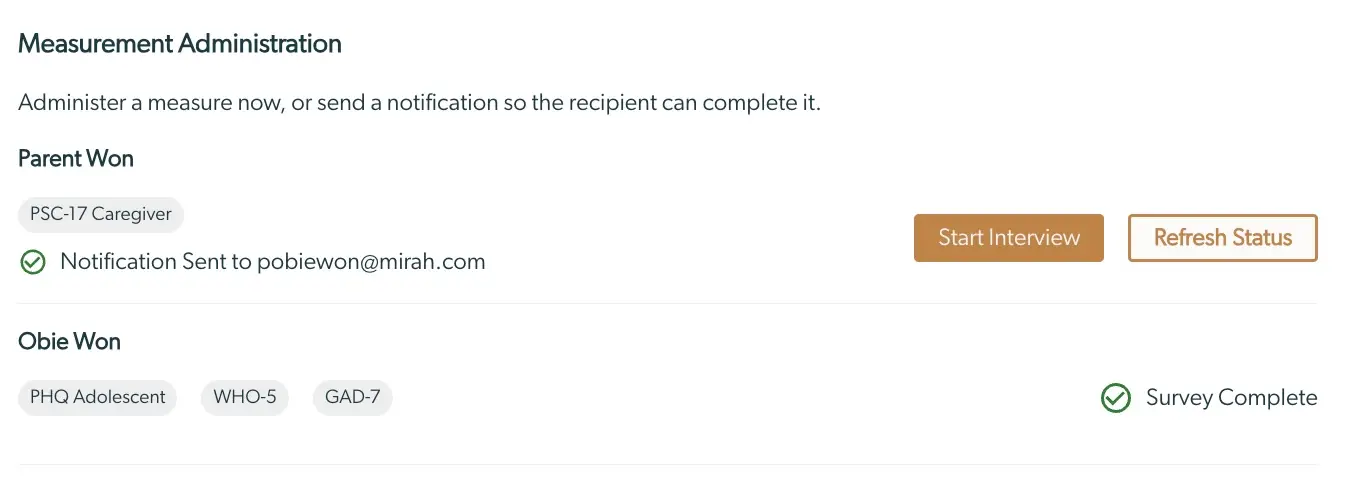
The screenshot displays the 'Measurement Administration' section of the Mirah Collaborative Care platform, which allows users to administer a measure or send a notification for completion. It includes two sections for individuals named Parent Won and Obie Won. For Parent Won, the PSC-17 Caregiver measure is listed, with a notification sent to pobiewon@mirah.com, indicated by a checkmark. For Obie Won, three measures are listed: PHQ Adolescent, WHO-5, and GAD-7, with a checkmark indicating 'Survey Complete'. There are two buttons on the right side: 'Start Interview' and 'Refresh Status', which allow users to initiate an interview or update the status of the measures.

To administer surveys or send notifications after you’ve closed the enrollment form, you can access these at any time from the patient detail page Measurement Administration History table.
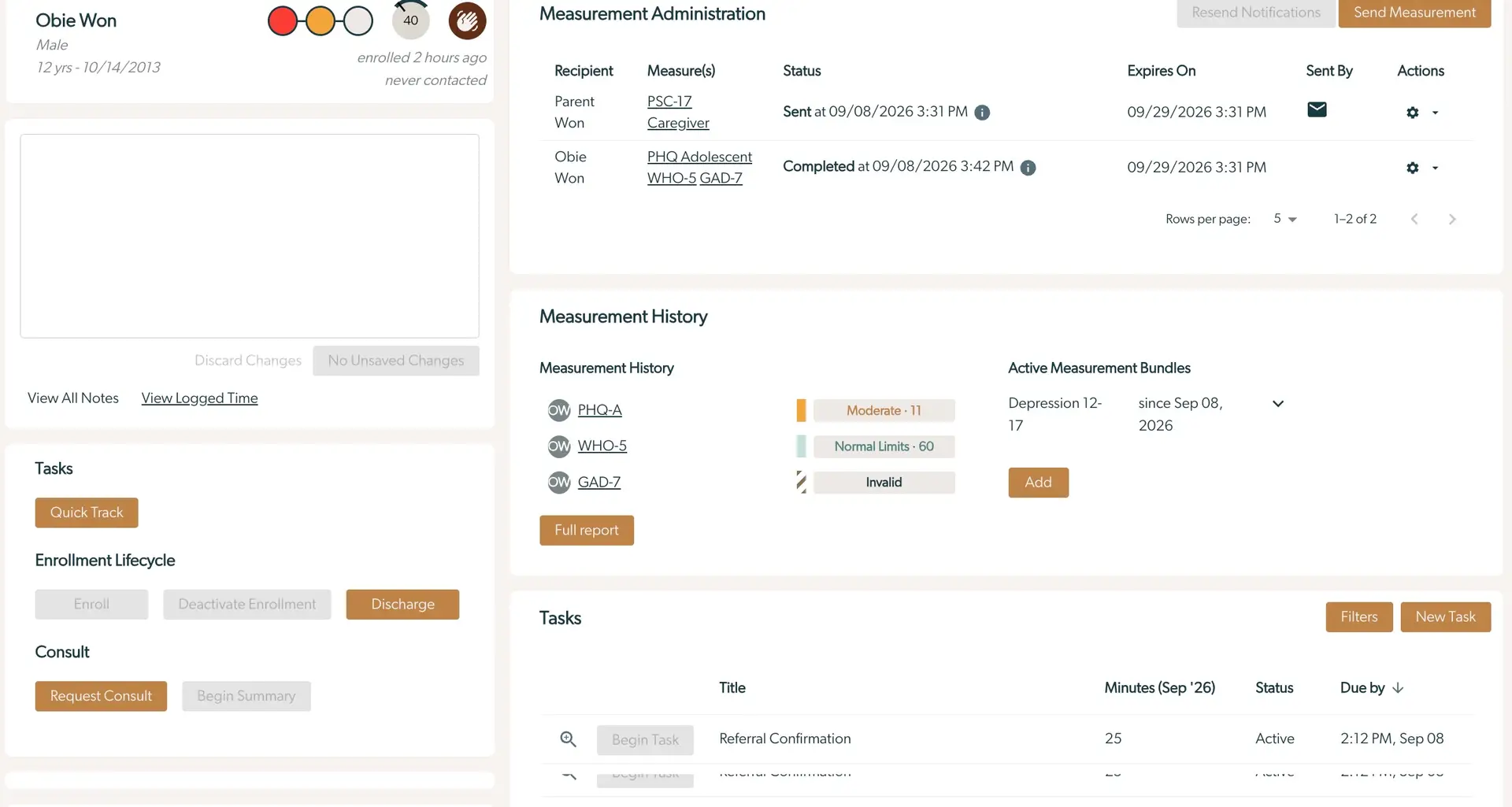
The screenshot displays the patient management interface for Mirah Collaborative Care, focusing on the enrollment and intake of a patient named Obie Won. The top left section shows patient details including name, gender, age, and enrollment status. Below, there is a section for notes with options to discard changes or view logged time. The Measurement Administration section on the right lists recipients, measures, status, expiration dates, and actions with options to resend notifications or send measurements. The Measurement History section provides a summary of past assessments with a 'Full report' button. Active Measurement Bundles are listed with an 'Add' button. The Tasks section includes a 'Quick Track' button and a list of tasks with options to filter or add new tasks. The Enrollment Lifecycle section offers buttons for enrolling, deactivating enrollment, or discharging the patient. The Consult section includes a 'Request Consult' button.

Important Note on Phases of Care

You'll notice this patient has completed intake, but the phases of care icon still shows Outreach. Phases of Care do not auto transition and you must assign the appropriate next phase for the patient.

Tasks​

Below the participants list is an area to add any additional follow up tasks that you might want to remember to do for this patient. Any existing tasks that were created during enrollment should appear here as well. When you are done adding tasks, you can click “Finish”
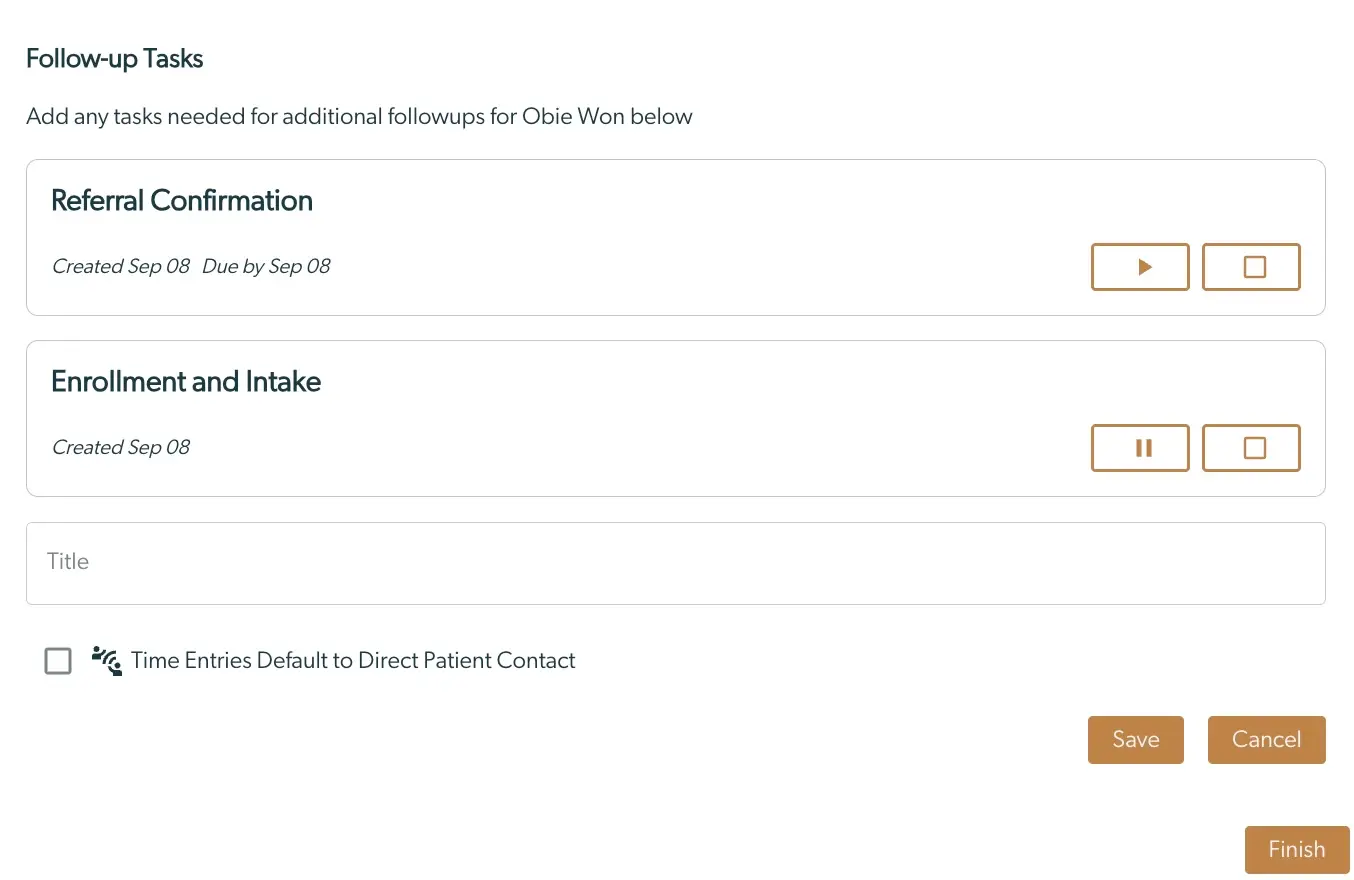
The screenshot displays the 'Follow-up Tasks' section for managing patient tasks in Mirah Collaborative Care. It includes a header titled 'Follow-up Tasks' with a prompt to add tasks for additional follow-ups for a patient named Obie Won. Below, there are two task cards: 'Referral Confirmation' and 'Enrollment and Intake,' both created on Sep 08. Each task card has a due date and features control buttons on the right side; the first task has a play and stop button, while the second task has a pause and stop button. Below the tasks, there is a text input field labeled 'Title' for adding new tasks. A checkbox labeled 'Time Entries Default to Direct Patient Contact' is present, allowing users to set a default for time entries. At the bottom right, there are three buttons: 'Save,' 'Cancel,' and 'Finish,' for managing task entries and completing the process.

Make sure to update the Enrollment and Intake task appropriately, as this task timer will still be in progress until you “Save Progress” or “Complete” the task
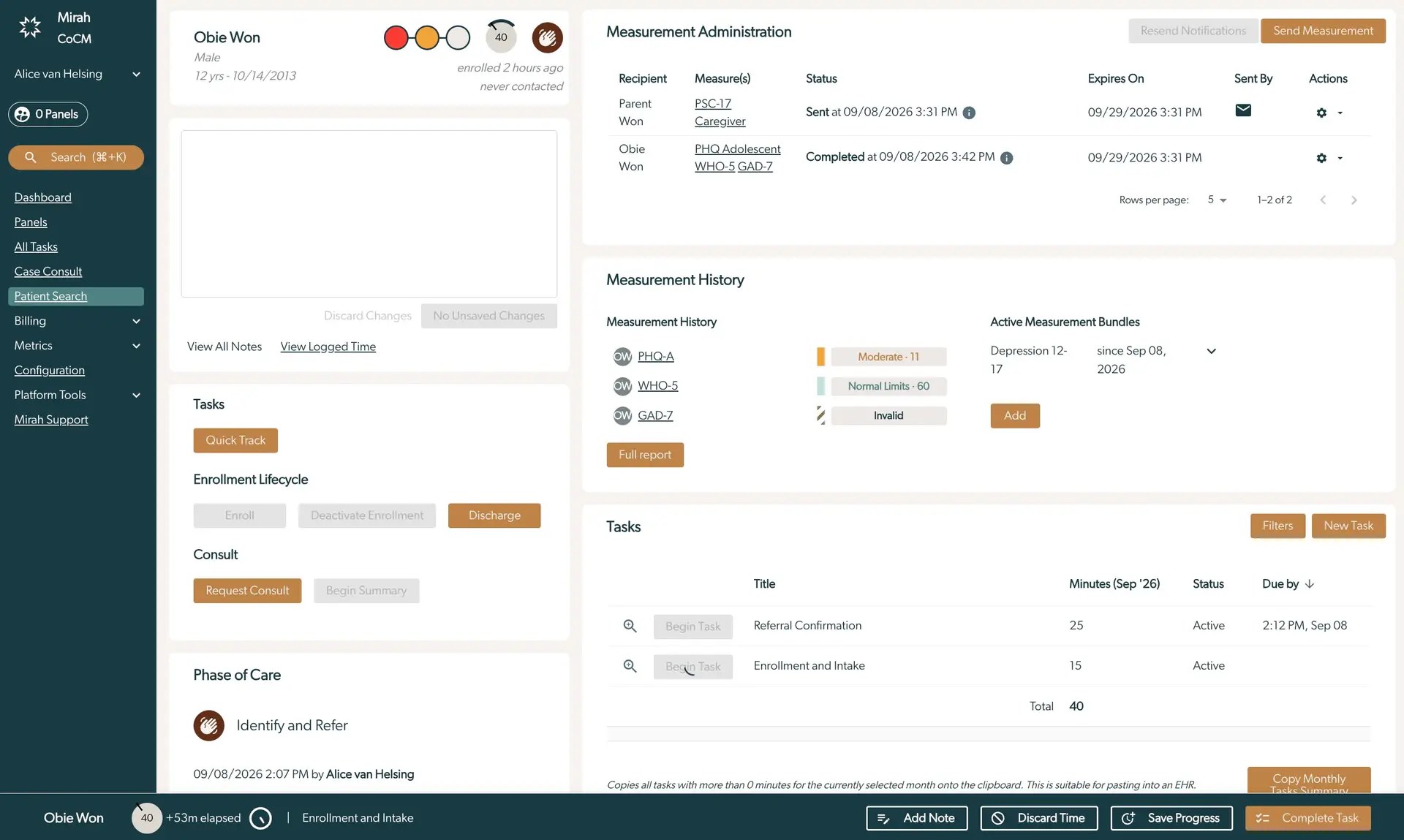
The screenshot displays the patient management interface for Mirah Collaborative Care, focusing on the enrollment and intake process for a patient named Obie Won. The left sidebar contains navigation options including Dashboard, Panels, All Tasks, Case Consult, Patient Search, Billing, Metrics, Configuration, Platform Tools, and Mirah Support. The main section is divided into several panels. The top panel shows patient details such as name, gender, age, and enrollment status. The Measurement Administration section lists measurements sent to the patient and their status, with options to resend notifications or send new measurements. The Measurement History section displays past measurements with a 'Full report' button. The Tasks section includes a 'Quick Track' button and a list of tasks with options to begin tasks. The Enrollment Lifecycle section provides buttons for Enroll, Deactivate Enrollment, and Discharge. The Consult section has buttons for Request Consult and Begin Summary. The Phase of Care section indicates the current phase as 'Identify and Refer'. At the bottom, there are options to Add Note, Discard Time, Save Progress, and Complete Task.

Deactivating Enrollment​

If you've accidentally created an enrollment and the participants have not returned any feedback yet, you are able to "cancel" the enrollment by clicking the "Deactivate Enrollment" button the patient details page. If any of the participants have answered questions, the enrollment must be discharged instead.

Editing a Care Team after Enrollment​

1.) Once a patient is enrolled with a panel, you can see the panel and care team in the Patient Info card here:
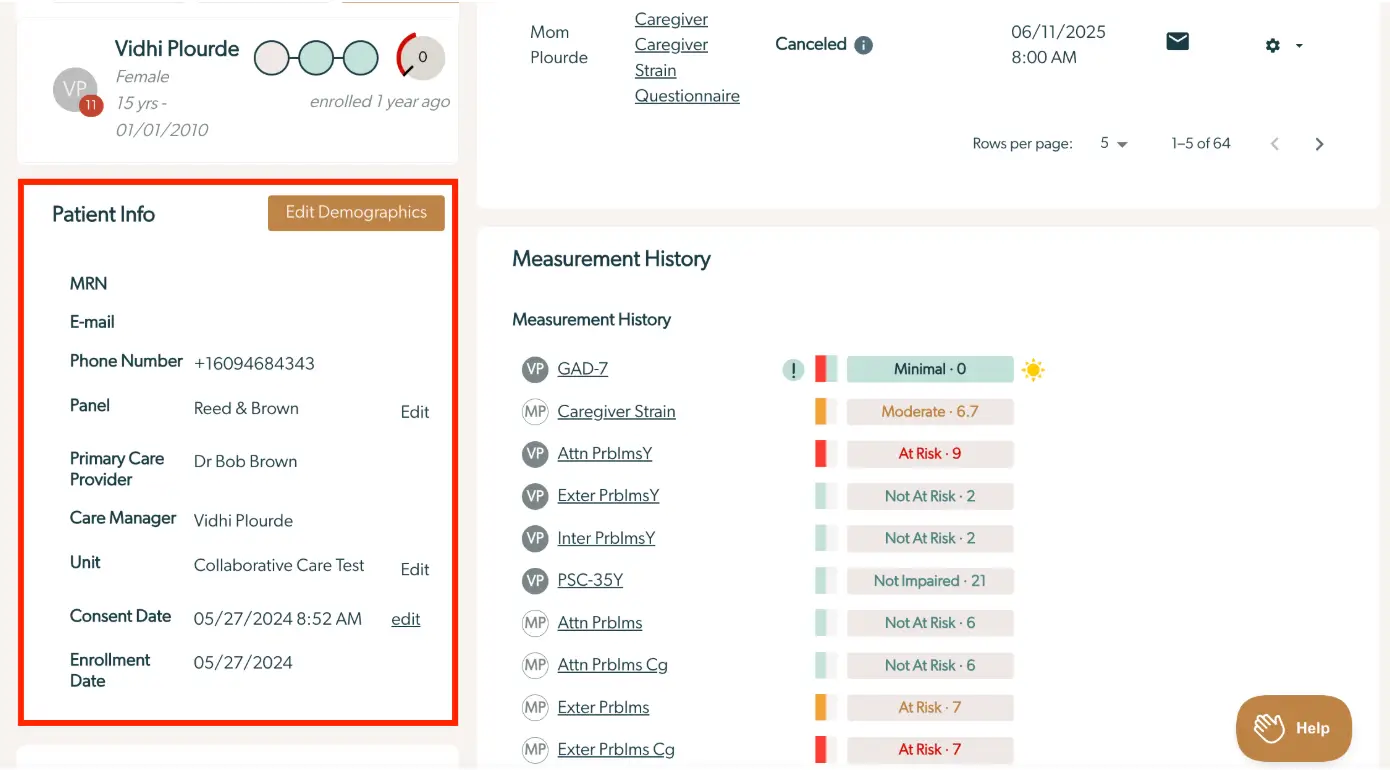
The screenshot displays a patient profile page for Vidhi Plourde in the Mirah Collaborative Care system. On the left, under 'Patient Info', details such as MRN, email, phone number, panel, primary care provider, care manager, unit, consent date, and enrollment date are listed. The 'Edit Demographics' button is located at the top right of this section. On the right, the 'Measurement History' section shows various assessments like GAD-7, Caregiver Strain, and others, each with a status indicator such as 'Minimal', 'Moderate', or 'At Risk'. The page also includes navigation options at the top for caregiver questionnaires and appointment details, with icons for email and settings. A 'Help' button is located at the bottom right corner.

2.) 3.)The "Edit" button next to the panel will let you edit the whole care team:
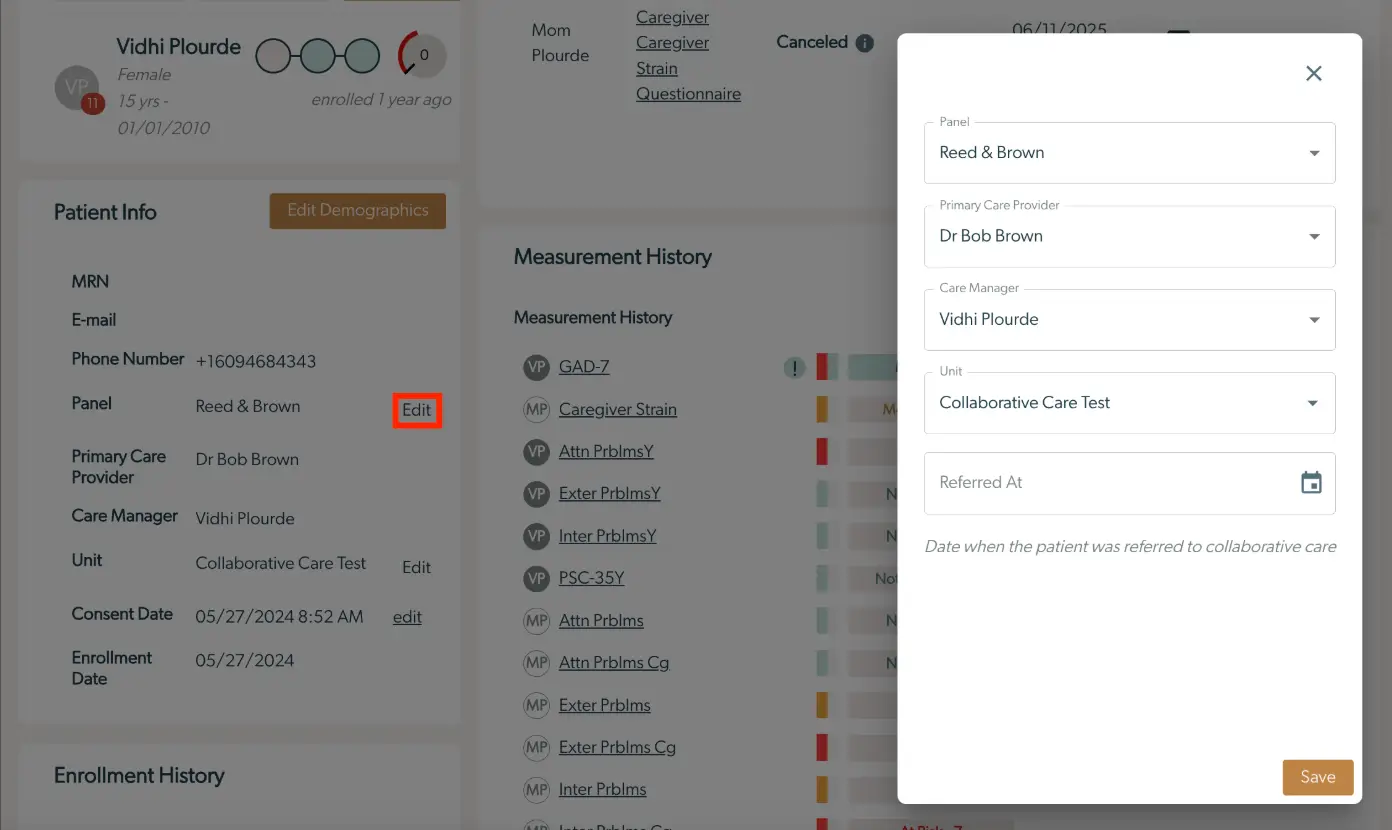
The screenshot displays the patient enrollment and intake interface for Mirah Collaborative Care. On the left, under 'Patient Info', details such as MRN, email, phone number, panel, primary care provider, care manager, unit, consent date, and enrollment date are listed. The 'Edit Demographics' button is located at the top of this section. The 'Edit' button next to 'Panel' is highlighted, indicating it is active. On the right, a pop-up window allows editing of the patient's panel, primary care provider, care manager, and unit, with dropdown menus for each. There is also a field labeled 'Referred At' with a calendar icon for selecting a date. The 'Save' button is located at the bottom right of the pop-up. The 'Measurement History' section is visible on the right, listing various assessments with their statuses.

3.) The "Primary Care Provider" and "Care Manager" fields will only let you select providers who are serving that function on the selected panel. To change which providers are on which panel, see How to Create and Edit Panels. Selecting a different panel here will let you select from that panel's PCPs and care managers:

The screenshot shows a form used for enrolling and intaking a patient in the Mirah Collaborative Care system. The form includes dropdown fields for selecting a 'Panel', 'Primary Care Provider', 'Care Manager', and 'Unit'. Each dropdown is pre-filled with options such as 'Devine', 'Evan Devine', 'Nick Martin', and 'Collaborative Care Test'. There is also a 'Referred At' field with a calendar icon for selecting the date when the patient was referred to collaborative care. At the bottom right corner, there is a 'Save' button highlighted in orange, used to save the entered information.

4.) Once you hit save, the changes will be reflected on the Patient Info card:
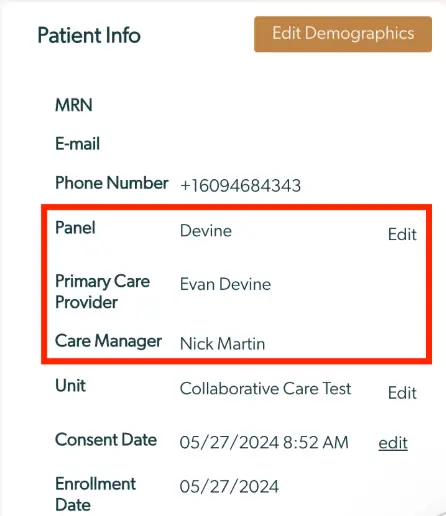
The screenshot displays the 'Patient Info' section of the Mirah Collaborative Care platform, which is used for enrolling and intaking a patient. It includes fields for MRN, E-mail, and Phone Number, with the phone number shown as +16094684343. The 'Panel' section lists 'Devine' with an 'Edit' option next to it. The 'Primary Care Provider' is listed as Evan Devine, and the 'Care Manager' is Nick Martin. Both of these fields are grouped together with the 'Panel' section. The 'Unit' is labeled as 'Collaborative Care Test' with an 'Edit' option. The 'Consent Date' is shown as 05/27/2024 8:52 AM with an 'edit' option, and the 'Enrollment Date' is 05/27/2024. There is a prominent 'Edit Demographics' button located at the top right of the section.