
What a Patient Sees

Patients typically experience the following when completing measures:

1). First, they will receive a notification either via text or email alerting them that measures for their next therapy session need to be completed.
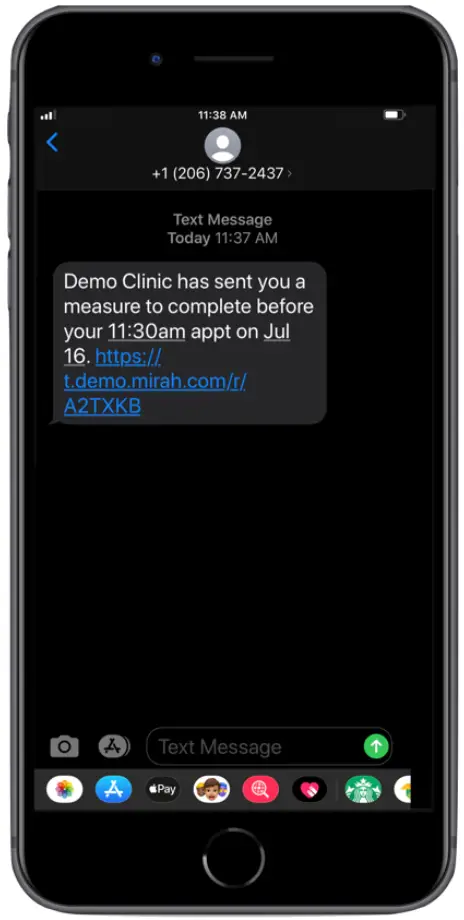
The screenshot displays a text message interface on a smartphone. The message is from Demo Clinic, reminding the patient to complete a measure before their appointment at 11:30 am on July 16. The message includes a clickable link to the measure, which is a URL starting with 'https://t.demo.mirah.com/r/A2TXKB'. The top of the screen shows the sender's phone number '+1 (206) 737-2437' and a contact icon. Below the message, there is a text input field labeled 'Text Message' with a green send button to the right. The bottom of the screen features various app icons, including a camera, App Store, Apple Pay, and others, for additional functionalities within the messaging app.

2). Before completing any measures, patients will be asked to log in using either their birthdate or the last four digits of their social security number. Your organization decides which piece of information is required here.
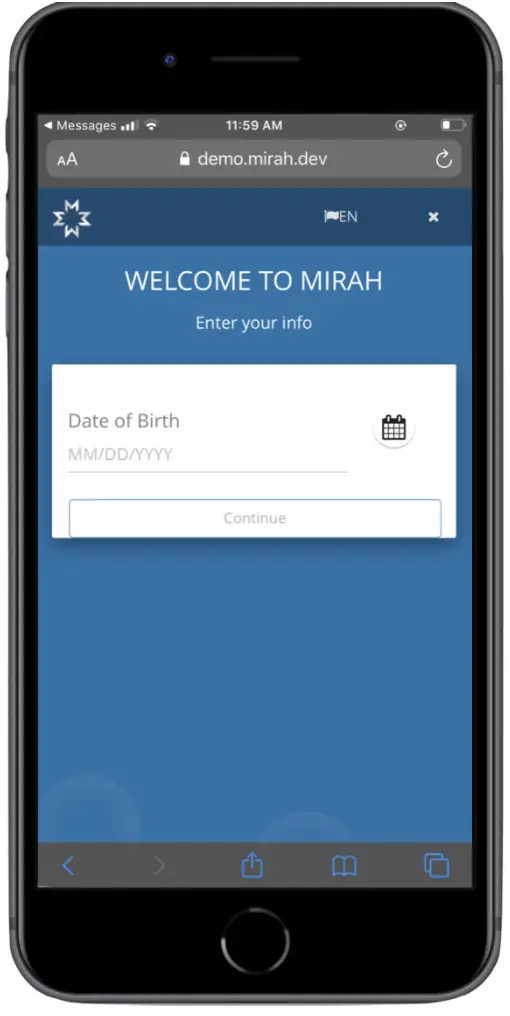
The screenshot displays the initial screen a patient sees when starting with Mirah Measurement-Based Care. The top of the screen shows the website URL demo.mirah.dev, indicating a secure connection. Below the URL, the Mirah logo is positioned on the left, and a language selection icon labeled 'EN' is on the right, followed by a close button. The main section welcomes the user with the text 'WELCOME TO MIRAH' and prompts them to 'Enter your info.' A text field labeled 'Date of Birth' is provided for the user to input their birth date in the format MM/DD/YYYY, accompanied by a calendar icon for date selection. Below the text field is a 'Continue' button, which the user can click to proceed after entering their information.

3). Next, they will view a welcome screen.
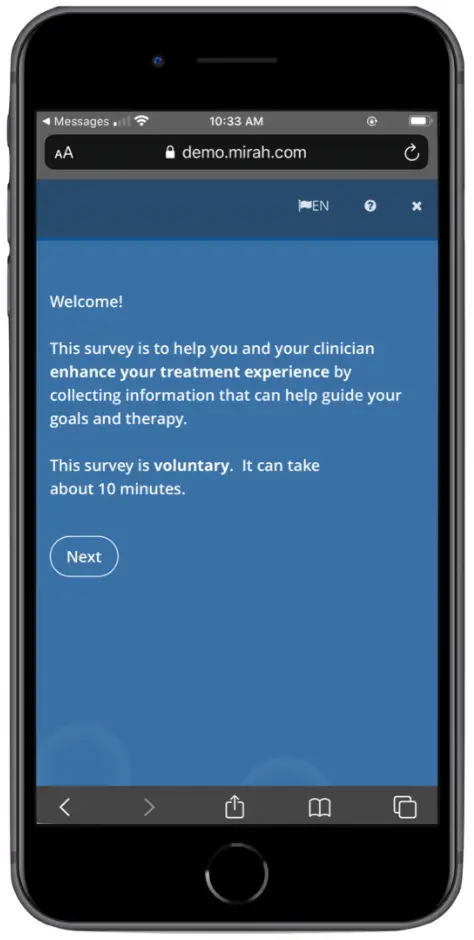
The screenshot displays a welcome screen for a survey on the Mirah platform, aimed at enhancing the treatment experience by collecting information to guide goals and therapy. The text informs the user that participation in the survey is voluntary and estimates the completion time to be about 10 minutes. The screen features a 'Next' button located towards the bottom center, which the user can click to proceed with the survey. The top of the screen shows the website URL 'demo.mirah.com', a language selection option indicated by a flag icon with 'EN' for English, and a close button represented by an 'X'.

4). Patients will then view the crisis instructions screen. This language emphasizes that measures are not meant to be used in the case of emergencies. We work with leadership at each organization to ensure this language matches the advisories patients receive from your organization generally.
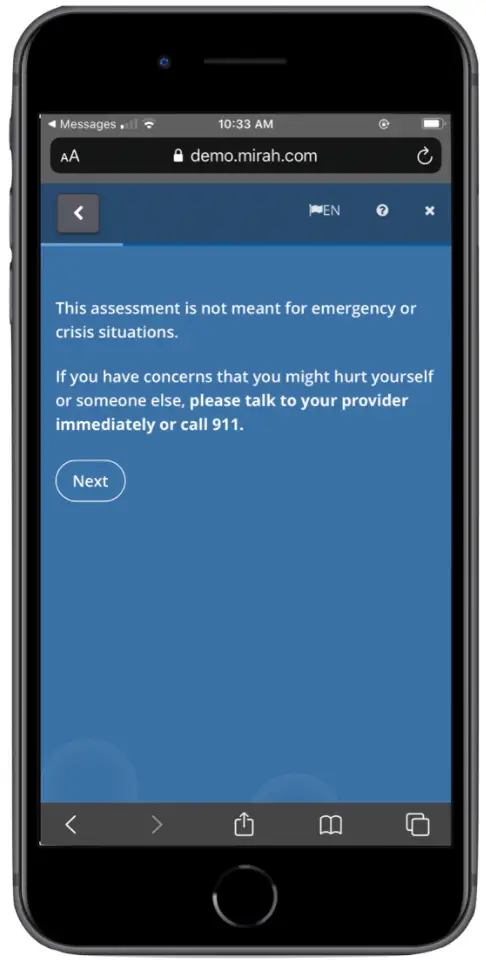
The screen displays a warning message indicating that the assessment is not suitable for emergency or crisis situations. It advises users with concerns about self-harm or harm to others to contact their provider immediately or call 911. The message is presented in white text on a blue background. At the top of the screen, there is a navigation bar with a back button on the left, a language selection option labeled 'EN' in the center, and a close button on the right. Below the message, there is a 'Next' button, which is located towards the bottom left of the screen, allowing users to proceed with the assessment.

5). Next, patients will start the measures assigned to them. Measures taken by patients can vary, but some questions include severity scales, yes or no options, or multiple-choice options.
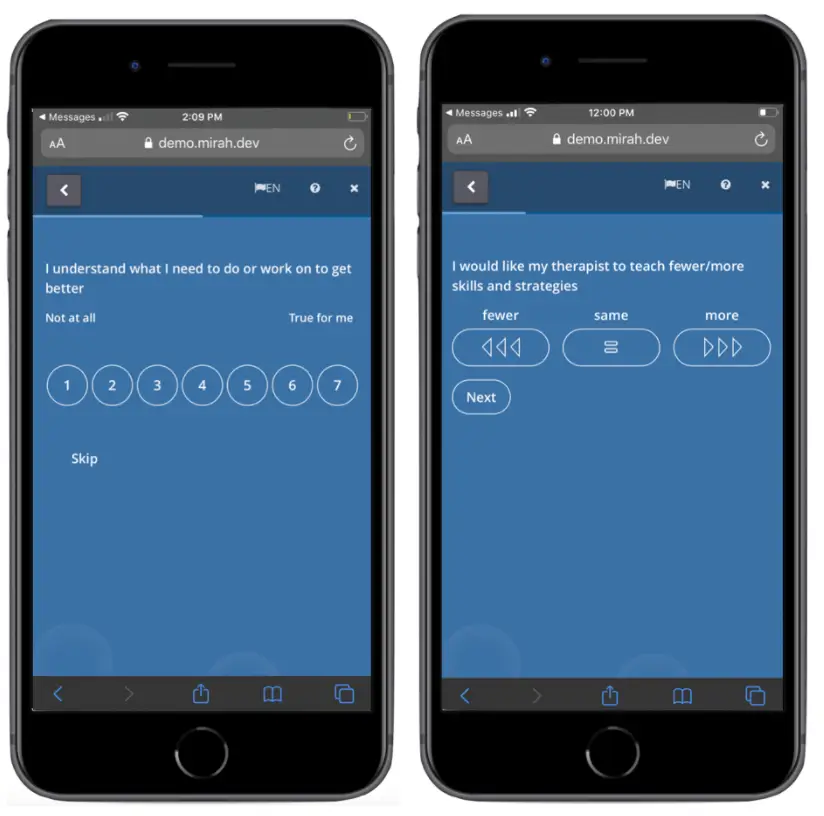
The screenshot displays two mobile screens from the Mirah Measurement-Based Care application, designed for patient interaction. The left screen presents a question, 'I understand what I need to do or work on to get better,' with a scale from 1 to 7, where 1 indicates 'Not at all' and 7 indicates 'True for me.' Below the scale, there is a 'Skip' button for users who choose not to answer. The right screen asks, 'I would like my therapist to teach fewer/more skills and strategies,' with options labeled 'fewer,' 'same,' and 'more,' represented by icons. Below these options, there is a 'Next' button to proceed. Both screens feature a navigation bar at the top with a back arrow on the left, a language selection option in the center, and a close button on the right.

6). The first time a patient completes measures, they are asked to verify their email and phone number as well as indicate their notification preferences.
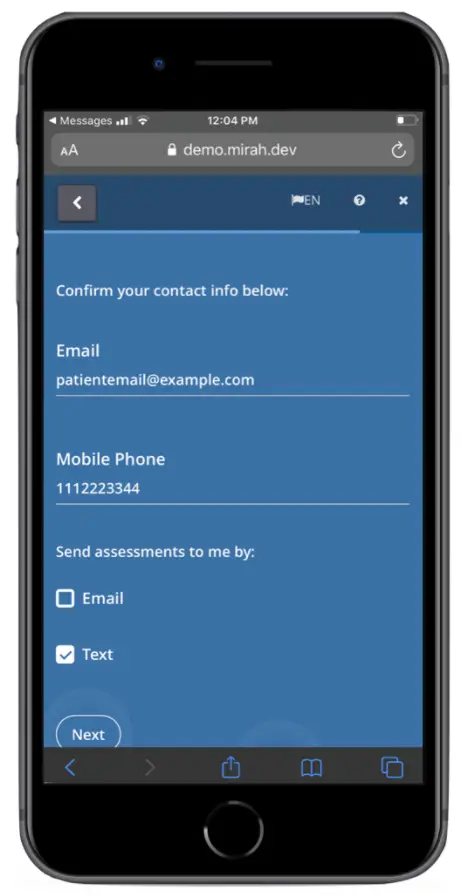
This screen is part of the 'Getting Started with Mirah' feature, where a patient confirms their contact information for receiving assessments. The screen displays fields for 'Email' and 'Mobile Phone', showing the patient's email address and phone number respectively. Below these fields, there are options for the patient to choose their preferred method of receiving assessments, either by 'Email' or 'Text', with checkboxes next to each option. The 'Text' option is currently selected. At the bottom of the screen, there is a 'Next' button, which allows the patient to proceed to the next step in the setup process. The 'Next' button is located centrally at the bottom of the screen.

7). After completing all their measures, patients will see a screen thanking them for their answers. If a patient closes out of the tab or is inactive for 2 minutes, even if measures are only partially completed, the patient will not be able to log back in to complete the remainder of their measures.

The screen displays a confirmation message indicating that the patient has completed a task or form. The message reads 'All set! Thanks. Your clinician will use this information to help you.' Below the message, there is a 'Finish' button, which is located centrally on the screen. The top of the screen shows the website URL 'demo.mirah.com' and language selection option 'EN'. The back button is located at the top left corner, allowing the user to navigate to the previous page.