
How to Log In to Mirah Using Your Username and Password

1.) Go to the Mirah site set up for your clinic

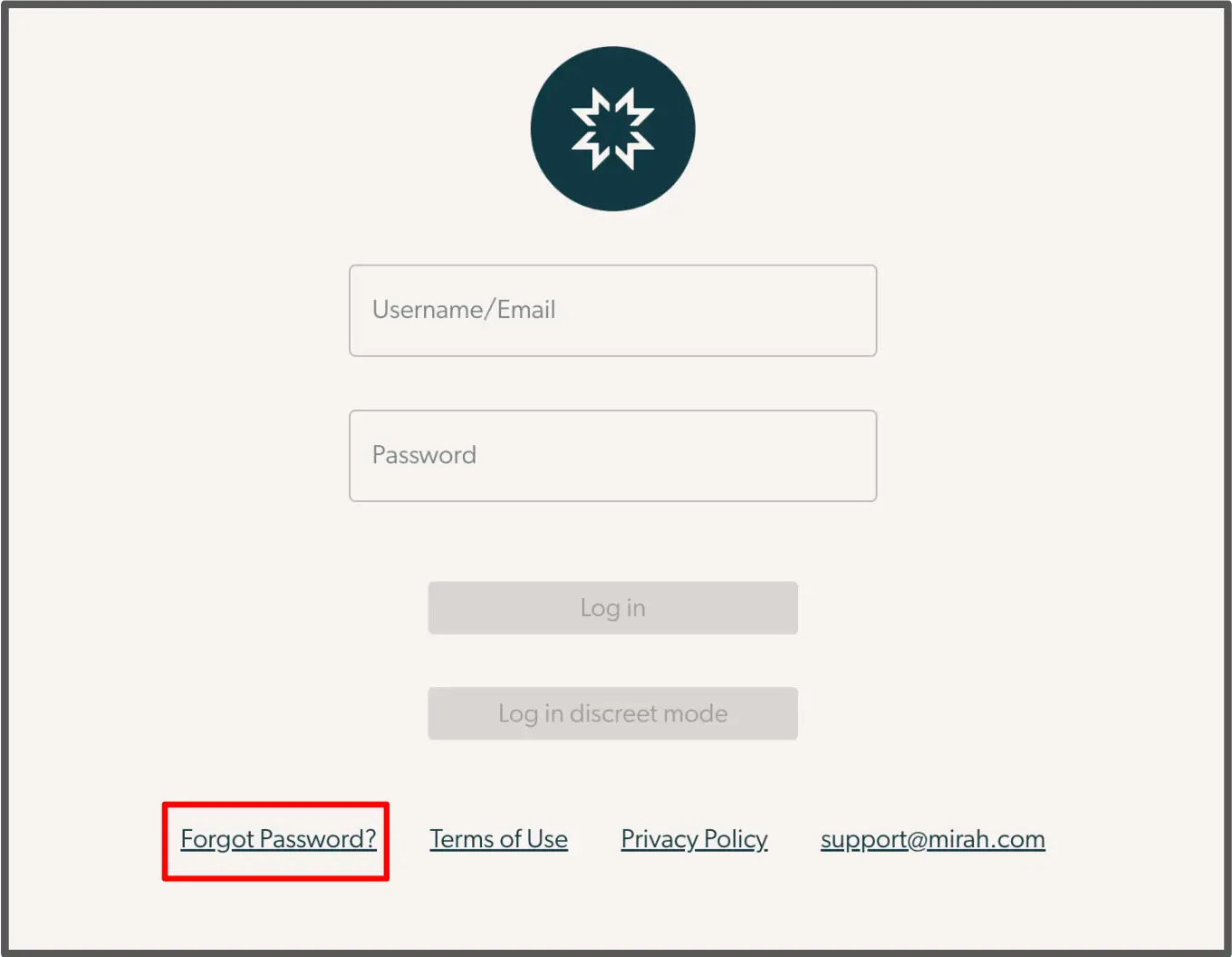
2.) At the Mirah login page, navigate to the bottom of the Mirah login page and click on "Forgot Password"

  • Additionally, if the prompt "Access Denied" appears, that often means the password is incorrect. Follow the steps below to create a new password and regain access. The screenshot displays the login page for Mirah Measurement-Based Care. At the top center, there is a logo representing the Mirah brand. Below the logo, there are two input fields: one labeled 'Username/Email' for entering the user's credentials and another labeled 'Password' for entering the user's password. Below these fields are two buttons: 'Log in' and 'Log in discreet mode', both currently disabled, which will become active once valid credentials are entered. At the bottom left of the screen, there is a 'Forgot Password?' link highlighted in red, which users can click to initiate the password recovery process. Adjacent to this link are 'Terms of Use', 'Privacy Policy', and 'support@mirah.com', providing users with access to legal information and support contact details.
3.) You will be redirected to this page, where you will input your username or email address associated with your Mirah login. After inputting that information, click on "Send password reset email".
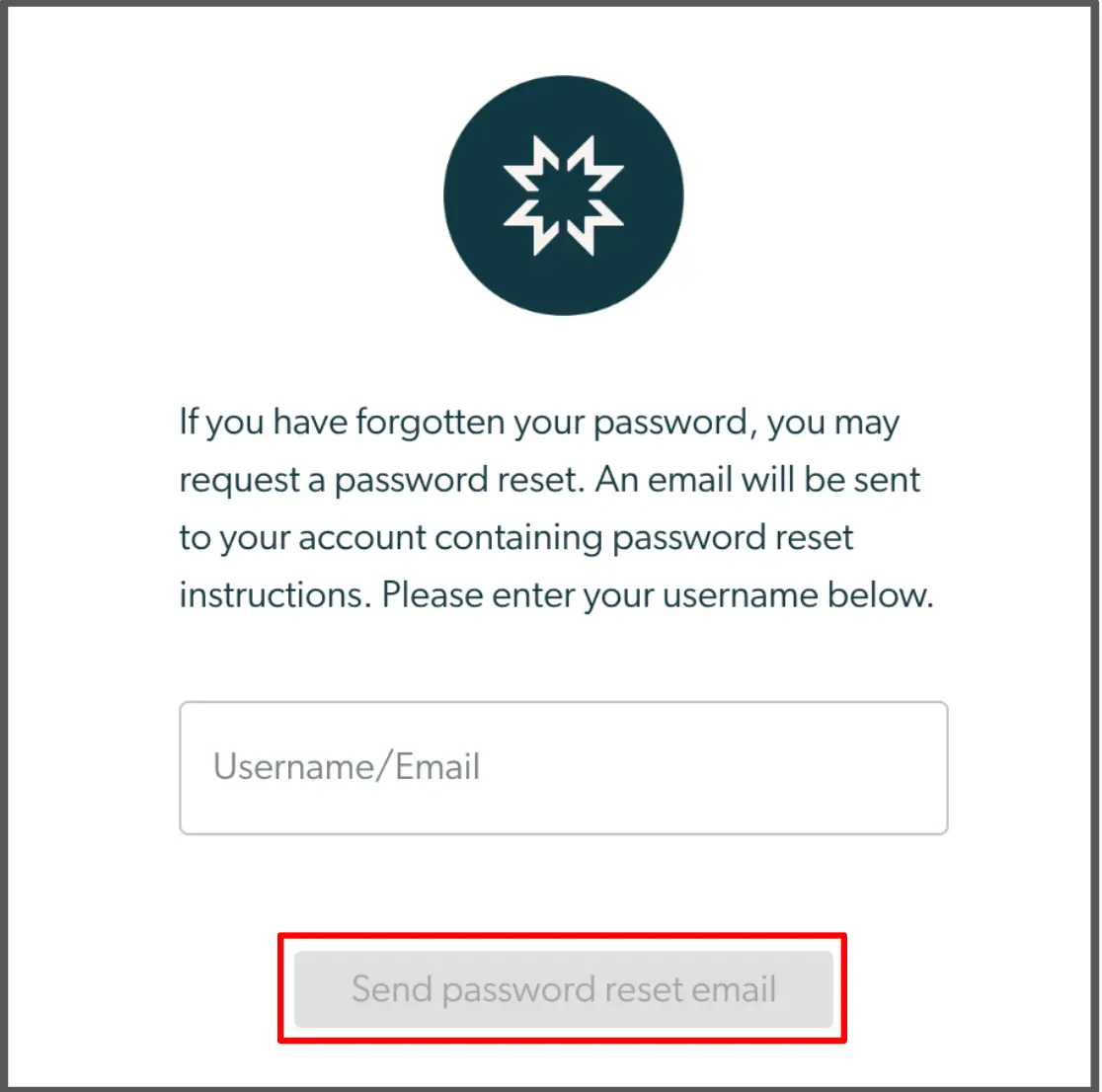
This screen is part of the password reset process for Mirah Measurement-Based Care. It provides instructions for users who have forgotten their password, explaining that they can request a password reset by entering their username or email address. The screen features a text field labeled 'Username/Email' where users can input their information. Below the text field, there is a button labeled 'Send password reset email' which is currently disabled, indicating that the user must first enter their username or email to activate it. The button is located at the bottom center of the screen. Above the instructions, there is a decorative icon representing the Mirah brand.

4.) After clicking on the send email button, you will be redirected to this page:
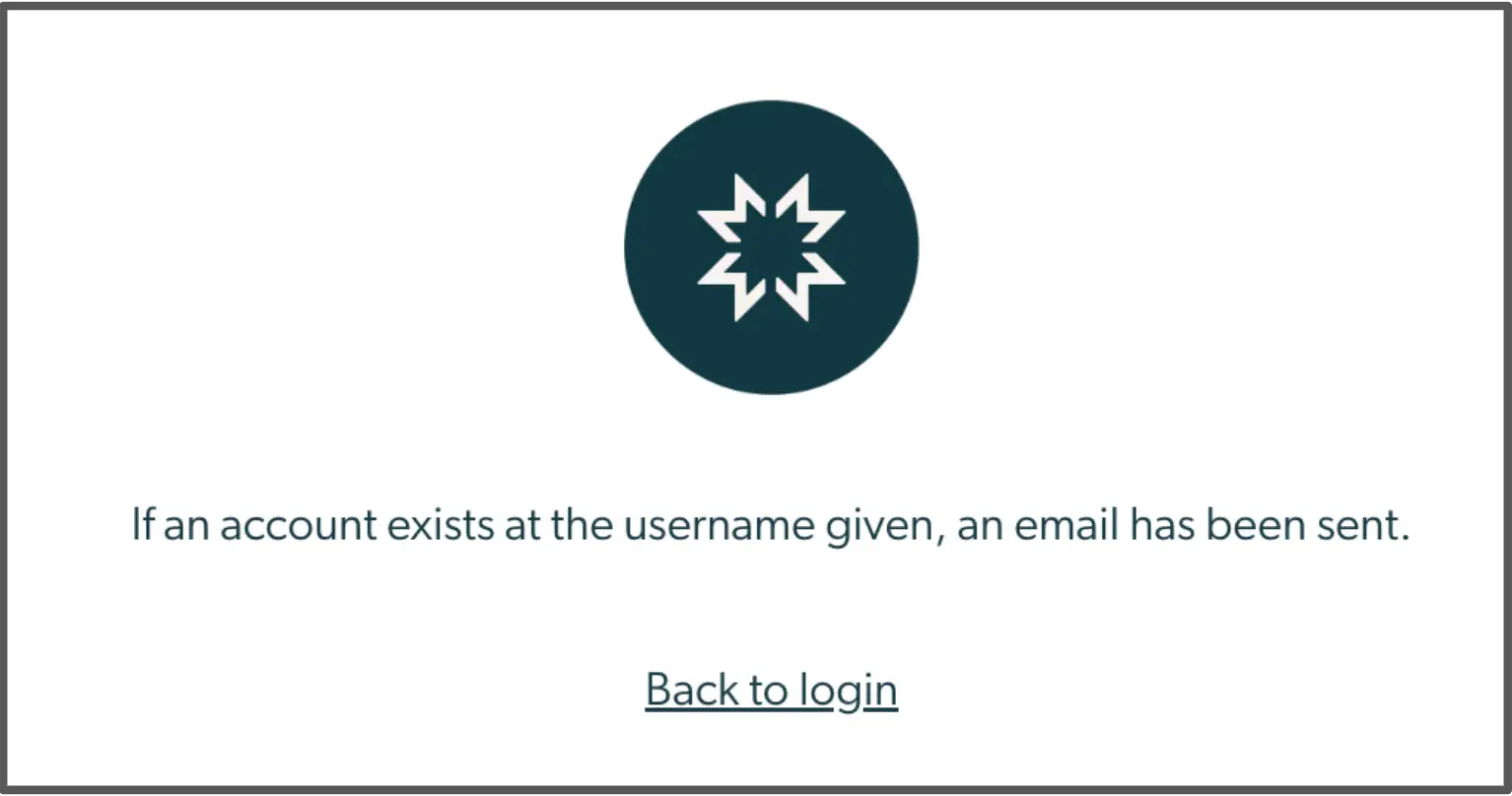
This screen confirms that if an account exists for the provided username, an email has been sent to the associated email address. It features a central circular icon with a star-like design, symbolizing confirmation or notification. Below the icon, the message 'If an account exists at the username given, an email has been sent.' is displayed, indicating the action taken. At the bottom of the screen, there is a clickable text link labeled 'Back to login,' which allows users to return to the login page. This link is positioned centrally beneath the message.

5.) Check your email inbox to see if an email from Mirah has arrived. Click the email and click on "Reset My Password".
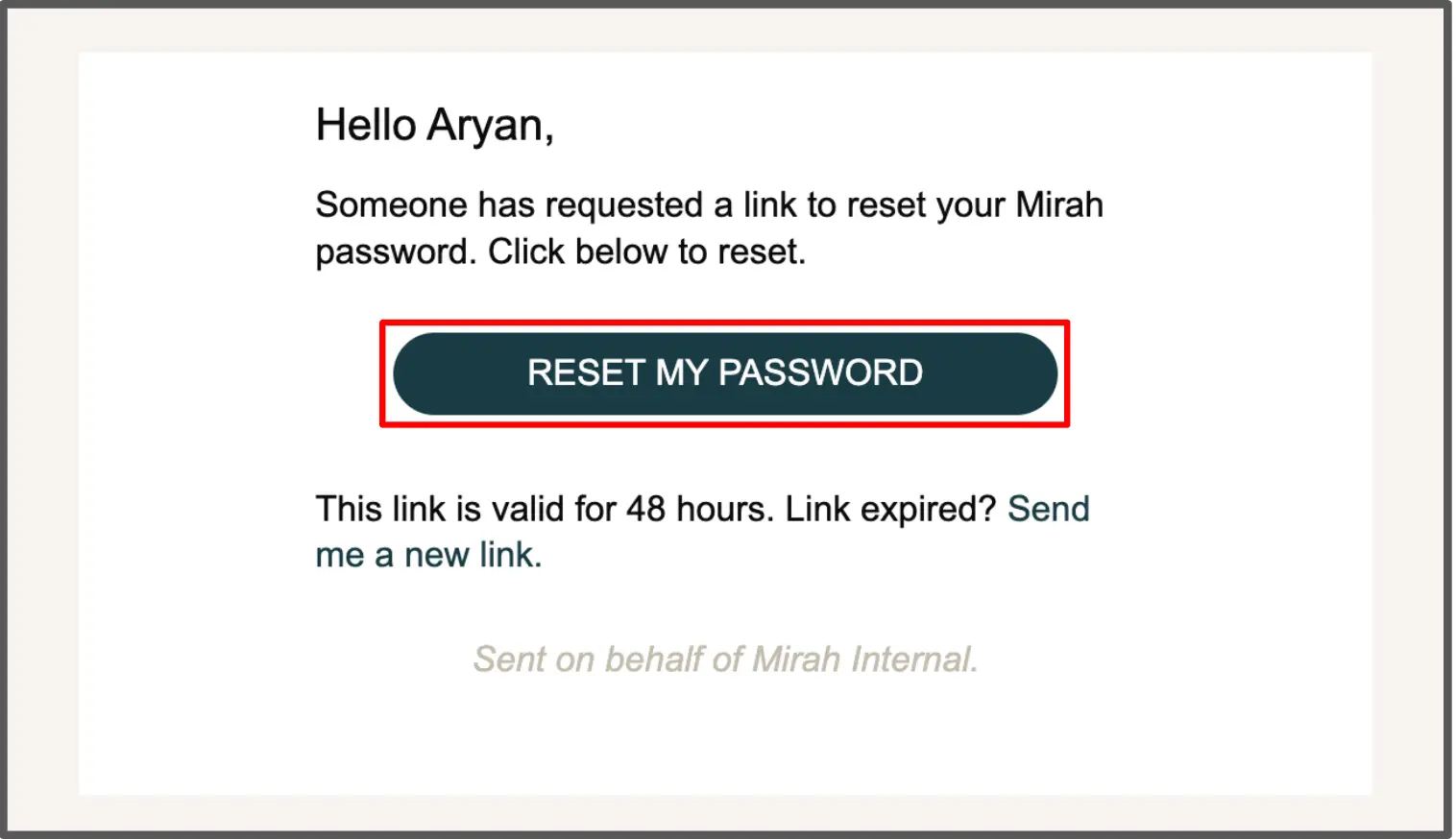
This screen is part of the password reset process for Mirah. It greets the user, Aryan, and informs them that a password reset link has been requested. The main feature of the screen is a prominent 'RESET MY PASSWORD' button located centrally, which the user can click to initiate the password reset process. Below the button, there is a message indicating that the link is valid for 48 hours, and if expired, the user can click on 'Send me a new link' to request another reset link. The screen concludes with a note stating 'Sent on behalf of Mirah Internal.'

6.) You will be redirected to this page to reset your password. Input you new password, and re-input it for confirmation.
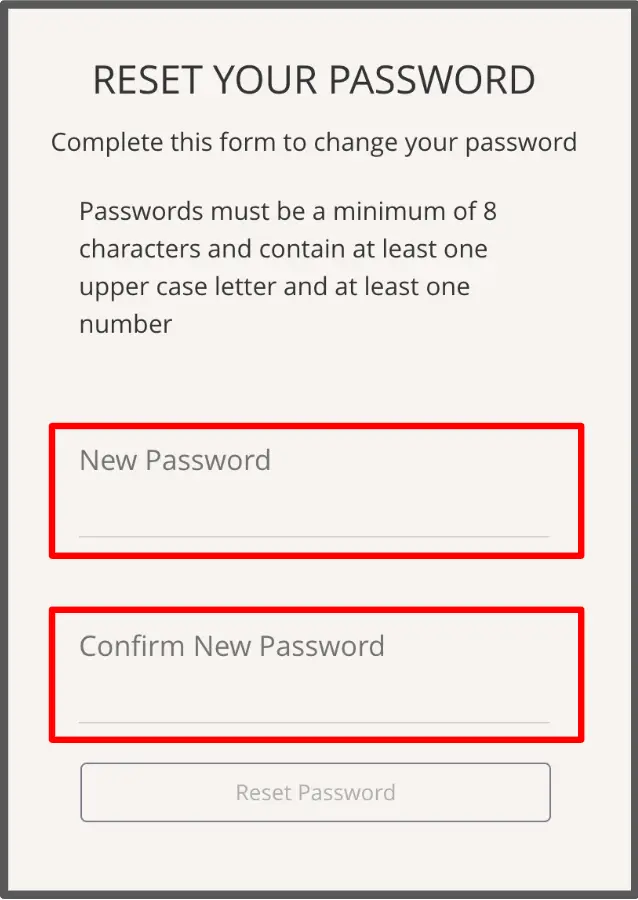
The screen is designed for users to reset their password in the Mirah Measurement-Based Care application. It includes a heading 'RESET YOUR PASSWORD' at the top, followed by instructions to complete the form to change the password. The instructions specify that passwords must be a minimum of 8 characters and contain at least one uppercase letter and one number. Below the instructions, there are two input fields outlined in red. The first field is labeled 'New Password' for users to enter their new password, and the second field is labeled 'Confirm New Password' for users to re-enter the new password to confirm it. At the bottom of the screen, there is a 'Reset Password' button, which users can click to submit the form and update their password.

7.) After confirming your new password, go back to the Mirah login page and login with your new credentials.

If your credentials still don't work, try to wait for a few minutes to ensure that the system properly updates your information. If issues persist, please reach out to support@mirah.com.

If it still does not work, your account is probably disabled, often from inactivity. Please reach out to your organization to re-enable your account.