
Tablet - Key Code to Access Assessments

Two Ways to access tablet key codes in the office:​

Under the Awaiting Response Tab:

1). On the Dashboard, click on Awaiting Response Tab and find the client you need a keycode for.

2). Click the Key button on the right side of the dashboard
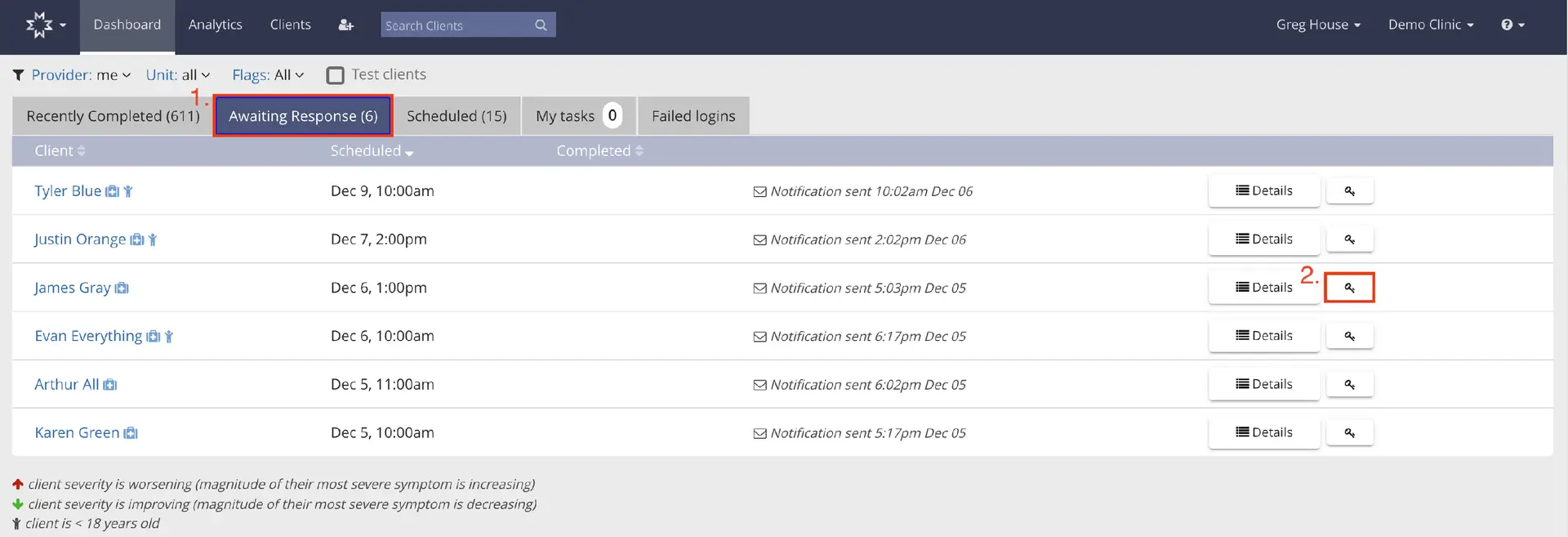
The screenshot displays the 'Awaiting Response' tab within the Mirah Measurement-Based Care platform, which is part of the 'Getting Started with Mirah' feature. The interface shows a list of clients with their names, scheduled assessment times, and notification statuses. Each client entry includes a 'Details' button and a key icon button, both located to the right of the client's name. The 'Details' button allows users to view more information about the client's assessment, while the key icon button provides access to the assessment itself. The top navigation bar includes options for Dashboard, Analytics, and Clients, along with a search bar for finding clients. The user is identified as Greg House from Demo Clinic, with additional options available through a dropdown menu. The screen also includes filters for Provider, Unit, and Flags, and tabs for Recently Completed, Scheduled, My Tasks, and Failed Logins.

3). A pop out window will open with the keycode to type into the tablet.
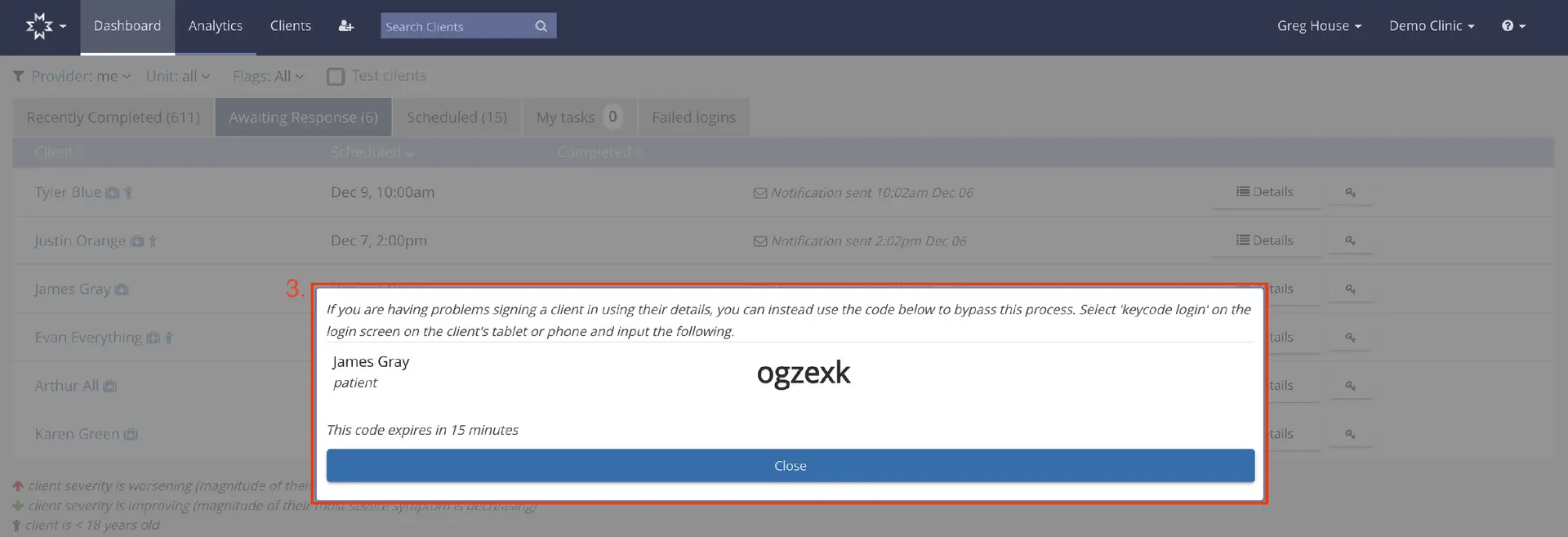
The screenshot displays the Mirah Measurement-Based Care interface, specifically the 'Dashboard' section. The top navigation bar includes options for Dashboard, Analytics, and Clients, along with a search field labeled 'Search Clients'. The user profile and clinic information are shown on the right side of the navigation bar. Below the navigation, there is a tabbed section with categories such as Recently Completed, Awaiting Response, Scheduled, My tasks, and Failed logins. The Awaiting Response tab is active, showing a list of clients with their names, scheduled times, and completion statuses. Each client entry has a 'Details' button and a key icon for accessing assessments. A pop-up window is prominently displayed, providing a key code for client James Gray, which can be used to bypass login issues on a client's tablet or phone. The code 'ogzexk' is valid for 15 minutes, and a 'Close' button is located at the bottom of the pop-up to dismiss it.

Search for a client and go to the client Detail Page:

1). Search for client. In this example we are searching for "James Gray":
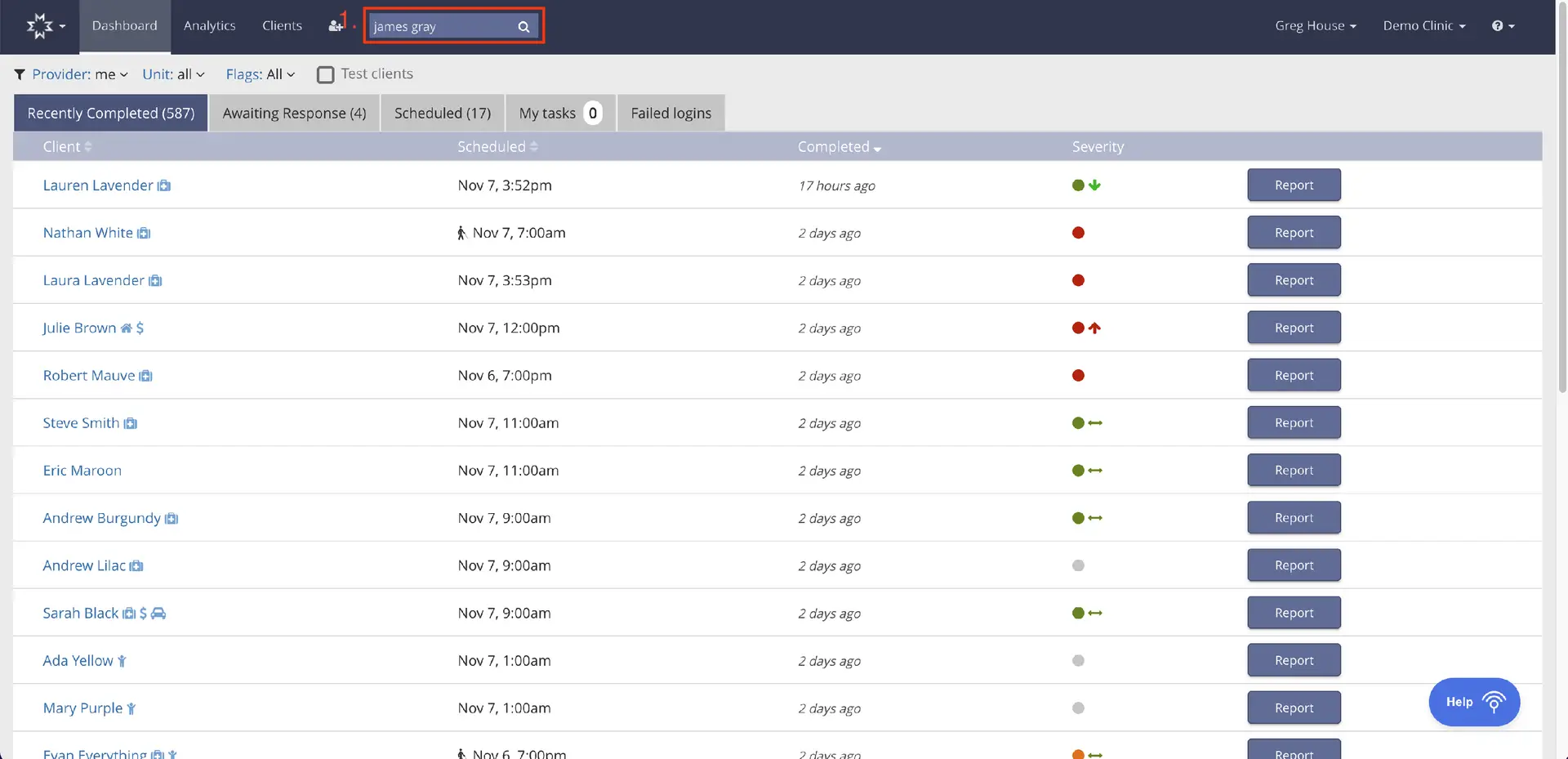
The screenshot displays the Mirah Measurement-Based Care interface, specifically the dashboard for managing client assessments. At the top, there is a navigation bar with tabs for Dashboard, Analytics, and Clients, along with user information for Greg House at Demo Clinic. A search bar is highlighted, allowing users to search for clients by name, such as 'james gray'. Below the navigation bar, there are filter options for Provider, Unit, and Flags, with a checkbox for Test clients. The main section lists clients with columns for Client name, Scheduled time, Completed time, and Severity. Each client row includes a 'Report' button on the right for accessing detailed assessment reports. The 'Help' button is located at the bottom right corner, providing assistance options.

2). Click on "Detail" under Actions column:
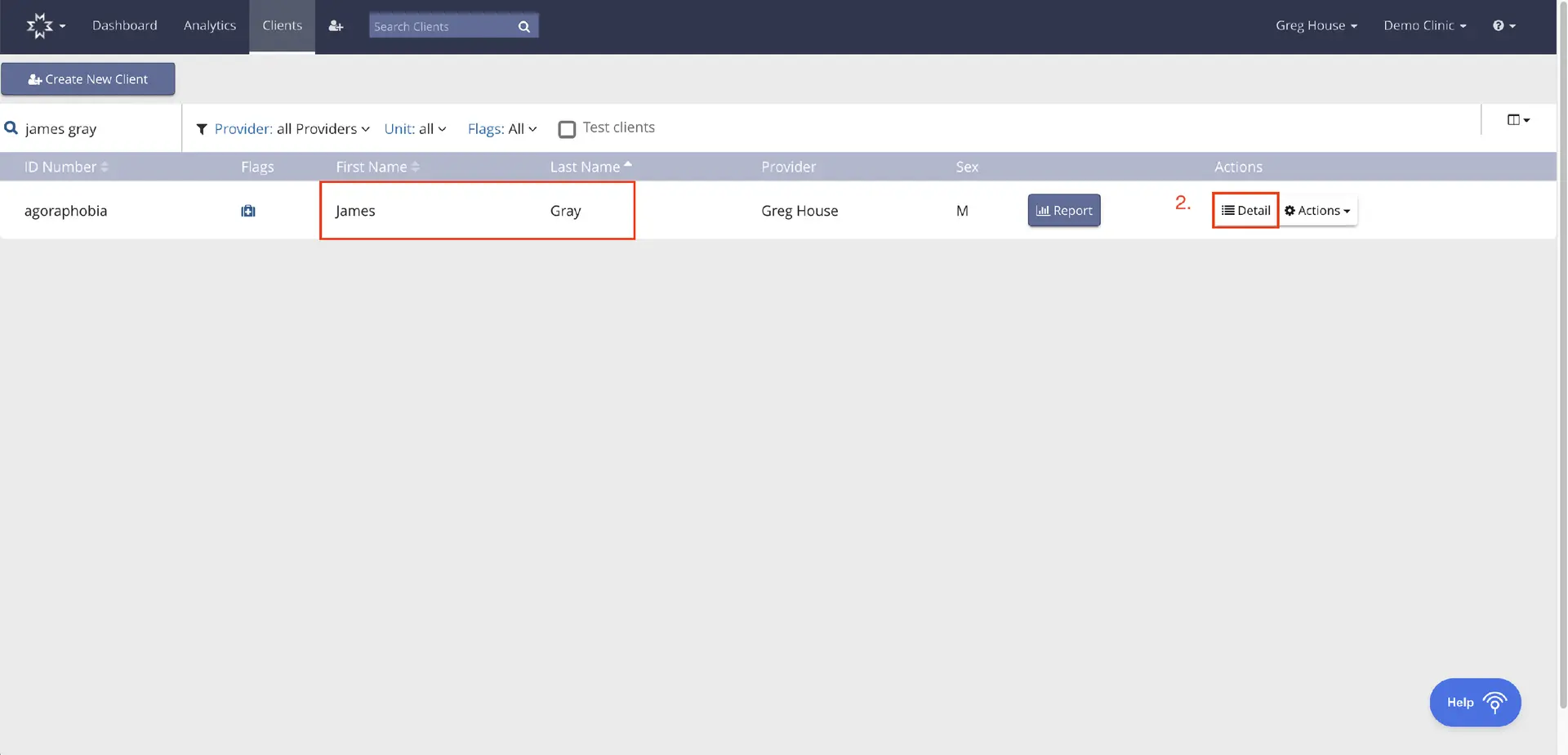
The screenshot displays the 'Clients' tab within the Mirah Measurement-Based Care platform, which is part of the user interface for managing client information. At the top, there is a navigation bar with options for 'Dashboard', 'Analytics', and 'Clients', along with a search bar labeled 'Search Clients'. Below the navigation bar, there is a button labeled 'Create New Client' on the left side. The main section of the screen shows a list of clients with columns for 'ID Number', 'Flags', 'First Name', 'Last Name', 'Provider', 'Sex', and 'Actions'. The client listed is 'James Gray', with 'Greg House' as the provider and 'M' for sex. The 'Actions' column includes a 'Report' button and a 'Detail' button, followed by a dropdown labeled 'Actions'. The 'Report' button is located next to the 'Sex' column, and the 'Detail' button is next to the 'Report' button. At the bottom right corner, there is a 'Help' button with an icon. The screen is designed to allow users to view and manage client details, generate reports, and access further actions related to the client.

3). Click on "Instant Login" button under Upcoming Sessions:
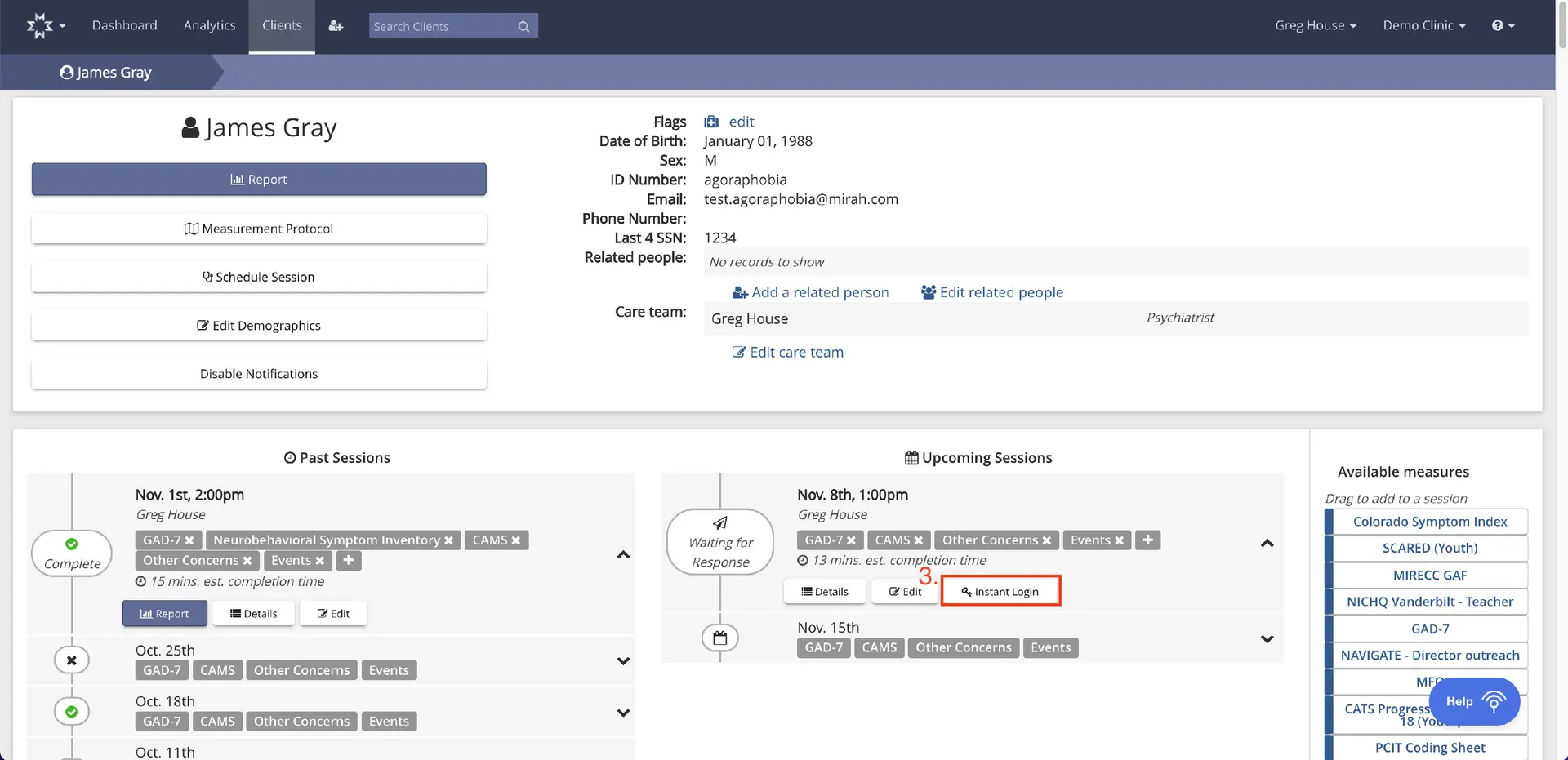
The screenshot displays the client profile page for James Gray within the Mirah Measurement-Based Care platform. At the top, the navigation bar includes options for Dashboard, Analytics, Clients, and a search bar labeled 'Search Clients'. The breadcrumb trail shows the path 'Clients > James Gray'. The main section presents client details such as name, date of birth, sex, ID number, email, phone number, last 4 SSN, related people, and care team. There are buttons for 'Report', 'Measurement Protocol', 'Schedule Session', 'Edit Demographics', and 'Disable Notifications'. Below, the 'Past Sessions' section lists previous sessions with details like date, time, and associated measures. The 'Upcoming Sessions' section shows future appointments, including date, time, and measures, with options to view 'Details', 'Edit', and 'Instant Login'. On the right, the 'Available measures' panel allows dragging measures into sessions. The 'Instant Login' button is highlighted in red, located next to the 'Edit' button under 'Upcoming Sessions'.

4). The below message will pop up with the keycode to type into the tablet:
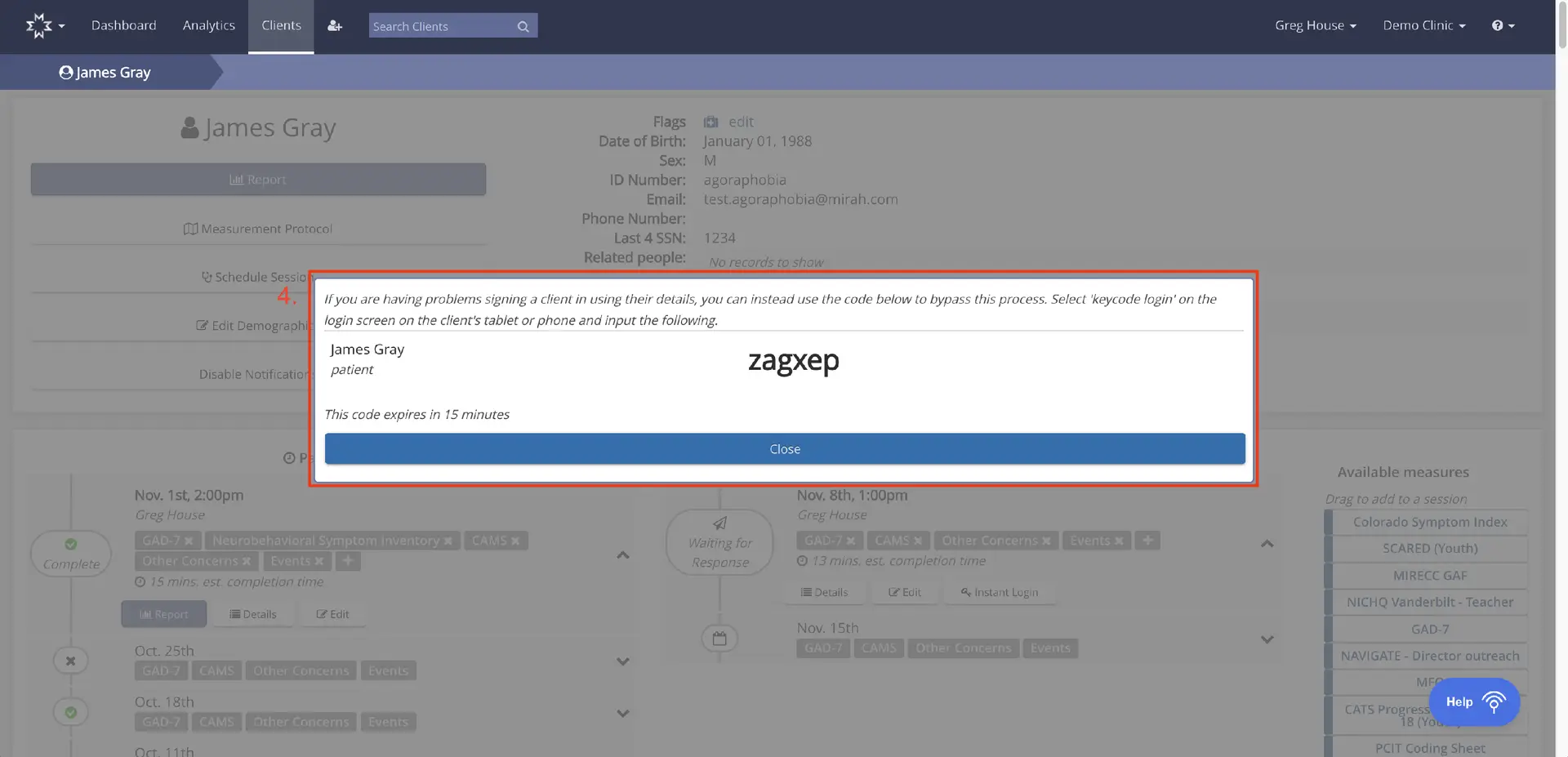
The screenshot displays a key code access screen for Mirah Measurement-Based Care, specifically for the client James Gray. The screen provides a temporary key code 'zagxep' for accessing assessments on a client's tablet or phone, bypassing the usual login process. The code is valid for 15 minutes. The screen includes a 'Close' button located at the bottom center to exit the key code access screen. The background shows client details such as name, date of birth, sex, ID number, email, phone number, and last 4 SSN digits, along with options to edit these details. The top navigation bar includes tabs for Dashboard, Analytics, and Clients, along with a search bar for finding clients, and user account information for Greg House at Demo Clinic.