Panels - Using Panels in Mirah for Systematic Caseload Review

Systematic Caseload Review (SCR) in the Collaborative Care Model (CoCM) is a structured, weekly review between the Behavioral Health Care Manager (BHCM) and the Psychiatric Consultant. Its primary goal is to facilitate measurement-based, "treat-to-target" strategies to ensure no patient's care stagnates.

The SCR process in COCM facilitates effective patient care in the following ways:

  • Proactive Oversight of the enrolled patient population
  • Data-Driven Adjustments ensuring that care planning is objective, and data-informed
  • Identifies and resolves specific barriers (eg: side effects, lack of engagement, complex diagnoses) that hinder improvement

In Mirah, the Panels tool is designed to facilitate the SCR process. The filters can be used separately or in combination to quickly identify particular cohorts of patients who may require additional review.

Basic Panels Navigation​

Use the basic panels filter to identify the patient population of interest by filtering by

  • Care Manager
  • Panel
  • Primary Care Provider
  • Enrollment Status The screenshot displays a section of the Mirah Collaborative Care interface focused on filtering options for systematic caseload review. It includes a 'Search Patients' input field for entering patient names or identifiers. There are dropdown menus labeled 'Primary Care Provider', 'Care Manager', and 'Enrollment Status' for selecting specific criteria. To the right, there is a brown button labeled '5 Panels' indicating the number of panels available. Next to it, a button labeled 'Show 2 Filters' allows users to view the applied filters. Finally, a 'Clear Filters' option in red text with an 'X' icon is available for resetting all filters. These elements are designed to streamline the workflow by allowing users to efficiently manage and review patient caseloads.

The panel list at the bottom of the page will update in real-time based on the filters that are selected. At any time, use the Clear Filters button to remove all filters and start from scratch.

Filters on the panel tool are always combined using “AND” logic. This means, if you have selected two separate filters at the same time, only patients who meet the criteria for both of those filters will be displayed in the panel list.

The panels list is fully configurable to include the columns that are of interest and hiding any that are not relevant. To change the columns in the panels list, click on the button for Columns, and use the checkboxes to select the columns you would like to display.
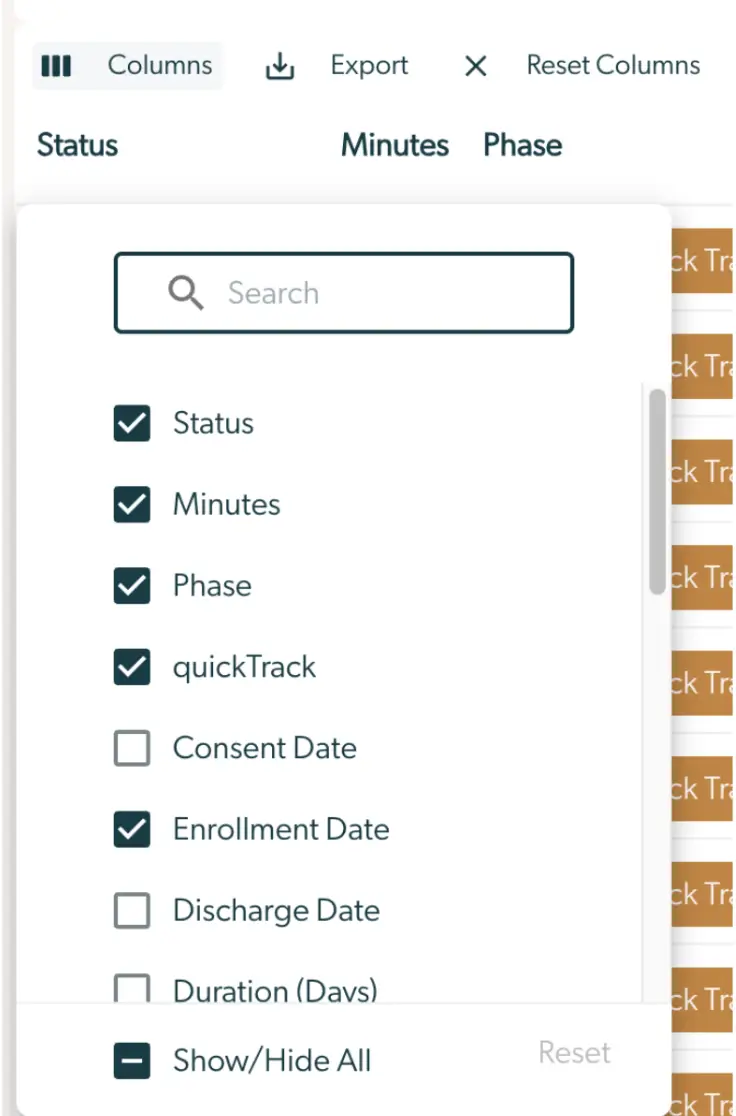
The screenshot displays a panel interface in Mirah Collaborative Care for systematic caseload review. At the top, there are buttons labeled 'Columns', 'Export', and 'Reset Columns' for managing the display and export of data. Below these buttons, the columns 'Status', 'Minutes', and 'Phase' are shown, indicating the current view settings. A dropdown menu is open, showing a list of selectable data fields with checkboxes, including 'Status', 'Minutes', 'Phase', 'quickTrack', 'Consent Date', 'Enrollment Date', 'Discharge Date', and 'Duration (Days)'. The 'Status', 'Minutes', 'Phase', 'quickTrack', and 'Enrollment Date' fields are checked, indicating they are currently displayed. At the bottom of the dropdown, there is a 'Show/Hide All' toggle and a 'Reset' button for quickly adjusting the visibility of all fields.

The panel list can also be sorted by the columns. Hover over the column of interest, and look for the Arrow Icon. Any column with an arrow icon can be sorted by clicking on the column header. Click on the column header again to reverse the order of the list.
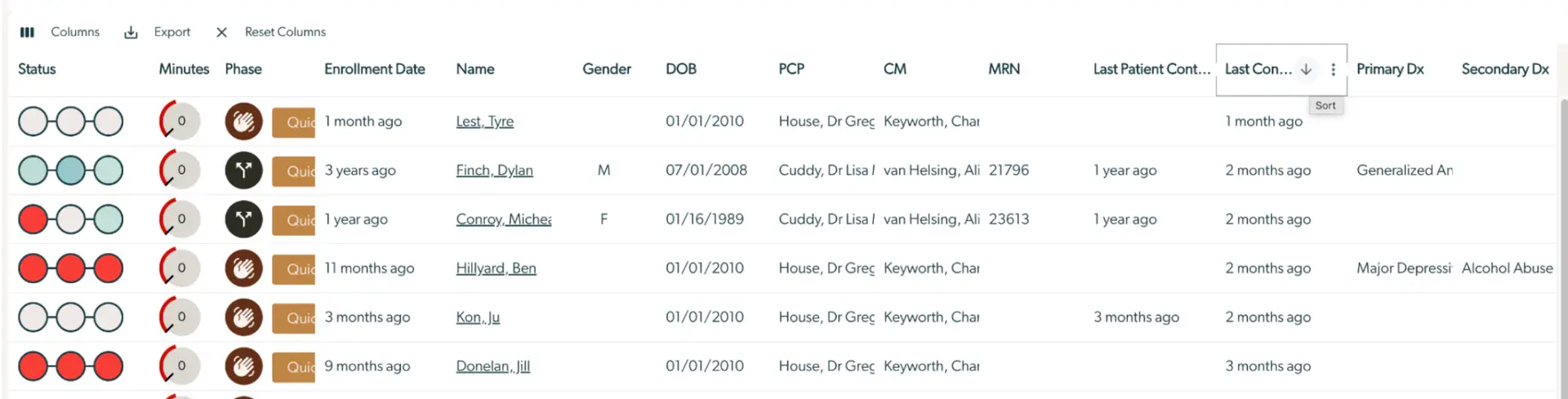
The screenshot displays a panel used for systematic caseload review in Mirah Collaborative Care. It features a table with columns for Status, Minutes, Phase, Enrollment Date, Name, Gender, DOB, PCP, CM, MRN, Last Patient Contact, Last Contact, Primary Dx, and Secondary Dx. Each row represents a patient with details such as their status indicated by colored circles, time in minutes, phase with icons, and quick action buttons labeled 'Quick'. The Enrollment Date, Name, Gender, Date of Birth (DOB), Primary Care Provider (PCP), Care Manager (CM), Medical Record Number (MRN), and contact dates are listed. The top of the table includes options to manage columns, export data, and reset columns. The Last Contact column has a sorting feature indicated by an arrow.

Panels Filtering​

Click on the Show Filters button to open the full menu of filters available for use.
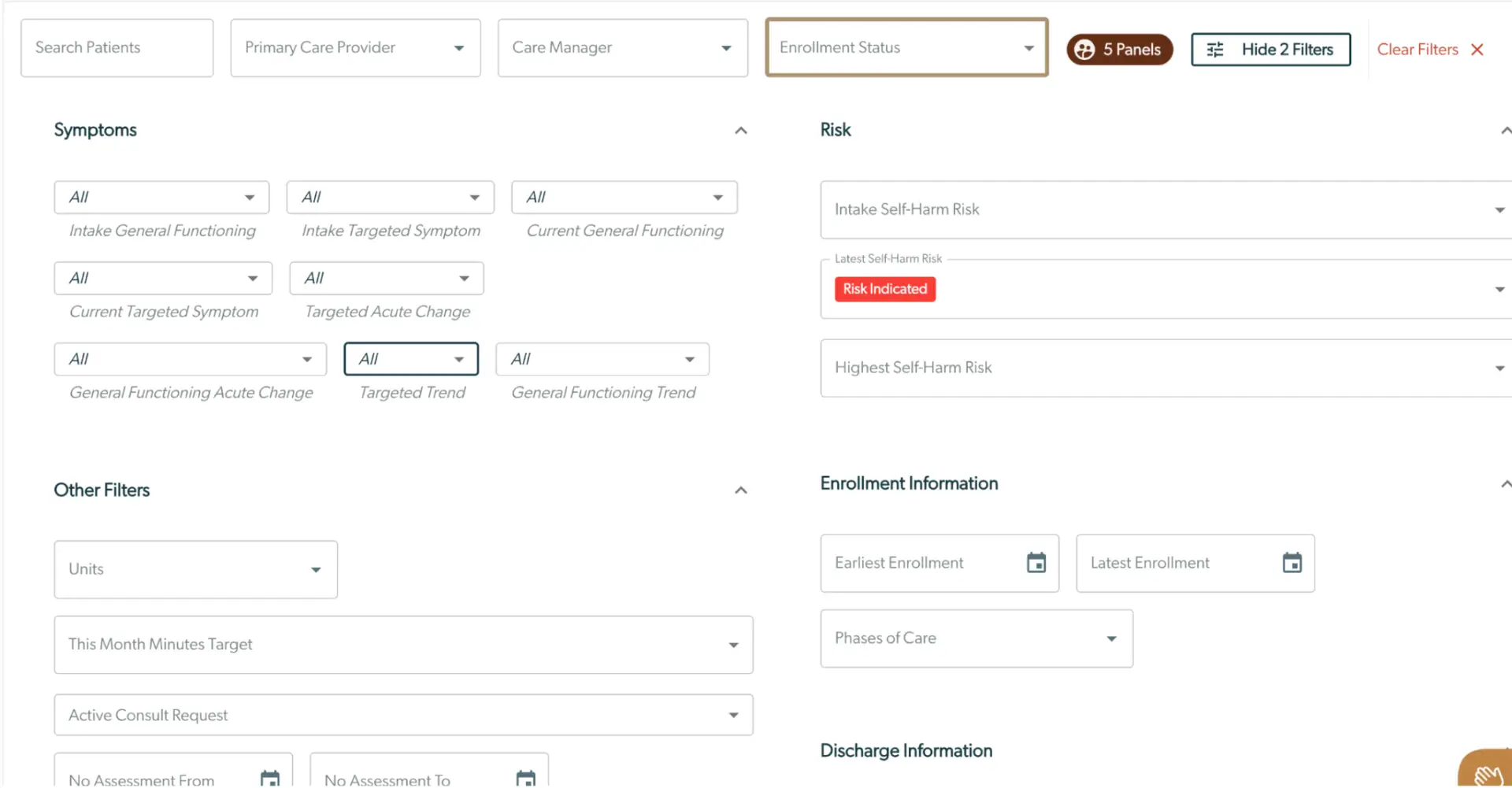
The screenshot displays a user interface for managing patient caseloads in Mirah Collaborative Care. At the top, there are dropdown menus for filtering by 'Primary Care Provider', 'Care Manager', and 'Enrollment Status', along with a search bar labeled 'Search Patients'. To the right, there are buttons labeled '5 Panels', 'Hide 2 Filters', and 'Clear Filters', which allow users to manage panel views and filter settings. The main section is divided into categories: 'Symptoms', 'Risk', 'Other Filters', 'Enrollment Information', and 'Discharge Information'. Each category contains various dropdown menus and fields for selecting specific criteria. For example, under 'Symptoms', users can filter by 'Intake General Functioning', 'Current Targeted Symptom', and other related metrics. The 'Risk' section includes fields for assessing self-harm risk, with a highlighted 'Risk Indicated' alert. 'Other Filters' includes options like 'Units' and 'Active Consult Request'. 'Enrollment Information' allows users to specify date ranges for enrollment. This interface is designed to streamline the review and management of patient data.

Filters are organized by category:

  • Symptoms
  • Risk
  • Enrollment Information
  • Discharge Information
  • Other

Common Panel Lists for Systematic Caseload Review​

Here are some examples of how to use the Panels filters to identify specific groups of patients:

  • Patients whose symptoms are getting significantly worse
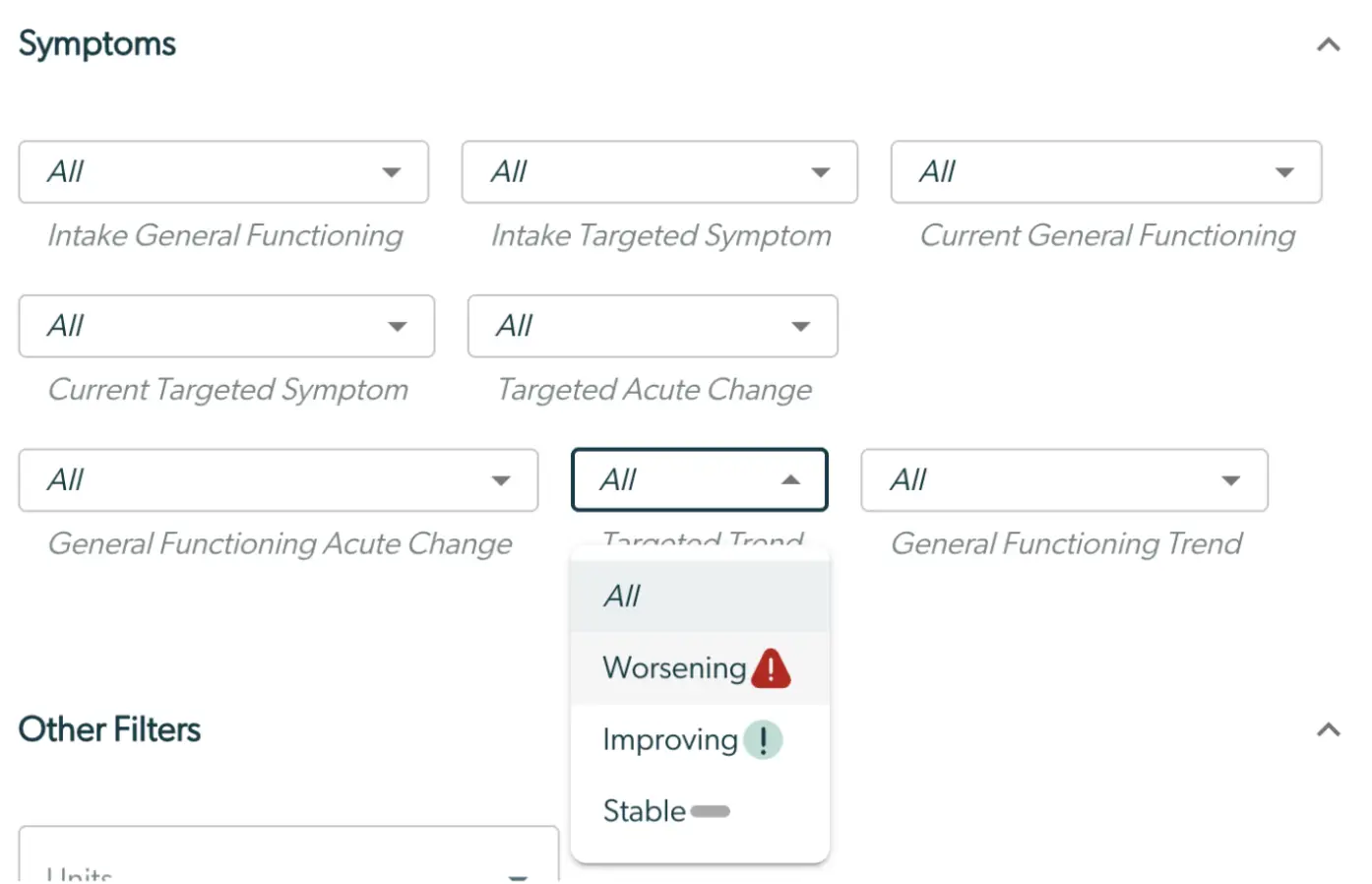
    • Use the Symptom Filter for Target Trend and select Worsening from the dropdown menu
    • Your panel list is now showing only patients in the population whose target scale has gotten significantly worse compared to their baseline score at enrollment The screenshot displays a section of the Mirah Collaborative Care interface focused on filtering symptoms for systematic caseload review. It includes dropdown menus for various symptom categories such as 'Intake General Functioning', 'Intake Targeted Symptom', 'Current General Functioning', 'Current Targeted Symptom', 'Targeted Acute Change', 'General Functioning Acute Change', 'Targeted Trend', and 'General Functioning Trend'. Each dropdown menu is set to 'All' by default, allowing users to filter by specific criteria. The 'Targeted Trend' dropdown is expanded, showing options like 'Worsening', 'Improving', and 'Stable', each with corresponding icons. Below the symptoms section, there is a heading for 'Other Filters', indicating additional filtering options are available.
  • Patients who are not improving after 12 weeks of care
    • Use the Symptom Filter for Target Trend and select, Stable from the dropdown menu
    • Use the Enrollment Filter for Latest Enrollment
    • Set the date in the Latest Enrollment field for 12 weeks ago (from the current date)
    • Your panel list is now showing only patients who have been enrolled for at least 12 weeks whose target scale has not improved (or worsened) since their baseline score at enrollment The screenshot displays the 'Enrollment Information' section of the Mirah Collaborative Care platform, used for systematic caseload review. It includes a field labeled 'Earliest Enrollment' with a calendar icon on the right for selecting a date. Next to it is the 'Latest Enrollment' field, which shows a date of 04/06/2026, accompanied by a clear button (X) and another calendar icon for date selection. Below these fields is a dropdown menu labeled 'Phases of Care' for selecting different phases in the care process.
  • Patients with current Severe symptoms
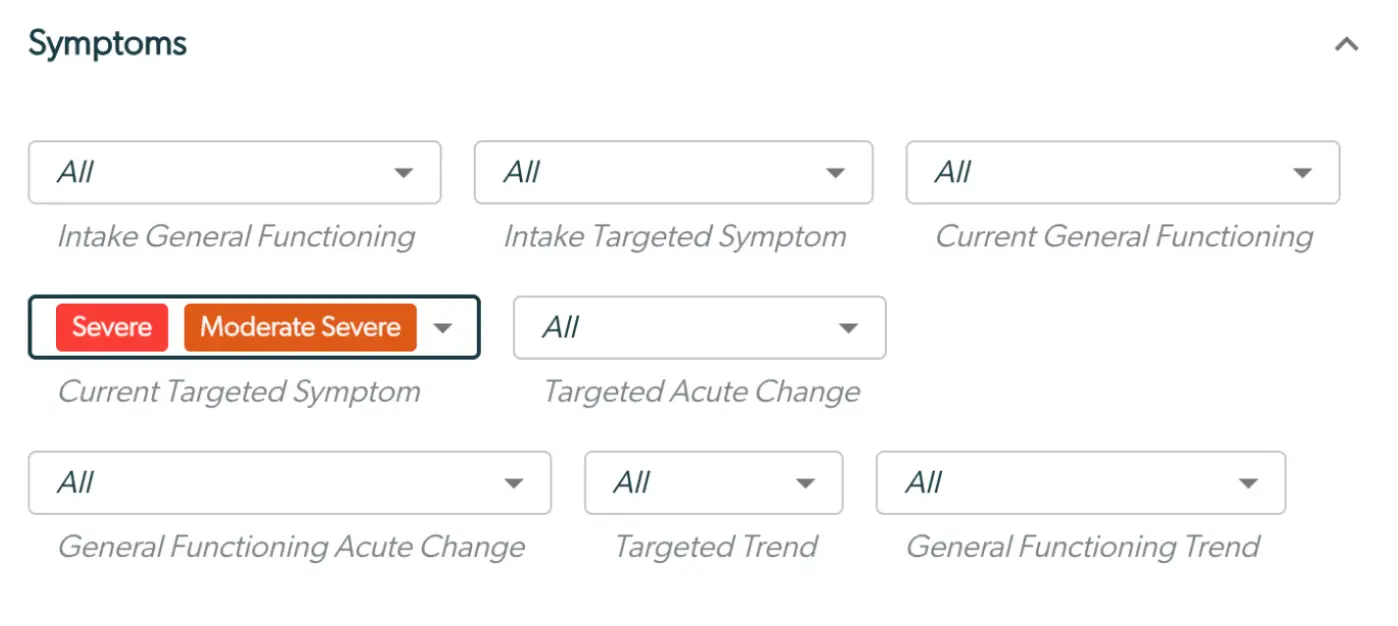
    • Use the Symptoms filter for Current Targeted Symptom and select Severe and Moderate Severe from the dropdown menu.
    • Your panel list is now showing only patients who currently have moderately severe or severe symptoms on their target symptom scale. The screenshot displays a panel titled 'Symptoms' used for systematic caseload review in Mirah Collaborative Care. It features multiple dropdown menus for filtering patient data based on various criteria. The top row includes dropdowns labeled 'Intake General Functioning,' 'Intake Targeted Symptom,' and 'Current General Functioning,' all set to 'All.' The second row has a highlighted selection for 'Current Targeted Symptom' with options 'Severe' and 'Moderate Severe,' followed by a dropdown for 'Targeted Acute Change' set to 'All.' The bottom row includes dropdowns for 'General Functioning Acute Change,' 'Targeted Trend,' and 'General Functioning Trend,' all set to 'All.' These controls allow users to filter and review patient symptoms and progress systematically.
  • Patients with current suicide risk concerns
    • Use the Risk Filter for Latest Self-Harm Risk and select Severe from the dropdown menu
    • Your panel list is now showing only patients who currently have an identified self-harm risk. The screenshot displays a section titled 'Risk' within the Mirah Collaborative Care platform, used for systematic caseload review. It includes three dropdown fields: 'Intake Self-Harm Risk', 'Latest Self-Harm Risk', and 'Highest Self-Harm Risk'. The 'Latest Self-Harm Risk' field is highlighted with a red label indicating 'Risk Indicated', suggesting an alert or important status. Each dropdown has an arrow on the right side for expanding options, and the 'Latest Self-Harm Risk' field also includes an 'X' button for clearing the selection.
  • Patients not recently discussed in case consultation
    • Scroll past the filters to the panel list at the bottom of the page.
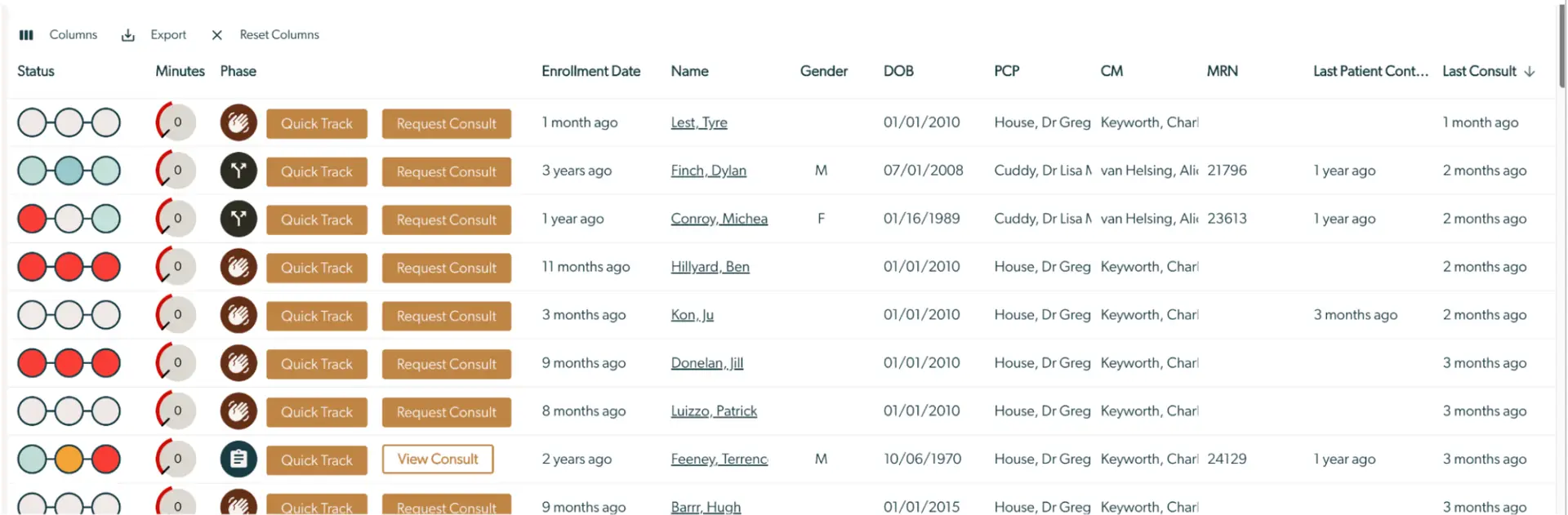
    • Click on the column for Last Case Consult
    • Your panel list is now sorted in order of the date of the most recent case consultation. Click on the column header again to reverse the order of the list. If a case consultation is desired, Use the Request Consult Button to start a consultation request without leaving the panels page. The screenshot displays a panel used for systematic caseload review in Mirah Collaborative Care. It features a table with columns labeled Status, Minutes, Phase, Enrollment Date, Name, Gender, DOB, PCP, CM, MRN, Last Patient Contact, and Last Consult. Each row represents a patient, showing their status with visual indicators, the number of minutes, and the phase of care such as 'Quick Track' or 'Request Consult'. The Enrollment Date and Last Consult columns provide timeframes, while the Name, Gender, and DOB columns offer demographic details. PCP and CM columns list primary care providers and care managers, respectively. The top of the screen includes options for Columns, Export, and Reset Columns, allowing users to customize the view. These options are located at the top left.
  • Newly enrolled patients
    • Scroll past the filters to the panel list at the bottom of the page.
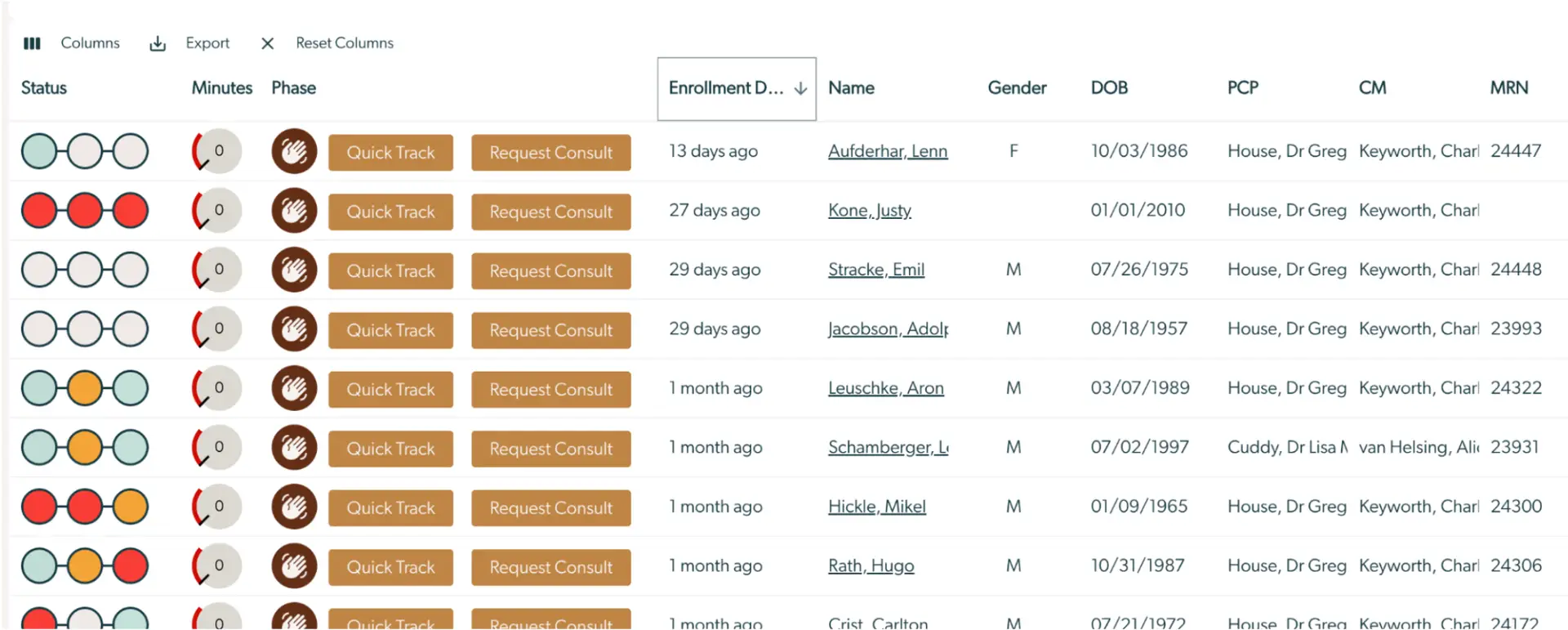
    • Click on the column for Enrollment Date
    • Your panel list is now sorted in order of enrollment date. Click on the column header again to reverse the order of the list. The screenshot displays a panel interface in Mirah Collaborative Care used for systematic caseload review. At the top, there are options for managing columns, exporting data, and resetting columns. The table includes columns for Status, Minutes, Phase, Enrollment Date, Name, Gender, DOB (Date of Birth), PCP (Primary Care Provider), CM (Care Manager), and MRN (Medical Record Number). Each row represents a patient with visual indicators for status, a numerical value for minutes, and buttons labeled 'Quick Track' and 'Request Consult' for managing patient care. The Enrollment Date column shows how long ago each patient was enrolled, and the table is sortable by this column.
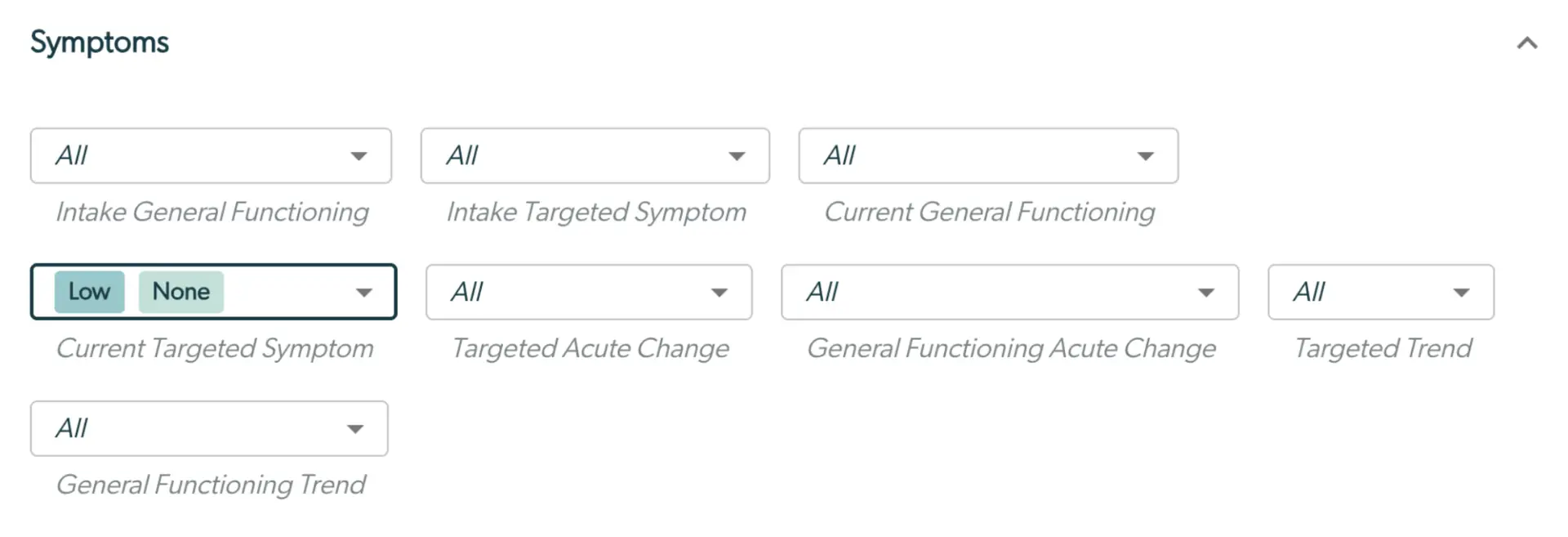
  • Patients who are in remission and may be ready for relapse prevention planning
    • Use the Symptoms filter for Current Targeted Symptom and select Low and None from the dropdown menu.
    • Your panel list is now showing only patients whose most recent assessment on their target scale is currently in the low or non-clinical range. The screenshot displays a section titled 'Symptoms' used for systematic caseload review in Mirah Collaborative Care. It features several dropdown menus for filtering patient data based on various criteria. The dropdowns include 'Intake General Functioning', 'Intake Targeted Symptom', 'Current General Functioning', 'Current Targeted Symptom', 'Targeted Acute Change', 'General Functioning Acute Change', 'Targeted Trend', and 'General Functioning Trend'. Each dropdown is set to 'All' by default, except for 'Current Targeted Symptom', which has options 'Low' and 'None' highlighted. These filters allow users to customize the view of patient symptoms and trends for better analysis and decision-making.
  • Patients who have made significant progress in care and may be ready for relapse prevention planning
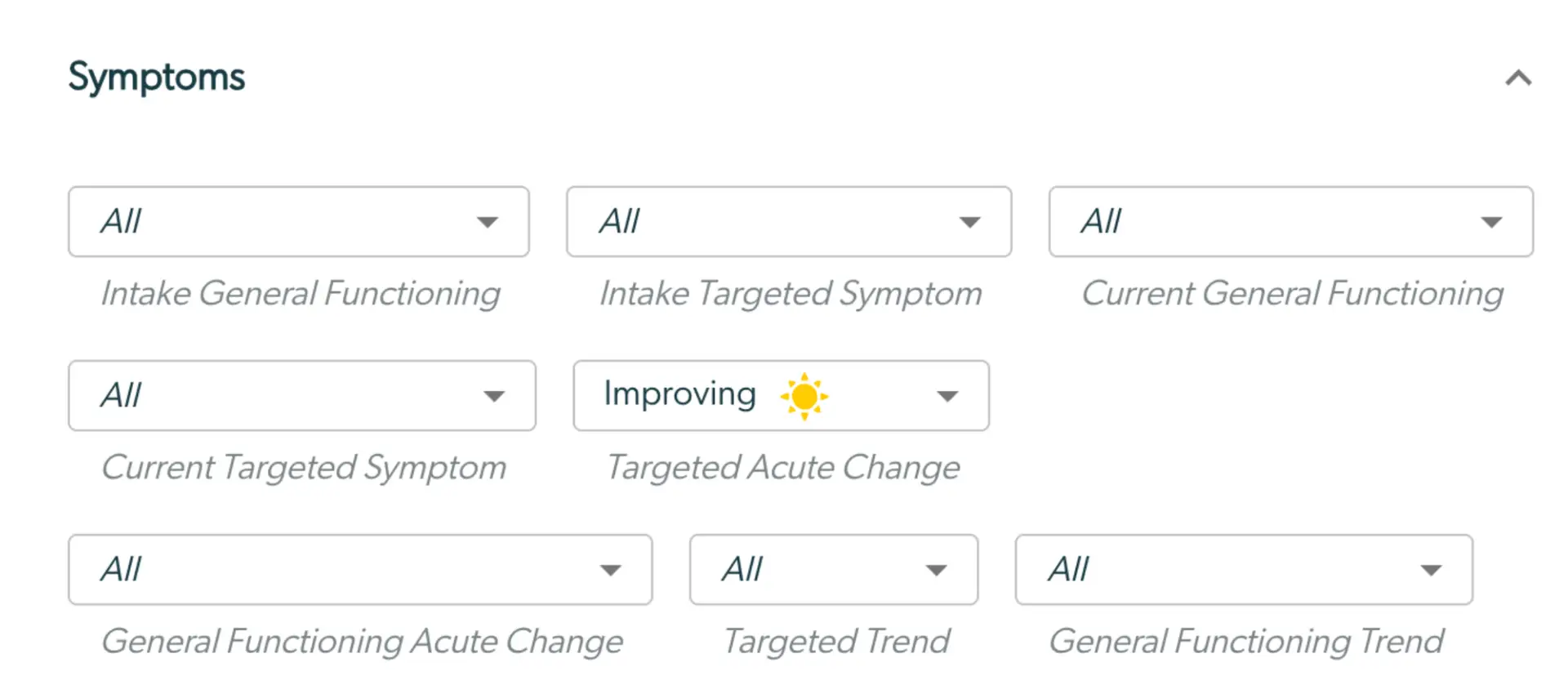
    • Use the Symptoms filter for Targeted Acute Change, and Select Improving from the dropdown menu.
    • Your panel list is now showing only patients who have demonstrated significant improvement on their target scale as compared to their baseline scale at intake. The screenshot displays a section titled 'Symptoms' within the Mirah Collaborative Care platform, used for systematic caseload review. It features a grid of dropdown menus for filtering patient data based on various criteria. The first row includes dropdowns for 'Intake General Functioning', 'Intake Targeted Symptom', 'Current General Functioning', and 'Current Targeted Symptom', all set to 'All'. The second row includes 'Targeted Acute Change' set to 'Improving' with a sun icon, 'General Functioning Acute Change', 'Targeted Trend', and 'General Functioning Trend', all set to 'All'. These dropdowns allow users to filter and review patient symptoms and progress systematically.