
Panels - How to edit the Patient's Care Team

Editing a Care Team after Enrollment​

Once a patient is enrolled with a panel, you can see the panel and care team in the Patient Info card here:
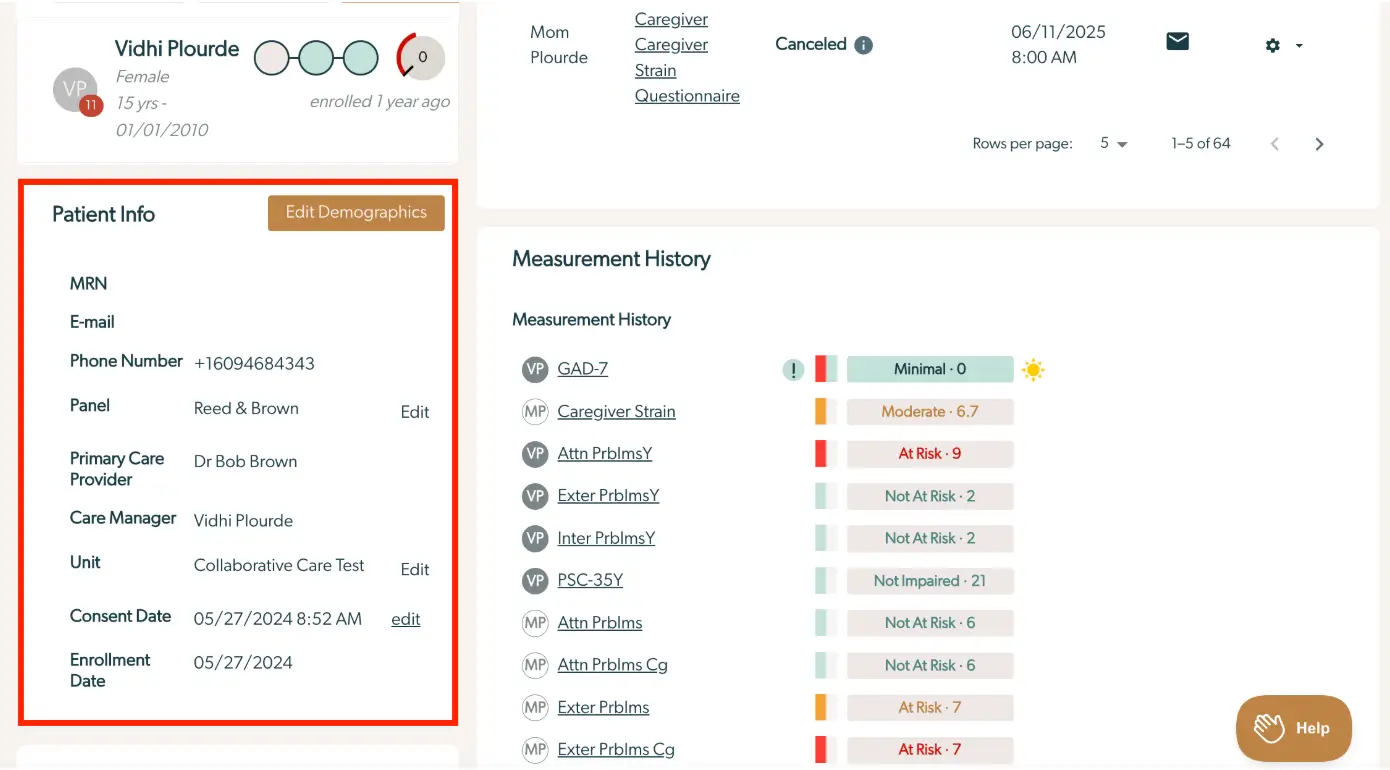
The screenshot displays a section of the Mirah Collaborative Care interface focused on a patient's care team and measurement history. On the left, under 'Patient Info', details such as MRN, E-mail, Phone Number, Panel, Primary Care Provider, Care Manager, Unit, Consent Date, and Enrollment Date are listed. Each field provides specific information about the patient, with options to edit the Panel, Unit, and Consent Date. The 'Edit Demographics' button is prominently located at the top right of the 'Patient Info' section. On the right, the 'Measurement History' section lists various assessments with their respective scores and risk levels, such as GAD-7, Caregiver Strain, and others, indicating the patient's current status. The interface includes navigation options at the top for date selection, email, settings, and pagination controls, while a 'Help' button is located at the bottom right corner.

The "Edit" button next to the panel will let you edit the whole care team:
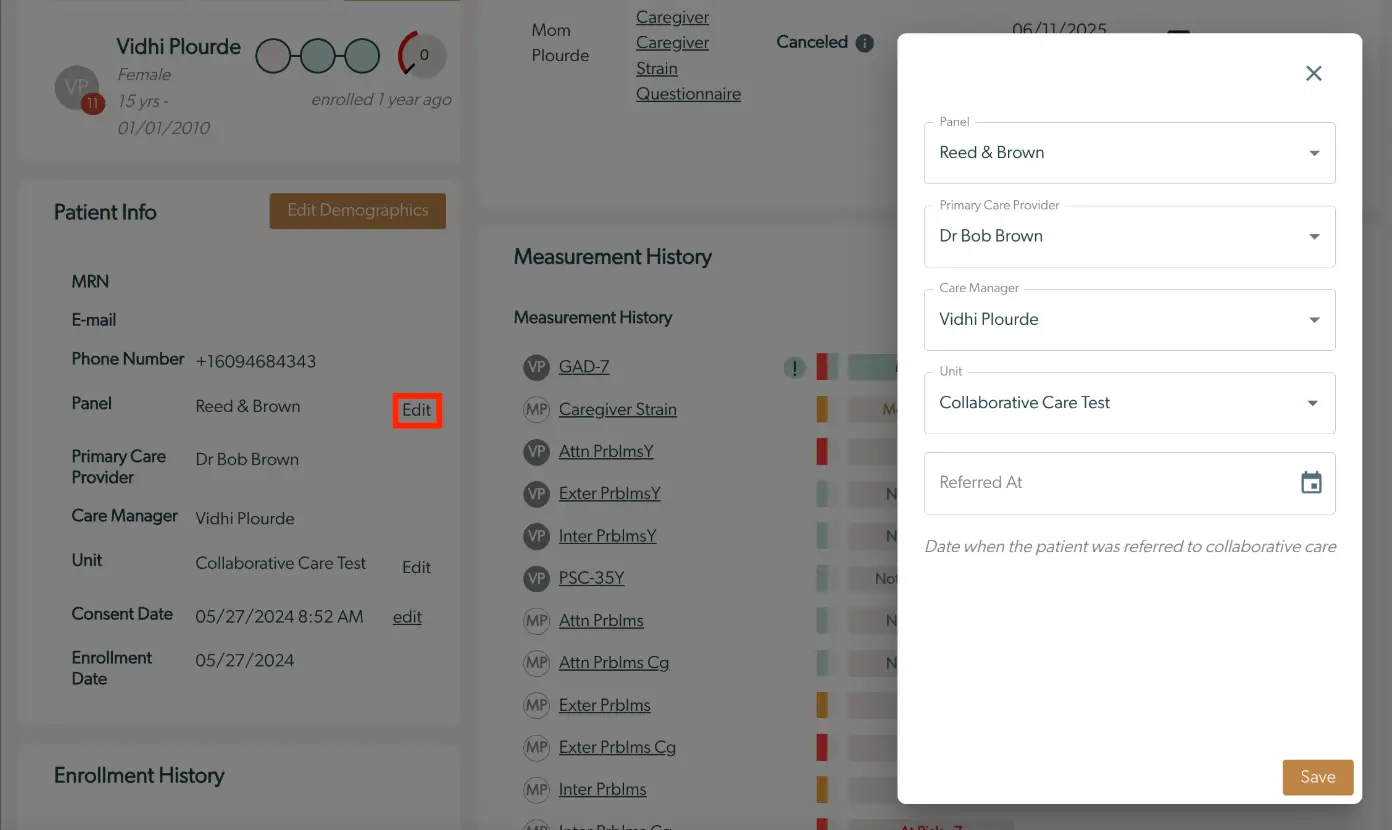
The screenshot displays the interface for editing a patient's care team within the Mirah Collaborative Care platform. On the left, the 'Patient Info' section shows details such as MRN, email, phone number, panel, primary care provider, care manager, unit, consent date, and enrollment date. The 'Edit' button next to the 'Panel' field is highlighted, indicating it has been selected to open the editing panel on the right. The editing panel allows users to modify the patient's care team details, including the panel, primary care provider, care manager, and unit, each with a dropdown menu for selection. There is also a 'Referred At' field with a calendar icon for selecting the referral date. The 'Save' button is located at the bottom right of the editing panel to confirm changes. The background shows additional patient information, including measurement history and enrollment history.

The "Primary Care Provider" and "Care Manager" fields will only let you select providers who are serving that function on the selected panel. To change which providers are on which panel, see How to Create and Edit Panels. Selecting a different panel here will let you select from that panel's PCPs and care managers:

This screen allows users to edit the patient's care team within the Mirah Collaborative Care platform. It includes fields for selecting the Panel, Primary Care Provider, Care Manager, and Unit, each with a dropdown menu for choosing the appropriate option. The 'Referred At' field is accompanied by a calendar icon for selecting the date when the patient was referred to collaborative care. The 'Save' button, located at the bottom right corner, is used to confirm and save the changes made to the patient's care team details.

Once you hit save, the changes will be reflected on the Patient Info card:
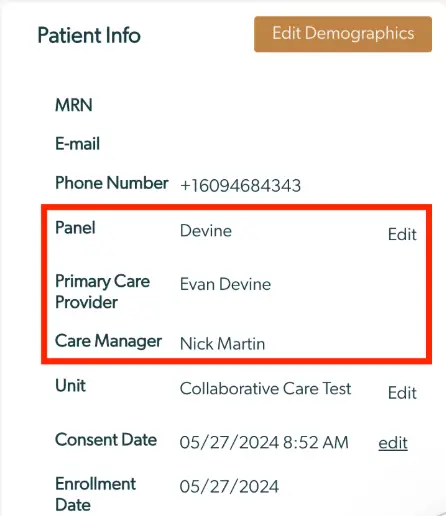
The screenshot displays the Patient Info section of the Mirah Collaborative Care platform, focusing on the patient's care team details. It includes fields for MRN, E-mail, and Phone Number, with the phone number shown as +16094684343. The highlighted section shows the Panel, Primary Care Provider, and Care Manager, with names Devine, Evan Devine, and Nick Martin respectively. Each of these fields has an 'Edit' option next to them, allowing users to modify the information. The 'Edit Demographics' button is located at the top right corner, enabling users to update demographic details. Below the care team section, the Unit is listed as 'Collaborative Care Test' with an 'Edit' option, followed by Consent Date and Enrollment Date, both of which have editable fields.