
Panels - How to Filter Data by Panel

This article is about a Mirah feature that is not yet available to all customers. If you're interested in learning more about this feature and how to enable it for your institute, please contact support@mirah.com.

Once you have several panels set up in Mirah (see How to Create and Edit Panels) you can use them to filter the data you see across the application to help you manage on your work.

Panel Badge​

Filtering data with panels starts with the panel badge, which is available on the Vertical Navigation bar throughout the Mirah platform:
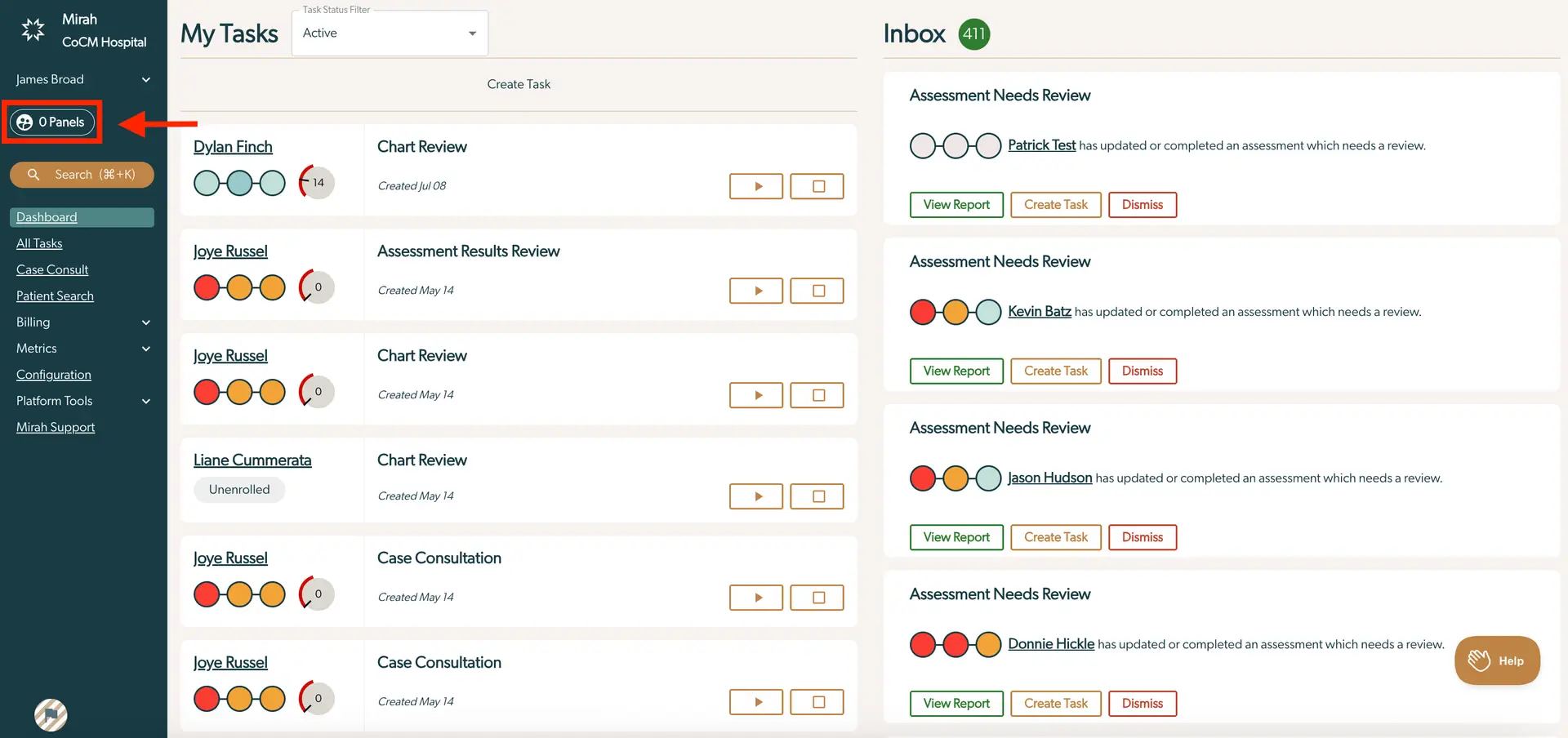
The screenshot displays the Mirah Collaborative Care interface, focusing on the 'My Tasks' and 'Inbox' sections. On the left sidebar, there is a navigation menu with options such as Dashboard, All Tasks, Case Consult, Patient Search, Billing, Metrics, Configuration, Platform Tools, and Mirah Support. Above these options, the '0 Panels' button is highlighted, indicating the ability to filter tasks by panels. The main area is divided into two sections: 'My Tasks' on the left and 'Inbox' on the right. 'My Tasks' shows a list of tasks with patient names, task types like Chart Review and Case Consultation, creation dates, and status indicators. Each task has two buttons for actions, located on the right side of each task entry. The 'Inbox' section lists assessments needing review, with patient names, status indicators, and three action buttons: View Report, Create Task, and Dismiss, located at the bottom of each assessment entry. The 'Help' button is located at the bottom right corner of the screen.

The following visuals represent the different ways you can view how panels are filtering data on a page:

The screenshot displays a button labeled '0 Panels' with an icon depicting two stylized human figures, indicating the number of panels currently available or selected in the Mirah Collaborative Care interface. This button is part of the Panels feature, which allows users to filter data by panel for collaborative care purposes. The button is designed to be clicked to access or manage panels, facilitating measurement-based care and collaborative care workflows.The screenshot displays a button labeled '1 Panel' with an icon depicting two stylized human figures, indicating the presence of a collaborative care panel. This button is used to filter data by panel within the Mirah Collaborative Care platform, allowing users to view and manage information specific to a particular panel. The button is centrally located and designed to facilitate easy access to panel-specific data filtering.The screenshot displays a button labeled '1 Panel' with an icon depicting two stylized human figures, indicating the option to filter data by a specific panel within the Mirah Collaborative Care platform. This button is part of the user interface for managing panels, which are used to organize and filter data related to collaborative care efforts. The button is designed to be clicked to activate the panel filtering feature, allowing users to streamline their workflow by focusing on data relevant to a particular panel.

Panels badge is outlined, but not filled in.No panels are selected. Mirah is showing you all the data available on this page.Panels badge is outlined and filled in.A panel has been selected, and this page supports panel filtering. Mirah is only showing you data relevant to this panel.Panels badge is outlined, but not filled in.A panel has been selected, but this page does not support panel filtering. Mirah is showing you all the data.

Clicking on the panel badge will open a menu where you can select which panels you want to use to filter Mirah:

The screenshot displays a dropdown menu for filtering data by panels within the Mirah Collaborative Care platform. At the top left corner, there is an icon with the label '0 Panels' indicating the current selection status. Below, the menu is divided into two sections: 'My Panels' and 'Active Panels'. 'My Panels' includes a checkbox for 'James', allowing users to select their personal panel. 'Active Panels' contains checkboxes for 'Cuddy and Van Helsing', 'House and Keyworth', and 'new panel', enabling users to filter data based on active collaborative care panels. Each checkbox is located to the left of the panel name, allowing users to select multiple panels for data filtering.

Just like on the panel creation page, the panels here are organized into "My Panels" (any panel that you've been assigned to) and "Active Panels" (any active panel that you haven't been assigned to). "Retired Panels" are not shown in this menu.

You select one or more panels individually, or you can select "My Panels" or "Active Panels" to select the entire category at once. If you select multiple panels, Mirah will show data for patients who are enrolled in any of the panels you select.

The general rule across Mirah is pages that show large lists of data that can span your whole practice (such as the patient search, dashboard or list of case consults) will be filtered by your panel selection, while pages that show information about a specific person or event in Mirah (such as an individual patient page or a specific consult meeting) won't hide any information, even if that person isn't relevant to the panel. Below are descriptions of how each page that applies a panel filter works with the filter.

Dashboard​

When you filter by panels on the dashboard, you'll see something like this:
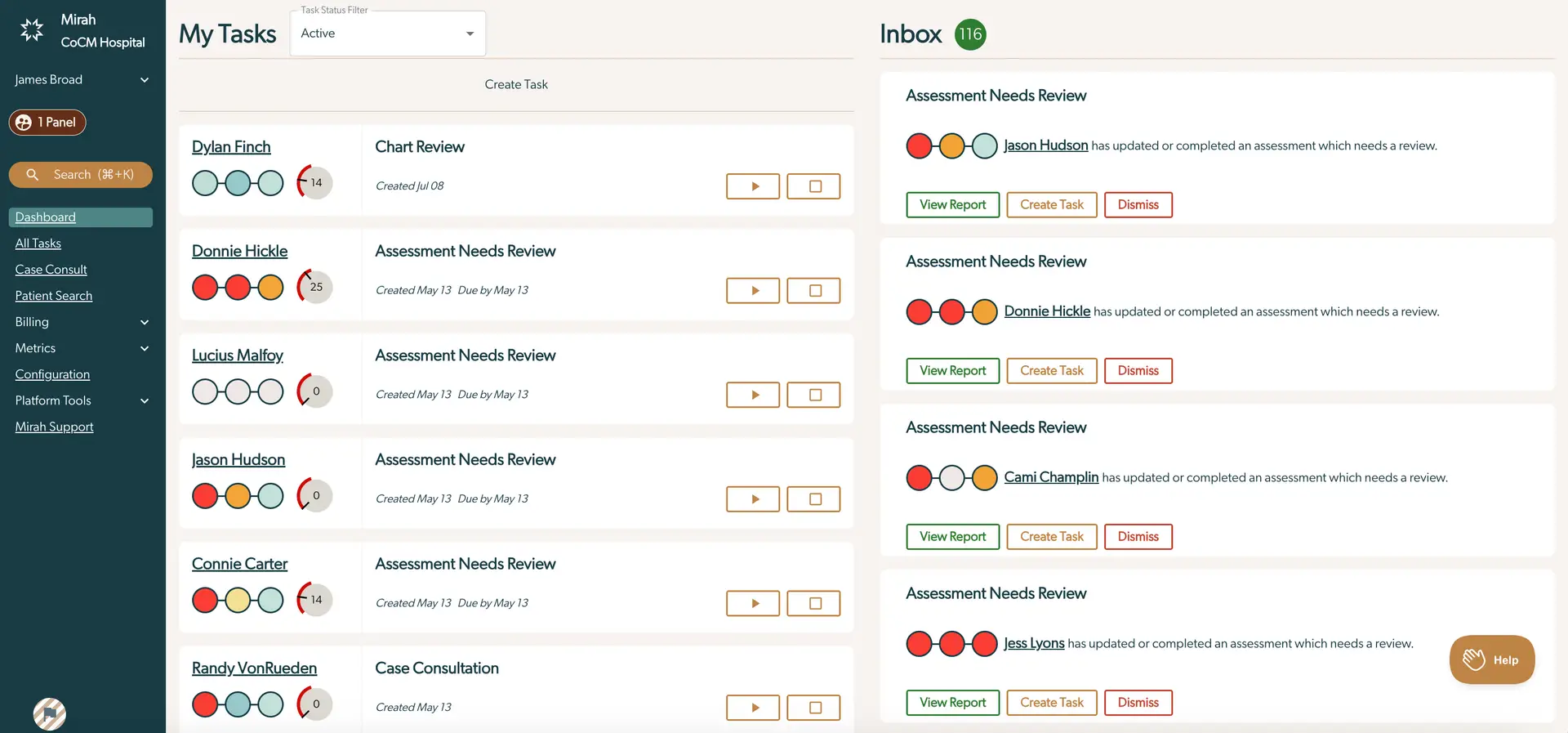
The screenshot displays the 'My Tasks' and 'Inbox' sections of the Mirah Collaborative Care platform. On the left side, the 'My Tasks' section lists tasks assigned to the user, James Broad, with details such as the task name, creation date, and due date. Each task entry includes a visual progress indicator and two buttons: a play button for starting the task and a square button for stopping or completing the task. The top of the 'My Tasks' section features a 'Task Status Filter' dropdown to filter tasks by status, and a 'Create Task' button for adding new tasks. On the right side, the 'Inbox' section shows notifications of assessments that need review, with each entry displaying the patient's name, assessment status, and three buttons: 'View Report' in green for accessing the report, 'Create Task' in orange for generating a task, and 'Dismiss' in red for removing the notification. The left sidebar includes navigation options such as 'Dashboard', 'All Tasks', 'Case Consult', 'Patient Search', 'Billing', 'Metrics', 'Configuration', 'Platform Tools', and 'Mirah Support'. The top left corner shows the Mirah logo and the name of the hospital, CoCM Hospital.

Compared to the unfiltered data above, you're now looking at only the patients relevant to the panel. The task list only shows tasks for patients who are currently enrolled in the panel, and the findings list only shows findings for patients who are currently enrolled in the panel. You are still able to drag tasks to reorder them in the list like normal. The findings and task lists also show a note below the last item reminding you that there are findings or tasks being filtered because of the panel.

When you filter the patient search page by panels you'll see something like this:
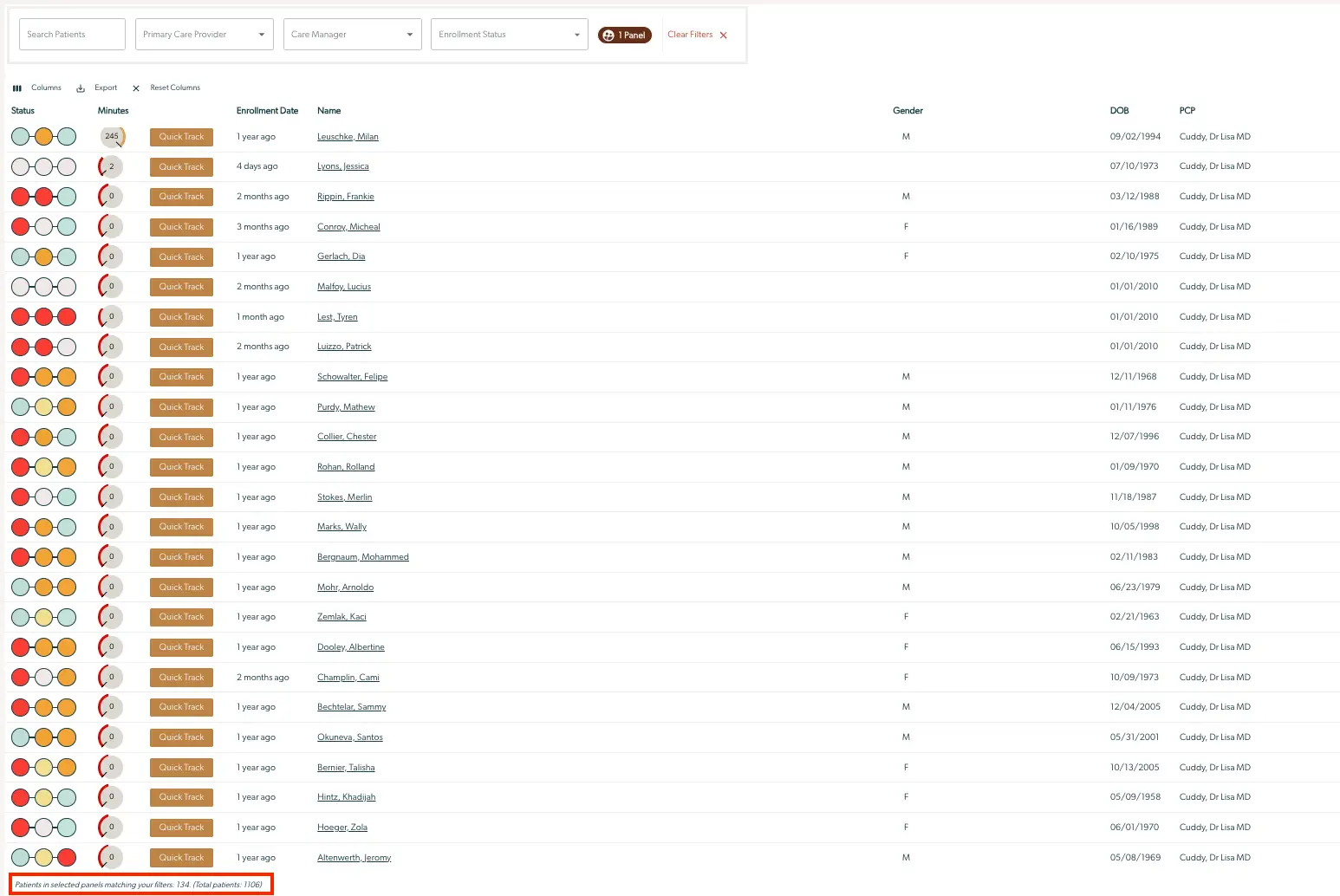
The screenshot displays a filtered view of patient data within the Mirah Collaborative Care platform, specifically focusing on panels. At the top, there are dropdown menus for filtering data by 'Primary Care Provider', 'Care Manager', and 'Enrollment Status', along with a search bar labeled 'Search Patients'. A button labeled '1 Panel' indicates the current filter applied, and a 'Clear Filters' button is available to reset the filters. Below these filters, the table lists patients with columns for 'Status', 'Minutes', 'Enrollment Date', 'Name', 'Gender', 'DOB', and 'PCP'. Each row provides detailed information about individual patients, including their status represented by colored circles, the number of minutes tracked, their enrollment date, name, gender, date of birth, and primary care provider. At the bottom left, a summary indicates the number of patients matching the filters, showing 'Patients in selected panels matching your filters: 134 (Total patients: 1106)'.

The panel badge is duplicated in the search filters. This badge is exactly the same as the global one, it's included in the filters section so that you can see all the modifiers to the patient list in one place. Using "Clear Filters" will not change your panel selection.

The bottom left of the patients table also shows the number of patients in other panels that aren't being shown because of the global panel filter.

Columns

Users have the ability to determine which columns are displayed in the "Panels" page in order to enhance customization and workflow.

1). On the left side of the screen, select the "Columns" button.
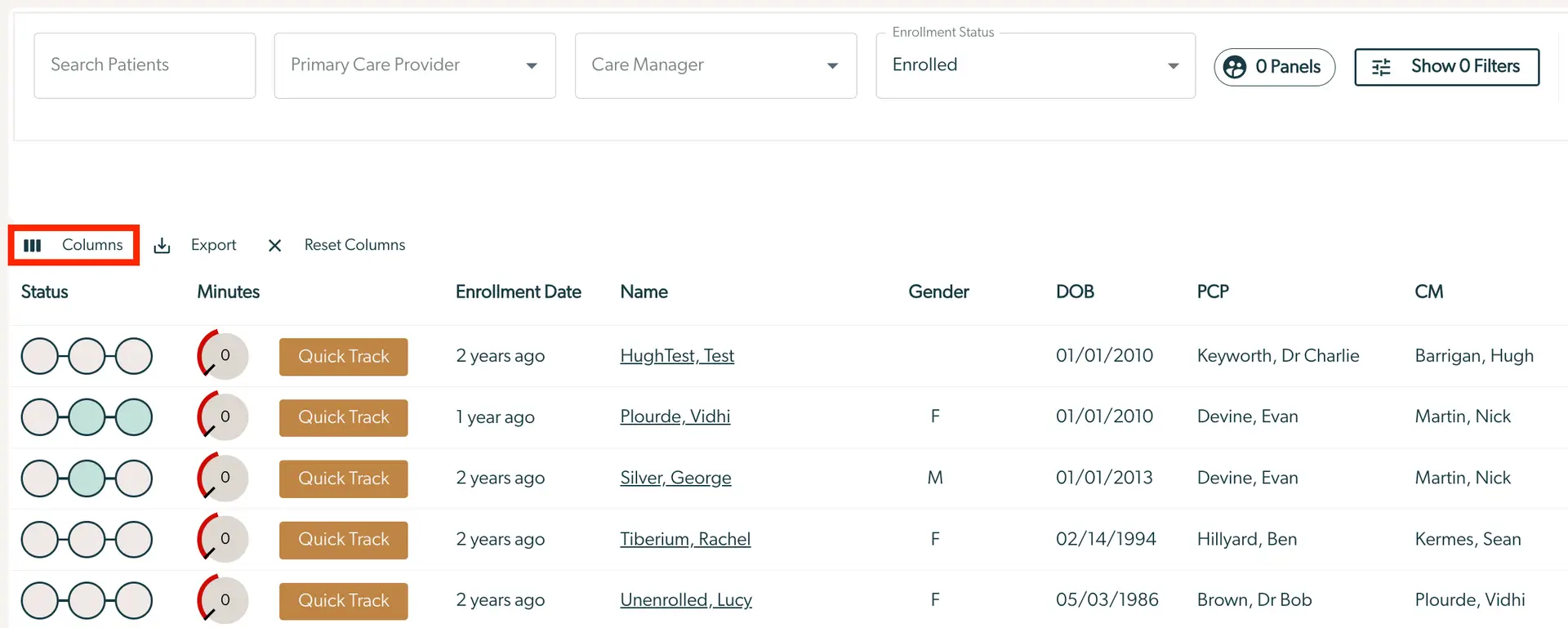
The screenshot displays a user interface from the Mirah Collaborative Care platform, specifically focusing on the Panels feature for filtering data. At the top, there are search and filter options including 'Search Patients', 'Primary Care Provider', 'Care Manager', and 'Enrollment Status', with the current status set to 'Enrolled'. To the right, there are buttons labeled '0 Panels' and 'Show 0 Filters' for managing panel and filter settings. Below these options, there is a toolbar with buttons for 'Columns', 'Export', and 'Reset Columns', allowing users to customize the data view, export data, or reset column settings. The main table lists patient information with columns for 'Status', 'Minutes', 'Enrollment Date', 'Name', 'Gender', 'DOB', 'PCP', and 'CM'. Each row provides specific details for individual patients, such as their enrollment date, name, gender, date of birth, primary care provider (PCP), and care manager (CM). The 'Quick Track' button is available for each patient, likely for quick access to their tracking information.

2). A dropdown menu will appear which highlights various columns that could appear on the "Panels" page. Simply select the checkbox correlated with each option to add or delete a column.
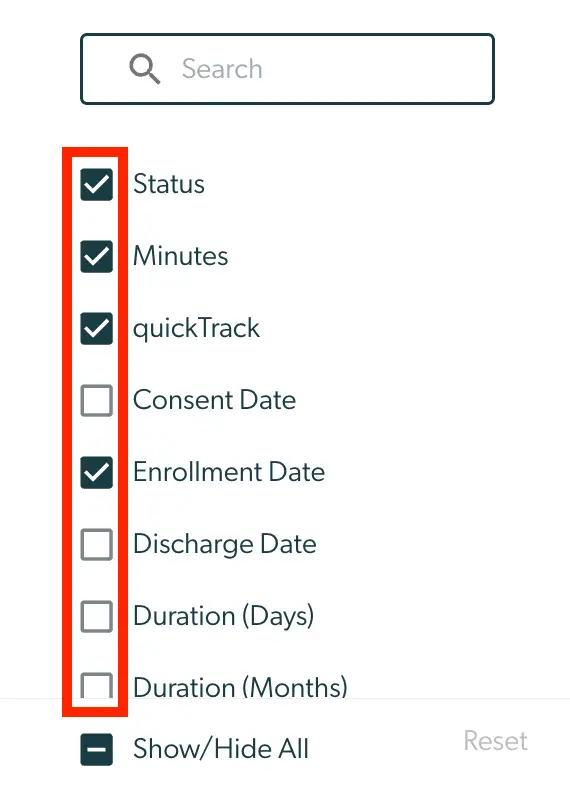
The screenshot displays a filter panel used for selecting data fields in the Mirah Collaborative Care application. At the top, there is a search bar with a magnifying glass icon for users to search specific fields. Below the search bar, there is a list of data fields with checkboxes next to each. The fields include Status, Minutes, quickTrack, Consent Date, Enrollment Date, Discharge Date, Duration (Days), and Duration (Months). Checkboxes are checked for Status, Minutes, quickTrack, and Enrollment Date, indicating these fields are selected for filtering. The Show/Hide All button at the bottom allows users to toggle the visibility of all fields, and the Reset option is available to clear selections.

For more detailed information on filtering in Patient Search, please refer to this article.

All Tasks​

When you filter the All Tasks page by panels you'll see something like this:
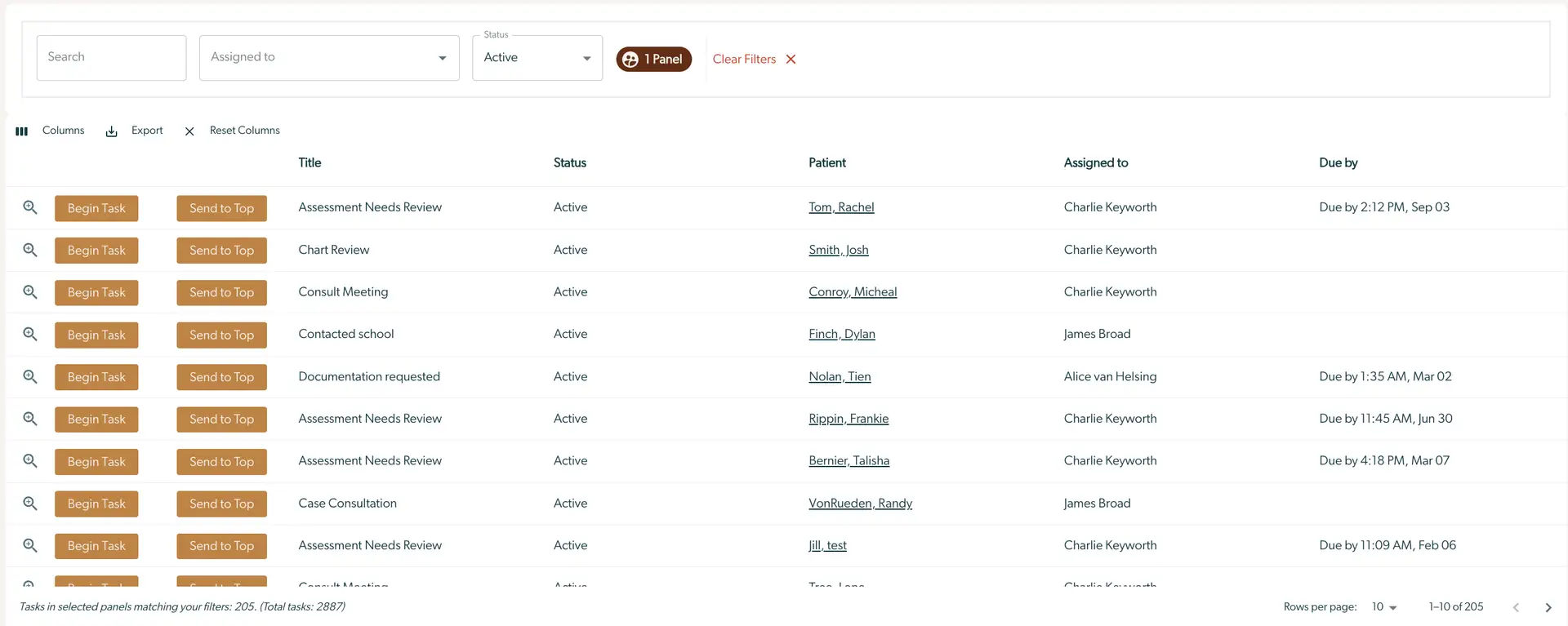
The screenshot displays a task management interface within the Mirah Collaborative Care platform, specifically focusing on filtering data by panel. At the top, there are search fields labeled 'Search' and 'Assigned to', along with a dropdown menu for 'Status' set to 'Active'. A filter indicator shows '1 Panel' is active, with an option to 'Clear Filters' located to the right. Below, a table lists tasks with columns for 'Title', 'Status', 'Patient', 'Assigned to', and 'Due by'. Each row includes buttons for 'Begin Task' and 'Send to Top' on the left, followed by task details such as the task title, patient name, assigned staff, and due date. The bottom of the screen indicates that 205 tasks match the current filters out of a total of 2887 tasks. Pagination controls are available at the bottom right, showing 'Rows per page: 10' and the current page range '1-10 of 205'.

Like the patient search table above, the panel badge is duplicated in the filters section but won't be changed by using "Clear Filters". The bottom left of the table shows the number of tasks being hidden because of the panel filter.

Case Consult​

When you filter the case consults page by panels, you'll see something like this:
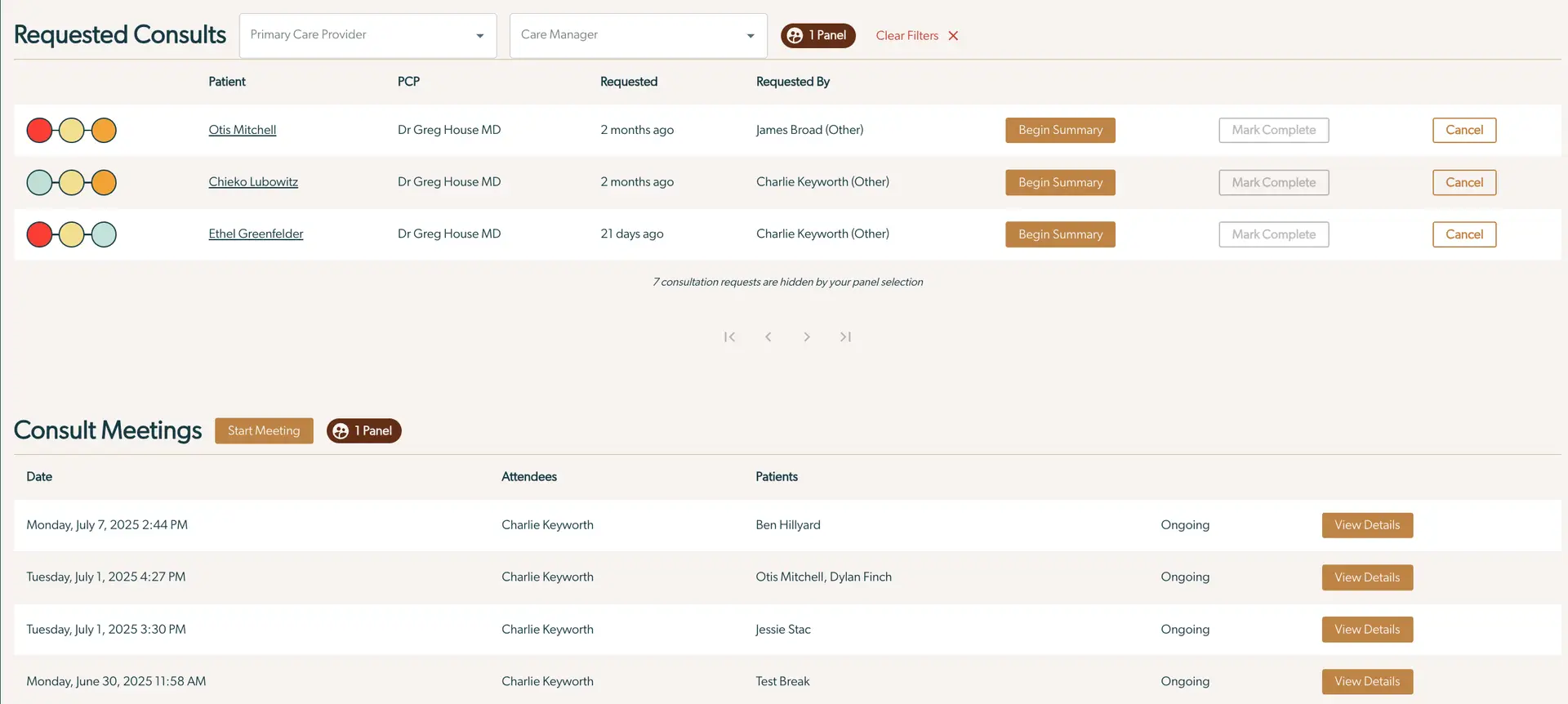
The screenshot displays the 'Requested Consults' and 'Consult Meetings' sections of the Mirah Collaborative Care platform, focusing on filtering data by panel. At the top, there are dropdown menus for selecting a Primary Care Provider and a Care Manager, along with a '1 Panel' button and a 'Clear Filters' option to reset selections. The 'Requested Consults' section lists patients Otis Mitchell, Chieko Lubowitz, and Ethel Greenfelder, each with their Primary Care Provider (PCP) Dr. Greg House MD, the time since the request was made, and the person who requested it. Each row includes a 'Begin Summary' button on the right, followed by 'Mark Complete' and 'Cancel' buttons. Below, the 'Consult Meetings' section lists meetings by date, with attendees, patients, and the status 'Ongoing'. Each entry has a 'View Details' button on the right. The 'Start Meeting' button is located at the top of this section, next to the '1 Panel' button.

The list of requested consults will only show requests from patients who are enrolled in the selected panels, and the list of meetings will only show meetings that have at least one patient who was enrolled in the selected panel at the time of the meeting (Old meetings with patients who may have been discharged are still included).

When you open the details for a specific meeting, the list of patients is not filtered by panel - you'll be able to see all patients who were discussed in this meeting no matter what panel they were enrolled in.
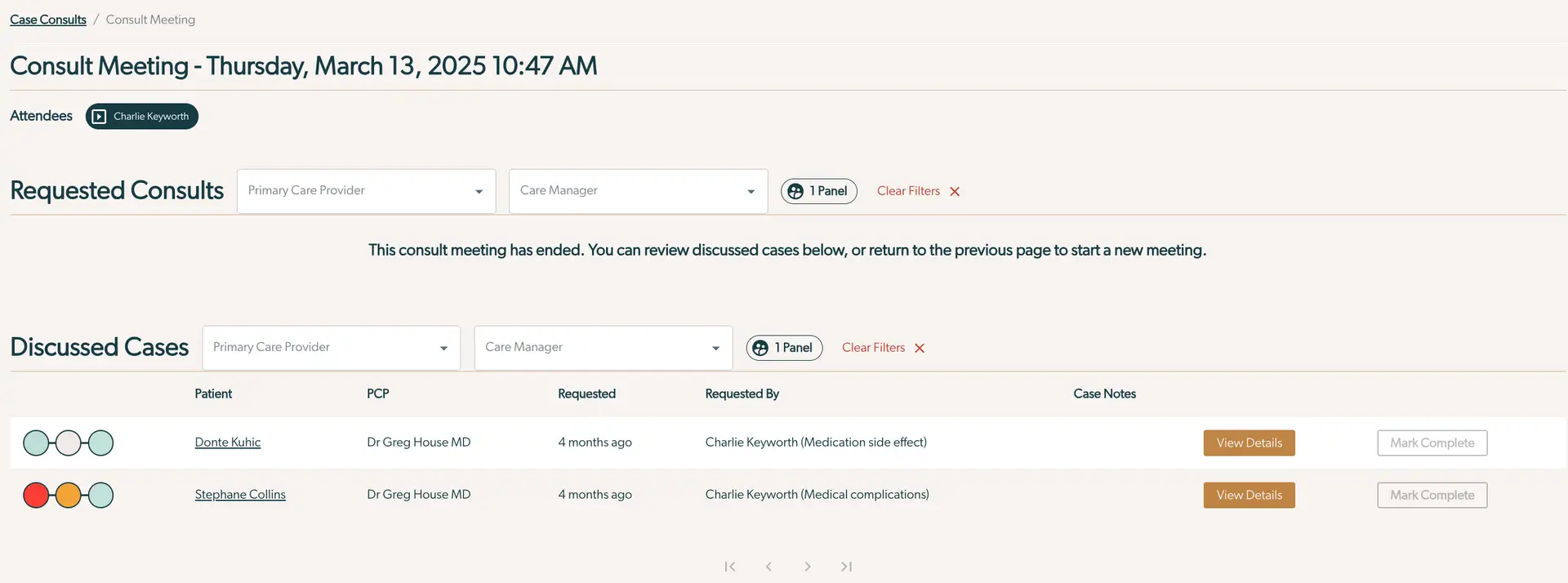
The screenshot displays the 'Consult Meeting' page for Mirah Collaborative Care, dated Thursday, March 13, 2025, at 10:47 AM. The page is divided into sections for 'Requested Consults' and 'Discussed Cases'. The 'Requested Consults' section includes dropdown filters for 'Primary Care Provider' and 'Care Manager', a button labeled '1 Panel' for filtering data by panel, and a 'Clear Filters' button to reset the filters. Below, a message indicates that the consult meeting has ended, allowing users to review discussed cases or return to the previous page to start a new meeting. The 'Discussed Cases' section also features dropdown filters for 'Primary Care Provider' and 'Care Manager', a '1 Panel' button, and a 'Clear Filters' button. It lists patients with their respective PCPs, the time since the request, and the person who requested the consult, along with case notes. Each case has a 'View Details' button and a 'Mark Complete' button located on the right side for further actions.