
How to Download Reports

Copy Recent Measurement Results​

1.) For any patient, first navigate to the Feedback Report by clicking on the desired measure on the patient page.
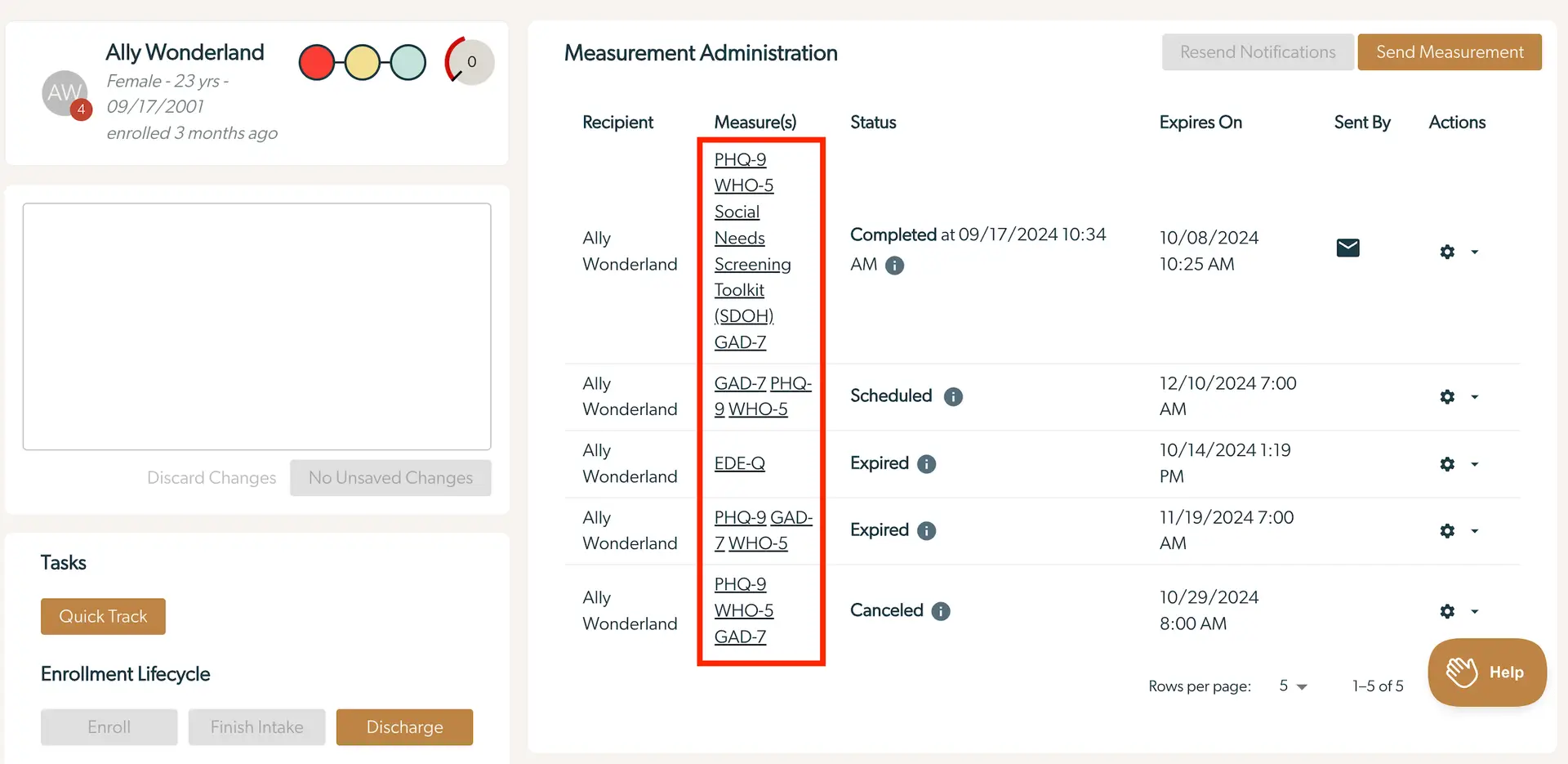
The screenshot displays the Measurement Administration section for a user named Ally Wonderland, who is a 23-year-old female enrolled 3 months ago. The left panel shows her profile with a circular progress indicator and a list of tasks including Quick Track and Enrollment Lifecycle options such as Enroll, Finish Intake, and Discharge. The main panel lists measurements administered to Ally, including PHQ-9, WHO-5, Social Needs Screening Toolkit (SDOH), GAD-7, and EDE-Q. Each measurement entry includes the recipient's name, the measure(s) administered, the status of the measurement (Completed, Scheduled, Expired, Canceled), expiration date and time, and the sender's information. Actions can be taken via icons located next to each entry, and there are buttons at the top right for Resend Notifications and Send Measurement. The bottom right corner features a Help button.

2.) Click the three lines in the brown circle at the top right of the Feedback Report.
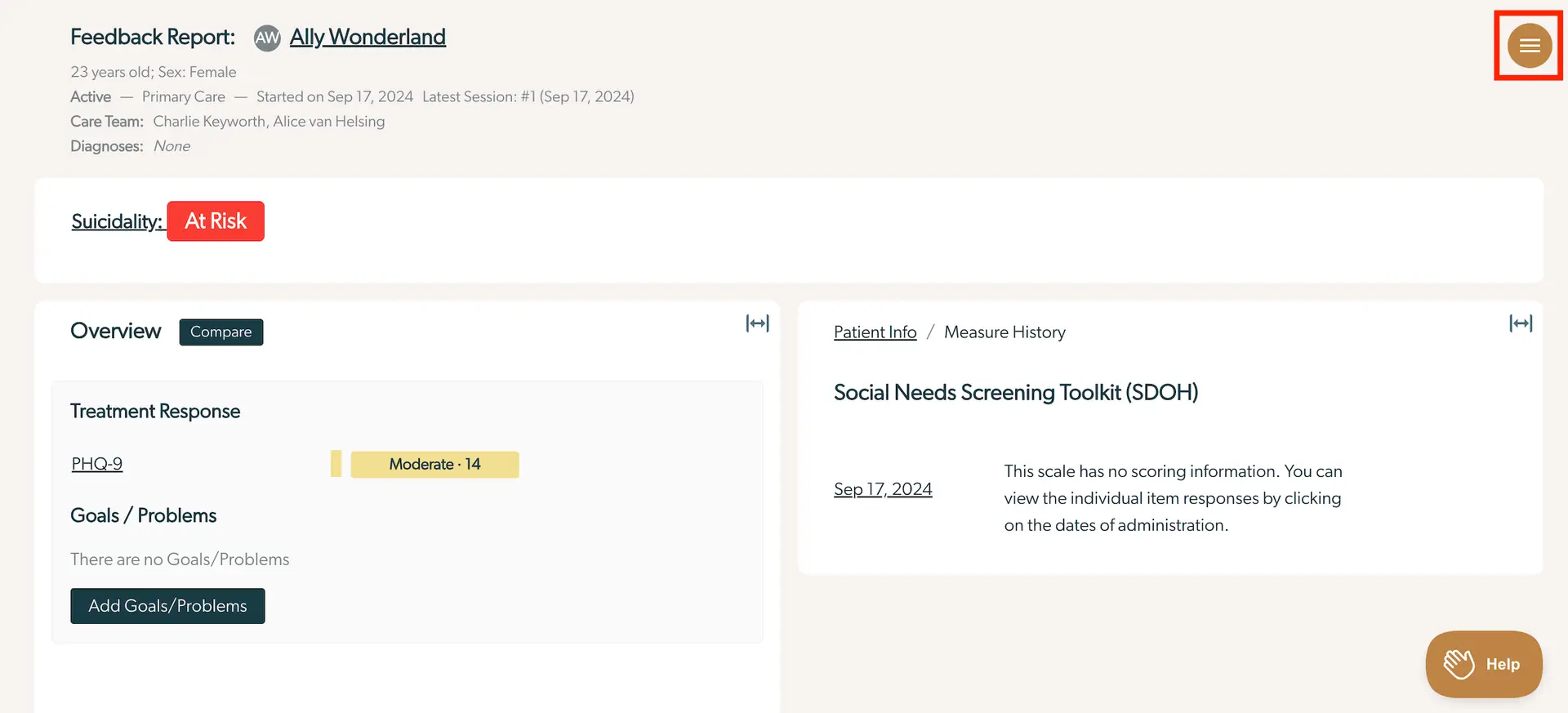
The screenshot displays a feedback report for a patient named Ally Wonderland, who is a 23-year-old female. The report is part of the Mirah Collaborative Care platform, which supports measurement-based care. At the top, the patient's basic information is shown, including her active status in primary care, the start date of her care, and the latest session date. The care team members are listed as Charlie Keyworth and Alice van Helsing, with no diagnoses mentioned. A prominent red label indicates that the patient is 'At Risk' for suicidality. Below, the 'Overview' section includes a 'Treatment Response' area showing a PHQ-9 score of 14, categorized as 'Moderate.' There is a button labeled 'Add Goals/Problems' for adding new goals or problems, located below the treatment response. On the right, the 'Social Needs Screening Toolkit (SDOH)' is displayed, with a note that the scale has no scoring information and instructions to view individual item responses by clicking on the dates of administration. The breadcrumb navigation at the top right shows 'Patient Info / Measure History.' A menu button is located in the top right corner, and a 'Help' button is at the bottom right corner.

3.) Click "Generate Clinical Note".

The screenshot displays a dropdown menu from the Mirah Collaborative Care interface, which is part of the user management and collaborative care features. The menu is accessed via a hamburger icon located in the top right corner of the screen. The menu contains two options: 'Generate Clinical Note' and 'Change Measurement Plan'. The 'Generate Clinical Note' option is highlighted with a red border, indicating it is the current selection. This option allows users to create a clinical note, which is essential for documenting patient interactions and care plans. The 'Change Measurement Plan' option, represented by an icon of a ruler, allows users to modify the measurement plan associated with a patient's care. This menu is part of the workflow streamlining and data management features, facilitating efficient clinical documentation and care plan adjustments.

4.) This will generate a text summary of the measures from the most recent measurement administration and the scores. You can paste this information into your EHR by clicking "Copy". Close by pressing the "X" on the top right.
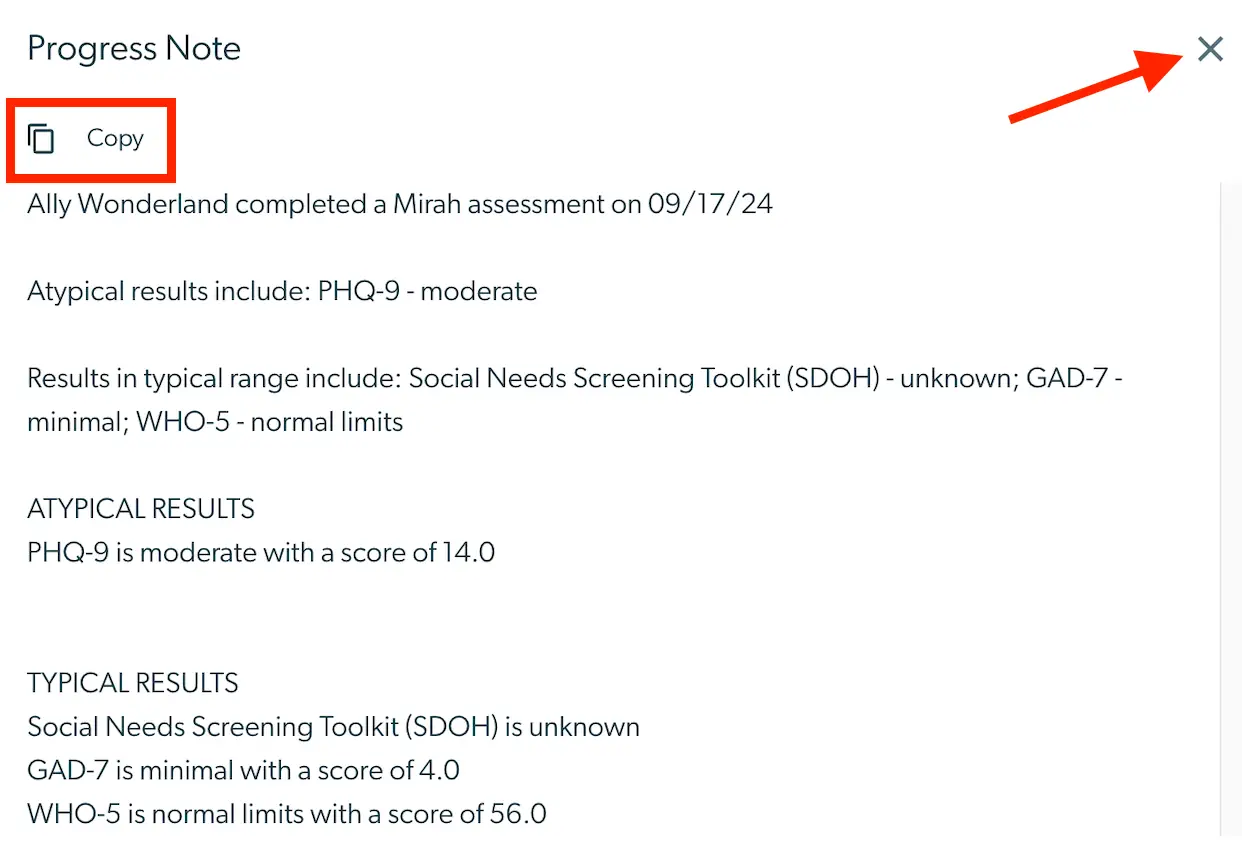
The screenshot displays a Progress Note from Mirah Collaborative Care, detailing the results of an assessment completed by Ally Wonderland on 09/17/24. The note includes atypical results with a PHQ-9 score of moderate, and typical results with scores for Social Needs Screening Toolkit (SDOH) as unknown, GAD-7 as minimal with a score of 4.0, and WHO-5 within normal limits with a score of 56.0. A 'Copy' button is located at the top left corner, allowing users to copy the note content. An 'X' button is located at the top right corner, enabling users to close the note.

Download PDF of Any Measurement Administration​

Actions menu​

1.) On the patient page, click the gear icon for any Completed Measurement Administration.
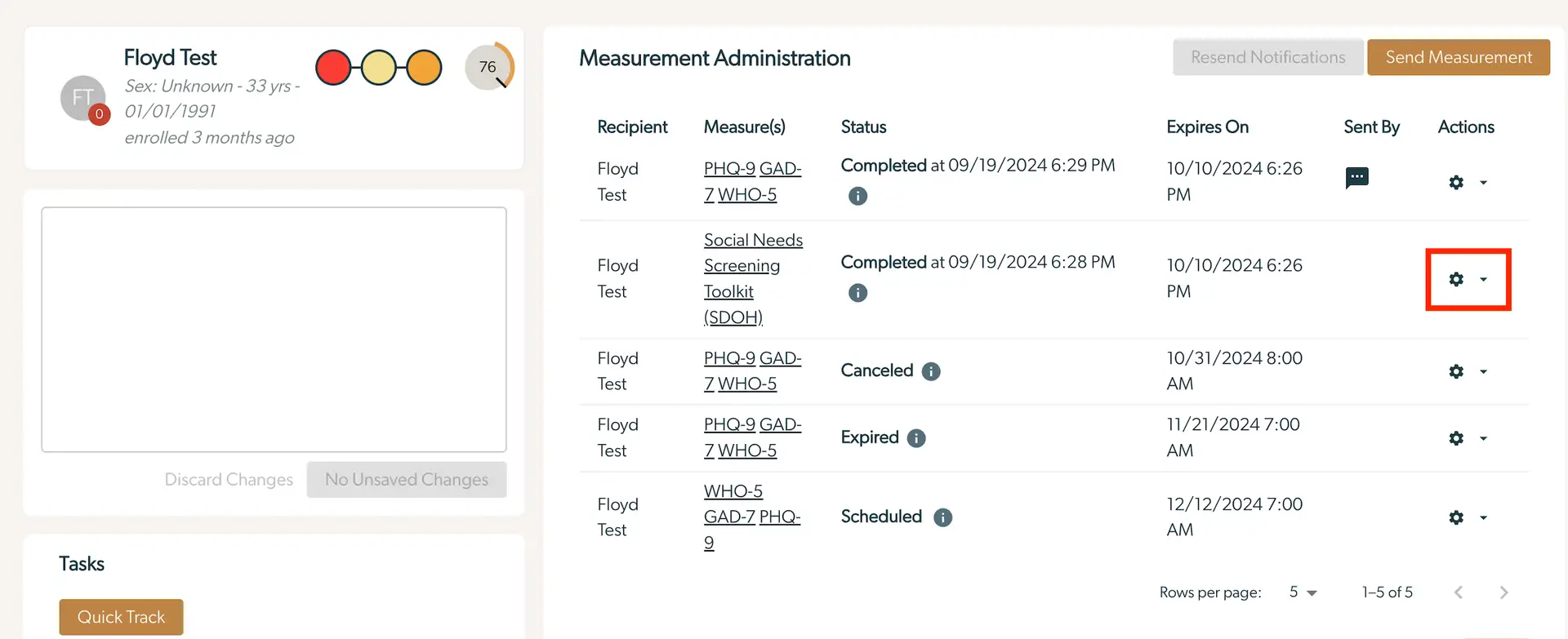
The screenshot displays the Measurement Administration section of the Mirah Collaborative Care platform, focusing on user Floyd Test. On the left, Floyd Test's profile is shown with demographic details including sex, age, and enrollment date, along with a visual progress indicator. The main section lists various measures assigned to Floyd Test, such as PHQ-9, GAD-7, WHO-5, and Social Needs Screening Toolkit (SDOH). Each measure has a status, expiration date, and sender information. The status can be Completed, Canceled, Expired, or Scheduled, with corresponding timestamps. The Actions column includes a gear icon for additional options, highlighted in red for the second measure. At the top right, there are buttons for 'Resend Notifications' and 'Send Measurement'. Below the profile, there is a 'Discard Changes' button and a 'No Unsaved Changes' indicator. The bottom left corner features a 'Quick Track' button under Tasks.

2.) Click "Download PDF".

The screenshot displays a dropdown menu from the Mirah Collaborative Care platform, which is part of the user interface for managing users and collaborative care. The menu includes several options: 'Start Interview' for initiating a new interview process, 'Send Reminder' for sending notifications to users, 'Cancel Measurement' for stopping a current measurement activity, 'View Report' for accessing detailed reports, and 'Download PDF' for downloading the report in PDF format. The 'Download PDF' option is highlighted with a red border, indicating its importance or current selection. The dropdown menu is accessed via a gear icon located at the top right corner of the screen, which typically signifies settings or additional options.

3.) Once it has generated, it will download a PDF file called "Mirah Assessment Results". It will include a detailed summary of the score and measure responses for that particular administration.
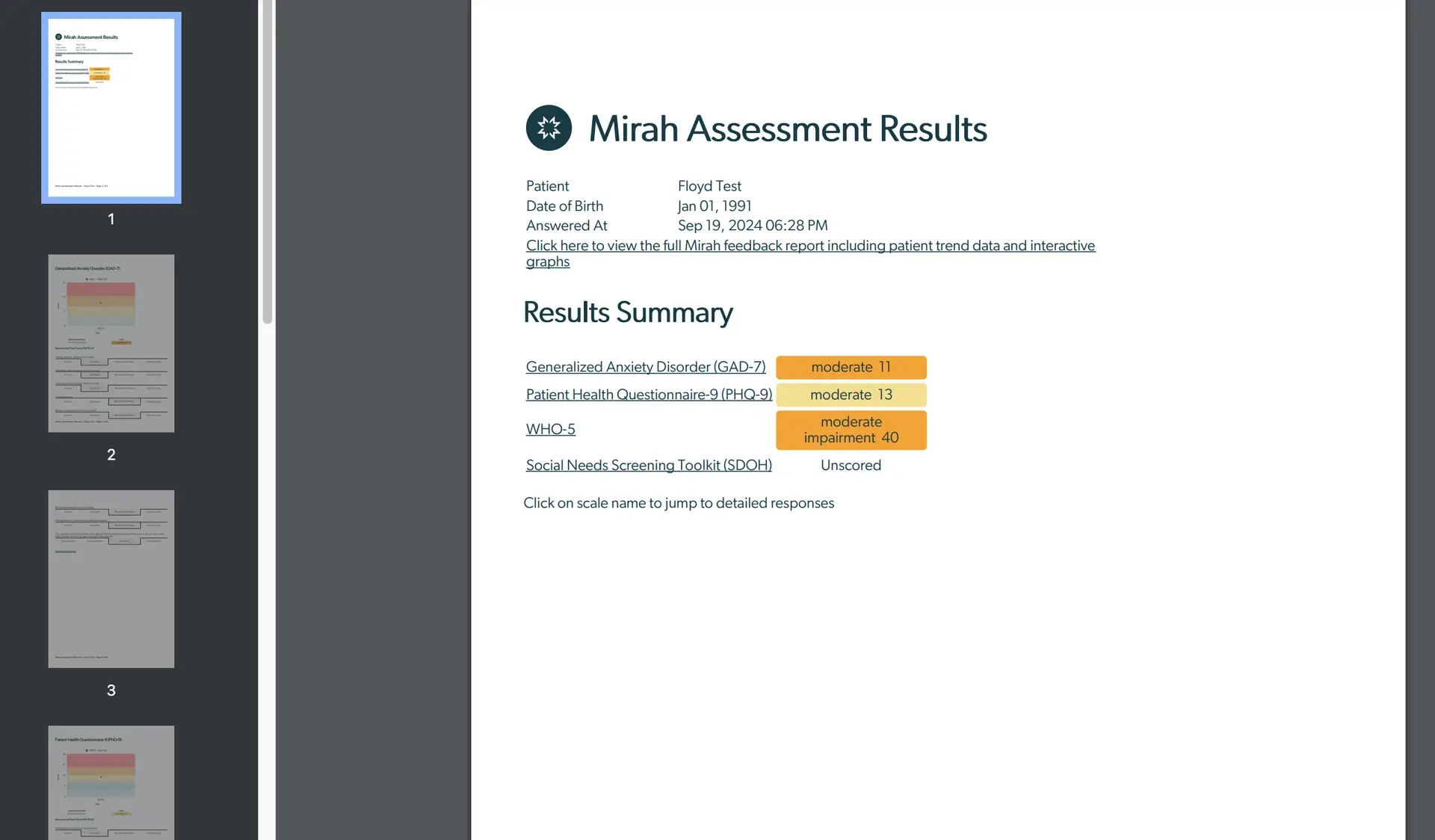
The screenshot displays the Mirah Assessment Results page, which is part of the collaborative care feature. On the left side, there is a vertical thumbnail navigation panel showing three pages of the report, with the first page highlighted. The main section on the right presents the assessment results for a patient named Floyd Test, born on January 01, 1991, with the assessment answered on September 19, 2024, at 06:28 PM. A clickable link is provided to view the full Mirah feedback report, including patient trend data and interactive graphs. The Results Summary section lists various assessments: Generalized Anxiety Disorder (GAD-7) with a score of moderate 11, Patient Health Questionnaire-9 (PHQ-9) with a score of moderate 13, WHO-5 with a score of moderate impairment 40, and Social Needs Screening Toolkit (SDOH) which is unscored. Each assessment name is clickable to jump to detailed responses.

Invitation History​

1.) On any Completed invitation on the Patient page, click the information icon in the Status section.
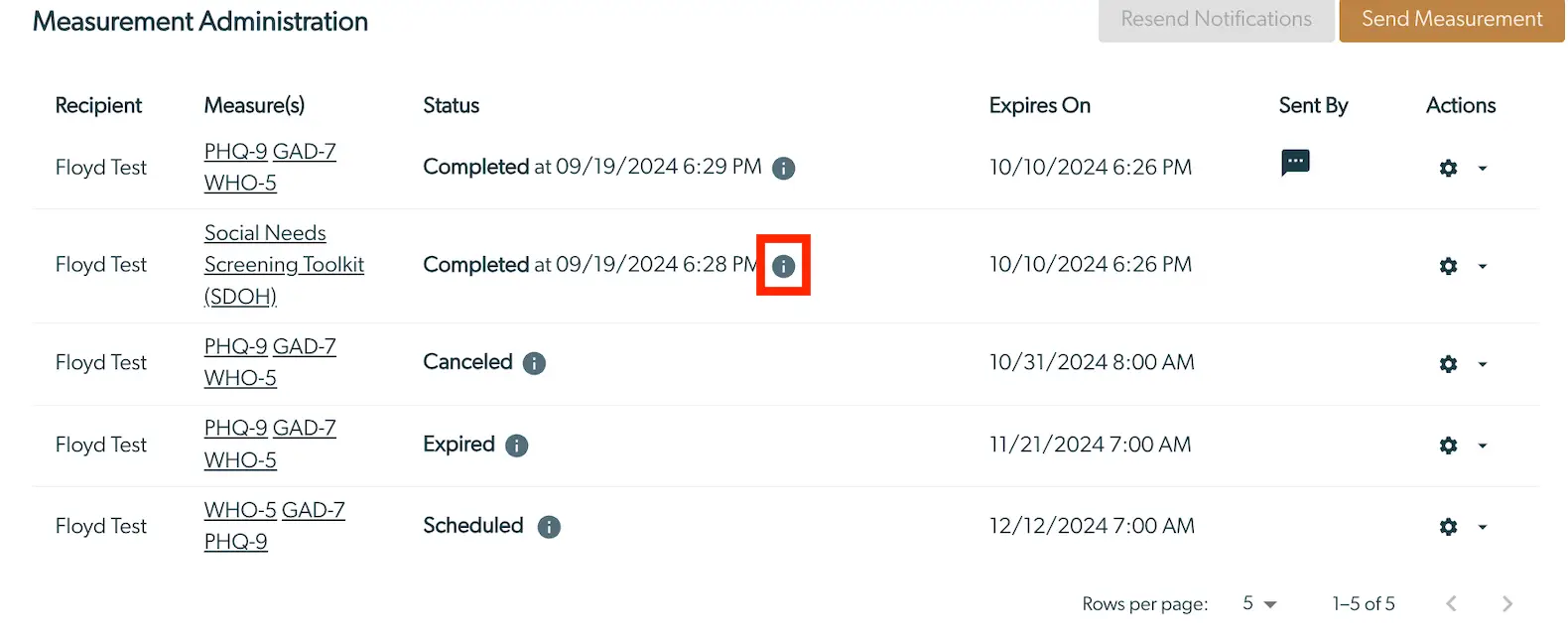
The screenshot displays the Measurement Administration page, which is part of the Mirah Collaborative Care platform. This page is used to manage and track the status of various assessments sent to recipients. The table includes columns for Recipient, Measure(s), Status, Expires On, Sent By, and Actions. Each row represents an assessment sent to a recipient named Floyd Test, with details about the measures used, such as PHQ-9, GAD-7, WHO-5, and Social Needs Screening Toolkit (SDOH). The Status column indicates whether the assessment is Completed, Canceled, Expired, or Scheduled, along with the date and time. The Expires On column shows the expiration date and time for each assessment. The Sent By column may include icons indicating the method of sending, such as a message icon. The Actions column contains a gear icon for additional options. At the top right corner, there are buttons labeled 'Resend Notifications' and 'Send Measurement' for managing notifications and sending new assessments. The page also includes navigation controls at the bottom for adjusting the number of rows displayed per page and navigating through pages.

2.) A pop-up will appear with Invitation History information. Click the "Download PDF" button. Press the "X" when you are done.
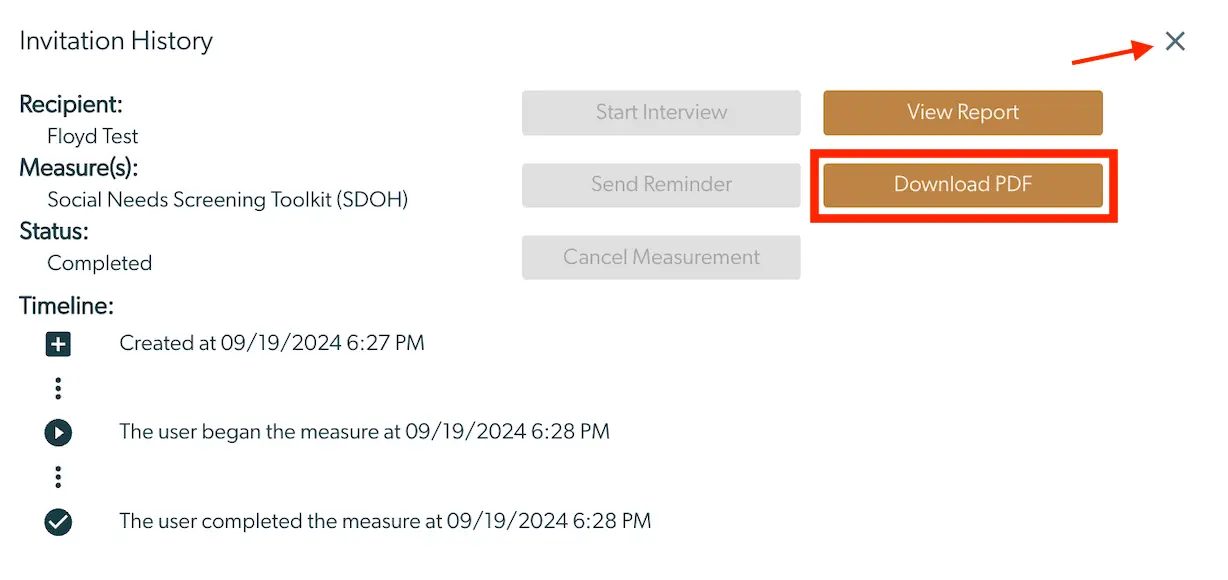
The 'Invitation History' screen provides a detailed view of a specific measurement invitation sent to a recipient named Floyd Test. It includes information about the measure used, which is the Social Needs Screening Toolkit (SDOH), and the status of the invitation, marked as 'Completed'. The timeline section records the creation of the invitation at 6:27 PM, the start of the measure at 6:28 PM, and its completion at the same time. On the right side, there are several buttons: 'Start Interview', 'Send Reminder', and 'Cancel Measurement', which are all disabled, and 'View Report' and 'Download PDF', which are active. The 'Download PDF' button is highlighted, indicating its importance for downloading the report. An 'X' button is located at the top right corner for closing the screen.

Download Monthly Collaborative Care Summary​

This report is a downloaded PDF containing everything which happened for a patient in a particular month.

This report can be uploaded into the EHR to provide full documentation for a Collaborative Care encounter, as well as providing audit evidence for the time spent providing Collaborative Care which can be used to bill services.

Please note that the PDFs generated for a month may be large documents, and it can take several seconds to generate a summary.

On the Patient Details page​

If you scroll down on the patient page to the section entitled "Monthly Summaries", there is a row for each month containing relevant billing information. One of the columns called "PDF" has a button for each row to download the Monthly Collaborative Care Summary PDF for that particular month.
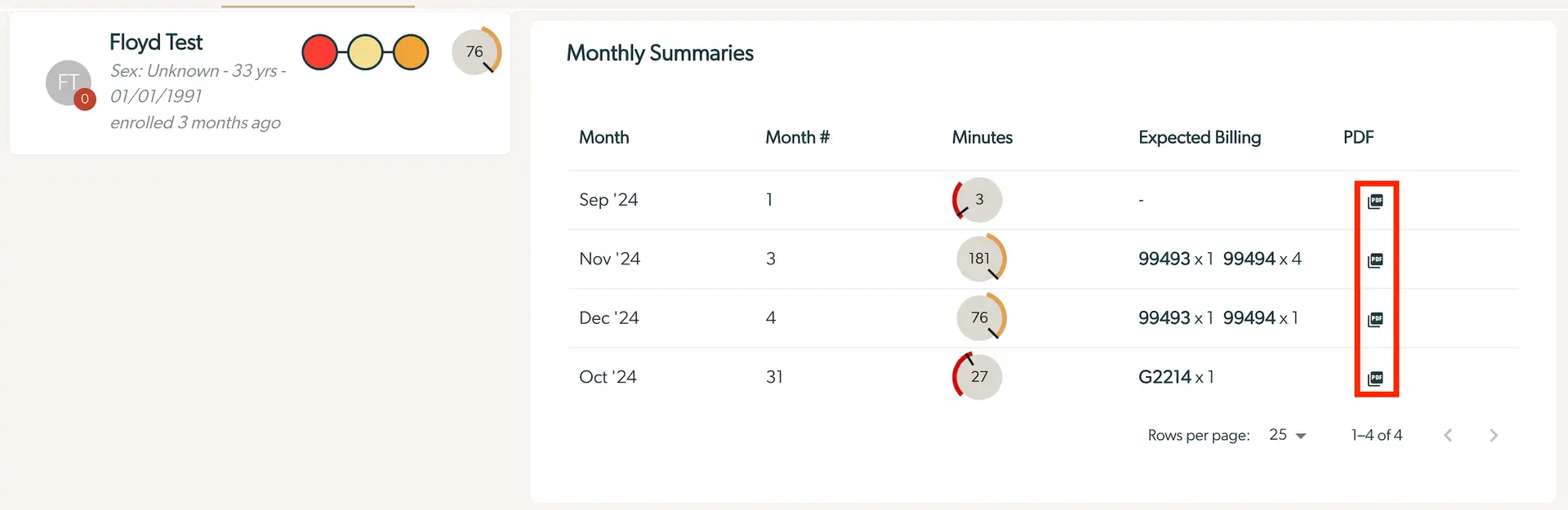
The screenshot displays a user interface for viewing monthly summaries related to a patient named Floyd Test. On the left side, there is a profile section showing the patient's initials 'FT', sex as unknown, age as 33 years, date of birth as 01/01/1991, and enrollment date as three months ago. A visual representation of the patient's progress is shown with colored circles and a percentage of 76. On the right side, the 'Monthly Summaries' section lists data for months September '24 to October '24, including the month number, minutes spent, expected billing, and a PDF icon for downloading reports. Each row corresponds to a month, with the PDF icons located in the last column, allowing users to download detailed reports for each month. Navigation controls at the bottom allow users to adjust the number of rows per page and navigate through pages.

On the Monthly Billing Report​

Navigate to the Monthly Billing Report by clicking your institute name at the top right and clicking "Monthly Billing Report". Here, after selecting the desired month on the top left, you can download the PDF by clicking the PDF icon on any patient row.
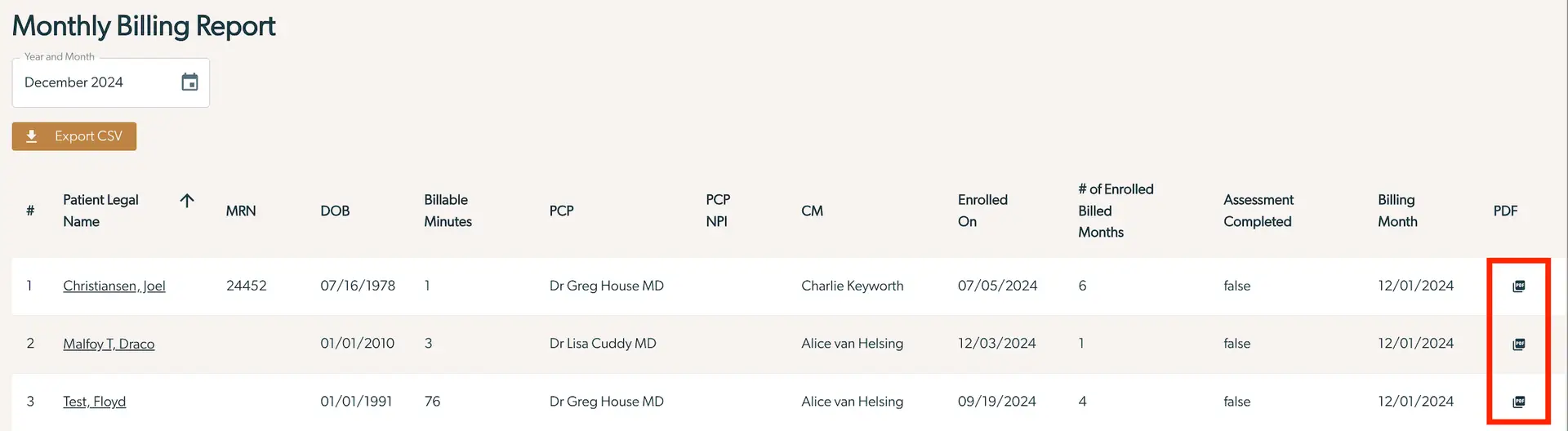
The Monthly Billing Report screen displays a table of patient billing information for December 2024. At the top, there is a dropdown field labeled 'Year and Month' with the selected date 'December 2024' and a calendar icon for date selection. Below this, a button labeled 'Export CSV' is available for downloading the report data in CSV format. The table includes columns for patient details and billing information: '#' for the row number, 'Patient Legal Name' with clickable links to individual patient profiles, 'MRN' for Medical Record Number, 'DOB' for Date of Birth, 'Billable Minutes', 'PCP' for Primary Care Provider, 'PCP NPI' for National Provider Identifier, 'CM' for Care Manager, 'Enrolled On' for enrollment date, '# of Enrolled Billed Months', 'Assessment Completed' indicating whether the assessment is completed, 'Billing Month', and 'PDF' with icons on the right side for downloading individual patient reports in PDF format.

You may download the PDF from any row.

Automatic Sending to EMR​

If Mirah has a connection to your EMR, it may be possible to automatically send the monthly summary for all those in active care. Please contact support@mirah.com for more details.

Contents of the Document​

Each document contains:

  • A short summary of all the other sections, including information about the enrollment.
  • Details of every Case Consultation performed in that month
  • Full time and task data, containing:
    • Each time entry that was billed in the month
    • Every task that was completed
    • Every note or text that was logged in Mirah for this month
  • Assessment data, broken down by each scale, containing:
    • A graph of all results for that scale
    • Individual responses for every question taken by a user in the month.

Note that if a summary is generated for a previous month, the line graph for scale data will include all data up to the current date. The individual responses will be only those given for the month in question.