
Implementation Targets - How to Set Up Implementation Targets

Implementation targets refer to measurable goals that a healthcare institute aims to achieve when adopting Collaborative Care. Setting up these targets can be beneficial to track outcome and process targets. Please refer to the instructions below to learn how to set up and utilize these implementation targets.

How to Create an Implementation Target​

1.) Direct yourself to the "Implementation Targets" tab by first selecting "Metrics" and then clicking "Implementation Targets".

The screenshot displays the 'Implementation Targets' section within the Mirah Collaborative Care platform, specifically focusing on metrics related to new enrollments and billing targets for CoCM Hospital. The left panel shows a graph titled 'New Enrollments Launch Target' with a timeline from 10/01/2024 to 07/01/2025, indicating the number of new enrollments over time. To the right of the graph, there are two boxes displaying enrollment statistics: '2 Enrollments Week ending Aug 10' and '152/90 Enrollments Since goal start'. Below the graph, a status indicator shows 'Off Track'. The right panel features a graph titled 'Billing Target' with expected monthly billing data, alongside two boxes showing billing figures: '$4,050/$30,000 Expected This month' and '$15,200/$30,000 Expected Last month'. The top navigation bar includes a date selector for 'Week Ending' set to 08/10/2025, an 'Entities' dropdown showing 'CoCM Hospital', and buttons for 'Show 0 Filters' and 'Clear Filters'. A 'Create Target' button is located at the top right corner. The left sidebar lists navigation options such as Dashboard, Panels, All Tasks, Case Consult, Patient Search, Billing, Metrics, Outcomes, Implementation Targets, Institute Performance, My Performance, Configuration, Platform Tools, and Mirah Support. A 'Help' button is located at the bottom right corner.

2.) Press the "Create Target" button in the top right-hand corner.

The screenshot displays a button labeled 'Create Target' which is used to initiate the process of setting up implementation targets within the Mirah Collaborative Care platform. This button is prominently placed in the center of the screen and is highlighted with a red border to draw attention. Clicking this button allows users to define new targets for collaborative care, facilitating the management of users and the optimization of care delivery practices.

3.) Select a target type. These refer to specific metrics used to evaluate and monitor the implementation and performance of Collaborative Care.
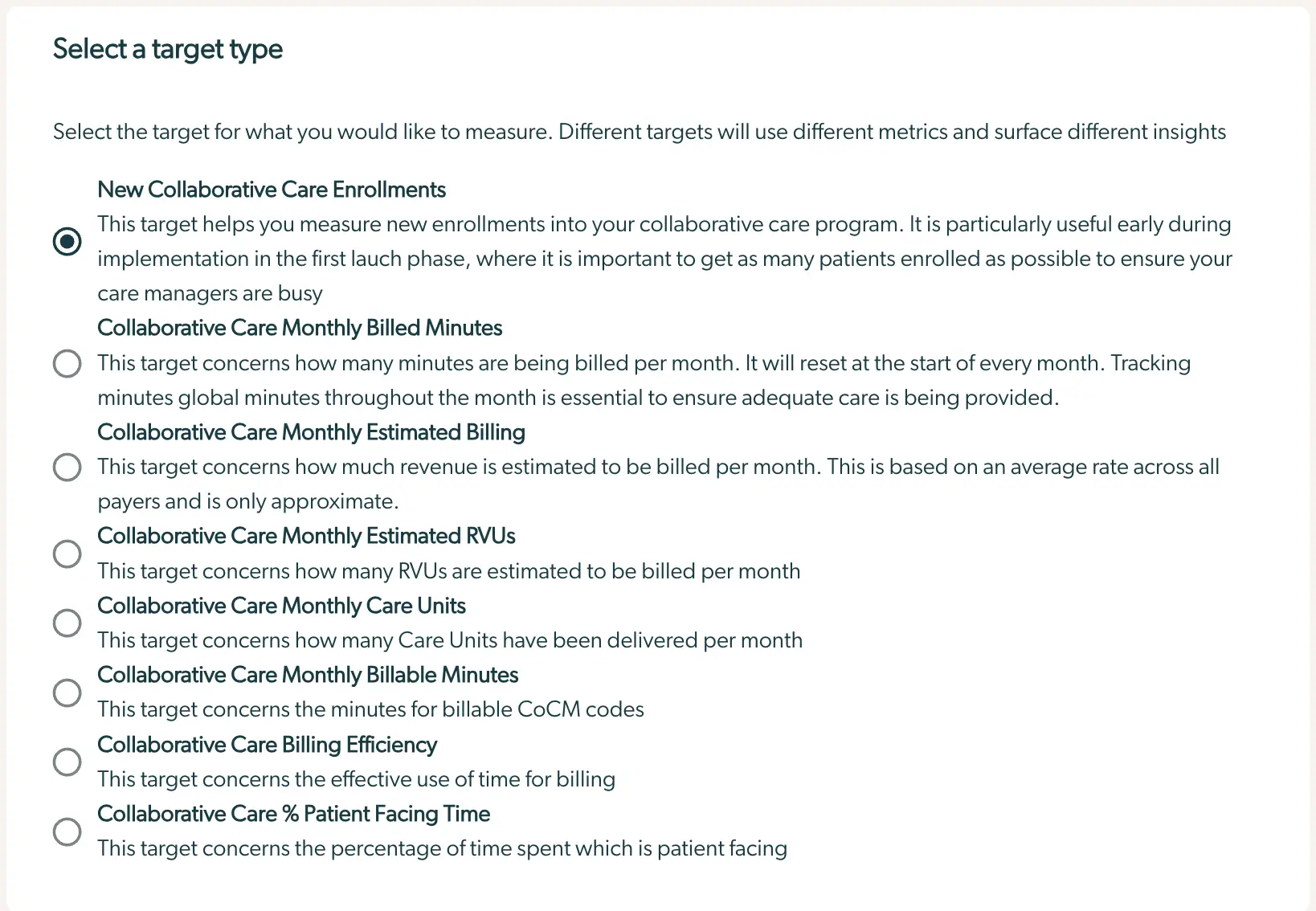
The screen titled 'Select a target type' is part of the process for setting up implementation targets within the Mirah Collaborative Care platform. It allows users to choose from various target types to measure different aspects of collaborative care. The options include New Collaborative Care Enrollments, Collaborative Care Monthly Billed Minutes, Collaborative Care Monthly Estimated Billing, Collaborative Care Monthly Estimated RVUs, Collaborative Care Monthly Care Units, Collaborative Care Monthly Billable Minutes, Collaborative Care Billing Efficiency, and Collaborative Care % Patient Facing Time. Each option is accompanied by a brief description explaining its purpose and importance. The first option, New Collaborative Care Enrollments, is selected by default, indicating its relevance during the initial launch phase. Users can select their preferred target type by clicking the radio button located to the left of each option.

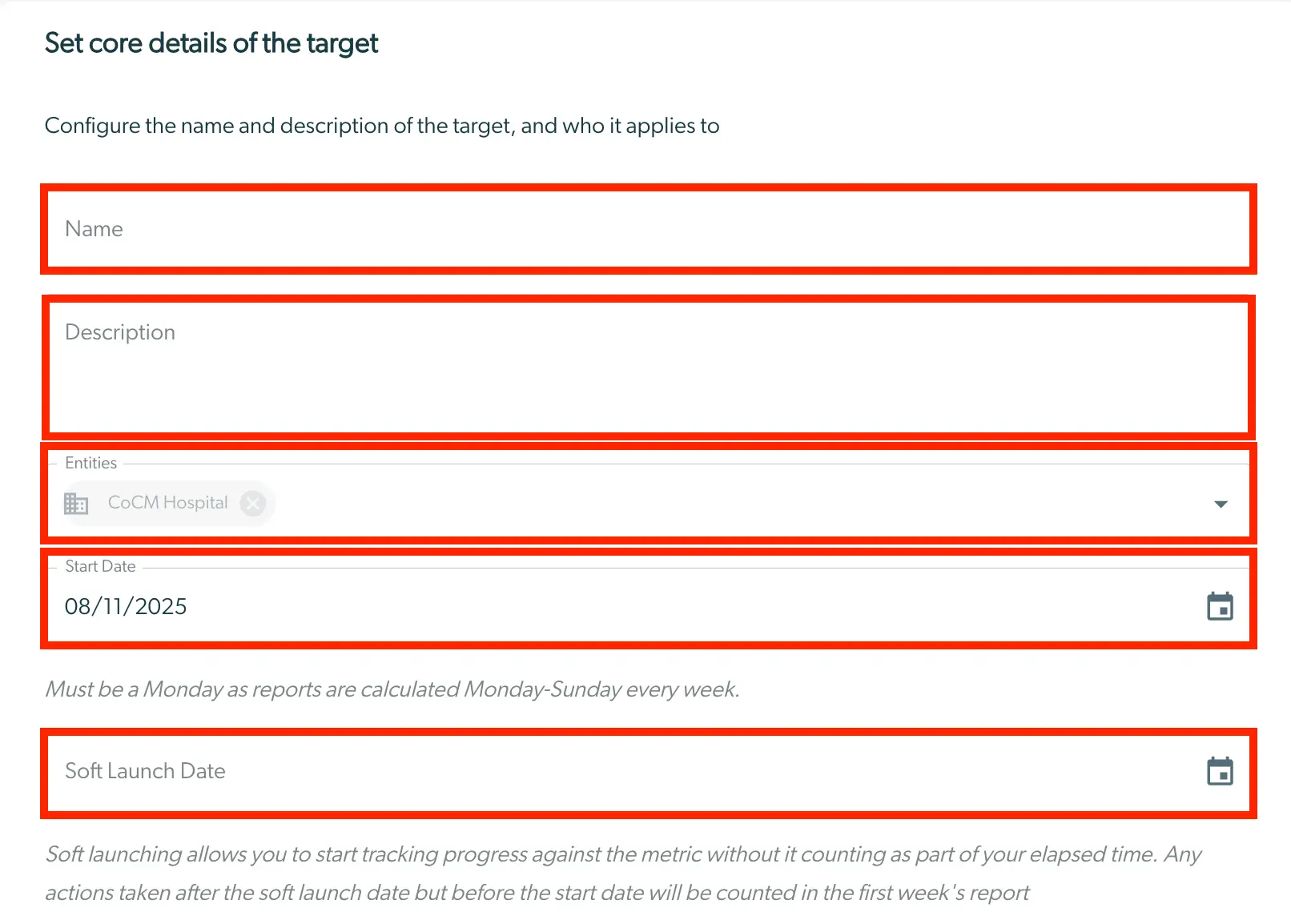
4.) Input the details of target, including the "Name", "Description", "Entities", "Start Date" and *"Soft Launch Date".

  • *Soft launch refers to beginning the tracking progress without it counting as elapsed time. Any actions taken after the soft launch date but before the start date will be counted in the first week's report. The screenshot displays the 'Set core details of the target' page in the Mirah Collaborative Care platform, where users can configure the name and description of a target and specify the entities it applies to. The page includes a 'Name' field for entering the target's name, a 'Description' field for detailing the target, and an 'Entities' dropdown menu where users can select applicable entities, such as 'CoCM Hospital'. Below these fields, there is a 'Start Date' field with a calendar icon for selecting the date, which must be a Monday as reports are calculated weekly from Monday to Sunday. Additionally, there is a 'Soft Launch Date' field with a calendar icon, allowing users to set a date to start tracking progress without it affecting the elapsed time. The page provides guidance on the purpose of soft launching and how actions taken during this period are reported.
5.) Finally, configure the target by inputting the "Target" and "Initial Credits".
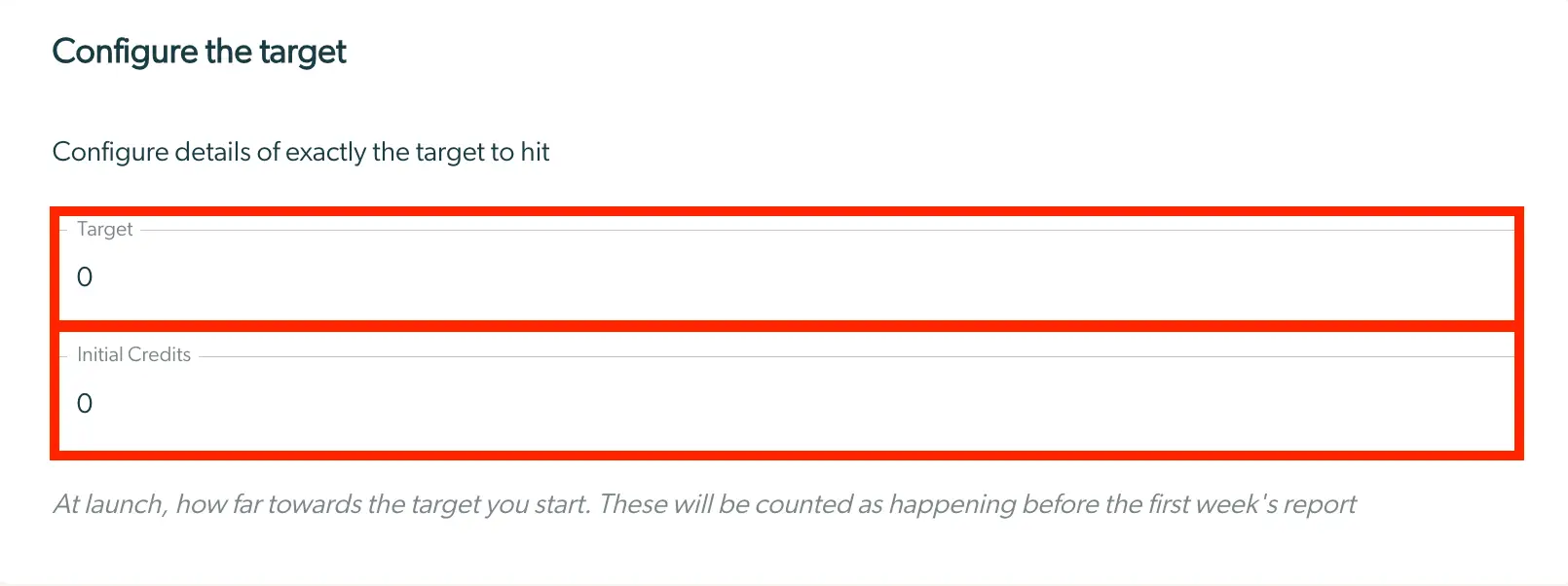
The screen titled 'Configure the target' is designed for setting up implementation targets within the Mirah Collaborative Care platform. It features two main input fields: 'Target' and 'Initial Credits', both set to a default value of 0. Users can enter specific numerical values in these fields to define the target they aim to achieve and the initial credits available at launch. Below these fields, a note explains that the initial credits will be counted as progress towards the target before the first week's report. This screen is part of the user management and collaborative care feature, allowing users to configure precise targets for their care delivery goals.

6.) Select "Create New Target". This new metric will now appear in your institute's "Implementation Targets" dashboard.

The screenshot displays a button labeled 'Edit Target' which is part of the user interface for managing implementation targets within the Mirah Collaborative Care platform. This button is designed to allow users to modify existing implementation targets, facilitating the customization and optimization of collaborative care processes. The button is centrally located and prominently highlighted with a red border, making it easily identifiable for users who need to make adjustments to their targets.

7.) Located below displays how the prompted information reflects in the metric.

The screenshot displays the 'Billing Target' screen for CoCM Hospital, which is part of the Mirah Collaborative Care platform. At the top left, the title 'Billing Target' is shown, followed by the name of the hospital, 'CoCM Hospital'. The main section features a line graph illustrating 'Expected monthly billing' over time, with the x-axis labeled with dates and the y-axis labeled with dollar amounts ranging from $0 to $14,000. To the right of the graph, there are two boxes displaying billing information. The top box shows '$4,050 / $10,000', indicating the current month's billing against the expected target, with the text 'Expected This month' below. The bottom box shows '$15,200 / $10,000', indicating the previous month's billing against the expected target, with the text 'Expected Last month' below. A green status indicator labeled 'On Track' is located below the graph, suggesting that the billing is progressing as planned. At the bottom of the screen, a brown button labeled 'More Insights' is available for users to access additional information.

  • 1. Target Name
  • 2. Entity
  • 3. Start Date
  • 4. Target Configuration
  • *5. Includes Initial Credits if any

Editing an Implementation Target​

1.) Locate the Metric you wish to edit.
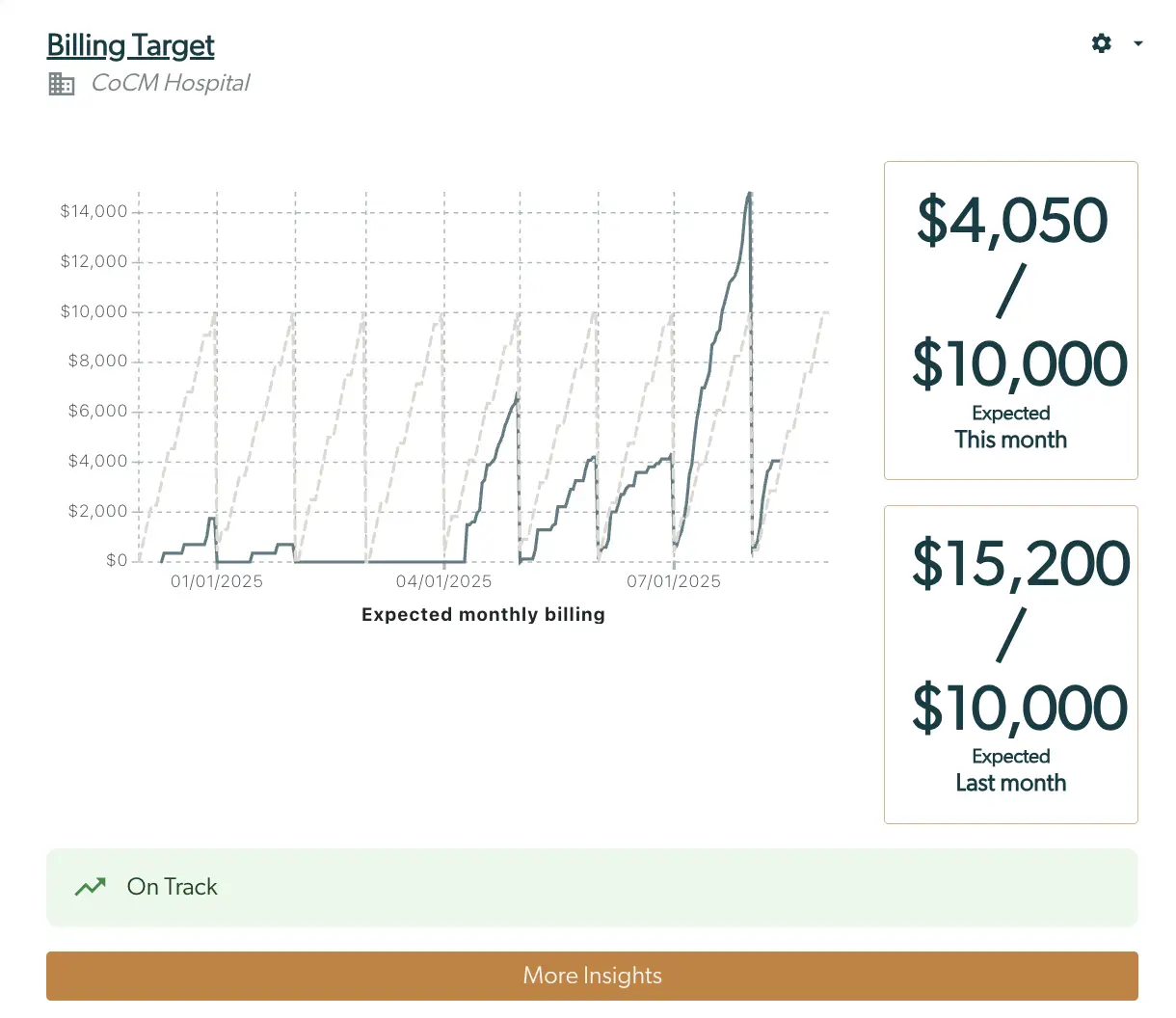
The screenshot displays the 'Billing Target' screen for CoCM Hospital, part of the Mirah Collaborative Care platform. The main feature is a line graph illustrating the expected monthly billing from January 2025 to July 2025, with the y-axis showing dollar amounts ranging from $0 to $14,000. To the right of the graph, there are two sections showing billing targets: the top section indicates '$4,050 / $10,000 Expected This month' and the bottom section shows '$15,200 / $10,000 Expected Last month'. Below the graph, there is a status indicator labeled 'On Track' in green, suggesting that the billing is progressing as planned. At the bottom of the screen, a brown button labeled 'More Insights' is available for users to access additional information. The settings icon is located at the top right corner of the screen, allowing users to adjust preferences.

2.) Click the gear icon in the top right corner and select "Edit".

The screenshot displays a section of the Mirah Collaborative Care interface focused on user management within the collaborative care feature. At the top, there is a gear icon representing settings, which is accompanied by a downward-facing arrow indicating a dropdown menu for additional options. Below this, there is a prominent 'Edit' button, highlighted in red, which allows users to modify settings or information related to implementation targets. The 'Edit' button is centrally located in the screenshot, suggesting its importance in the user flow for managing collaborative care settings.

3.) Once you get into this page, you have the ability to edit all information, including the target type, core details and target configuration.
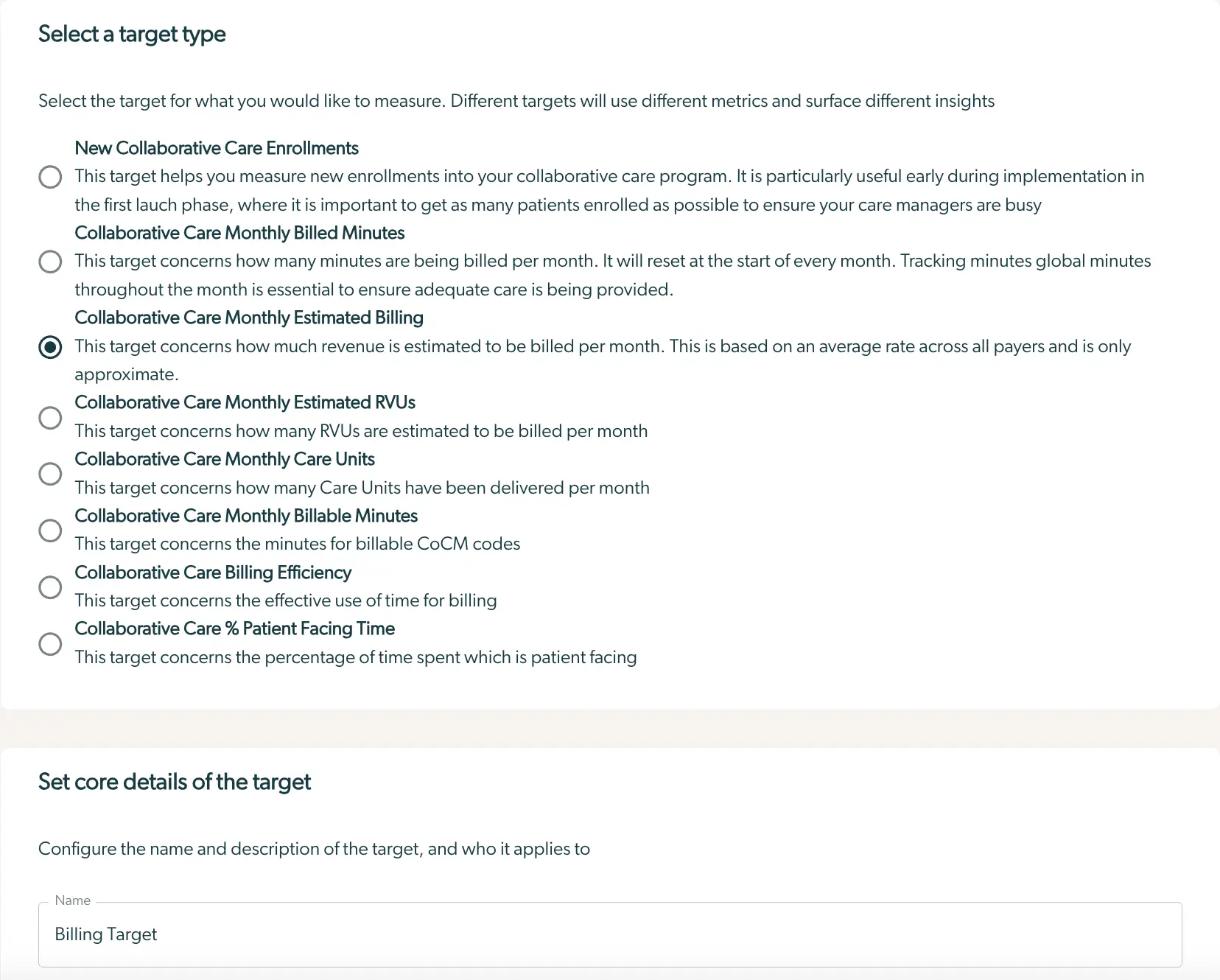
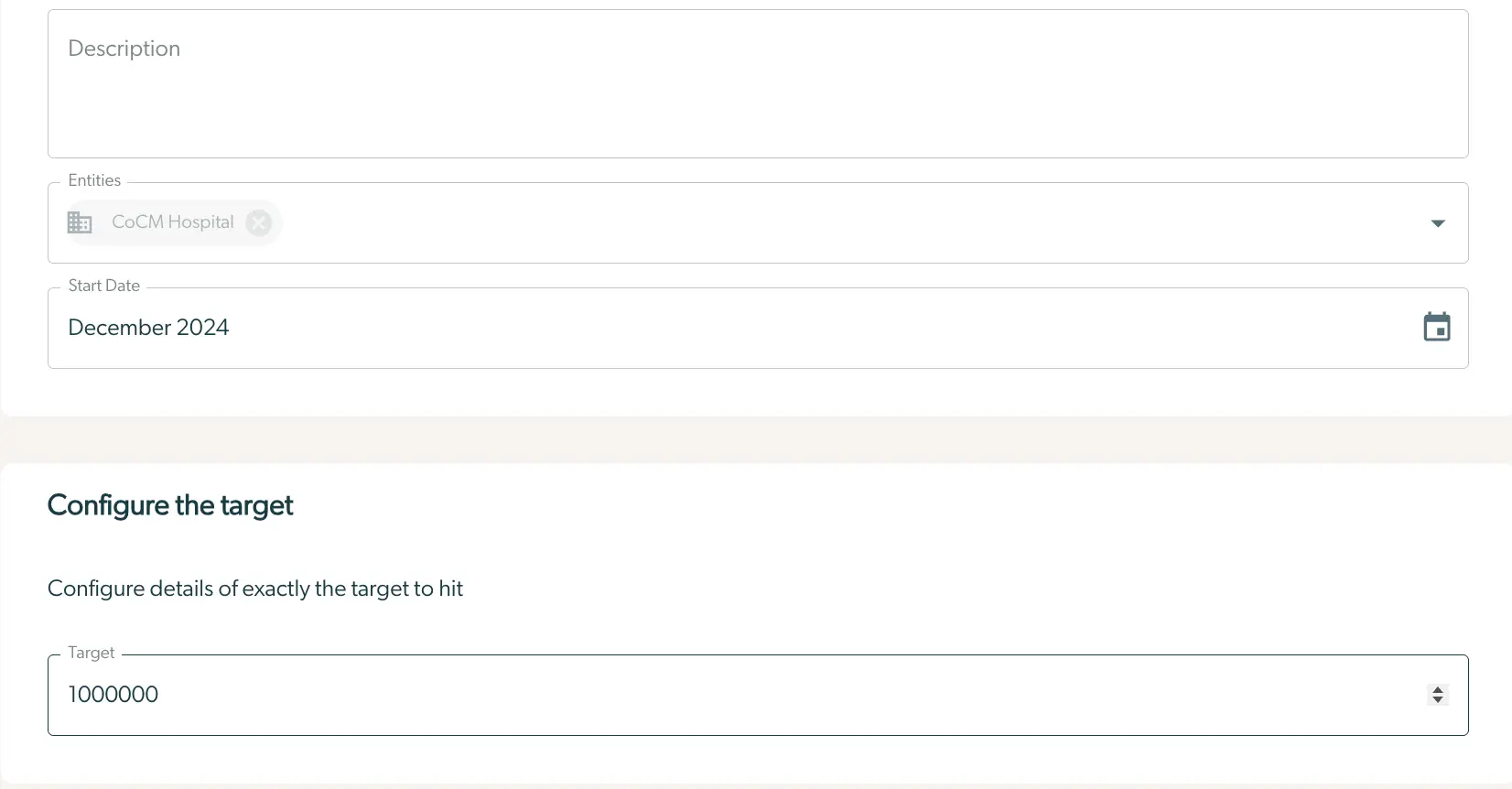
The screenshot displays a user interface for selecting and setting up implementation targets within the Mirah Collaborative Care platform. At the top, the section titled 'Select a target type' allows users to choose from various target options, each with a radio button for selection. Options include New Collaborative Care Enrollments, Collaborative Care Monthly Billed Minutes, Collaborative Care Monthly Estimated Billing, Collaborative Care Monthly Estimated RVUs, Collaborative Care Monthly Care Units, Collaborative Care Monthly Billable Minutes, Collaborative Care Billing Efficiency, and Collaborative Care % Patient Facing Time. Each option is accompanied by a brief description explaining its purpose. The 'Collaborative Care Monthly Estimated Billing' option is currently selected, indicated by a filled radio button. Below this section, the 'Set core details of the target' area allows users to configure the target's name and description. A text input field labeled 'Name' is pre-filled with 'Billing Target'.This screen is used to set up implementation targets within the Mirah Collaborative Care platform. At the top, there is a text field labeled 'Description' where users can enter details about the target. Below this, there is a section labeled 'Entities' with a dropdown menu currently showing 'CoCM Hospital', allowing users to select the entity for which the target is being set. Next, there is a 'Start Date' field with a calendar icon on the right, set to 'December 2024', where users can specify when the target should begin. Further down, the section titled 'Configure the target' contains a text field labeled 'Target' with the value '1000000', where users can input the numerical target they aim to achieve. The screen is designed to guide users through the process of configuring specific targets for collaborative care initiatives.

4.) After you have updated the material, press "Edit Target".

The screenshot displays a button labeled 'Edit Target' which is part of the user interface for managing implementation targets within the Mirah Collaborative Care platform. This button is designed to allow users to modify existing implementation targets, facilitating the customization and optimization of collaborative care practices. The button is centrally located and prominently highlighted with a red border, making it easily identifiable for users who need to make adjustments to their targets.