
Troubleshooting Guide: Managing Time Entry Logs (TELs)

In some cases, it may appear that minutes logged on a task for an enrolled patient are not all being counted.

**Important Definition: TEL means a Time Entry Log with is an object that stores time spent on a particular task and includes information such as start time, end time, name, and description.

The reason for this is that the Mirah platform is strict about overlapping minutes both for patients and for providers across the platform. We want to ensure minutes are not double counted, and justifiable, especially if your billing is audited.

Tasks are composed of time entry logs (TELs), which record the individual segments of minutes performed on a given task. These TELs must occur after a consent date, and before the discharge date to be billable. TELs can occur before the enrollment date and still be billable.

If time is not counted because of the above rules, you can:

  • Move the consent date to before the task creation date (see below for further guidance).
  • Move the TELs to after the consent date (see below for instructions).

In addition, the Mirah platform will not count minutes where the time overlaps if either of the following is true:

  • They are on the same task, regardless of the provider who recorded the time
  • They are recorded by the same provider, regardless of the task on which they were performed

When TELs overlap, the TEL with the earliest starting date gets credit for the overlapped minutes. Any non-overlapping time on either TEL will still be counted.

Mirah recommends to use the task timer and logging tasks in real time to prevent issues with overlapping TELs.

In order to correct overlapping minutes, you have to manually change the times of the TELs to not overlap. You can experiment by adjusting the time until the minutes count.

If you already changed the minutes so they are not overlapping, but a time entry still says it is non-billable, it can sometimes take 24 hours to update. If has not updated after 24 hours, submit a ticket to support@mirah.com so that we can investigate it for you.

1.) Locate the patient's Detail page via the Dashboard or Patient Tab.
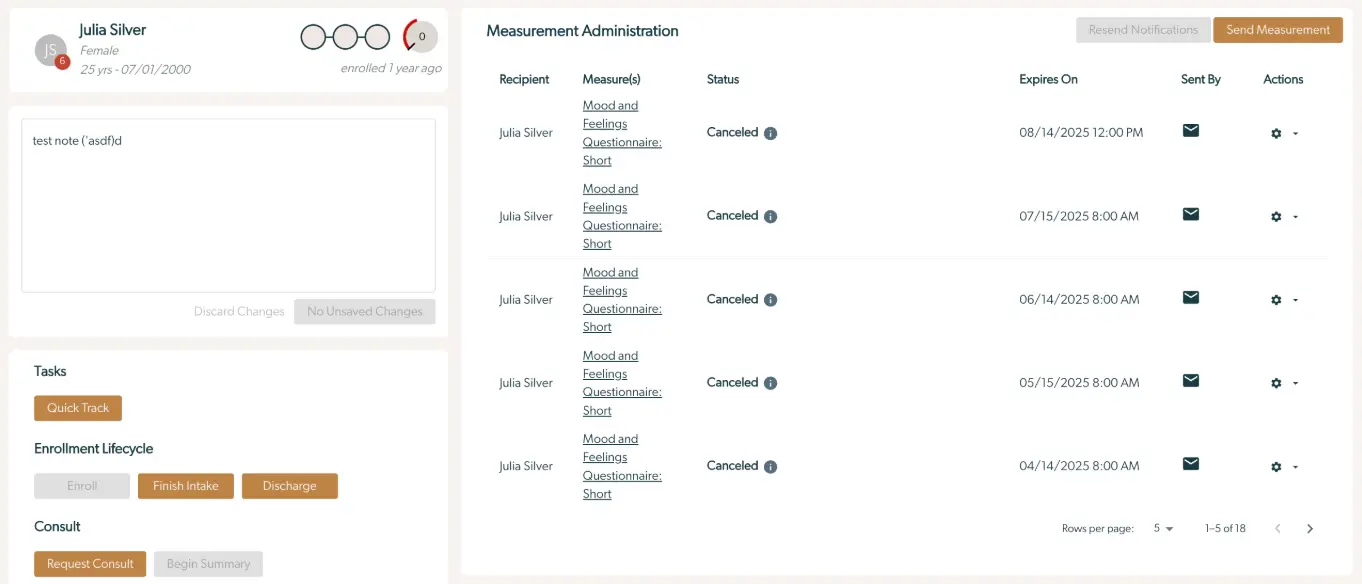
The screenshot displays the Measurement Administration interface for a patient named Julia Silver, who is a 25-year-old female enrolled a year ago. On the left, there is a section for notes with a text box containing a sample note, and buttons below labeled 'Discard Changes' and 'No Unsaved Changes'. Below the notes section, there are task management options with a 'Quick Track' button, and enrollment lifecycle options with 'Enroll', 'Finish Intake', and 'Discharge' buttons. Additionally, there are consult options with 'Request Consult' and 'Begin Summary' buttons. On the right, the Measurement Administration table lists measurements for Julia Silver, all labeled as 'Mood and Feelings Questionnaire: Short' with a status of 'Canceled'. Each entry includes an expiration date and time, a mail icon indicating it was sent, and action icons for further options. At the top right, there are 'Resend Notifications' and 'Send Measurement' buttons. The bottom of the table shows pagination controls indicating rows per page and the current page range.

2.) Scroll to the "Patient Info" panel on the left-hand side of the screen.
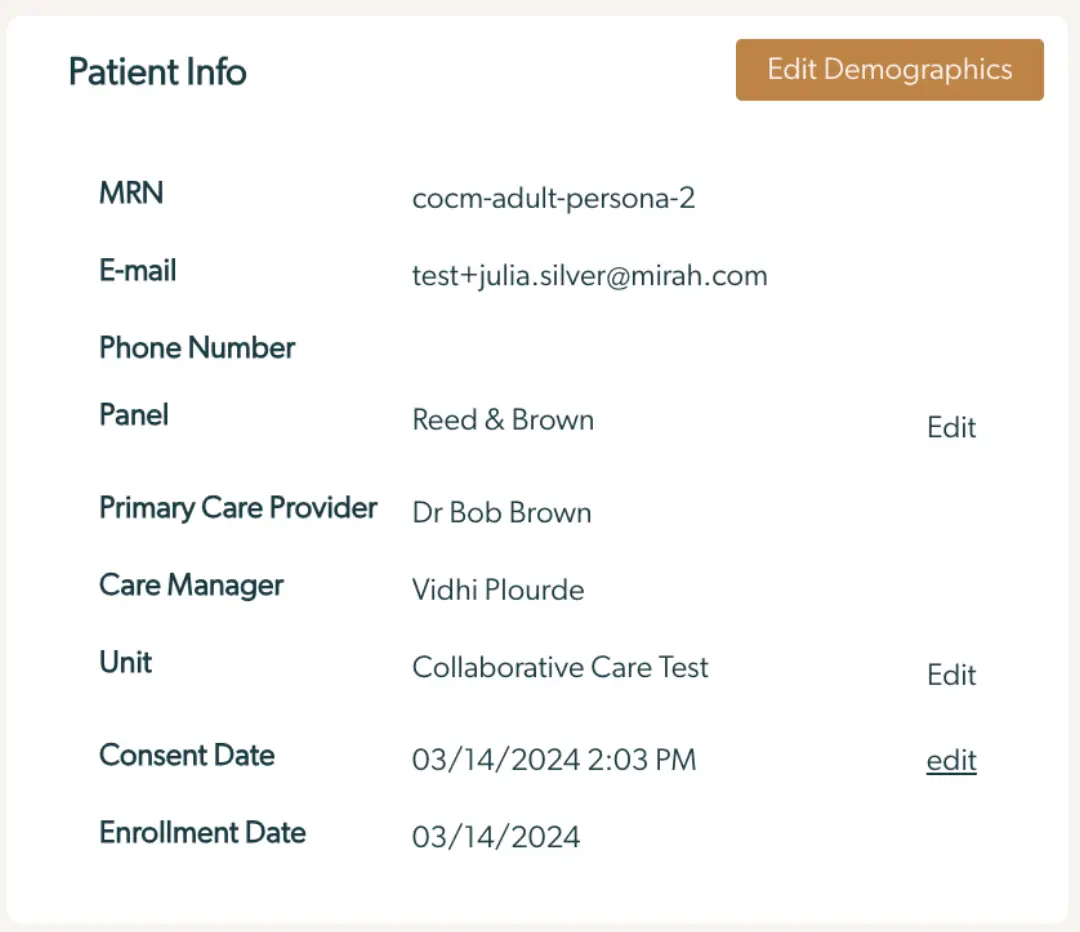
The screenshot displays the Patient Info section of the Mirah Collaborative Care platform, which is part of the Tasks/Collaborative Care feature. It provides detailed information about a patient, including their MRN (cocm-adult-persona-2), email (test+julia.silver@mirah.com), and phone number. The patient's care team details are also listed, such as the Panel (Reed & Brown) with an 'Edit' option to the right, Primary Care Provider (Dr Bob Brown), Care Manager (Vidhi Plourde), and Unit (Collaborative Care Test) with another 'Edit' option. Additionally, it shows the Consent Date (03/14/2024 2:03 PM) with an 'edit' link next to it, and the Enrollment Date (03/14/2024). At the top right corner, there is a prominent 'Edit Demographics' button, allowing users to modify the patient's demographic information.

3.) Select the "Edit" button to the right of the "Consent Date".
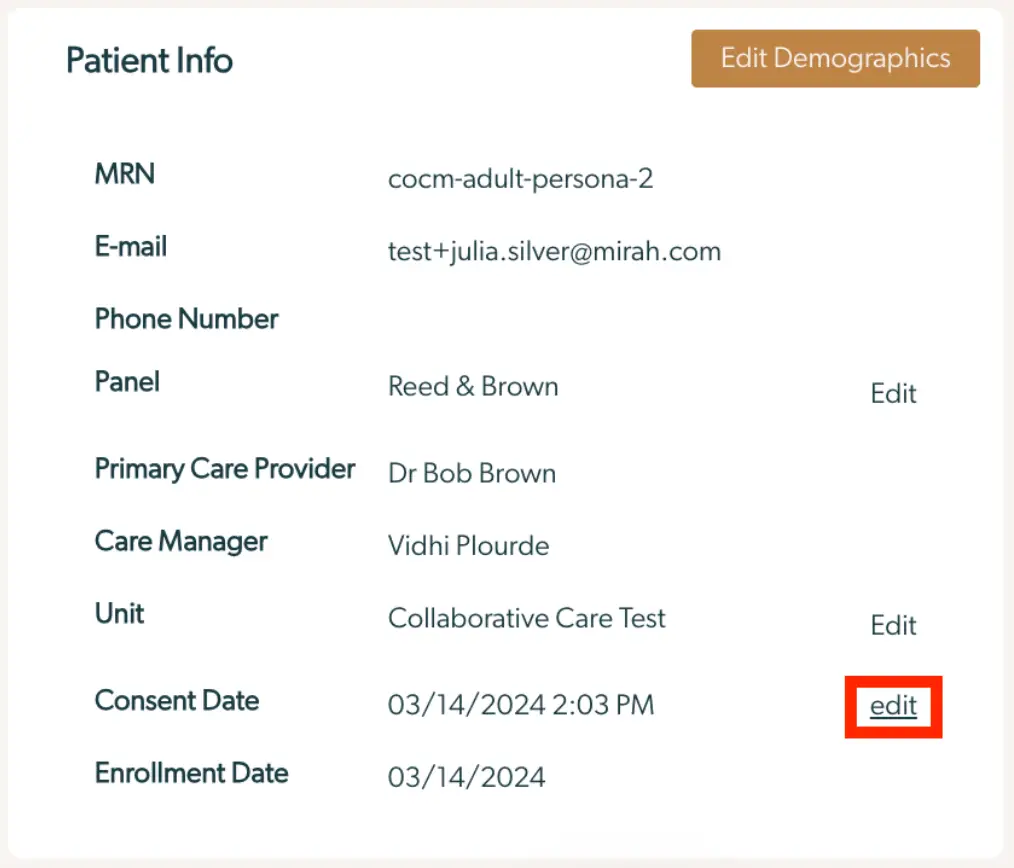
The screenshot displays the Patient Info section within the Mirah Collaborative Care platform, which is part of the Tasks/Collaborative Care feature. It includes fields for MRN, E-mail, Phone Number, Panel, Primary Care Provider, Care Manager, Unit, Consent Date, and Enrollment Date. The MRN is 'cocm-adult-persona-2', the E-mail is 'test+julia.silver@mirah.com', and the Panel is 'Reed & Brown' with an 'Edit' button next to it for making changes. The Primary Care Provider is 'Dr Bob Brown', and the Care Manager is 'Vidhi Plourde'. The Unit is 'Collaborative Care Test' with an 'Edit' button next to it. The Consent Date is '03/14/2024 2:03 PM' with an 'edit' link highlighted in red for modifications, and the Enrollment Date is '03/14/2024'. At the top right corner, there is a prominent 'Edit Demographics' button for editing the patient's demographic information.

4.) Input the correct date; press "Update Consent Date" to confirm this action.
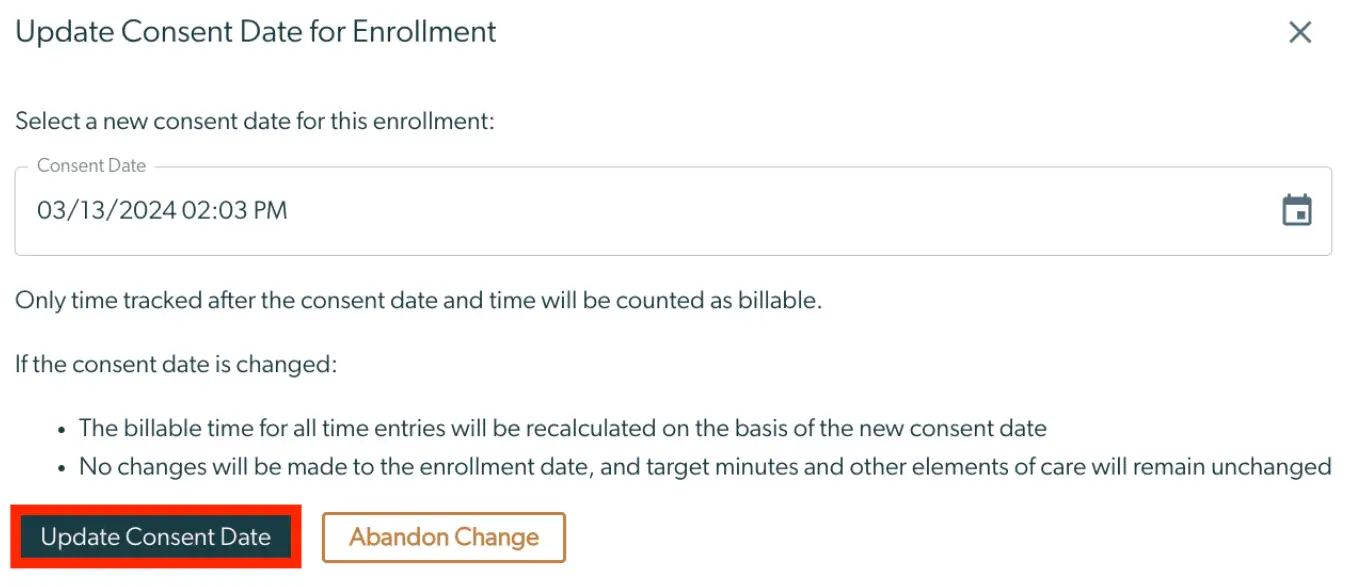
The 'Update Consent Date for Enrollment' screen allows users to select a new consent date for an enrollment. The screen features a text field labeled 'Consent Date' where users can input a date and time, with a calendar icon adjacent to the field for date selection assistance. Below the input field, a note explains that only time tracked after the consent date and time will be counted as billable. Additionally, it clarifies that if the consent date is changed, the billable time for all time entries will be recalculated based on the new consent date, while the enrollment date, target minutes, and other elements of care will remain unchanged. At the bottom of the screen, there are two buttons: 'Update Consent Date' in a dark green color located on the left, which confirms the changes, and 'Abandon Change' in a light brown color located on the right, which cancels the update process.

How to Adjust TELs​

1.) Locate the patient's Detail page via the Dashboard or Patient Tab.
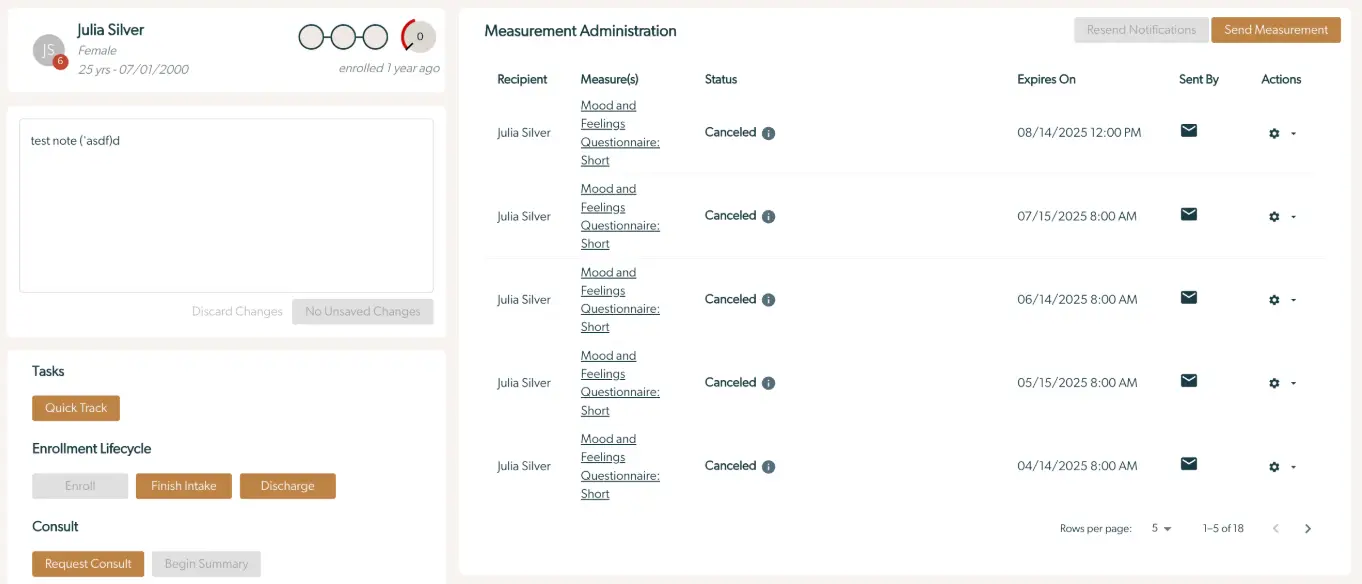
The screenshot displays the Measurement Administration interface for a patient named Julia Silver, who is a 25-year-old female enrolled a year ago. The left panel includes a section for notes with a text box containing a test note, and buttons labeled 'Discard Changes' and 'No Unsaved Changes' below it. Below the notes section, there are 'Tasks' and 'Enrollment Lifecycle' sections with buttons for 'Quick Track', 'Enroll', 'Finish Intake', and 'Discharge'. Additionally, there is a 'Consult' section with buttons for 'Request Consult' and 'Begin Summary'. The right panel lists measurement tasks for Julia Silver, specifically the 'Mood and Feelings Questionnaire: Short', all marked as 'Canceled'. Each entry shows the expiration date and time, the sender's icon, and an 'Actions' menu represented by a gear icon. At the top right, there are buttons for 'Resend Notifications' and 'Send Measurement'. The bottom of the list allows the user to adjust the number of rows displayed per page and navigate through pages.

2.) Scroll to the "Tasks" Panel and locate the task you would like to adjust.
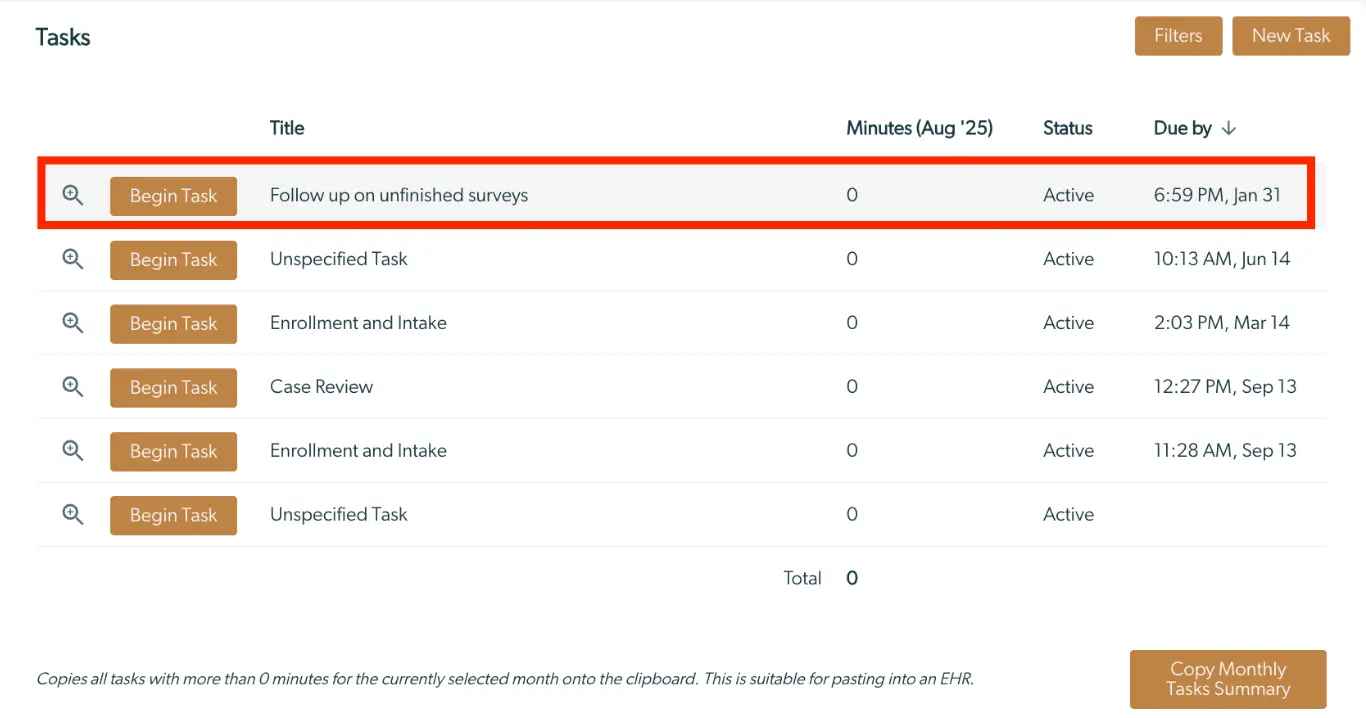
The screenshot displays the 'Tasks' page within the Mirah Collaborative Care platform, specifically focusing on managing Time Entry Logs (TELs). The page lists tasks with columns for Title, Minutes (Aug '25), Status, and Due by date. Each task row includes a 'Begin Task' button on the left, which allows users to initiate the task, and a magnifying glass icon for viewing task details. The tasks listed include 'Follow up on unfinished surveys,' 'Unspecified Task,' 'Enrollment and Intake,' and 'Case Review,' all with 0 minutes logged and an 'Active' status. The 'Due by' column provides specific due dates and times for each task. At the top right, there are 'Filters' and 'New Task' buttons for refining the task list and adding new tasks, respectively. At the bottom right, a 'Copy Monthly Tasks Summary' button is available for copying tasks with more than 0 minutes for the selected month, suitable for pasting into an EHR.

3.) Click on the magnifying glass to see the Details of the specified task.

The screenshot displays a task management interface within the Mirah Collaborative Care platform, specifically for managing Time Entry Logs (TELs). On the left side, there is a magnifying glass icon with a plus sign, indicating an option to expand or view more details about the task. Next to it, there is a brown 'Begin Task' button, which allows the user to start the task. The task description 'Follow up on unfinished surveys' is displayed next to the button, indicating the task's purpose. Further to the right, the number '0' likely represents the count of unfinished surveys. The status 'Active' indicates that the task is currently ongoing. Finally, the timestamp '6:59 PM, Jan 31' provides the scheduled time for the task.

4.) Select the "Edit" button at the bottom of the screen.
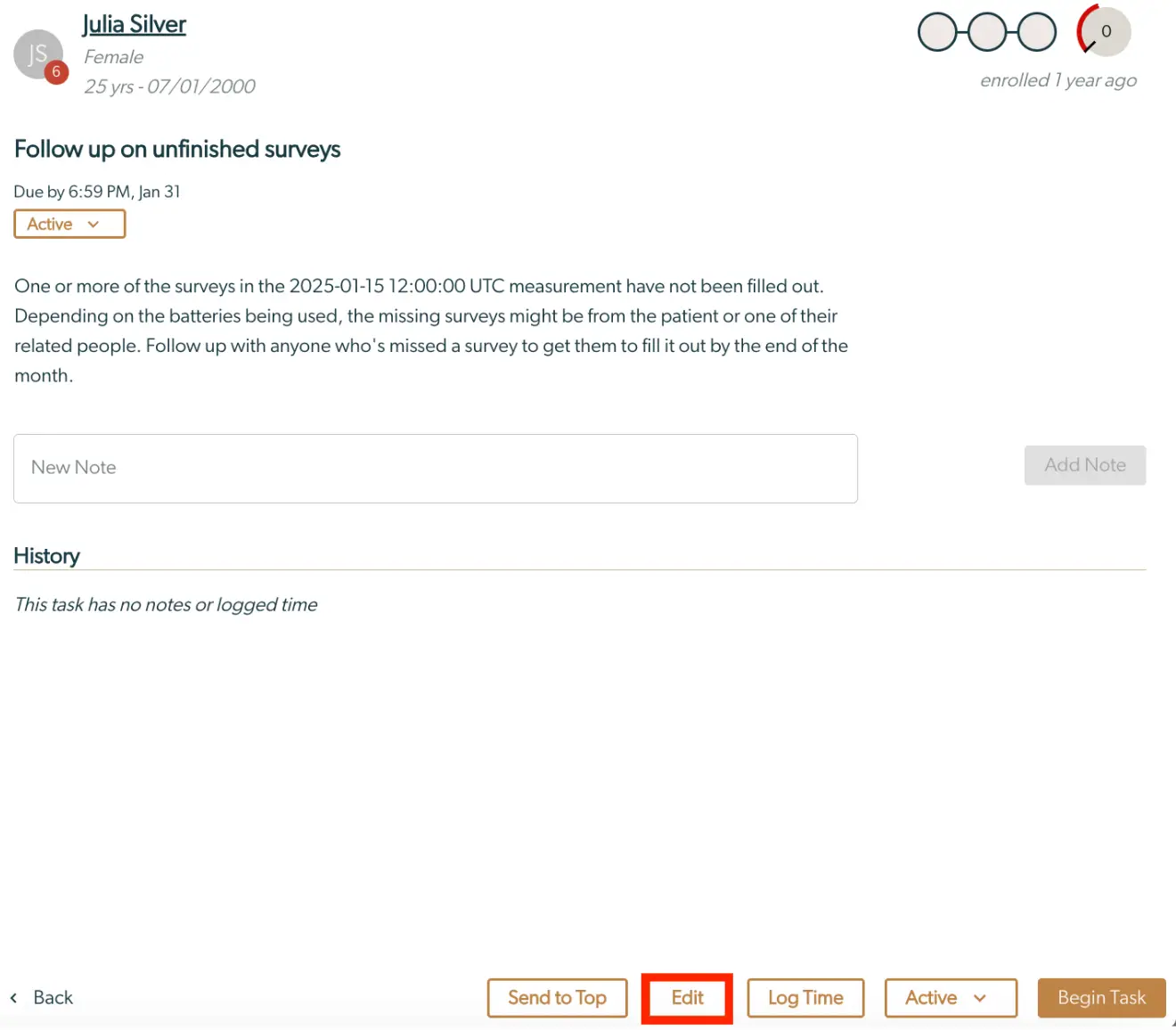
The screen displays a task management interface for following up on unfinished surveys within the Mirah Collaborative Care platform. At the top, the user's profile is shown with the name 'Julia Silver', gender 'Female', and birthdate '07/01/2000'. A red badge with the number '6' indicates a notification or alert. The task titled 'Follow up on unfinished surveys' is due by 6:59 PM on January 31, and its status is marked as 'Active' with a dropdown menu for status selection. Below the task title, there is a detailed description explaining the need to follow up on surveys not filled out by the specified date. A text field labeled 'New Note' allows users to add notes, with an 'Add Note' button to the right, currently disabled. The 'History' section indicates that there are no notes or logged time for this task. At the bottom, navigation and action buttons include 'Back' on the left, and 'Send to Top', 'Edit', 'Log Time', 'Active' (with a dropdown), and 'Begin Task' on the right, with 'Edit' highlighted in red.

5.) Locate the date associated with this specific task.
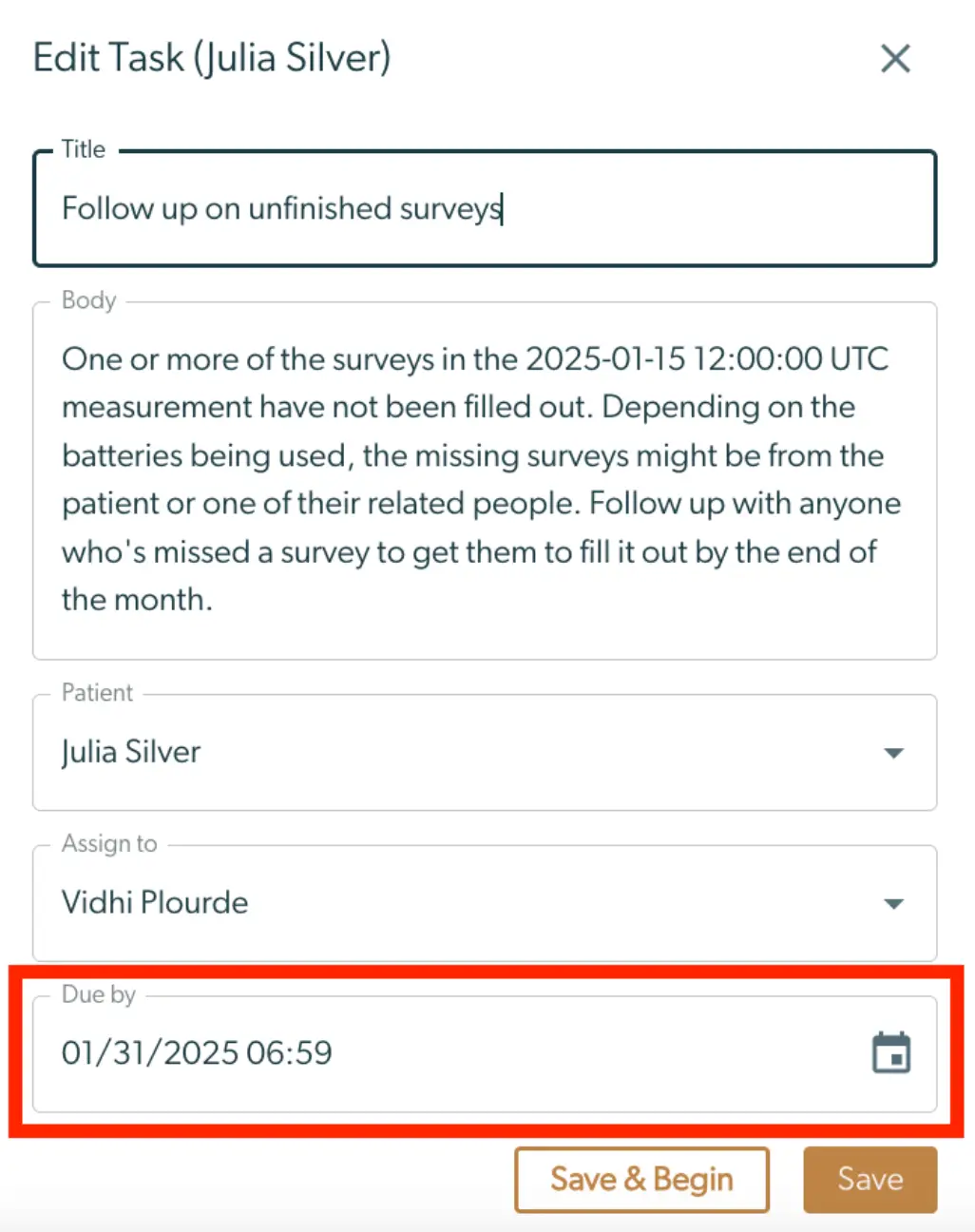
The screenshot displays the 'Edit Task' interface for a task assigned to Julia Silver. The purpose of this screen is to allow users to edit details of a task related to collaborative care. The interface includes a 'Title' field where the task is labeled as 'Follow up on unfinished surveys'. Below, the 'Body' field provides detailed instructions for the task, explaining the need to follow up on surveys that have not been filled out by the specified date. The 'Patient' field indicates the task is related to Julia Silver, and the 'Assign to' field shows the task is assigned to Vidhi Plourde. The 'Due by' field, highlighted in red, specifies the deadline for the task as 01/31/2025 06:59. There are two buttons at the bottom right: 'Save & Begin' and 'Save', which allow the user to either start the task immediately or save the changes made. The 'Save & Begin' button is located to the left of the 'Save' button.

6.) Adjust the date and time as necessary by clicking the calendar icon on the right. Press "Save".
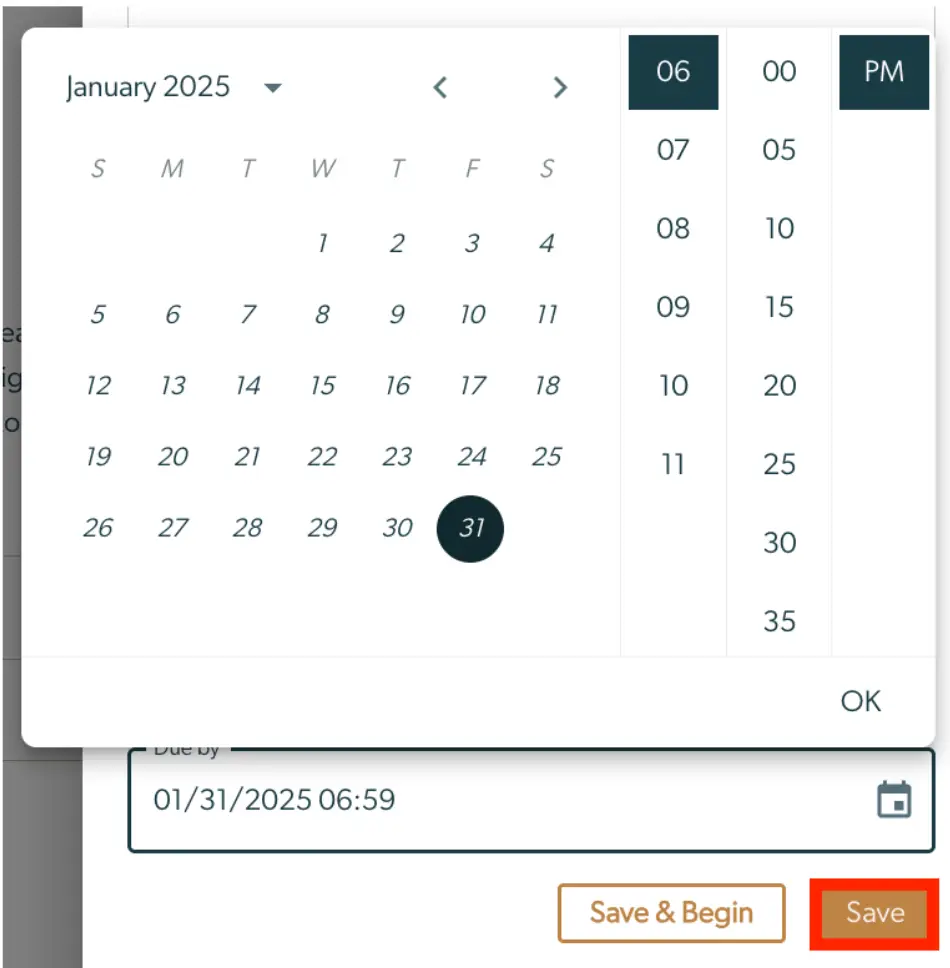
The screenshot displays a date and time selection interface within the Mirah Collaborative Care platform, specifically for managing Time Entry Logs (TELs). The calendar is set to January 2025, with navigation arrows to move between months. The current date selected is the 31st, highlighted in a dark circle. To the right, a time selection panel shows hours and minutes, with the current time set to 06:00 PM. Below the calendar, the 'Due by' field shows the selected date and time as 01/31/2025 06:59. There are two buttons at the bottom: 'Save & Begin' on the left, which likely saves the entry and starts a related process, and 'Save' on the right, highlighted in orange, which saves the current selection.

If you still have questions about minutes not counting, please send an email to support@mirah.com with a link to the patient you are referring to.