
Vertical Navigation - The Command Bar

Overview​

Access patient information and manage tasks efficiently with the command bar. This tool allows quick navigation and time tracking within the app. It can be used entirely with the keyboard, or you may select items manually with the mouse.

What can I do with the Command Bar?​

Use the command bar to quickly find and select patients, navigate to different pages, start and stop timers, and create new patients. You can also access billing insights from the command bar.

With only a couple of clicks or keystrokes, you can do things like:

  • Go straight to a different patient’s chart without having to go through the patient search page.
  • Create a new patient.
  • Start tracking a new custom task for a patient.
  • Stop an active timer without having to click the toolbar.
  • Go straight to the billing insights or other important pages.
  • See a history of recently viewed patients and go straight to their page.

Opening and Closing the Command Bar​

There are two ways to open the command bar:

  • Use the keyboard shortcut: Ctrl+K (Windows) or Cmd+K (Mac).
  • Use your mouse to click the Search button The screenshot displays a search command bar within the Mirah Collaborative Care platform. It features a search icon followed by the word 'Search' and a keyboard shortcut '(⌘+K)' for quick access. This command bar is designed to facilitate easy navigation and information retrieval within the platform, allowing users to quickly search for data or features related to collaborative care. The search bar is prominently placed to ensure accessibility and efficiency in the user experience.

To close the command bar, you can:

  • Press the Escape key
  • Click outside the command bar area
  • Simply select an option - it closes automatically

Using the Command Bar​

When first opening the command bar, it will be in ‘Global’ mode, meaning a patient has not yet been selected. The Command Bar operates in two modes:

  • In Global Context, you can select a patient to go into the patient context, or take other non-patient actions such as going to a particular page, or stopping a timer
  • In Patient Context, you can take actions on an individual patient

Global Context​

The global context lets you search for patients (by partial name), view recently accessed patients (up to five), access application links, create new patients, and manage time tracking (start, stop, complete timers).

Upon opening the command bar, you will see the following sections:

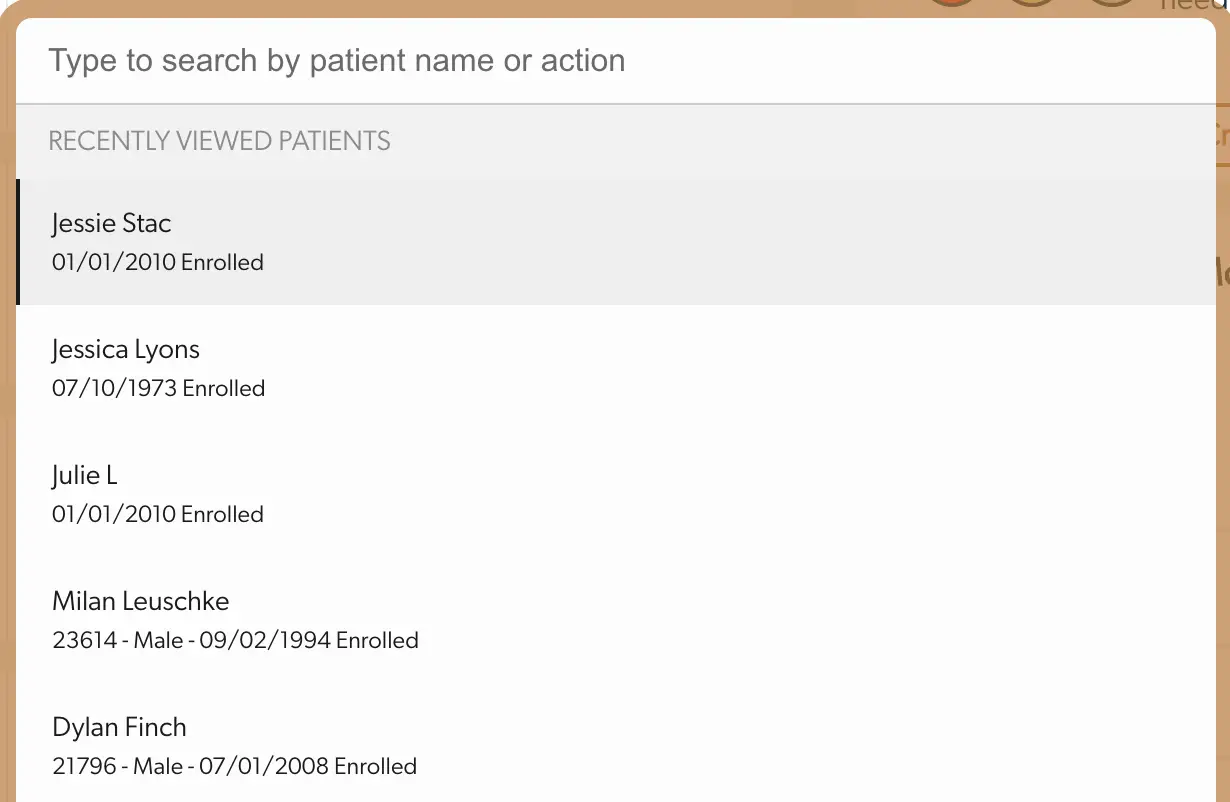
  • Recently Viewed Patients contains the last 5 patients you have viewed The screenshot displays a section of the Mirah Collaborative Care interface, specifically the vertical navigation command bar. At the top, there is a search bar labeled 'Type to search by patient name or action,' allowing users to quickly find patients or perform actions. Below the search bar, there is a section titled 'Recently Viewed Patients,' which lists patients that have been recently accessed. Each entry includes the patient's name, enrollment date, and additional details such as gender and ID number if available. The list includes patients like Jessie Stac, Jessica Lyons, Julie L, Milan Leuschke, and Dylan Finch, with their respective enrollment dates and other details. This interface aids in efficient patient management and quick access to patient information.
  • Navigation contains links to parts of the application.
  • Actions contains a variety of actions depending on which part of the application you are in. For example, ‘create new patient’ The screenshot displays the vertical navigation command bar of the Mirah Collaborative Care platform. At the top, there is a search bar labeled 'Type to search by patient name or action' for quick access to patient records or actions. Below the search bar, the interface is divided into two sections: 'Navigation' and 'Actions'. The 'Navigation' section includes options such as 'Dashboard', 'Billing Insights', 'Panels', and 'Tasks', each with corresponding keyboard shortcuts displayed to the right ('g d', 'g b', 'g p', 'g t' respectively). The 'Actions' section provides options to 'Create New Patient' and 'Search Patients', with their shortcuts 'a n' and no shortcut displayed for 'Search Patients'. This layout facilitates efficient navigation and task execution within the platform.
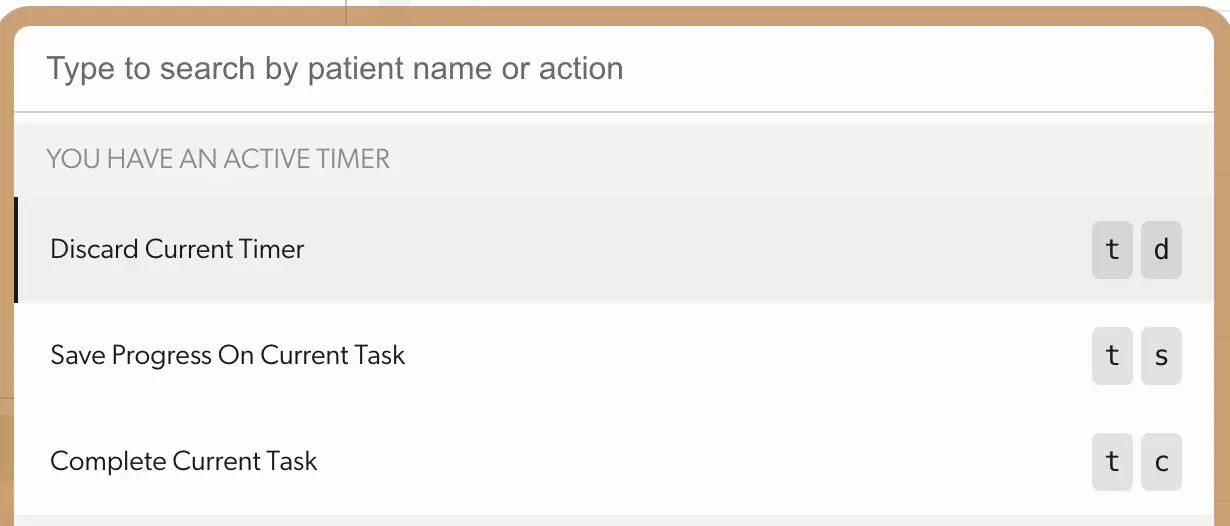
  • Time Tracking contains tasks regarding starting, stopping and completing timers. The screenshot displays a section of the Mirah Collaborative Care interface, specifically the command bar within the vertical navigation. At the top, there is a search bar labeled 'Type to search by patient name or action,' allowing users to quickly find patients or actions. Below the search bar, a notification states 'YOU HAVE AN ACTIVE TIMER,' indicating that a timer is currently running. Three options are listed: 'Discard Current Timer' with shortcut keys 't' and 'd' on the right, 'Save Progress On Current Task' with shortcut keys 't' and 's,' and 'Complete Current Task' with shortcut keys 't' and 'c.' These options allow users to manage their tasks efficiently by discarding, saving progress, or completing tasks, with the shortcut keys providing quick access.
Keyboard Shortcuts​

Whenever you see a string of characters on the right hand side of an item, for example:

The screenshot displays a section of the Mirah Collaborative Care interface, specifically focusing on the vertical navigation command bar. The screen prominently features the word 'Dashboard' on the left side, indicating the current section or page the user is viewing. To the right, there are two buttons labeled 'g' and 'd', which are likely keyboard shortcuts or quick access buttons for navigation or specific actions within the application. These buttons are positioned towards the right side of the screen, providing users with easy access to switch between different sections or functionalities quickly.

This indicates that this is a global shortcut. You can press this sequence at any time when the Command Bar is closed to go to the appropriate place.

The following include a list of shortcuts available. Remember - these only work when the Command Bar is NOT currently open:

CommandShortcut
Navigation - Dashboardgd
Navigation - Billing Insightsgb
Navigation - Panelsgp
Navigation - Tasksgt
Actions - Create New Patientan
Timer - Discard Current Timertd
Timer - Save Progress On Current Taskts
Timer - Complete Current Tasktc

*Note: this does not happen when you are entering data in a text field or filling out a form, so there is no need to worry about accidentally navigating.

Patient Context​

After selecting a patient, the command bar displays the patient's name and enrollment details, allowing you to:

  • Resume existing tasks
  • Start new tasks from templates
  • Access patient-specific actions

*Note: Quick Tasks can be customized to automatically navigate to the appropriate page when a task is started. For more information on customizing quick tasks can be found here.
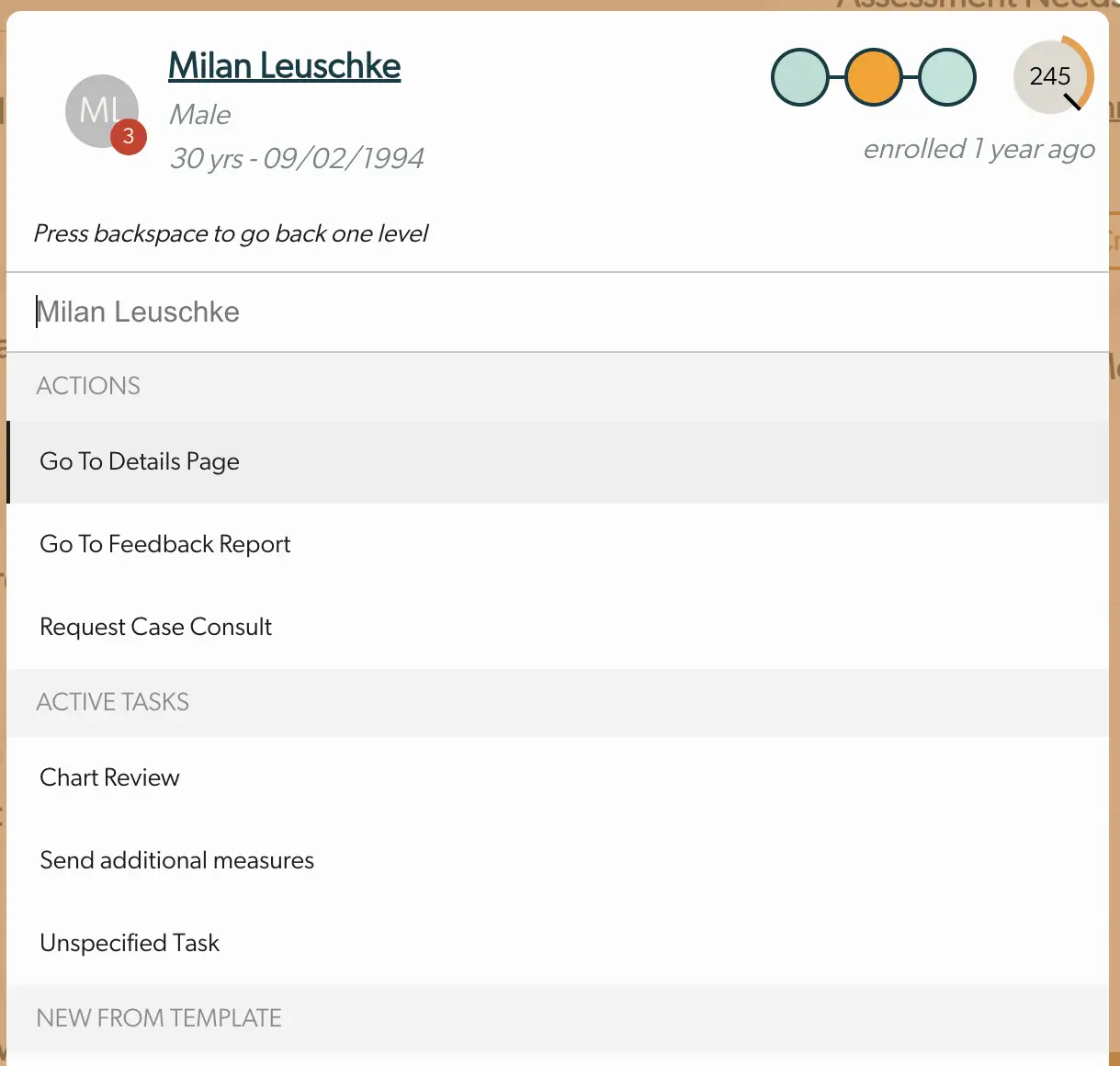
The screenshot displays a section of the Mirah Collaborative Care interface focused on a specific patient, Milan Leuschke. At the top, the patient's name, gender, age, and date of birth are shown, along with a circular avatar containing the initials 'ML' and a red badge with the number 3. To the right, there is a visual representation of the patient's progress with three connected circles, and a number '245' indicating a score or status, followed by the text 'enrolled 1 year ago'. Below this, a prompt advises pressing backspace to go back one level. The interface is divided into sections: 'Actions', 'Active Tasks', and 'New From Template'. Under 'Actions', there are three options: 'Go To Details Page', 'Go To Feedback Report', and 'Request Case Consult'. The 'Active Tasks' section lists 'Chart Review', 'Send additional measures', and 'Unspecified Task'. The 'New From Template' section is visible but does not contain any items. This screen is part of the vertical navigation system, allowing users to manage patient care tasks and actions efficiently.

Example Workflows​

Accessing a Patient's Feedback Report​

1. Open the command bar (Ctrl/Cmd + K )

2. Type the first few letters of an enrolled patient's name. Use your arrow keys to select a patient.

3. Press Enter

4. Type "feedback" and use your arrow keys to select "Go to feedback report"

5. Press Enter. This navigates to the report and automatically starts tracking your time spent on this task

Starting a New Task​

1. Open the command bar (Ctrl/Cmd + K )

2. Type the first few letters of an enrolled patient's name. Use your arrow keys to select a patient

3. Press Enter

4. Either choose an existing task or select a new task template. You can also start a custom task by typing the name and selecting Create new custom task...

5. Press Enter. This action starts the timer, tracking your time spent on the task, and takes you to the relevant record section if configured

The Command Bar Video Guide:​