Vertical Navigation - Panels Search

Overview​

Care Managers often want to examine their panel for patients who meet certain criteria - which patients have been enrolled too long, or aren’t making progress, or who have suicidal ideation.

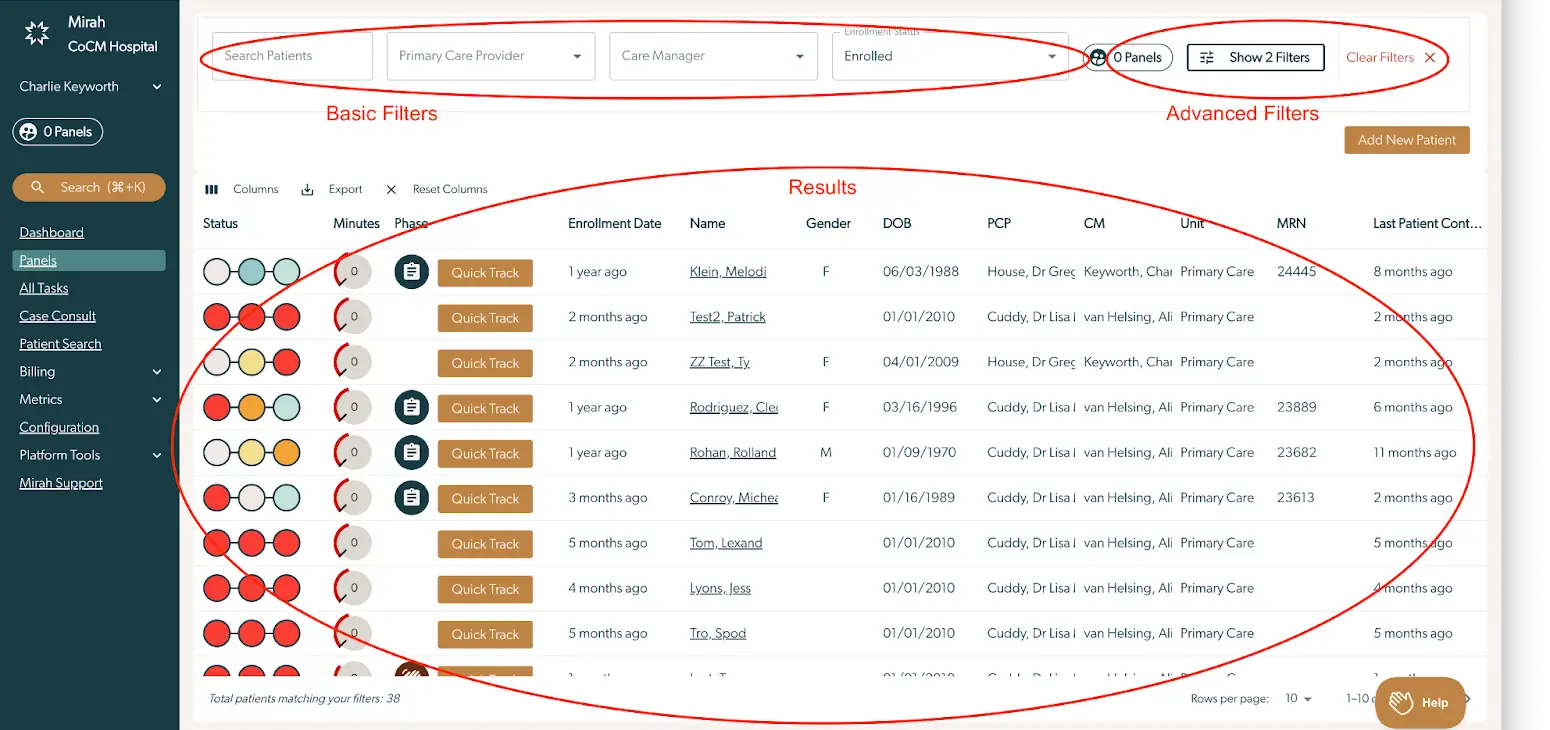
The panels search shows one row for each enrollment in collaborative care. This means that patients who have never enrolled will not be visible, and patients who have been enrolled multiple times may appear more than once. This lets us ask questions about enrollments that we can’t ask about patients. For example: how long has it been since this patient was enrolled?

The screenshot displays the Panels Search interface within the Mirah Collaborative Care platform. On the left side, there is a vertical navigation menu with options such as Dashboard, Panels, All Tasks, Case Consult, Patient Search, Billing, Metrics, Configuration, Platform Tools, and Mirah Support. The main section of the screen is divided into Basic Filters and Advanced Filters. Basic Filters include fields for Search Patients, Primary Care Provider, Care Manager, and Enrollment Status, allowing users to refine their search criteria. Advanced Filters are accessible via buttons labeled '0 Panels', 'Show 2 Filters', and 'Clear Filters', located to the right of the Basic Filters. Below the filters, the Results section displays a table with columns for Status, Minutes, Phase, Enrollment Date, Name, Gender, DOB, PCP, CM, Unit, MRN, and Last Patient Contact. Each row represents a patient, with details such as their enrollment date, name, gender, date of birth, primary care provider, care manager, unit, medical record number, and last contact date. The 'Quick Track' button is available for each patient, allowing for expedited processing. At the bottom, the total number of patients matching the filters is indicated, along with pagination controls for rows per page and navigation through the results.

Basic Filters​

The screenshot displays a user interface for searching and filtering patient panels within the Mirah Collaborative Care platform. It includes a 'Search Patients' field for entering patient names or identifiers. There are dropdown menus labeled 'Primary Care Provider' and 'Care Manager' for selecting specific healthcare professionals involved in the patient's care. The 'Enrollment Status' dropdown is set to 'Enrolled', allowing users to filter patients based on their enrollment status. On the right side, there is a button labeled '0 Panels' indicating the number of panels currently selected, and a 'Show 1 Filter' button to display active filters. The 'Clear Filters' option, marked with a red 'X', is located at the far right, allowing users to reset all applied filters.

You can search/select for:

  • Patients by name
  • The PCP assigned to the patient
  • The Care Manager assigned to the patient
  • Enrollment status - discharged or currently active

For current patients, that will be the current selected PCP or Care Manager. For patients that have been discharged, it will be the last PCP or CM before discharge.

Advanced Filters​

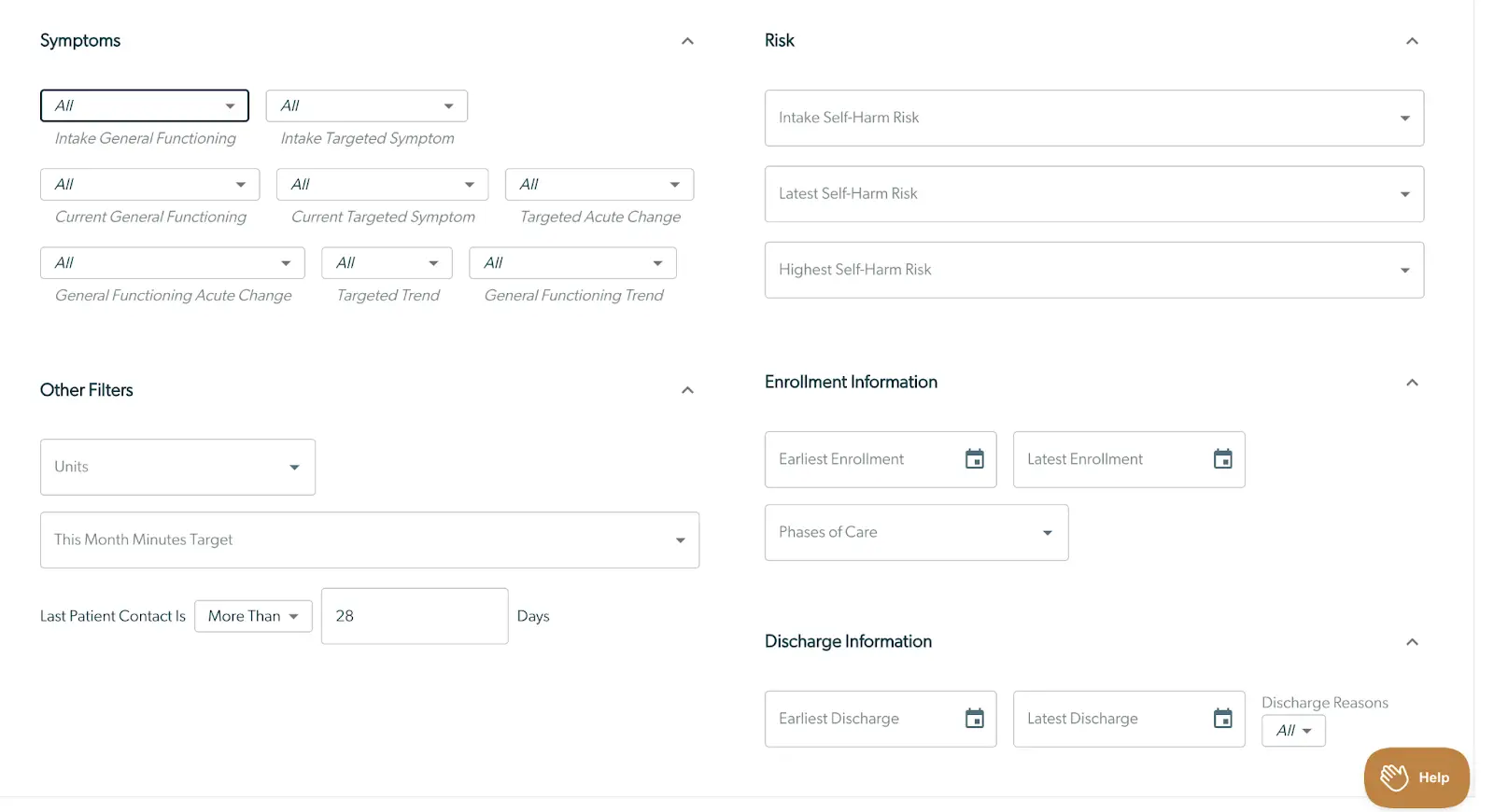
The screenshot displays a search panel within the Mirah Collaborative Care platform, designed to filter patient data based on various criteria. The 'Symptoms' section includes dropdown menus for selecting 'Intake General Functioning', 'Intake Targeted Symptom', 'Current General Functioning', 'Current Targeted Symptom', 'Targeted Acute Change', 'General Functioning Acute Change', 'Targeted Trend', and 'General Functioning Trend'. The 'Risk' section allows users to input data for 'Intake Self-Harm Risk', 'Latest Self-Harm Risk', and 'Highest Self-Harm Risk'. The 'Other Filters' section includes fields for 'Units', 'This Month Minutes Target', and 'Last Patient Contact Is', with options to specify the number of days. The 'Enrollment Information' section provides fields for 'Earliest Enrollment', 'Latest Enrollment', and 'Phases of Care', with calendar icons for date selection. The 'Discharge Information' section includes fields for 'Earliest Discharge', 'Latest Discharge', and 'Discharge Reasons', with dropdown menus for selection. A 'Help' button is located at the bottom right corner of the screen.

You may filter for:

Symptoms:

  • Intake General Functioning
  • Intake Targeted Symptom
  • Current General Functioning
  • Current Targeted Symptom
  • Acute Change from last assessment on general functioning
  • Acute Change from last assessment on targeted symptom
  • Trend since intake on general functioning
  • Trend since intake on targeted symptom

Risk:

  • Intake self harm risk
  • Latest self harm risk
  • Highest self harm risk

Enrollment information:

  • Earliest start date of enrollment
  • Latest start date of enrollment
  • Current phase of care

Discharge Information:

  • Earliest Discharge Date
  • Latest Discharge Date
  • Discharge Reason

Other filters

  • The organizational unit where the patient is in care
  • Whether the patient is under, on, or below the monthly minutes target
  • How long ago the last patient contact was

At any time you may press the “Clear Filters” button to reset these filters.

Results​

You may sort by most of the columns that you see by clicking on the arrow at the top of the column.

Note that if you change to view discharged patients, the fields will change to automatically show the discharge date and reason for discharge.

You may hide columns by clicking on the ‘Columns’ button at the top of the results page and deselecting the appropriate column.

The application will try to keep track of your preferred view including which columns are present and how wide they are. You can reset this at any time by clicking ‘Reset Columns’.