
Troubleshooting Guide: Patients Unable to Login

Overview​

You need two pieces of information to log into Mirah:

  1. The Client uses their birthday
  2. The Caregiver uses
    • Their e-mail address if they are logging in at home
    • The child's birthday if they are logging in through a device during session

Common reasons families might have trouble logging into the system are:

  • They are entering their date of birth wrong, or their date of birth is entered into the system incorrectly
  • The e-mail address they are entering does not match the e-mail address in Mirah

Troubleshooting Steps​

View Failed Logins​

Quickest way to verify a login is navigate to the Failed Logins page

1.) Click institute name and the option Failed Logins
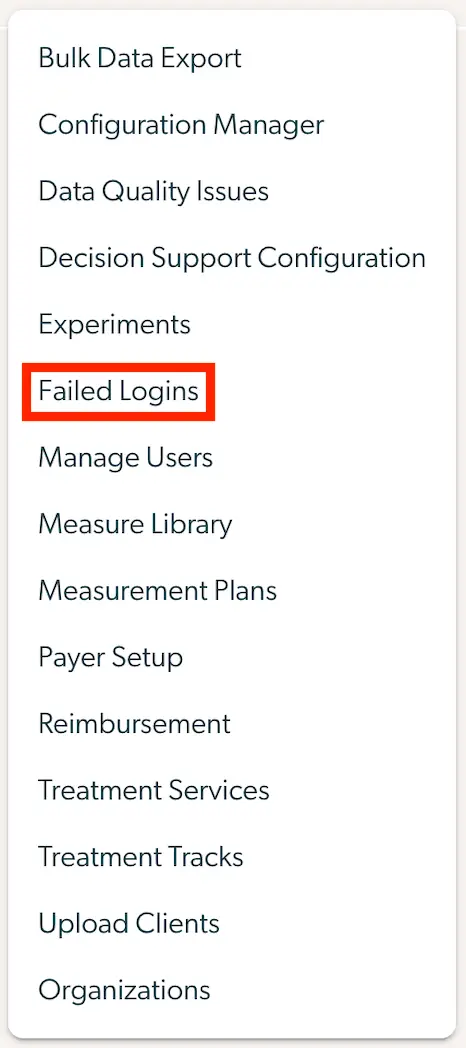
The screenshot displays a vertical navigation menu from the Mirah Collaborative Care platform, which is part of the troubleshooting guide for patients unable to log in. The menu includes several options: Bulk Data Export, Configuration Manager, Data Quality Issues, Decision Support Configuration, Experiments, Failed Logins, Manage Users, Measure Library, Measurement Plans, Payer Setup, Reimbursement, Treatment Services, Treatment Tracks, Upload Clients, and Organizations. The 'Failed Logins' option is highlighted in red, indicating its relevance to the current troubleshooting task. This menu allows users to navigate through different administrative and configuration settings within the platform.

2.) Here you will see a list of patients with the information they input, the values saved in Mirah that the system expects and some identifying information.

The screenshot displays a section of a troubleshooting guide interface for Mirah Collaborative Care, specifically focusing on patient login issues. It features a table with column headers labeled 'Time', 'Input Last Name', 'Input Birthdate', 'Input SSN', and 'Session'. These columns are likely used to track and analyze login attempts by patients, providing insights into the time of login attempts, the last name, birthdate, and social security number entered, as well as the session details. This information is crucial for identifying and resolving login issues faced by patients.

Time: how long ago the failed login occurred

Input Last Name: usually not used

Input Birthdate: patient DOB. Options include:

  • Invalid Date
    • if date input with invalid format
  • Incorrect date above expected: [correct date]
    • if incorrect DOB was input The screenshot displays a date discrepancy message, indicating a mismatch between the entered date 'Jan 01, 1995' and the expected date 'Jan 01, 2005'. This is likely part of a troubleshooting guide for patients unable to log in, suggesting that incorrect date entry might be a reason for login issues. The message is presented in a simple text format, with the entered date at the top and the expected date below it.

Input SNN: usually not used

Session: date and time of patient session associated with. Links to session page

If any of this information needs to be changed, here is how:

1.) Go to the patient's page in Mirah and select "Edit Demographics".
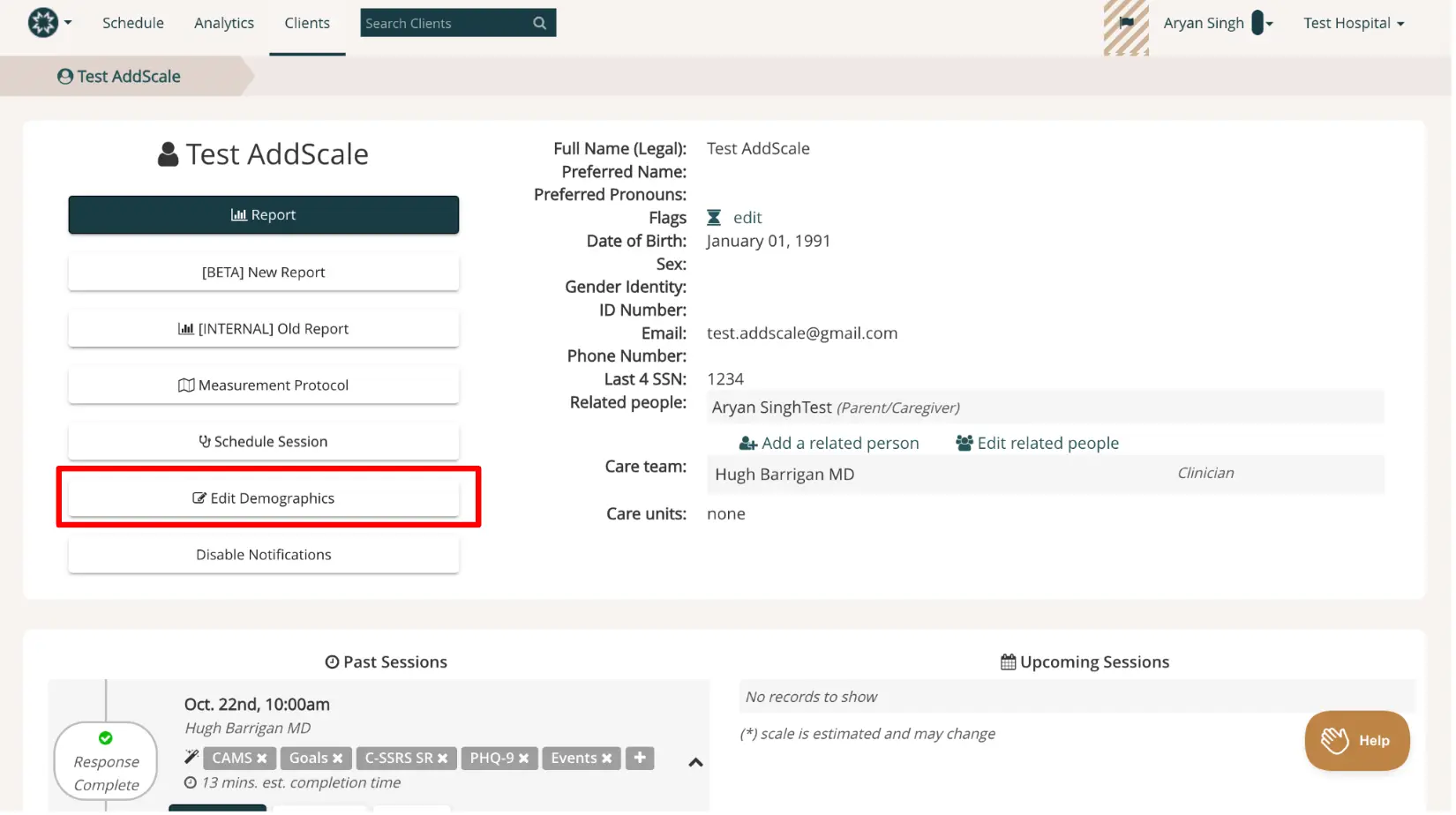
The screenshot displays the client profile page for 'Test AddScale' within the Mirah Collaborative Care platform. The page is part of the 'Clients' section, accessible from the top navigation bar which includes options for Schedule, Analytics, and Clients. A search bar is available for finding specific clients. The breadcrumb trail shows the path 'Test AddScale'. The left side of the page features buttons for generating reports, setting measurement protocols, scheduling sessions, editing demographics, and disabling notifications. The 'Edit Demographics' button is highlighted in red, indicating its importance or current selection. On the right side, client details are listed including full legal name, preferred name, preferred pronouns, flags with an edit option, date of birth, gender identity, ID number, email, phone number, last four digits of SSN, related people with options to add or edit, care team, and care units. Below, past sessions are displayed with details such as date, time, clinician, and session components. Upcoming sessions are noted as having no records to show. A 'Help' button is located at the bottom right corner of the page.

2.) On the page that opens, scroll down to check the client's date of birth and edit it if necessary. If an edit is made, hit Submit when complete.
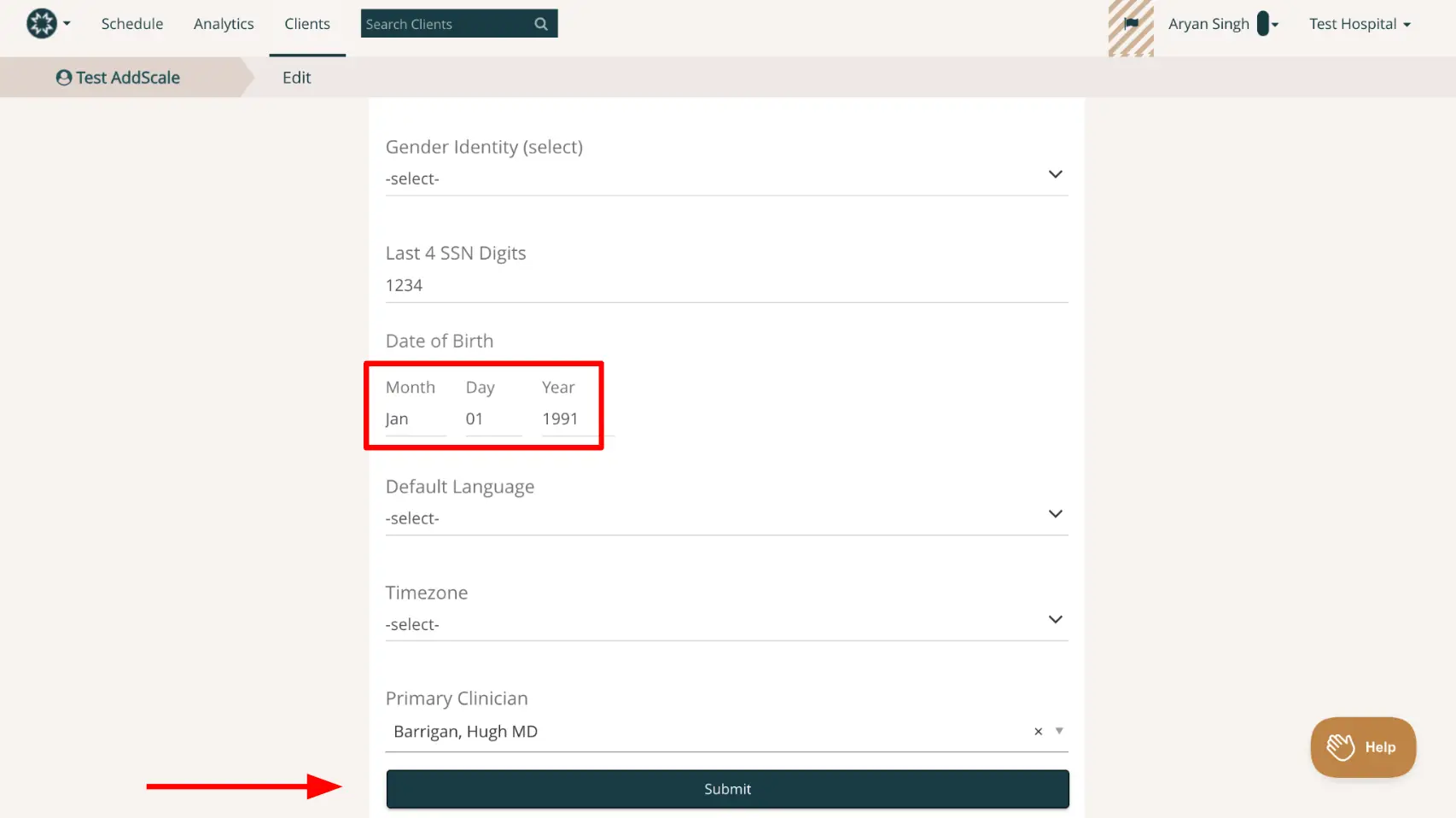
The screenshot displays the 'Edit Client' page within the Mirah Collaborative Care platform, specifically under the 'Clients' tab. The page is designed for entering or editing client information. Fields visible include 'Gender Identity' with a dropdown to select options, 'Last 4 SSN Digits' showing the number 1234, 'Date of Birth' with separate fields for Month, Day, and Year, highlighted in red, showing January 01, 1991. Other fields include 'Default Language' and 'Timezone', both with dropdowns for selection, and 'Primary Clinician' displaying Barrigan, Hugh MD. At the bottom of the page is a 'Submit' button, located centrally, for saving changes. The top navigation bar includes options for 'Schedule', 'Analytics', and 'Clients', with a search bar for finding clients. The user profile is shown as Aryan Singh, associated with Test Hospital. A 'Help' button is located at the bottom right corner for assistance.

3.) To check the caregiver's email address. go to the Client's page and select Edit Related People.
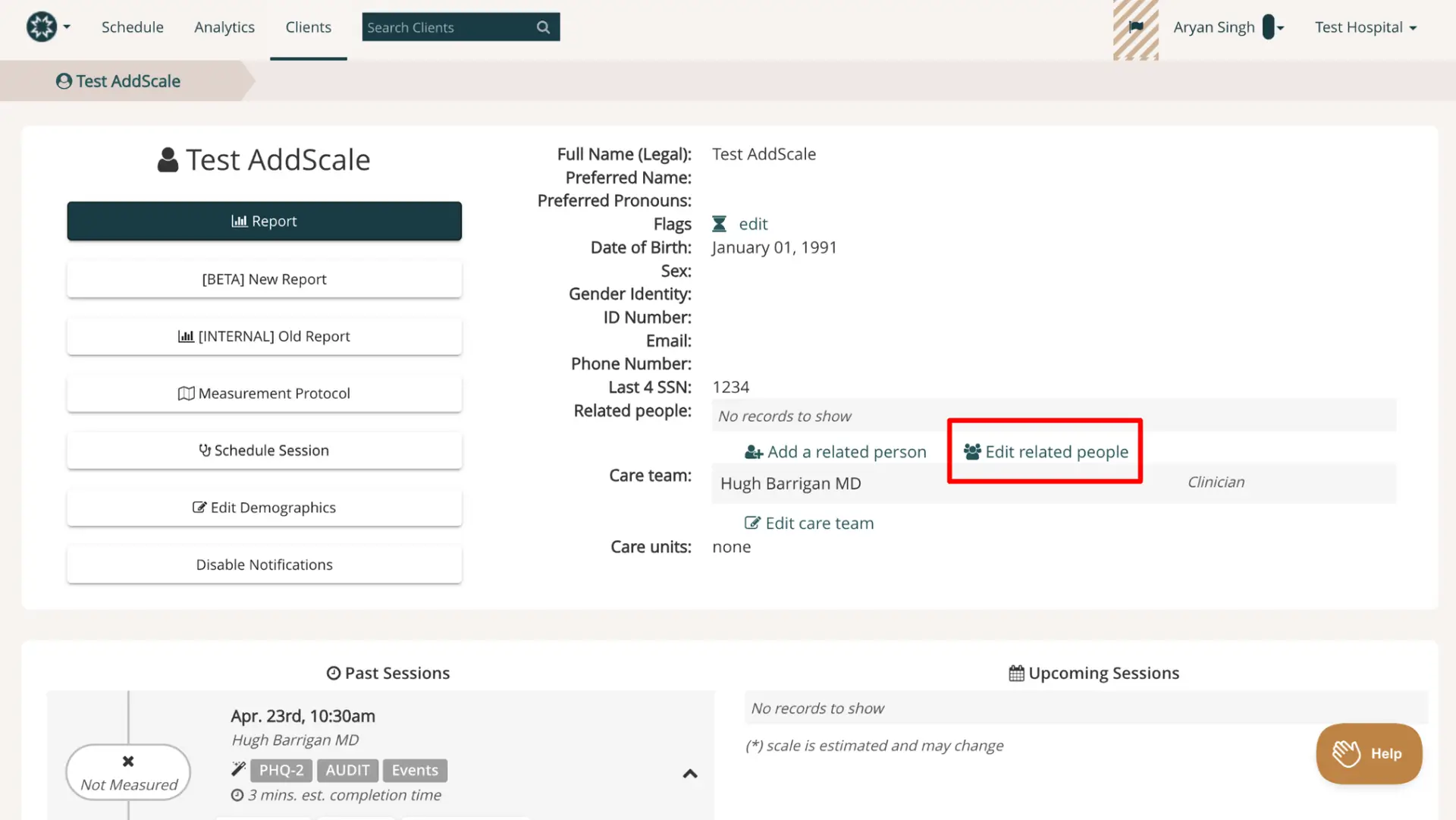
The screenshot displays the client profile page for 'Test AddScale' within the Mirah Collaborative Care platform. The page is part of the Clients section, as indicated by the breadcrumb navigation at the top. The left side of the screen features a vertical menu with buttons for generating reports, managing measurement protocols, scheduling sessions, editing demographics, and disabling notifications. The main section on the right provides detailed client information, including full legal name, preferred name, preferred pronouns, flags with an edit option, date of birth, sex, gender identity, ID number, email, phone number, and the last four digits of the SSN. There is a section for related people with options to add or edit related persons, highlighted by a red box around the 'Edit related people' button. The care team is listed with an option to edit, showing 'Hugh Barrigan MD' as the clinician. The care units field is currently empty. Below, the page displays past sessions with details such as date, time, clinician, and assessment types, along with an estimated completion time. The upcoming sessions section is empty. The top right corner shows the user 'Aryan Singh' logged in under 'Test Hospital'. A help button is located at the bottom right corner.

4.) You will see a screen that shows each related person in Mirah system. Click Edit to go to the caregiver's information.
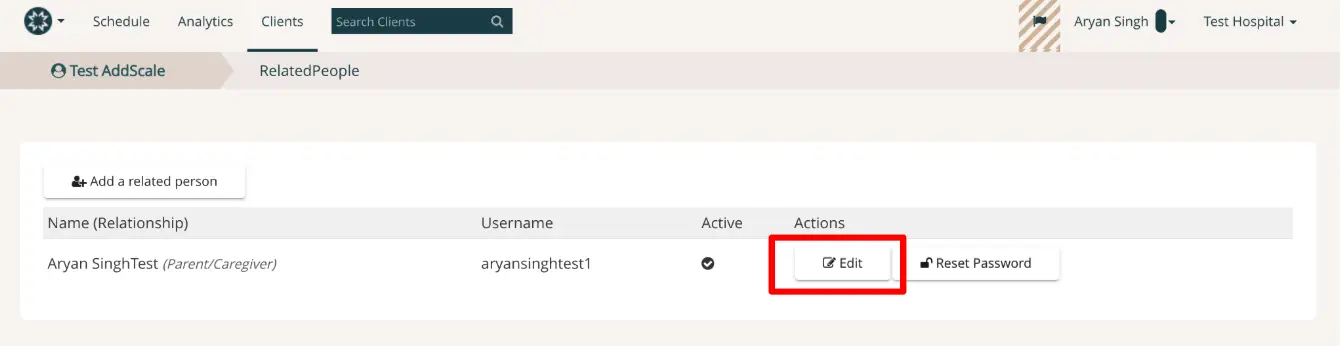
The screenshot displays the 'Clients' section of the Mirah Collaborative Care platform, specifically focusing on managing client relationships. At the top, there is a navigation bar with options for 'Schedule', 'Analytics', and 'Clients', along with a search bar labeled 'Search Clients'. Below the navigation bar, there is a breadcrumb trail indicating the current location: 'Test AddScale' and 'RelatedPeople'. The main section shows a table with columns for 'Name (Relationship)', 'Username', 'Active', and 'Actions'. The table lists a client named 'Aryan SinghTest' with the relationship 'Parent/Caregiver' and the username 'aryansinghtest1'. The 'Active' column shows a checkmark indicating the account is active. Under the 'Actions' column, there are two buttons: 'Edit' and 'Reset Password', both located to the right of the client's information. The 'Edit' button is highlighted with a red border, suggesting it is the primary action to be taken.

5.) Check and update the caregiver's email address if necessary. Hit Submit if you make any changes.
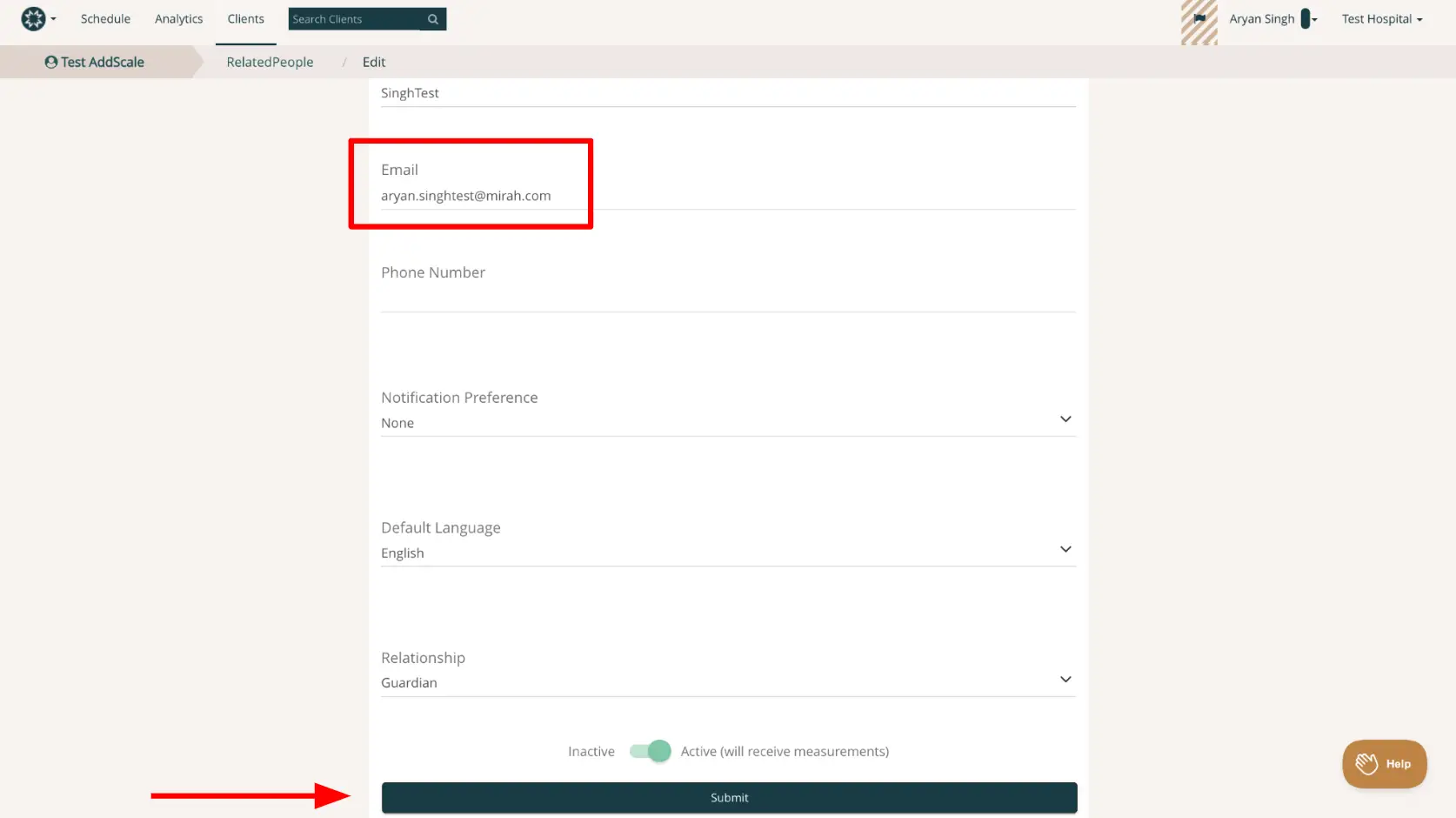
The screenshot displays the 'Edit' page under the 'Clients' section of the Mirah Collaborative Care platform, specifically for troubleshooting patient login issues. The page is part of the breadcrumb navigation: Test AddScale > RelatedPeople > Edit. It shows a form with fields for Email, Phone Number, Notification Preference, Default Language, and Relationship. The Email field is filled with 'aryan.singhtest@mirah.com'. The Notification Preference is set to 'None', Default Language is 'English', and Relationship is 'Guardian'. At the bottom, there is a toggle switch labeled 'Inactive' and 'Active (will receive measurements)', currently set to 'Active'. Below the toggle is a 'Submit' button centered at the bottom of the form. In the bottom right corner, there is a 'Help' button for user assistance.

6.) Once the information has been submitted, it will be saved to your profile and the updated credentials can be used to log into Mirah.

Known Issues​

There is a known issue where the month selector on the survey login screen won't open when using Firefox on an Android device, so patients can't sign in to take their survey. We recommend using a different browser or device.