Phases of Care - Configuration Guide

What are Phases of Care?​

A Phase of Care represents an individual stage of each patient’s journey. These could include (but are not limited to):

  • Referral and Intake
  • Active Treatment
  • Relapse Prevention

Each phase likely has different workflows, tasks, and expectations for care associated with it. For example, you may have much less patient contact in ‘Relapse Prevention’ than in ‘Active Treatment’.

In our system, each phase is represented by a colored icon. Your organization can configure whatever Phases of Care they like and give each one a separate icon. By default, the ‘Active Treatment’ phase for example looks as follows:

The screenshot displays an icon and text representing the 'Active Treatment' phase within the Mirah Collaborative Care platform. The icon is a brown circle containing a white hand holding a heart, symbolizing care and support. To the right of the icon, the text 'Active Treatment' is prominently displayed, indicating the current phase of care being addressed in the configuration guide. This visual element is part of the user interface that helps users identify and navigate through different phases of care within the platform.

How do I configure Phase of Care?​

1.) Select “Configuration” -> “Phases Of Care”

The order Phases of Care in this configuration list is the order they will appear listed in the rest of the platform.

The screenshot displays the 'Phases of Care' configuration page within the Mirah Collaborative Care platform. The page is part of the configuration guide for setting up phases of care in a collaborative care environment. On the left side, there is a vertical navigation menu with sections such as Dashboard, Patient Search, All Tasks, Case Consult, Panels, Billing, Metrics, and Configuration, which is expanded to show options like Configuration Manager and Organizations. The 'Phases of Care' option is highlighted under the Collaborative Care section. The main area of the screen lists different phases of care, including 'Identify and Refer', 'Outreach and Engage', 'Establish Diagnosis and Initiate Treatment', 'Active Treatment', and 'Relapse Prevention'. Each phase has an associated category and icons for editing and managing the phase. At the top of the list, there is a button labeled 'Add Phase Of Care' for adding new phases. A help button is located at the bottom right corner of the screen.

2.) To change the order, click the the arrow icons to move the Phase of Care up or down the list.

The screenshot displays a section of the Mirah Collaborative Care interface focused on the 'Identify and Refer' phase of care. At the top left, there is an icon of a hand, symbolizing the 'Identify and Refer' phase. Next to it, the text 'Identify and Refer' is prominently displayed, indicating the current phase being configured. Below this, the category is specified as 'Category: Identify and Refer', providing context for the phase. On the right side, there are three icons: a refresh icon, a collaborative care icon highlighted in red, and a pencil icon. The refresh icon is likely used to reload or update the information, the collaborative care icon is used to access or configure collaborative care settings, and the pencil icon is for editing the phase details. These icons are aligned horizontally at the top right corner of the section.

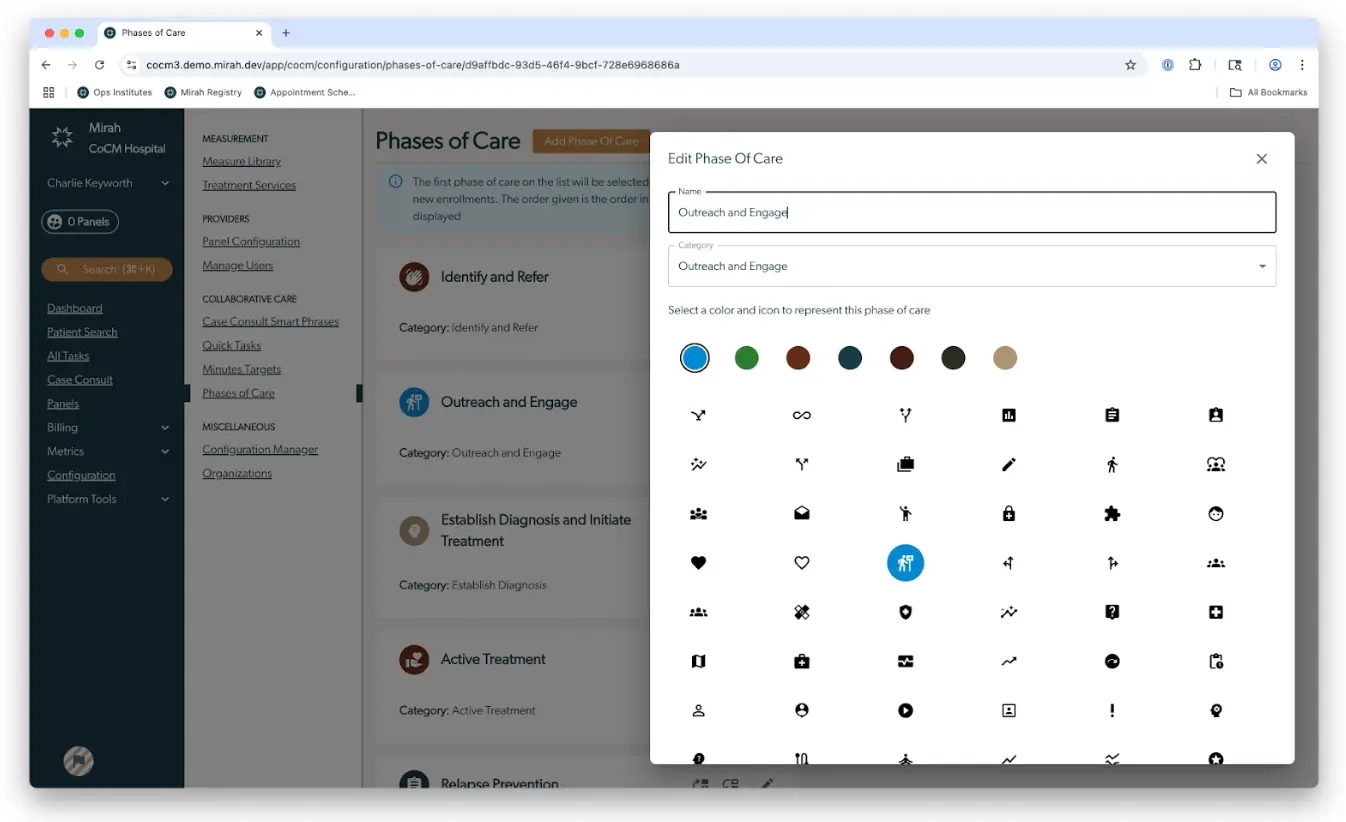
3.) To edit a Phase of Care, click the pencil icon

  • Each card contains several elements:
    • The name that will be displayed
    • The category can be set to match a set of existing categories similar to those provided by the AIMS center which can be used for analytics purposes later
    • The icon that will be displayed The screenshot displays the 'Phases of Care' configuration page within the Mirah Collaborative Care platform. The main section shows a list of phases such as 'Identify and Refer', 'Outreach and Engage', 'Establish Diagnosis and Initiate Treatment', 'Active Treatment', and 'Relapse Prevention', each with its respective category. On the right, a modal window titled 'Edit Phase Of Care' is open, allowing the user to edit the name and category of a phase, specifically 'Outreach and Engage'. Below these fields, there is a selection of colors and icons to visually represent the phase of care. The modal can be closed using the 'X' button located at the top right corner. The left sidebar contains navigation links for various sections like Dashboard, Patient Search, All Tasks, Case Consult, Panels, Billing, Metrics, Configuration, and Platform Tools.