
Phases of Care - Care Manager Guide

How to use Phases of Care for an individual patient​

Selecting an initial Phase of Care​

When you enroll a patient, you will be given the option to select what Phase of Care they begin at. Your organization will have set a default Phase of Care that corresponds to your needs, so unless you are enrolling a patient at a different phase, you will not need to select anything directly.
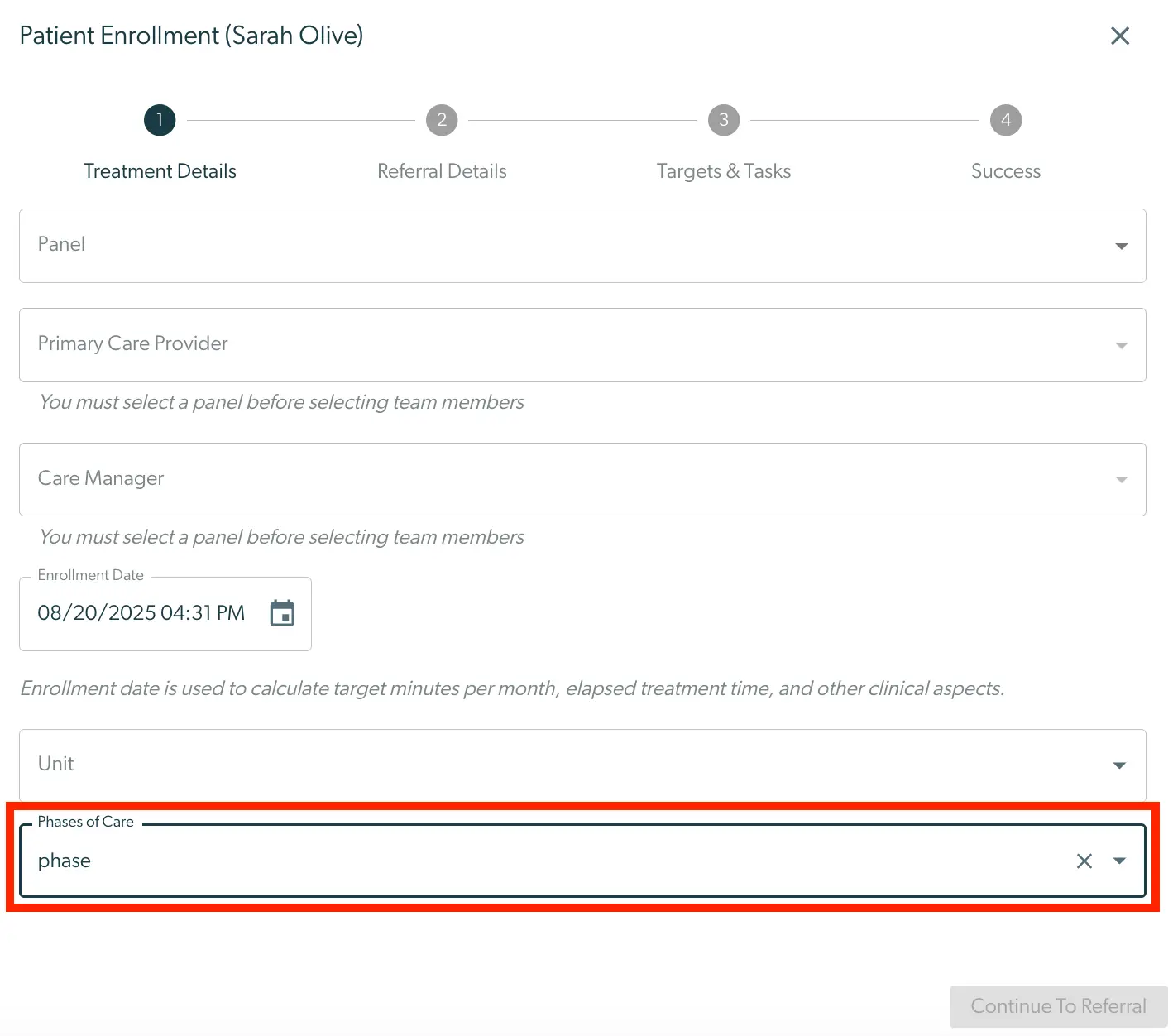
The screenshot displays the 'Patient Enrollment' screen for Sarah Olive within the Mirah Collaborative Care platform, specifically under the 'Treatment Details' tab. This is the first step in a four-step process, as indicated by the progress bar at the top, which includes 'Referral Details,' 'Targets & Tasks,' and 'Success.' The screen contains several dropdown fields: 'Panel,' 'Primary Care Provider,' and 'Care Manager,' each requiring selection before proceeding. Below these fields, there is a date picker for 'Enrollment Date,' set to 08/20/2025 04:31 PM, which is used to calculate target minutes per month and other clinical aspects. The 'Unit' field is present but not filled. At the bottom, there is a dropdown for 'Phases of Care,' currently set to 'phase.' The 'Continue To Referral' button is located at the bottom right, but it is currently disabled, indicating that some required fields may not be completed.

Viewing the Phases of Care for an enrollment​

The current Phase of Care for a patient is always viewable at the top right of the patient header. You can hover your mouse over the Phase of Care to get the name of the phase.
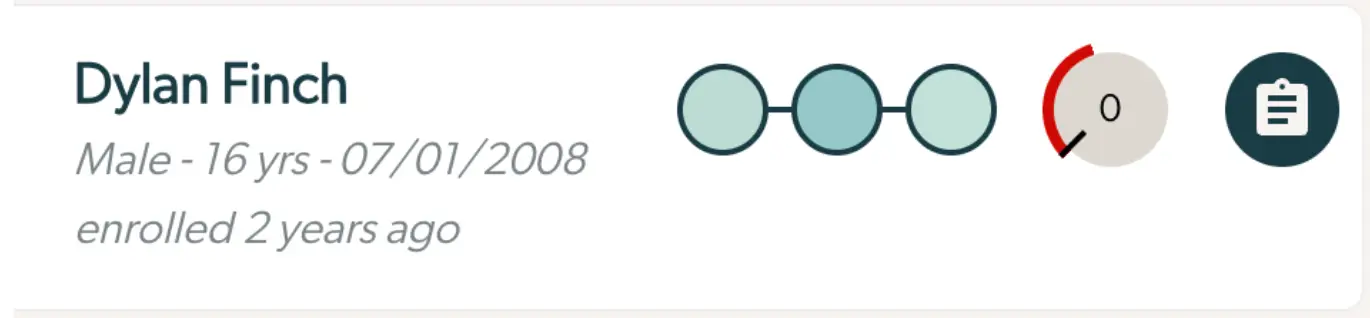
The screenshot displays a section of the Mirah Collaborative Care interface, specifically focusing on a patient overview card for Dylan Finch. The card provides essential patient information including the name 'Dylan Finch', gender 'Male', age '16 yrs', and birth date '07/01/2008'. It also notes that the patient was enrolled 2 years ago. To the right of the text, there are three connected circles representing the phases of care, indicating the patient's progress through these phases. Next to the circles, there is a gauge icon with a red indicator pointing to '0', which may represent a score or status level. On the far right, there is a circular button with a clipboard icon, likely serving as a quick access button to the patient's detailed records or assessments.

Below the patient banner, you can see details about the active phase:
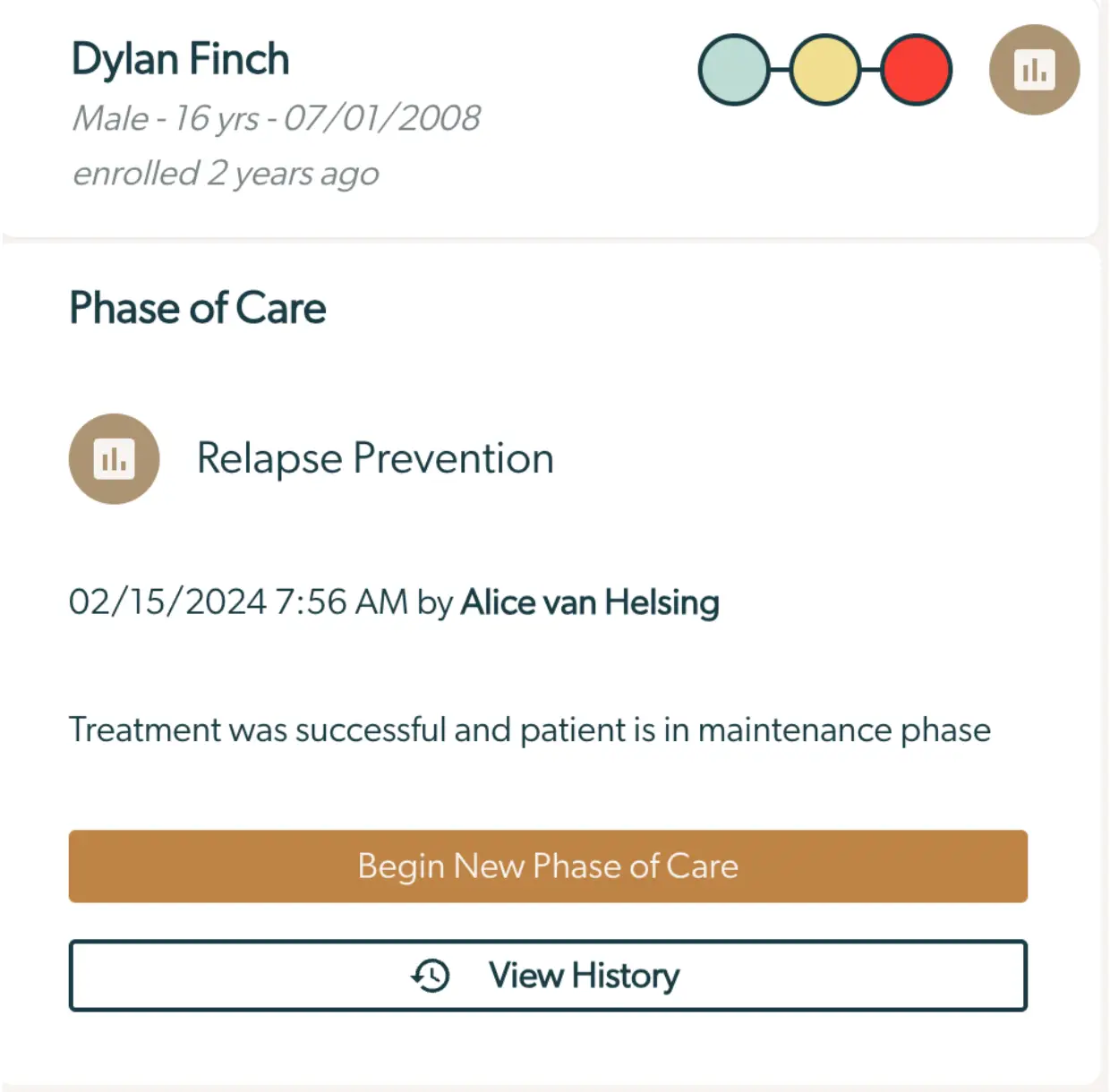
The screenshot displays a section of the Mirah Collaborative Care interface focused on the 'Phases of Care' for a patient named Dylan Finch. At the top, the patient's name, gender, age, birthdate, and enrollment duration are shown. To the right, there is a visual indicator with colored circles representing different phases of care. Below, the 'Phase of Care' section is titled 'Relapse Prevention' with an icon next to it. The date and time of the entry, along with the name of the care manager, Alice van Helsing, are listed. A brief note states that the treatment was successful and the patient is in the maintenance phase. At the bottom, there are two buttons: 'Begin New Phase of Care' in orange, located centrally, and 'View History' in a bordered style, located below the first button.

Selecting "View History" will give you a full description of all the Phases of Care this patient has been in for this enrollment.
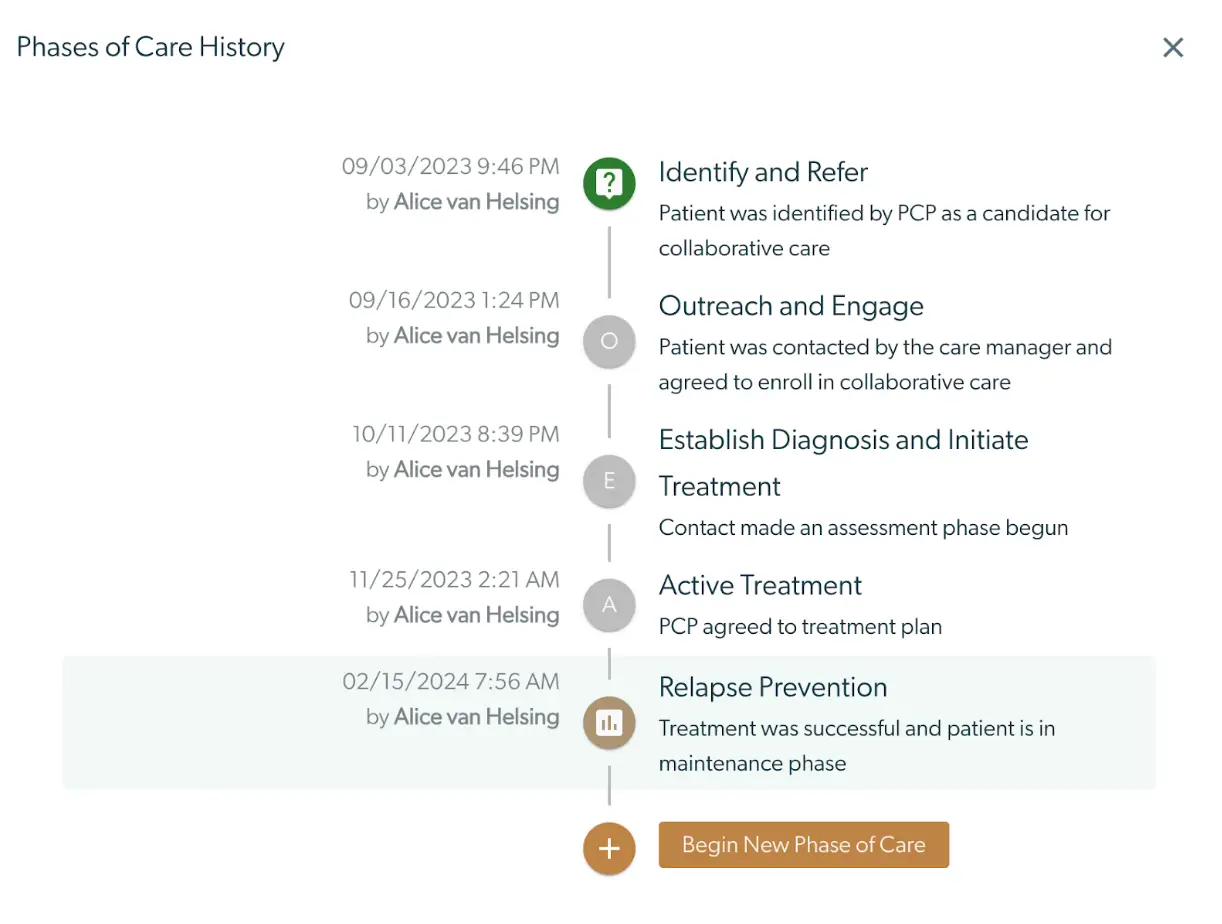
The screenshot displays the 'Phases of Care History' for a patient managed by Alice van Helsing. It outlines the chronological progression of care phases, starting with 'Identify and Refer' on 09/03/2023, where the patient was identified by a PCP as a candidate for collaborative care. This is followed by 'Outreach and Engage' on 09/16/2023, where the patient was contacted by the care manager and agreed to enroll in collaborative care. The next phase, 'Establish Diagnosis and Initiate Treatment,' occurred on 10/11/2023, marking the beginning of the assessment phase. 'Active Treatment' took place on 11/25/2023, with the PCP agreeing to the treatment plan. The final phase shown is 'Relapse Prevention' on 02/15/2024, indicating successful treatment and the patient entering a maintenance phase. At the bottom of the timeline, there is a button labeled 'Begin New Phase of Care' in brown, located centrally, which allows the user to initiate a new phase of care.

Initiating a New Phase of Care​

When ready to begin a new Phase of Care, you may select the "Begin New Phase of Care" button on the left hand sidebar.

Upon selecting it, you will be given the option to choose a new Phase of Care, and write an optional note describing the change.

The 'Change Phase of Care' screen for Dylan Finch allows a care manager to update the current phase of care for a patient. At the top, the screen displays the title 'Change Phase of Care (Dylan Finch)' indicating the patient's name. Below, there is a dropdown menu labeled 'Phases of Care' where the current phase 'Relapse Prevention' is selected. This dropdown allows the user to choose different phases of care. Underneath, there is a text area labeled 'Additional Notes' where the user can input or view notes related to the phase change, currently displaying 'Discharged to relapse prevention'. At the bottom right corner, there is a button labeled 'Change Phase of Care' which, when clicked, saves the changes made to the patient's care phase.

How to use Phases of Care for your panel​

Filtering your panel on Phase of Care​

When you look at your panel, you can now see the active phase in a column next to the minutes total.
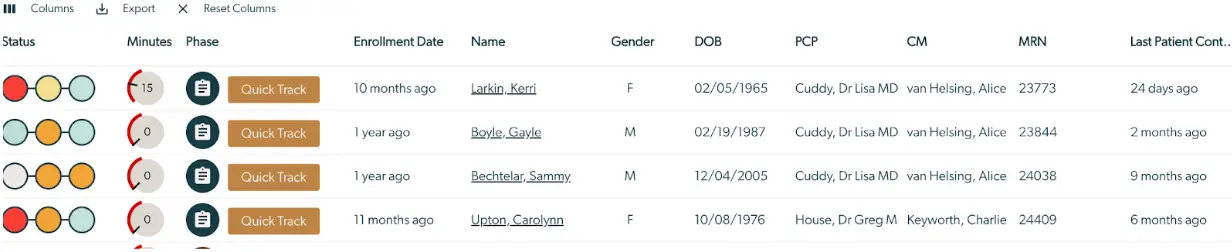
This screenshot displays a table from the Mirah Collaborative Care platform, specifically within the Phases of Care feature. The table is designed to help care managers track patient information and their care phases. It includes columns for Status, Minutes, Phase, Enrollment Date, Name, Gender, Date of Birth (DOB), Primary Care Provider (PCP), Care Manager (CM), Medical Record Number (MRN), and Last Patient Contact. The Status column uses colored circles to indicate the current status of each patient. The Minutes column shows the time spent on the current phase, with a circular progress indicator. The Phase column displays a 'Quick Track' button for each patient, indicating their current phase in the care process. The Enrollment Date column shows how long ago each patient was enrolled. The Name column lists patient names as clickable links for more details. Gender and DOB provide demographic information. PCP and CM columns list the primary care provider and care manager, respectively. MRN is a unique identifier for each patient, and the Last Patient Contact column indicates the time since the last interaction with the patient. At the top of the table, there are options to manage columns, export data, and reset columns, with icons for each action located on the left side.

Clicking on the header will sort by Phase of Care. You may also select which Phases of Care you would like to see from the filter menu.

The screenshot displays the 'Enrollment Information' section of the Mirah Collaborative Care platform, specifically focusing on the 'Phases of Care' feature. At the top, there are two date fields labeled 'Earliest Enrollment' and 'Latest Enrollment', each accompanied by a calendar icon for selecting dates. Below these fields is a dropdown menu labeled 'Phases of Care', which is currently expanded to show a list of care phases. The phases listed are 'Identify and Refer', 'Outreach and Engage', 'Establish Diagnosis and Initiate Treatment', 'Active Treatment', 'Relapse Prevention', 'Refer to Treatment', and 'Other'. Each phase is represented by a unique icon. This interface allows care managers to select and manage different phases of patient care within the collaborative care process.