
How to Activate New Users

Please note that your EHR may automatically add users/providers. If that is the case, please add new users in your EHR instead of Mirah directly.

Overview​

When users are added to the Mirah platform from your EMR integration, they are added in a pending state.

When a user is in a pending state

  • They will not be able to log in
  • They will not have sessions created for their appointments
  • They will not be able to be assigned to patients

Please Note​

When setting up Primary Care Physicians in CoCM, you will need to set the following additional fields:

  • Staff role = 'Primary Care Physician'
  • Access frequency = 'Rare'
    • When setting the access frequency to 'Rare', the user will not receive a welcome email or get automatically locked out of the system after 90 days. This allows care managers to assign patients to these PCPs without the PCP needing to log into the system.

When setting up a Care Manager or any clinical staff within a Collaborative Care program, their role must be Collaborative Care Manager or Collaborative Care Superuser. These are the only 2 roles that will work within the Collaborative Care platform.

How to Activate New Users

1). Go to the user's detail page
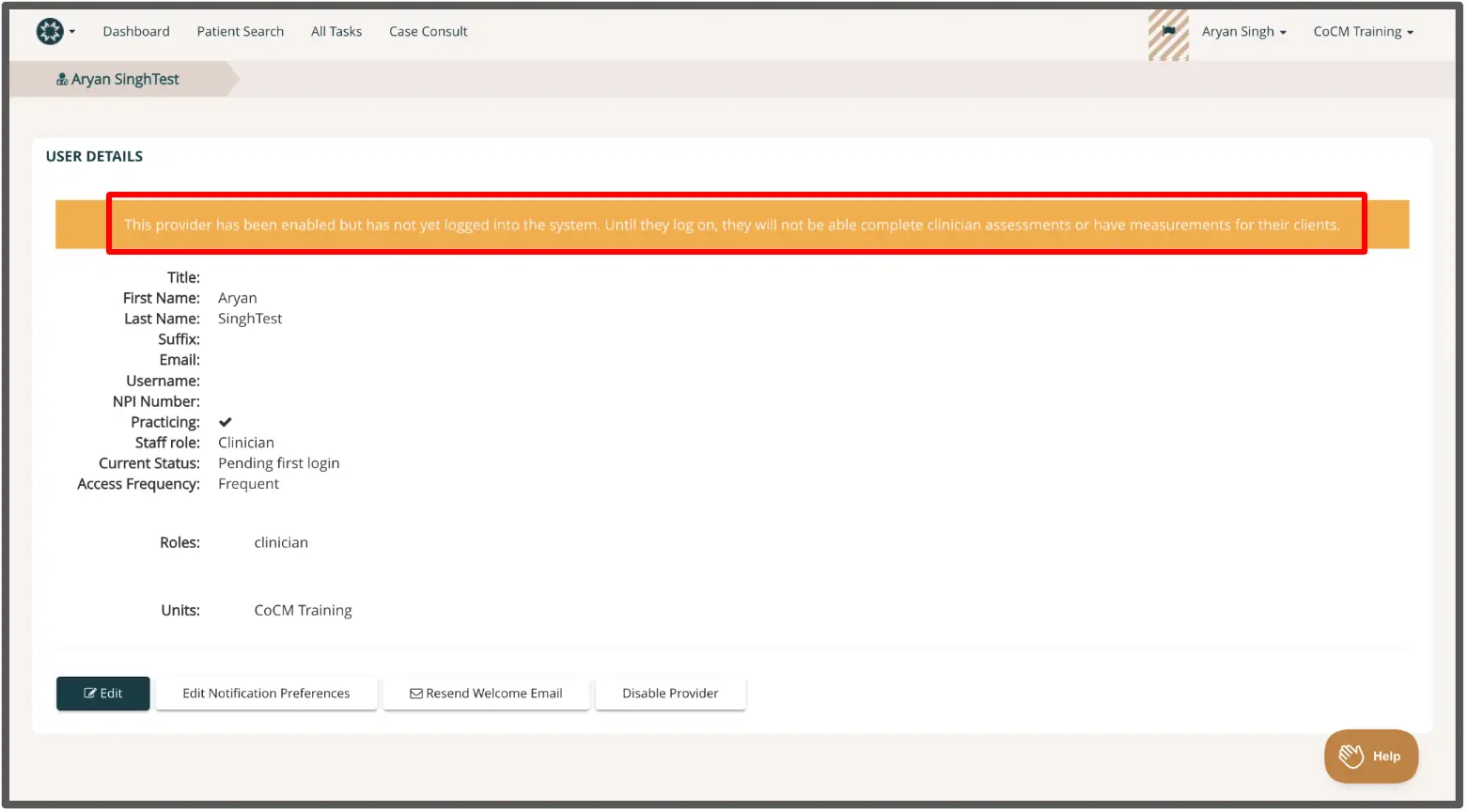
The screenshot displays the user details page for a provider named Aryan SinghTest within the Mirah Collaborative Care platform. The page is part of the user activation process under the Integrations feature. At the top, a highlighted message indicates that the provider has been enabled but has not yet logged into the system, preventing them from completing clinician assessments or obtaining measurements for their clients. Below the message, the user details section lists the provider's title, first name, last name, suffix, email, username, NPI number, practicing status, staff role, current status, and access frequency. The roles and units associated with the provider are also displayed. At the bottom of the page, there are three buttons: 'Edit' located on the left, 'Edit Notification Preferences' in the center, and 'Resend Welcome Email' followed by 'Disable Provider' on the right. The 'Help' button is situated in the bottom right corner of the screen.

2). The user will be sent an email welcoming them to Mirah and allowing them to set a password
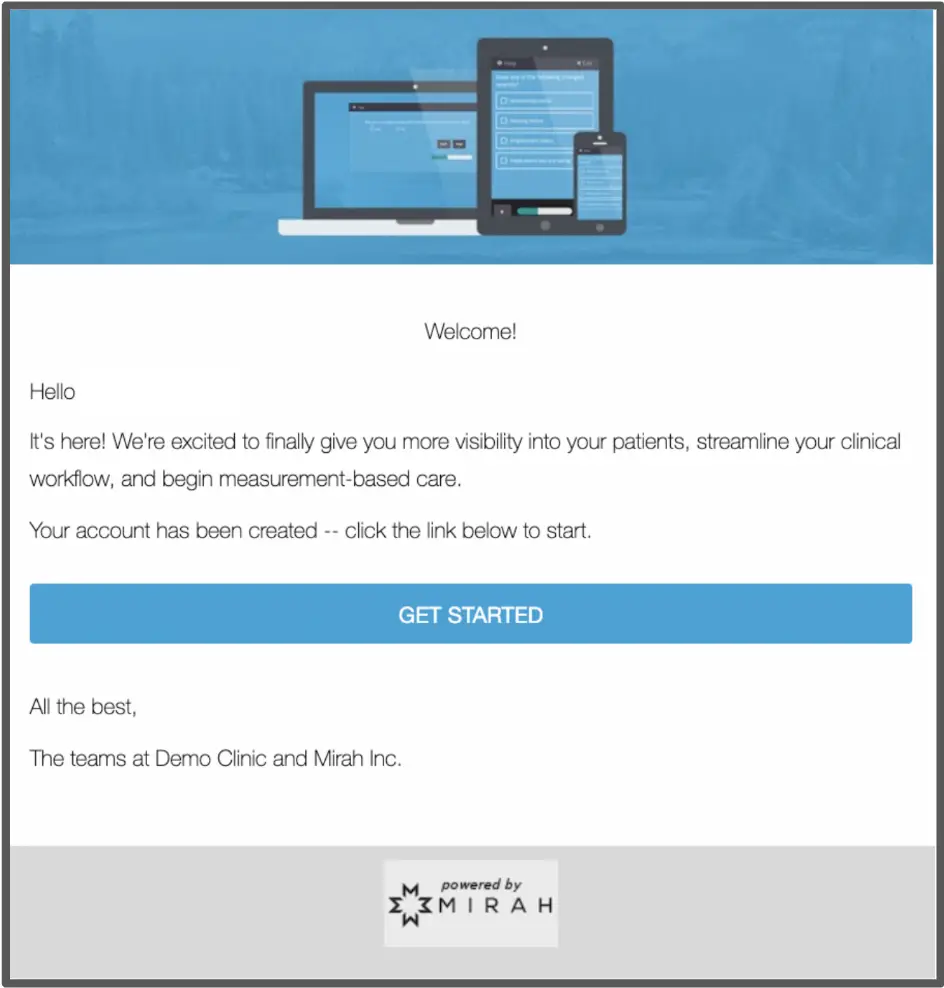
The screenshot displays a welcome message for new users of Mirah Collaborative Care, indicating that their account has been created. The message highlights the benefits of the platform, such as increased visibility into patients and streamlined clinical workflow, and encourages users to begin measurement-based care. The central feature of the screen is a 'GET STARTED' button located in the middle, which users are prompted to click to initiate their experience with the platform. The message is signed off by the teams at Demo Clinic and Mirah Inc., and the bottom of the screen features the Mirah logo, indicating the platform's branding.

From here, the user will be able to log into Mirah. If there are any difficulties in receiving the email, please contact support@mirah.com for further assistance.

Note: A user won't be fully active until they log into the application for the first time.

Additional Resources​

Log Into Mirah Using Your Username and Password