How to do a Bulk Data Export
Overview
Bulk data export allows you to get Mirah data for your institute as a collection of CSV files for advanced analytics or for import into your own BI/Data systems.
The order of columns is subject to change. When parsing files, please ensure to use headers rather than positional parsing to ensure you are reading the data correctly.
Here is a List of all the Exports you can download from the platform. If you would like to see additional documentation for any of the exports listed who do not have it linked, please reach out to support@mirah.com.
- Anonymized Research Set
- Answers
- Appointments
- Care Episode Treatment Track
- Collaborative Care Billing
- Collaborative Care Case Consultations
- Collaborative Care Consultation Meetings
- Collaborative Care Consultation Meeting Attendees
- Collaborative Care Consult Request
- Collaborative Care Enrollments
- Collaborative Care Enrollment Diagnoses
- Collaborative Care Enrollment Phase of Care
- Collaborative Care Monthly Summary PDF
- Collaborative Care Notes
- Collaborative Care Panels
- Collaborative Care Panel Team Members
- Collaborative Care Phase of Care
- Collaborative Care Tasks
- Collaborative Care Time Entry Logs
- Contact Details Quality
- Insurance Coverage
- Decision Support Entity Decision Algorithms
- Decision Support Provider Notifications
- Decision Support Triggered Decision Algorithms
- Decision Support Triggered Workflows
- Decision Support Triggered Workflows Actions
- Decision Support Triggered Workflows Action Logs
- Decision Support Workflows
- Decision Support Workflow Actions
- Diagnostic Report
- Diagnosis
- Encounter
- Patient Goal
- Patient Goal Answer
- Observations
- Observation Answers
- Organizations
- Outcomes
- Patients
- Practitioners
- Questions
- Questionnaires
- Questionnaire Responses
- Reimbursement List
- Related People
- Provider Feedback Report Viewing
- Research Patient Set
- Research Data Set
- Treatment Service
- Treatment Track
- User Consents
Choosing the right export
If you are not sure which export you need, start from what you are trying to do. Each export page describes what it contains and lists example questions it can answer.
- Collaborative Care caseload and program: start with Enrollments, the master list of who is in CoCM and their status. Then Tasks and Time Entry Logs for care-management work and minutes, and the consultation exports Case Consultations, Consult Request, Consultation Meetings and Meeting Attendees.
- Collaborative Care billing: CoCM Billing for the monthly summary, Time Entry Logs for the underlying minutes and Enrollment Diagnoses for the dated diagnosis history. Use the Monthly Summary PDF to archive per-patient summaries.
- Measuring treatment effectiveness: start with Outcomes. It is analysis-ready and has one row per episode of care per scale with baseline and current values. For the underlying scores use Observations, and for the full item detail use Diagnostic Report, Questionnaire Responses and Answers.
- People and program structure: Patients, Practitioners, Organizations, Related People, Treatment Service and Treatment Track.
- Scheduling and visits: Appointments, Encounters and Episodes of Care.
- Reimbursement: Reimbursement List for 96127 assessment billing, and Provider Feedback Report Viewing to confirm reports were reviewed.
- Clinical safety and decision support: the Decision Support exports.
- Data quality and compliance: Contact Details Quality, Insurance Coverage and User Consents.
- Research (specialist, most teams do not need these): for treatment-progress and effectiveness reporting use Outcomes above, which is analysis-ready and easier to work with. Choose a research set only for formal research or statistical analysis: Research Patient Set, Research Data Set and the de-identified Anonymized Research Set.
Permissions
Any user who is set as a 'superuser' has access to the Bulk Data Export system
How to use the bulk data export tool
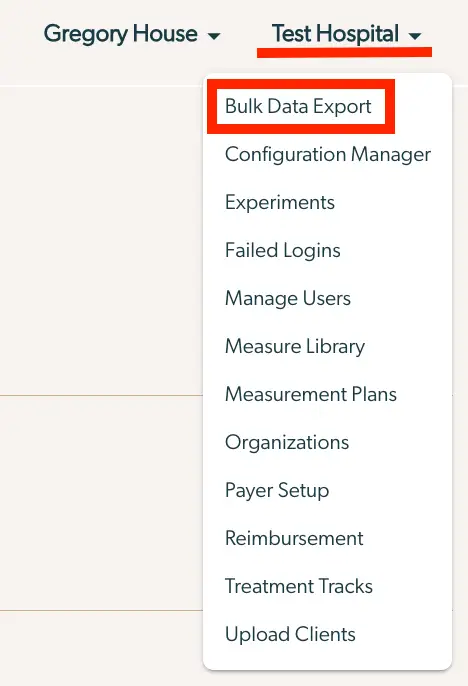
1.) Open the institute menu and select Bulk Export Data
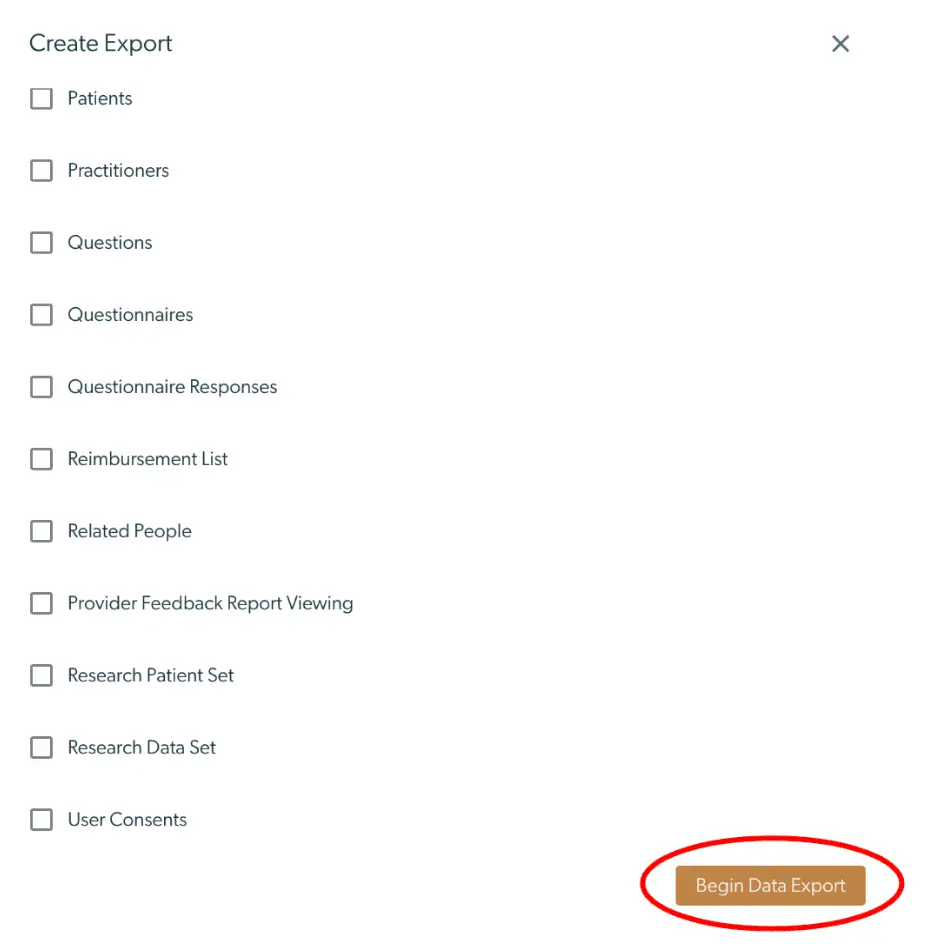
2.) Click the "Create New Export" Button, then click the link to "Select All" or select relevant files.

3.) Select the files you want to generate, then click the "Begin Data Export" button
4.) Click the "Download" button to download the generated file(s). To open the file, use the password that is generated in the "Zip Password" column on the bulk data export page. Open the file to ensure that the export was successful.

If there is more specific data that your organization needs that can't be pulled in through the bulk data export, please reach out to support@mirah.com with the specific data you would like. Please provide as much detail as possible as this will help our support team best be able to deliver on your needs.