
How to manage Smart Phrases

To customize the smart phrases that are available during case consult, use the Case Consult Smart Phrases option.

1.) First click on "Configuration" and then select "Case Consult Smart Phrases".
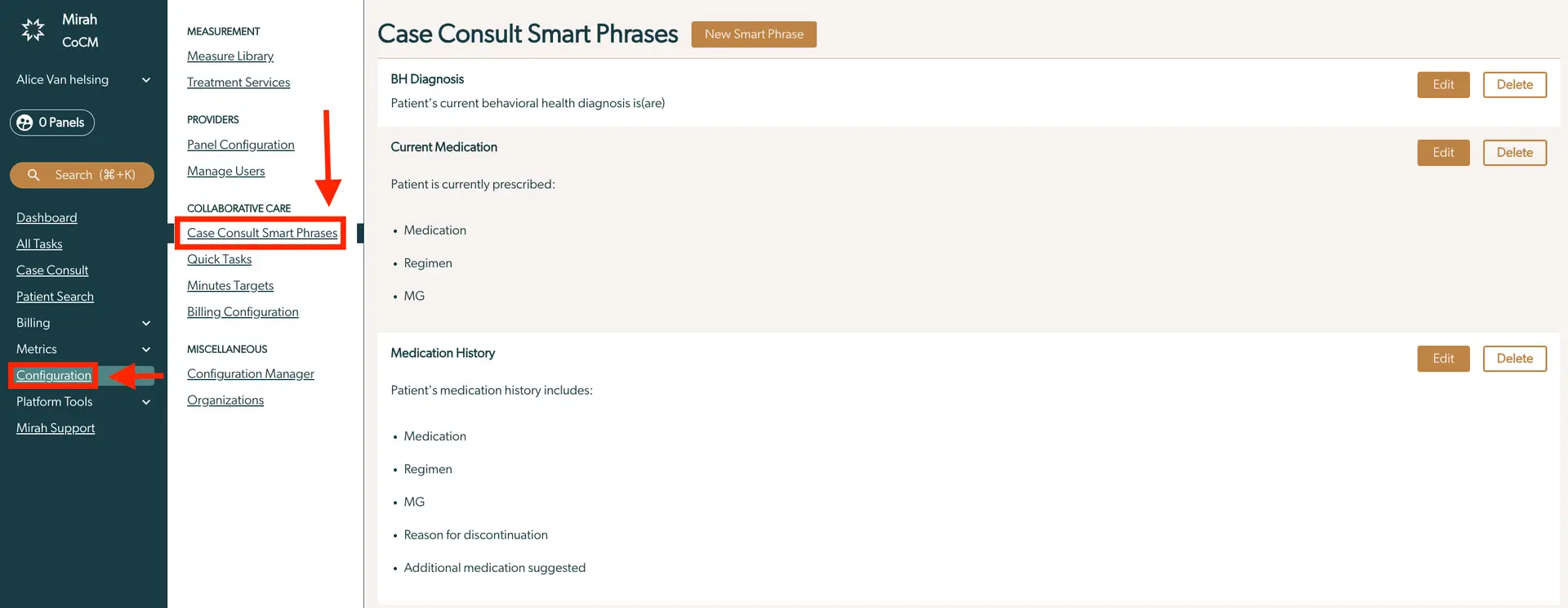
The screenshot displays the 'Case Consult Smart Phrases' page within the Mirah Collaborative Care platform. The left sidebar contains navigation options including Dashboard, All Tasks, Case Consult, Patient Search, Billing, Metrics, Configuration, Platform Tools, and Mirah Support. The Configuration section is expanded, showing options under Collaborative Care such as Case Consult Smart Phrases, Quick Tasks, Minutes Targets, and Billing Configuration. The main content area is titled 'Case Consult Smart Phrases' and includes sections for BH Diagnosis, Current Medication, and Medication History. Each section provides details about the patient's behavioral health diagnosis, current medication regimen, and medication history, including reasons for discontinuation and additional medication suggestions. Each section has 'Edit' and 'Delete' buttons located on the right side for managing the information. A 'New Smart Phrase' button is located at the top right corner of the main content area for adding new entries.

2.) This will bring you to the Smart Phrases page, where you can create, edit and delete smart phrases.
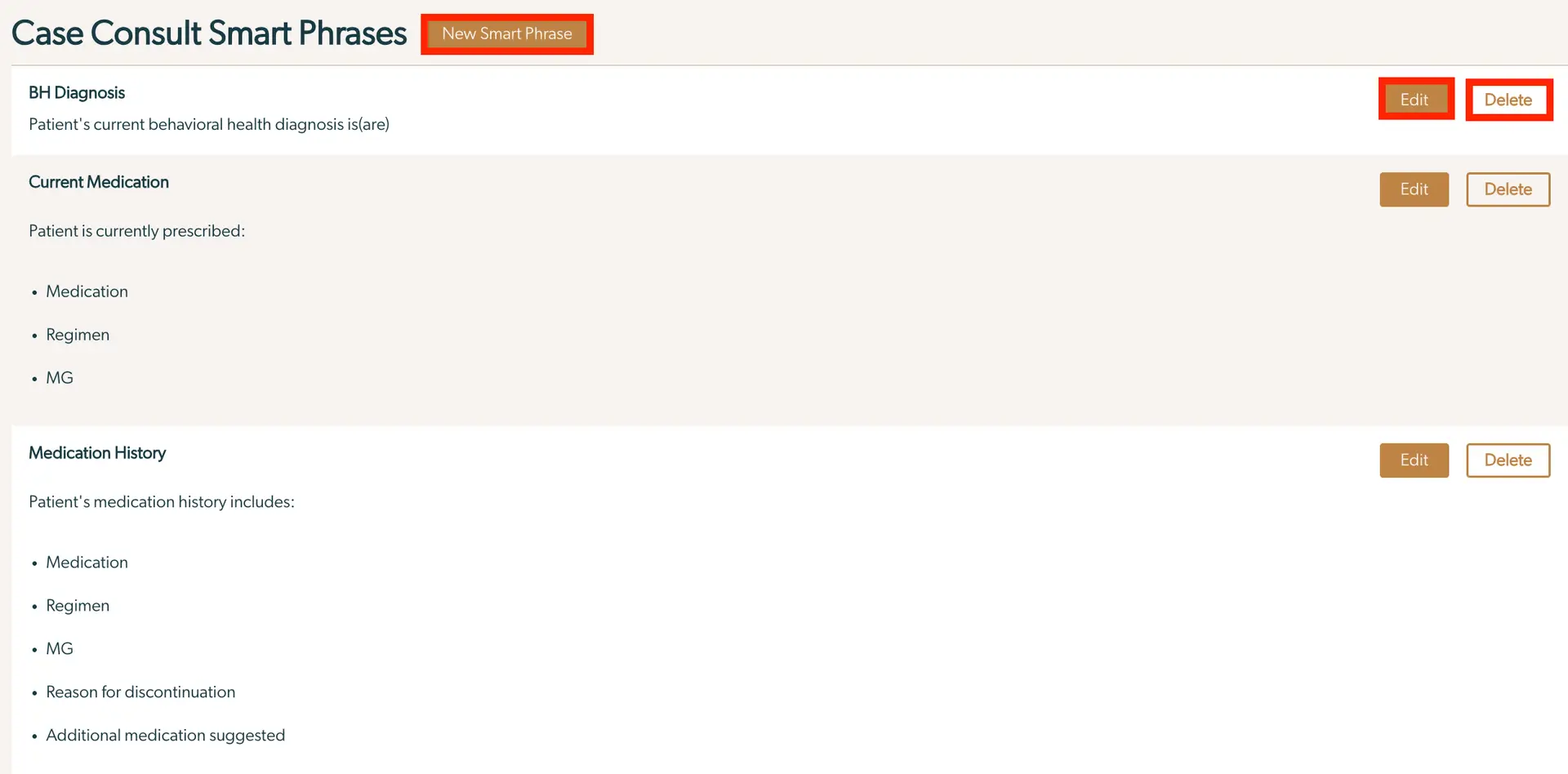
The 'Case Consult Smart Phrases' screen in Mirah Collaborative Care allows users to manage smart phrases related to patient care. At the top right, there is a 'New Smart Phrase' button highlighted in orange, which users can click to create a new smart phrase. Below, the screen is divided into sections: 'BH Diagnosis', 'Current Medication', and 'Medication History'. Each section provides a template for entering patient information. The 'BH Diagnosis' section prompts for the patient's current behavioral health diagnosis. The 'Current Medication' section lists fields for medication, regimen, and MG, indicating what the patient is currently prescribed. The 'Medication History' section includes fields for medication, regimen, MG, reason for discontinuation, and additional medication suggested. Each section has 'Edit' and 'Delete' buttons on the right side, allowing users to modify or remove existing entries.

3.) Your institute should come with a default set of phrases that we have found useful for running consult meetings, but we encourage you to customize these to meet the needs of you and your team.

4.) Clicking "New Smart Phrase" or "Edit" on an existing smart phrase will bring up a form what is shown below:

The screenshot displays a section of the Mirah Collaborative Care interface where users can manage Smart Phrases related to case consults. The screen includes a text field labeled 'Title' where users can input the title of the Smart Phrase, in this case, 'BH Diagnosis'. Below the title field, there is a larger text area for entering or editing the content of the Smart Phrase, which currently reads 'Patient's current behavioral health diagnosis is(are)'. In the bottom right corner, there is a 'Save' button highlighted in red, which allows users to save the changes made to the Smart Phrase.

5.) In the "Title" field, input the name of the Smart Phase. In the field below, insert context for this smart phase. Please see this article detailing the workflow of a case consult for context ideas.

  • If the "Title" field is left blank, the name will be the default text that is inserted into the bottom field.