
Feature Guide: Treatment Tracks

What is a Treatment Track?​

A treatment track is specified intervention with a defined measurement protocol that can be built, saved, and added for your organization and then applied to a client’s episode(s) of care.

How do I add new Treatment Tracks for my organization?​

Please reach out to Mirah Support or your Customer Success Manager to add treatment tracks for your organizations.

How do I access Treatment Tracks for an episode of care?​

1). Navigate from the Patient Details screen to the "Episode of Care" section by scrolling toward the bottom. Click on the episode of care for which you'd like to view the treatment tracks.
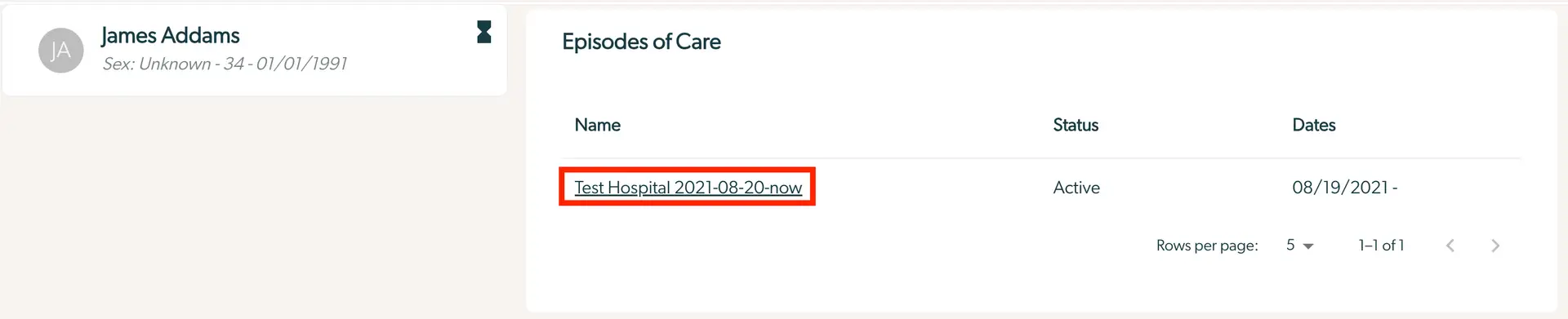
The screenshot displays a section of the Mirah Measurement-Based Care interface focused on 'Episodes of Care' for a patient named James Addams. The patient's profile is shown on the left, including their initials 'JA', name, sex as 'Unknown', age '34', and birth date '01/01/1991'. On the right, the 'Episodes of Care' section lists details of care episodes. The table includes columns for 'Name', 'Status', and 'Dates'. The episode name 'Test Hospital 2021-08-20-now' is highlighted and clickable, indicating it can be selected for more details. The status of the episode is 'Active', and the date range is from '08/19/2021' to the present. Below the table, there is a pagination control showing 'Rows per page: 5' and the current page '1–1 of 1', with navigation arrows for moving between pages.

2). On the Care Episode Details screen, scroll to the “Treatment Tracks” section on the left panel. Select the "Edit" button to view details.
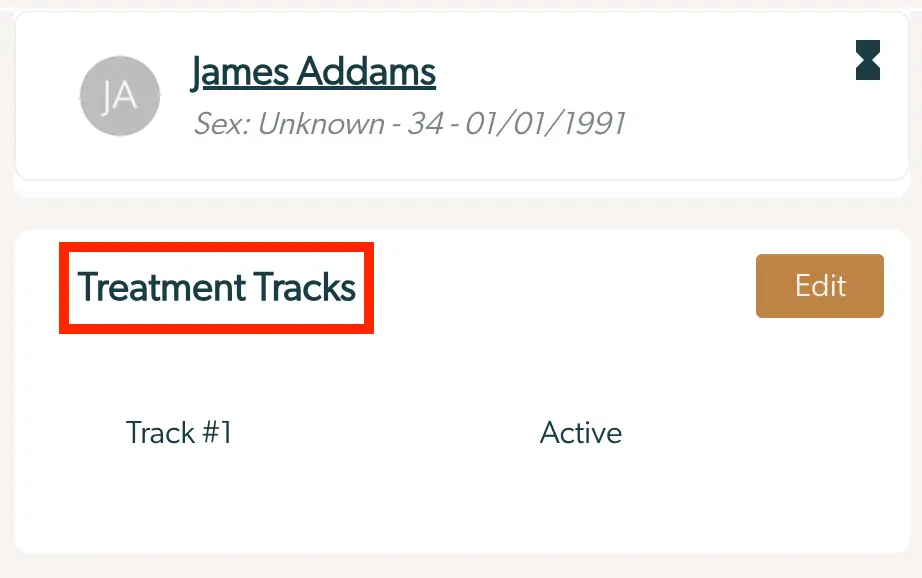
The screenshot displays a section of the Mirah Measurement-Based Care interface focused on Treatment Tracks for a user named James Addams. At the top, there is a user profile card showing the user's initials 'JA', name 'James Addams', sex 'Unknown', and date of birth '01/01/1991'. Below the profile card, the 'Treatment Tracks' section is highlighted, indicating the current treatment track status. The section lists 'Track #1' with a status of 'Active'. To the right of the 'Treatment Tracks' title, there is an 'Edit' button in brown, allowing users to modify the treatment track details.

How do I view the treatment track(s) my client is enrolled in?​

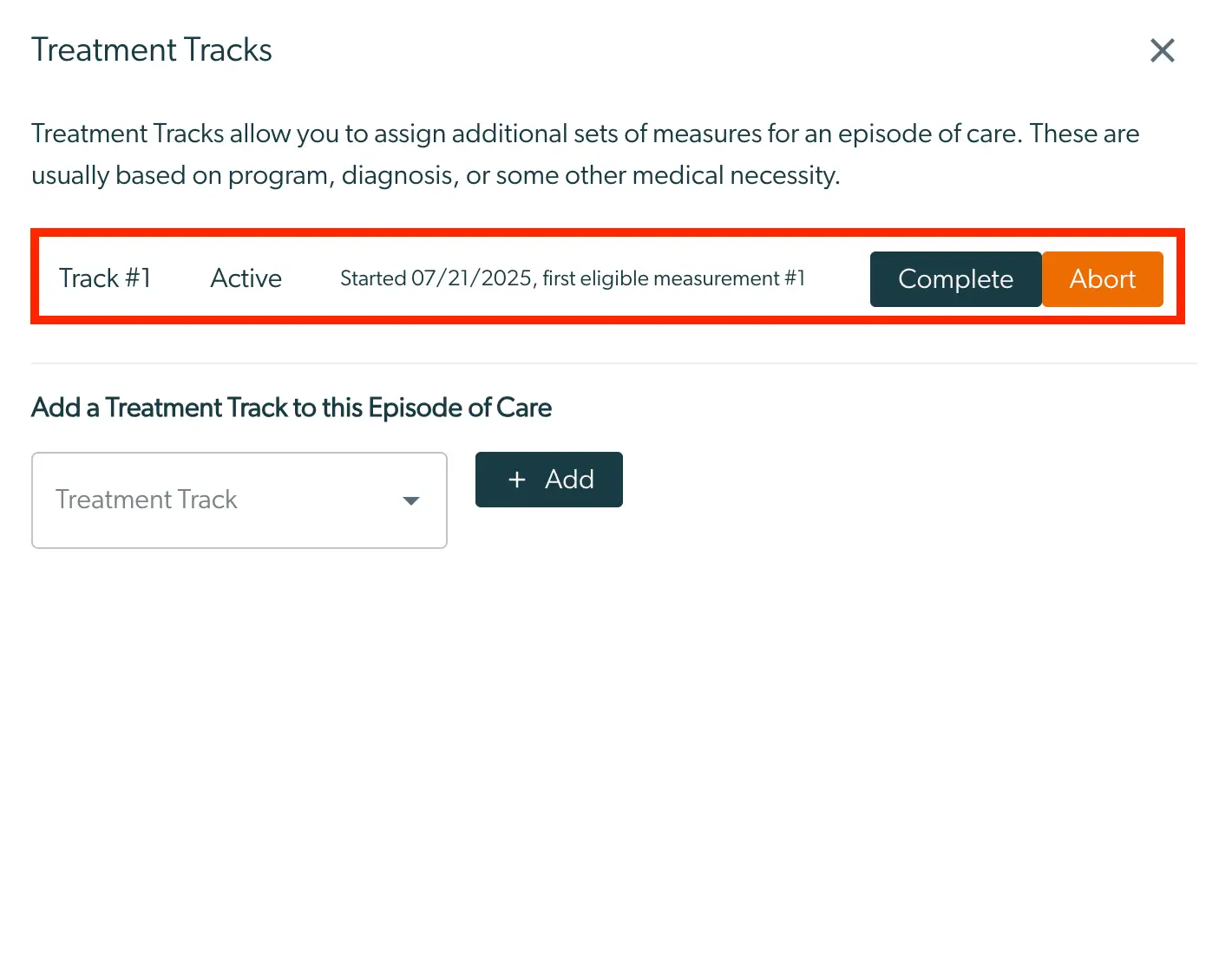
1). “Active Treatment Tracks” indicate the treatment track(s) that the episode of care is actively receiving measurements for.

  • The "Complete" button allows a user to mark the treatment track as complete for the episode of care. Marking a treatment track as complete stops measures from sending that were a part of the treatment track.
  • The “Abort” button allows for the removal of a treatment track from the episode of care, if it was added in error. The 'Treatment Tracks' screen allows users to assign additional sets of measures for an episode of care, typically based on program, diagnosis, or other medical necessities. The screen displays an active treatment track labeled 'Track #1', which started on 07/21/2025 with the first eligible measurement. Users can mark the track as 'Complete' or 'Abort' using buttons located to the right of the track information. Below, there is a section to add a new treatment track to the current episode of care. This section includes a dropdown menu labeled 'Treatment Track' for selecting a track and an '+ Add' button to confirm the addition.
2). “Complete Treatment Tracks” indicate the treatment track(s) that have concluded within the episode of care.
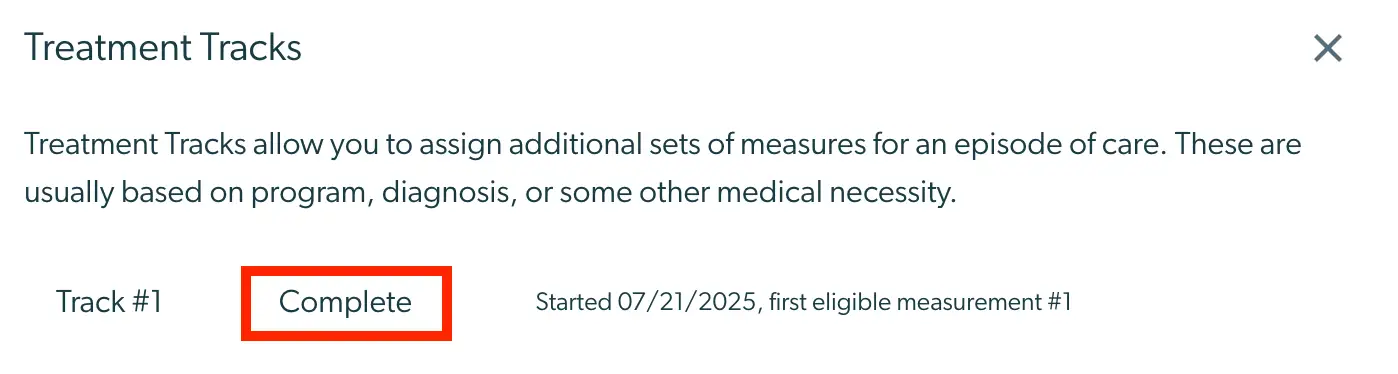
The screenshot displays the Treatment Tracks feature in Mirah Measurement-Based Care, which allows users to assign additional sets of measures for an episode of care based on program, diagnosis, or other medical necessities. The screen shows 'Track #1' with a status of 'Complete' highlighted in red, indicating the completion of the track. Below the track name, it notes the start date as 07/21/2025 and mentions the first eligible measurement as #1. In the top right corner, there is a close button represented by an 'X' for exiting the screen.

How do I add treatment track(s) to the episode of care?​

“Add a treatment track” allows a user to view the treatment tracks available for the organization and add one to the episode of care for the patient. Doing so will prompt measures to begin sending, based on the setup of the treatment track.

To add a treatment track, select the desired treatment track from the drop down under “Add a Treatment Track”. Once selected, click the “Add” button.

The screenshot displays a section of the Mirah Measurement-Based Care interface where users can add a treatment track to an episode of care. At the top, there is a prompt 'Add a Treatment Track to this Episode of Care'. Below this, there is a dropdown field labeled 'Treatment Track' where users can select a specific track. To the right of the dropdown field, there is a prominent '+ Add' button, outlined in red, which users can click to add the selected treatment track. Below the dropdown, there is a placeholder or example text 'Track #1', indicating a possible selection within the dropdown menu.

Once a treatment track is added, it will immediately populate in the “Active Treatment Tracks” list.