
Troubleshooting Guide: Auto-logout Issue

If you are repeatedly being automatically logged out of the Mirah platform, here are a few tips for troubleshooting:

  • Mirah platform is supported on Google Chrome only.
  • Mirah platform can only be open on ONE window or device (i.e. computer OR cell phone)
  • Do you have an Ad blocker enabled on your computer? If yes, disable it for Mirah.
  • Clear the cache on Google Chrome:

1.) Go to the three-dot menu on the top right and click "Settings".
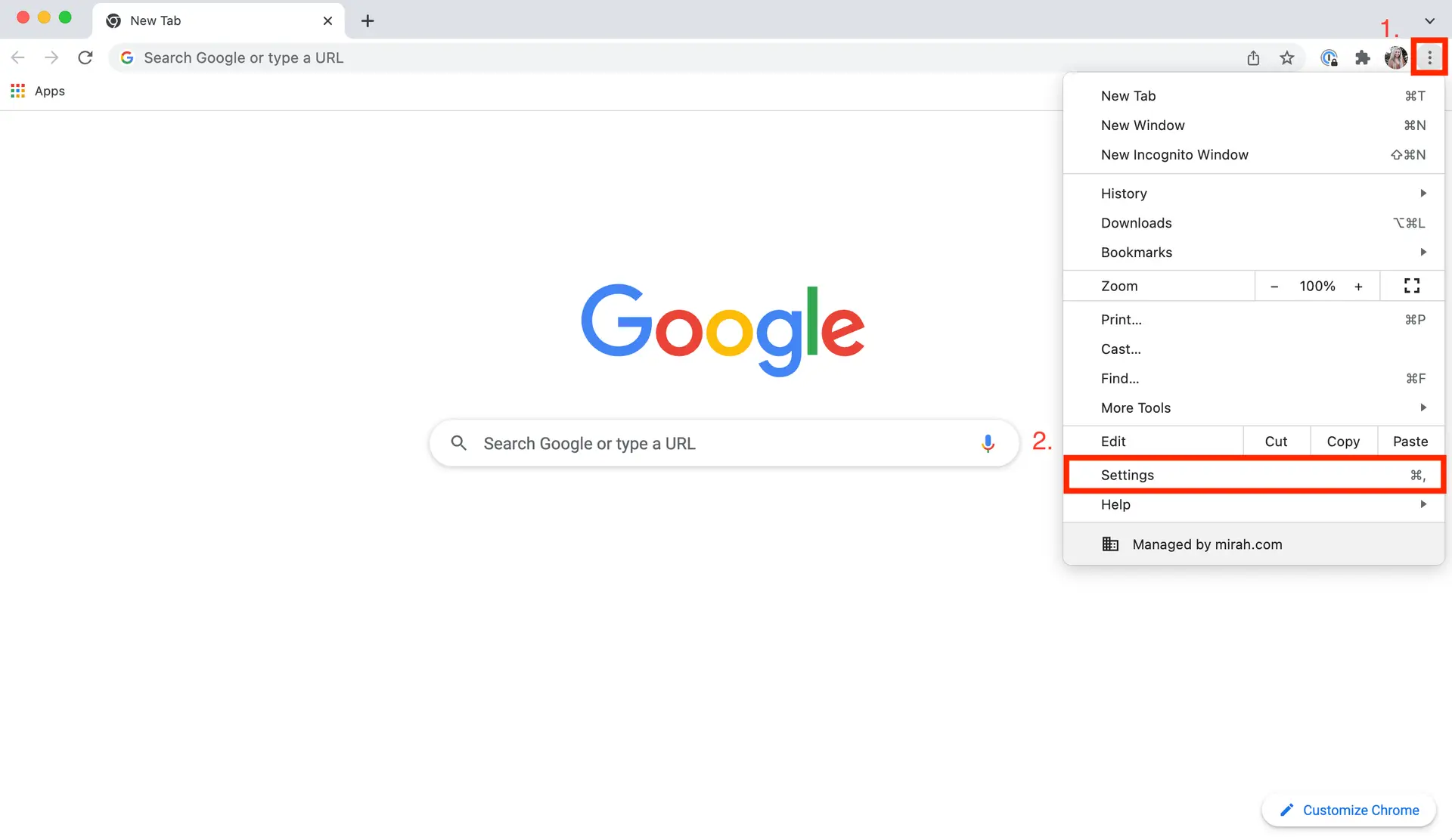
The screenshot displays a Google Chrome browser window open to a new tab page. The page features the Google logo prominently in the center, with a search bar below it labeled 'Search Google or type a URL'. In the top right corner, the browser's menu is expanded, showing options such as New Tab, New Window, New Incognito Window, History, Downloads, Bookmarks, Zoom, Print, Cast, Find, More Tools, Edit, Cut, Copy, Paste, Settings, Help, and Managed by mirah.com. The 'Settings' option is highlighted, indicating the next step in troubleshooting the auto-logout issue. The menu is accessed by clicking the three vertical dots icon located at the top right corner of the browser window.

2.) Click on "Security and Privacy" on the left menu, then click "Clear Browsing Data" on the middle panel.
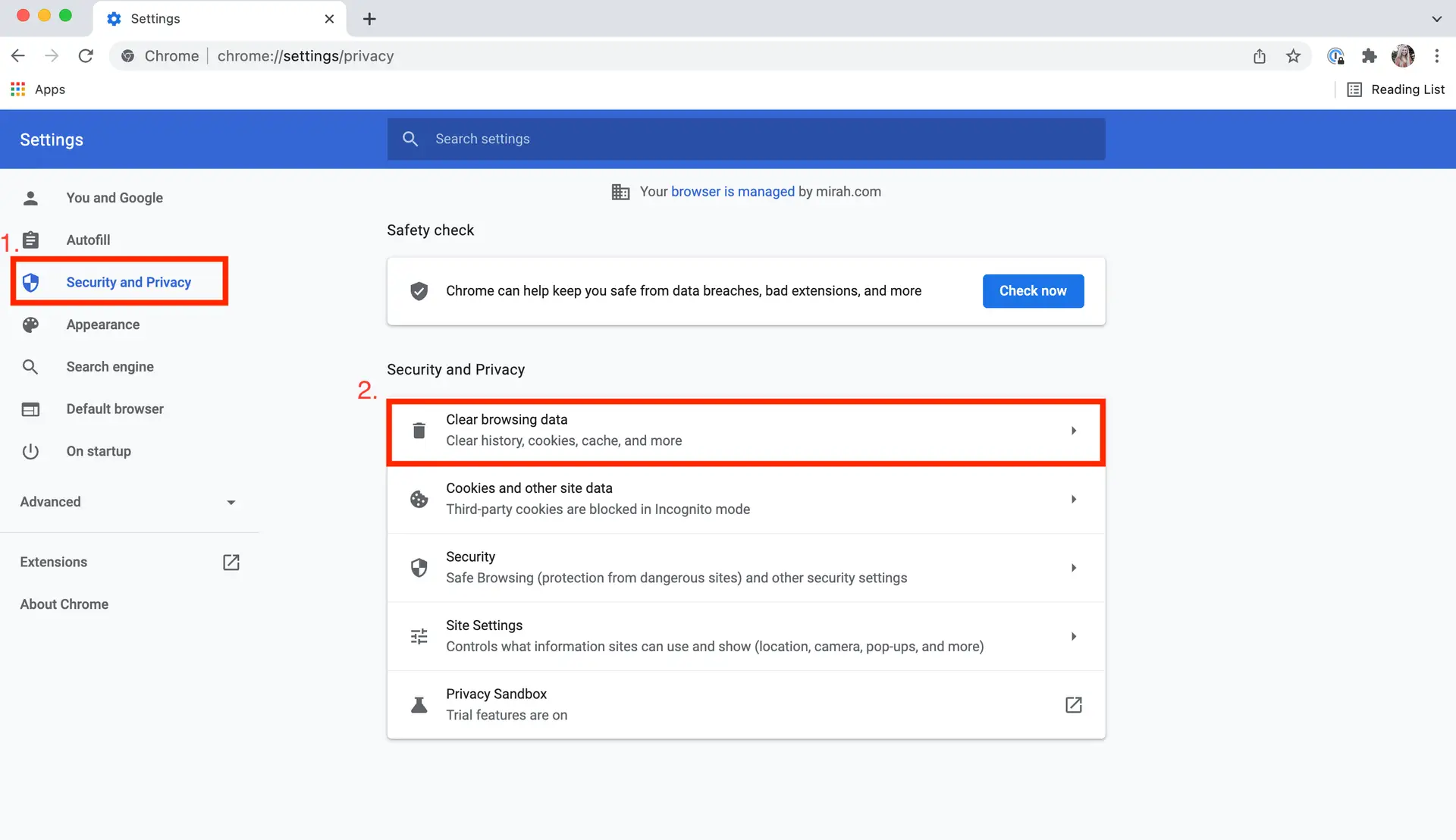
The screenshot displays the Google Chrome Settings page, specifically the Security and Privacy section. The left sidebar contains navigation options such as You and Google, Autofill, Appearance, Search engine, Default browser, and On startup, with Security and Privacy highlighted. The main content area is divided into two sections: Safety check and Security and Privacy. The Safety check section includes a message indicating that Chrome can help keep you safe from data breaches, bad extensions, and more, with a 'Check now' button to the right. The Security and Privacy section lists options like Clear browsing data, Cookies and other site data, Security, Site Settings, and Privacy Sandbox. The 'Clear browsing data' option is highlighted, indicating its purpose to clear history, cookies, cache, and more, with a right-pointing arrow suggesting further navigation. This screen is part of a troubleshooting guide addressing auto-logout issues, where clearing browsing data might be a recommended step.

3.) Click all options on the "Basic" tab and click "Clear Data".
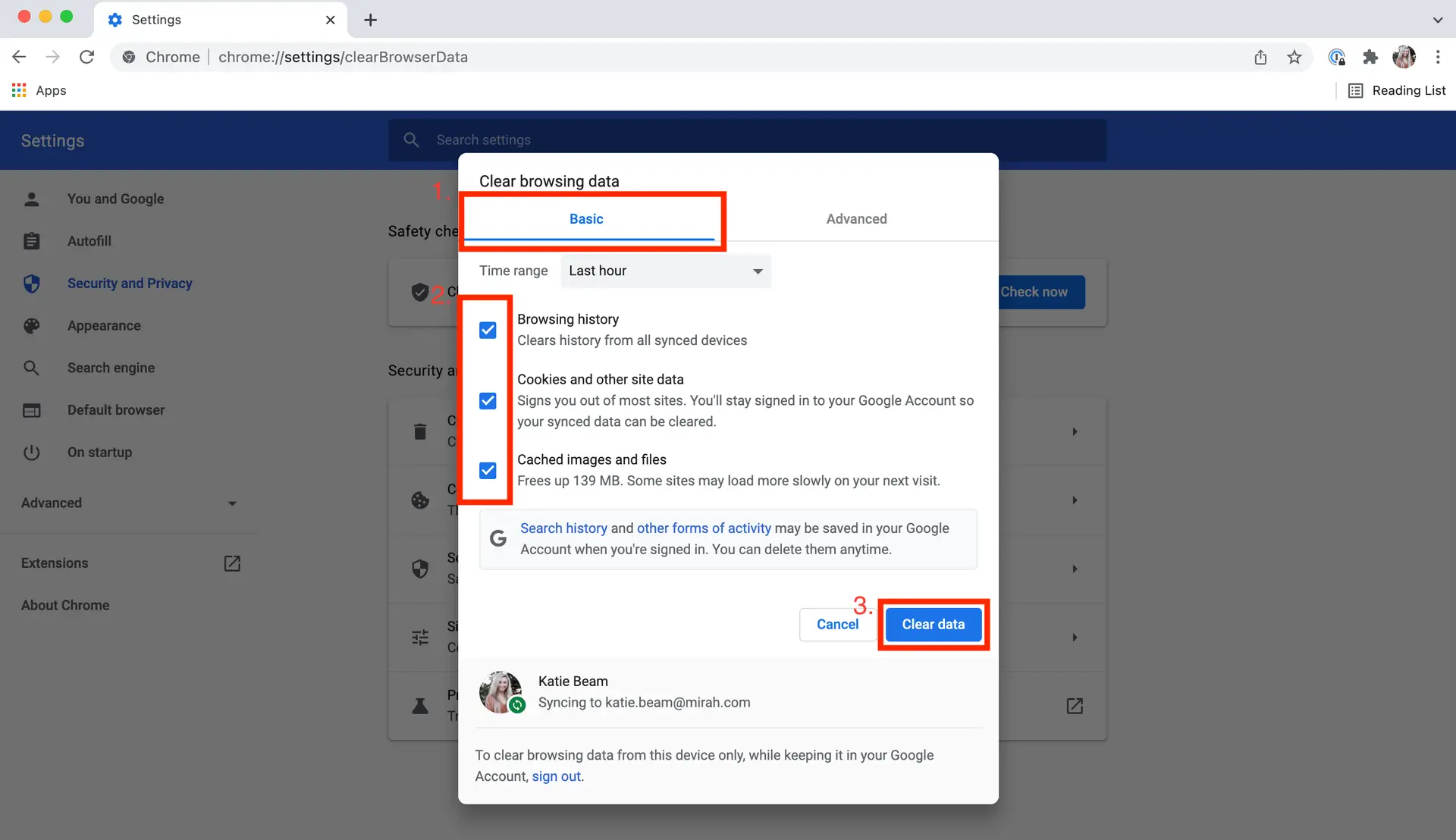
The screenshot displays the 'Clear browsing data' dialog in Google Chrome's settings, which is part of the troubleshooting guide for resolving auto-logout issues in Mirah Measurement-Based Care. The dialog is set to the 'Basic' tab, allowing users to select the time range for data deletion, with 'Last hour' currently selected. Three checkboxes are visible: 'Browsing history', 'Cookies and other site data', and 'Cached images and files', all of which are checked, indicating they will be cleared. At the bottom of the dialog, there are two buttons: 'Cancel' on the left and 'Clear data' on the right, which initiates the data clearing process. The user's Google account information is displayed at the bottom, showing that the account is syncing to katie.beam@mirah.com.