
Integration Onboarding Data Quality Checklist

How to Verify Your Mirah Integration​

Once your team and Mirah have worked together to set up an integration, you should take a moment to verify that the data is flowing correctly. Doing this before you roll out Mirah to your whole practice will ensure that any data issues are uncovered and fixed before they impact patients and providers.

Note that your EHR may not support all the kinds of data below, or Mirah may not be importing every field. Each EHR supports a different set of fields and data types, for a list of exactly what Mirah can import from your system, contact support. For flat file integrations, the fields and data types Mirah imports will depend on what your IT team is sending us.

For each kind of data that Mirah imports from your system, there are two checks to do:

  • Confirm that the total number of records imported to Mirah matches what you expect. This ensures that Mirah isn't skipping or failing to import records.
  • Spot check the contents of a few records. This ensures that there are no errors in processing the data from your system.

Go through each data type below that's relevant to your integration and check that the data in Mirah matches what you expect in your EHR.

Organizations​

Go to the Organizations page from the instance menu in the top right:
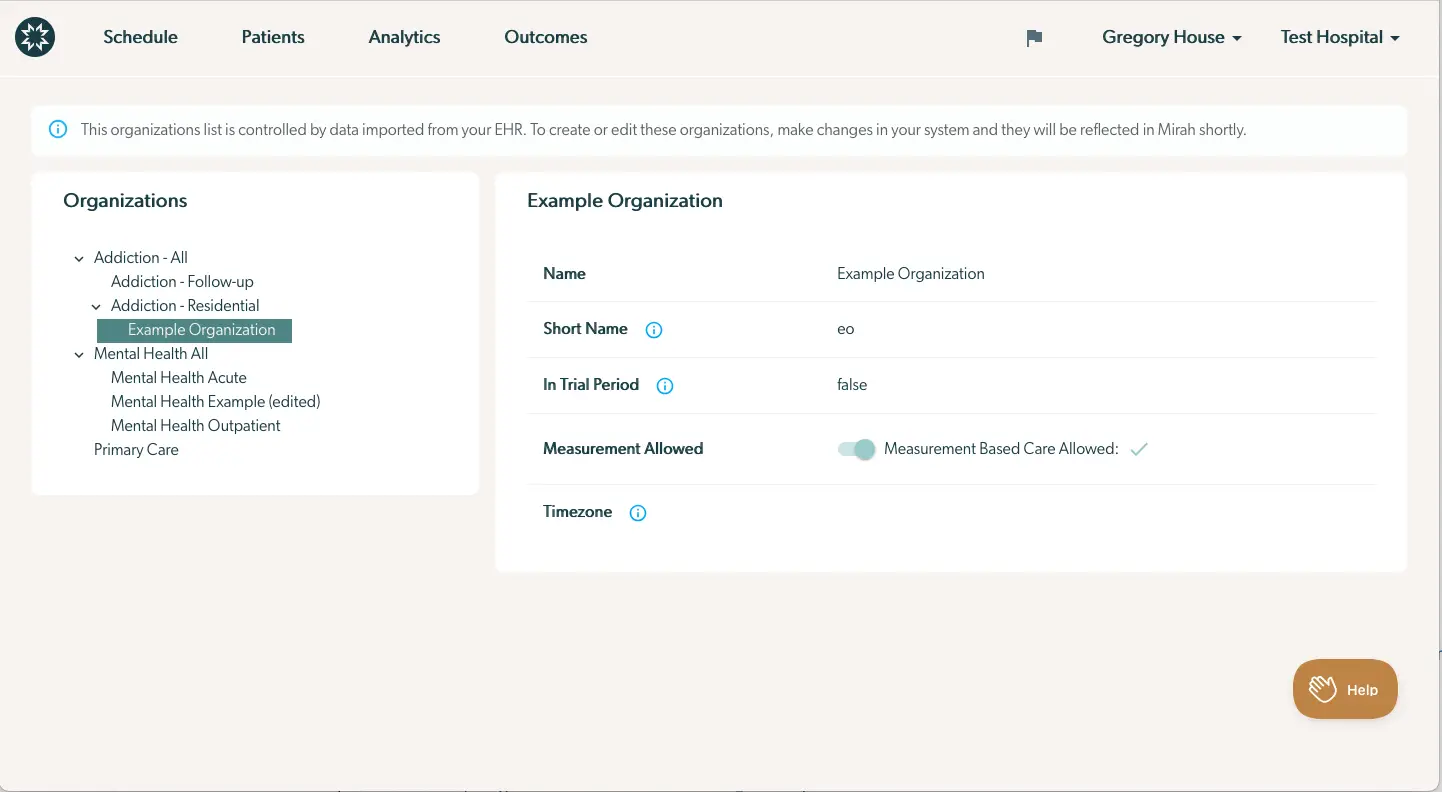
The screenshot displays the Integration Onboarding Data Quality Checklist within the Mirah Measurement-Based Care platform. The interface is divided into two main sections. On the left, there is a list of organizations under the heading 'Organizations', which includes categories such as 'Addiction - All', 'Addiction - Follow-up', 'Addiction - Residential', and 'Mental Health All', with subcategories like 'Mental Health Acute' and 'Mental Health Example (edited)'. The 'Example Organization' is highlighted under 'Addiction - Residential'. On the right, details for the 'Example Organization' are shown, including fields for 'Name', 'Short Name', 'In Trial Period', 'Measurement Allowed', and 'Timezone'. Each field has an information icon next to it, providing additional details. The 'Measurement Allowed' field has a toggle switch indicating that 'Measurement Based Care' is allowed, as shown by a checkmark. At the bottom right corner, there is a 'Help' button for user assistance. The top navigation bar includes menu options for 'Schedule', 'Patients', 'Analytics', and 'Outcomes', along with user and organization settings labeled 'Gregory House' and 'Test Hospital'.

You can see the list of all organizations imported into Mirah by expanding the tree on the left. Check that the list of organizations and the hierarchy is correct. Most integrations only import the organization name, so there aren't other details to spot check here.

Providers​

Go to the Manage Users page from the instance menu in the top right. At the bottom of the table, check that the total provider count is correct:
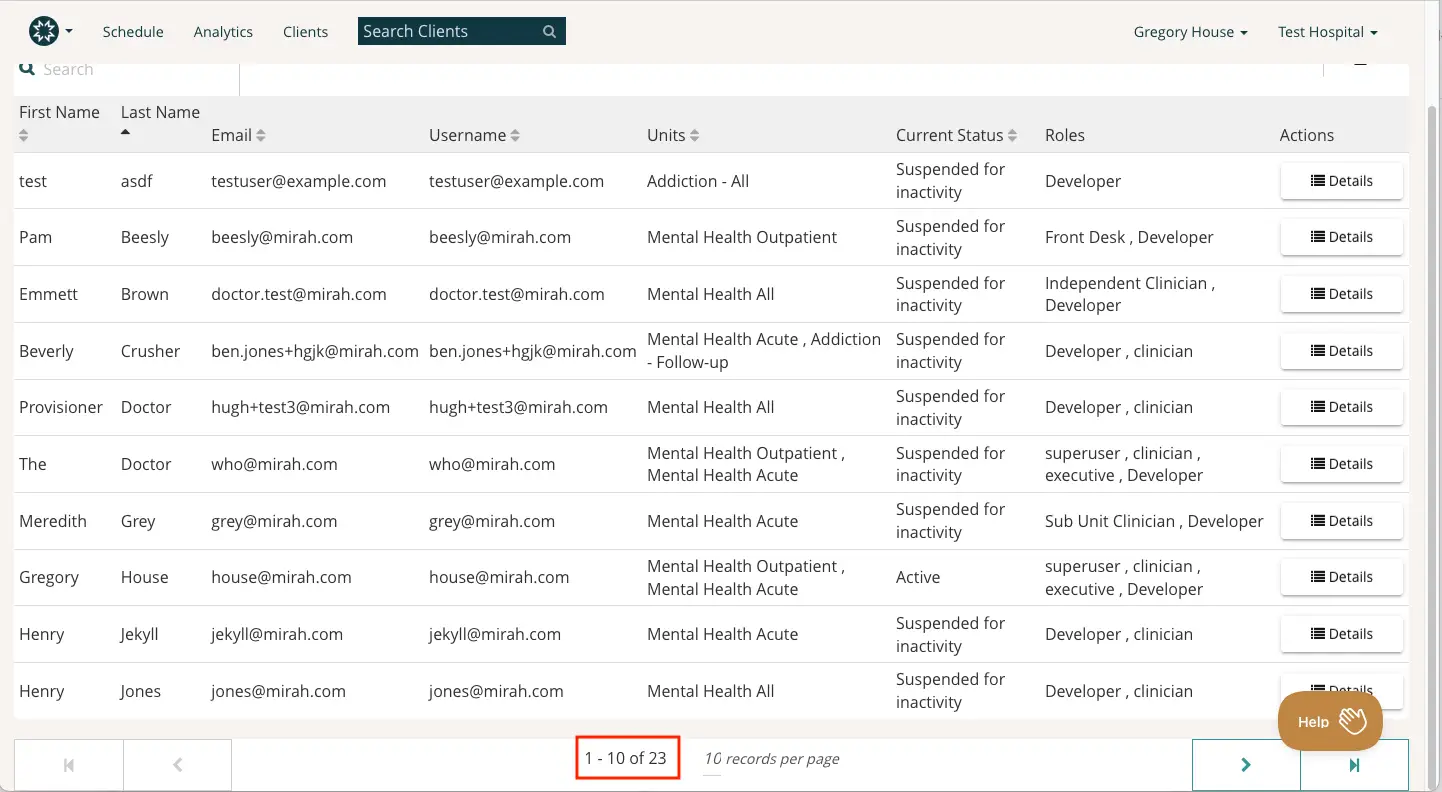
The screenshot displays a user interface from the Mirah Measurement-Based Care platform, specifically within the Integrations feature. It shows a table listing client information with columns for First Name, Last Name, Email, Username, Units, Current Status, Roles, and Actions. Each row represents a different client, with details such as their email, username, associated units, current status (e.g., 'Suspended for inactivity' or 'Active'), and roles (e.g., Developer, Clinician). The 'Actions' column contains 'Details' buttons for each client, located on the right side of the table, allowing users to view more information. At the bottom of the table, pagination controls are visible, indicating the current page range '1 - 10 of 23' and allowing navigation through the records. The top navigation bar includes options for Schedule, Analytics, and Clients, with a search bar labeled 'Search Clients'. The user profile and organization are displayed at the top right, showing 'Gregory House' and 'Test Hospital'. A 'Help' button is located at the bottom right corner of the screen.

Click the "Details" button on a provider to open their record for a spot check:
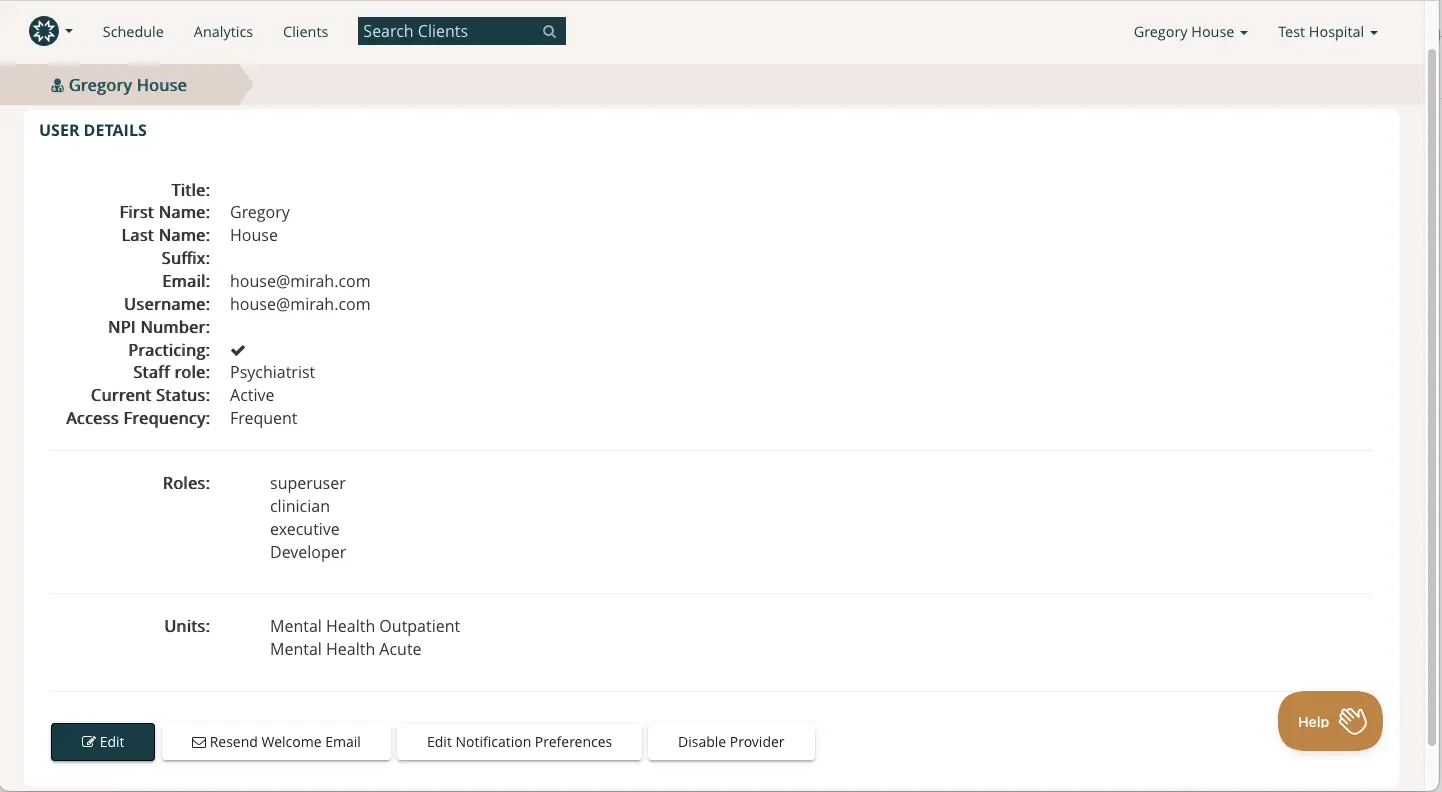
The screenshot displays the 'User Details' page for Gregory House within the Mirah Measurement-Based Care platform. At the top, there is a breadcrumb navigation indicating the user's name, Gregory House, which helps in tracking the user's location within the application. The page provides detailed information about the user, including Title, First Name, Last Name, Suffix, Email, Username, NPI Number, Practicing status, Staff role, Current Status, and Access Frequency. The user is identified as a practicing Psychiatrist with an active status and frequent access. Additional roles listed are superuser, clinician, executive, and developer, and the user is associated with the Mental Health Outpatient and Mental Health Acute units. At the bottom of the page, there are four buttons: 'Edit' on the left for modifying user details, 'Resend Welcome Email' for sending a welcome email again, 'Edit Notification Preferences' for adjusting notification settings, and 'Disable Provider' for deactivating the user. A 'Help' button is located at the bottom right corner for assistance.

Confirm the details shown match the information for this provider in your EHR.

Use the "Clients" link at the top of the page to see the list of patients. At the bottom of the table, check that the total patient count is correct:
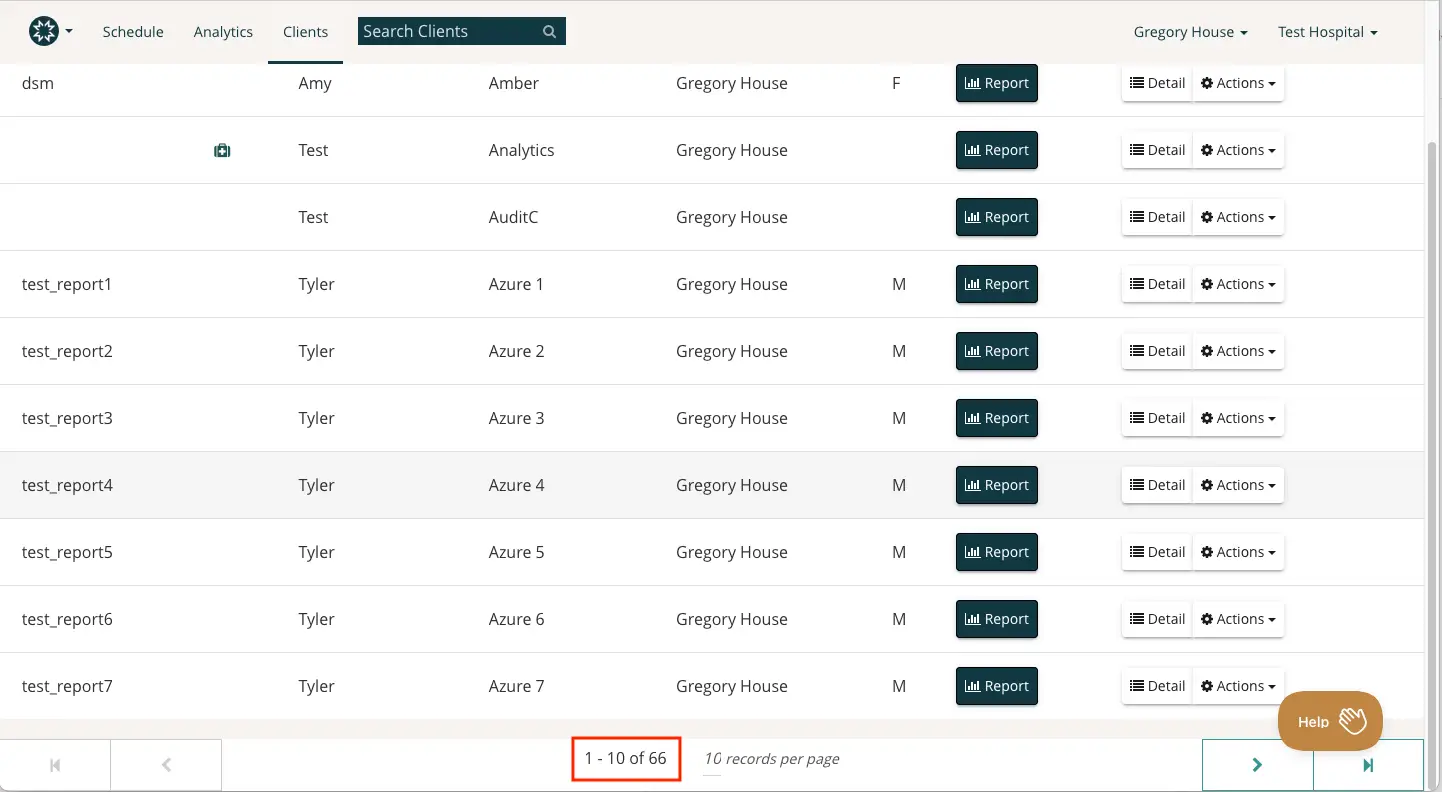
The screenshot displays the 'Clients' section of the Mirah Measurement-Based Care platform, where users can view and manage client data. The top navigation bar includes tabs for Schedule, Analytics, and Clients, with a search bar labeled 'Search Clients' for finding specific client records. The table lists client information with columns for client name, assigned staff, department, and gender. Each row has buttons for 'Report', 'Detail', and 'Actions', allowing users to generate reports, view detailed client information, and perform actions respectively. These buttons are located on the right side of each row. The bottom of the screen shows pagination controls, indicating the current page view of '1 - 10 of 66' records, with options to navigate between pages. A 'Help' button is located at the bottom right corner, providing assistance to users.

Click the "Detail" button on a patient to open their record for a spot check:
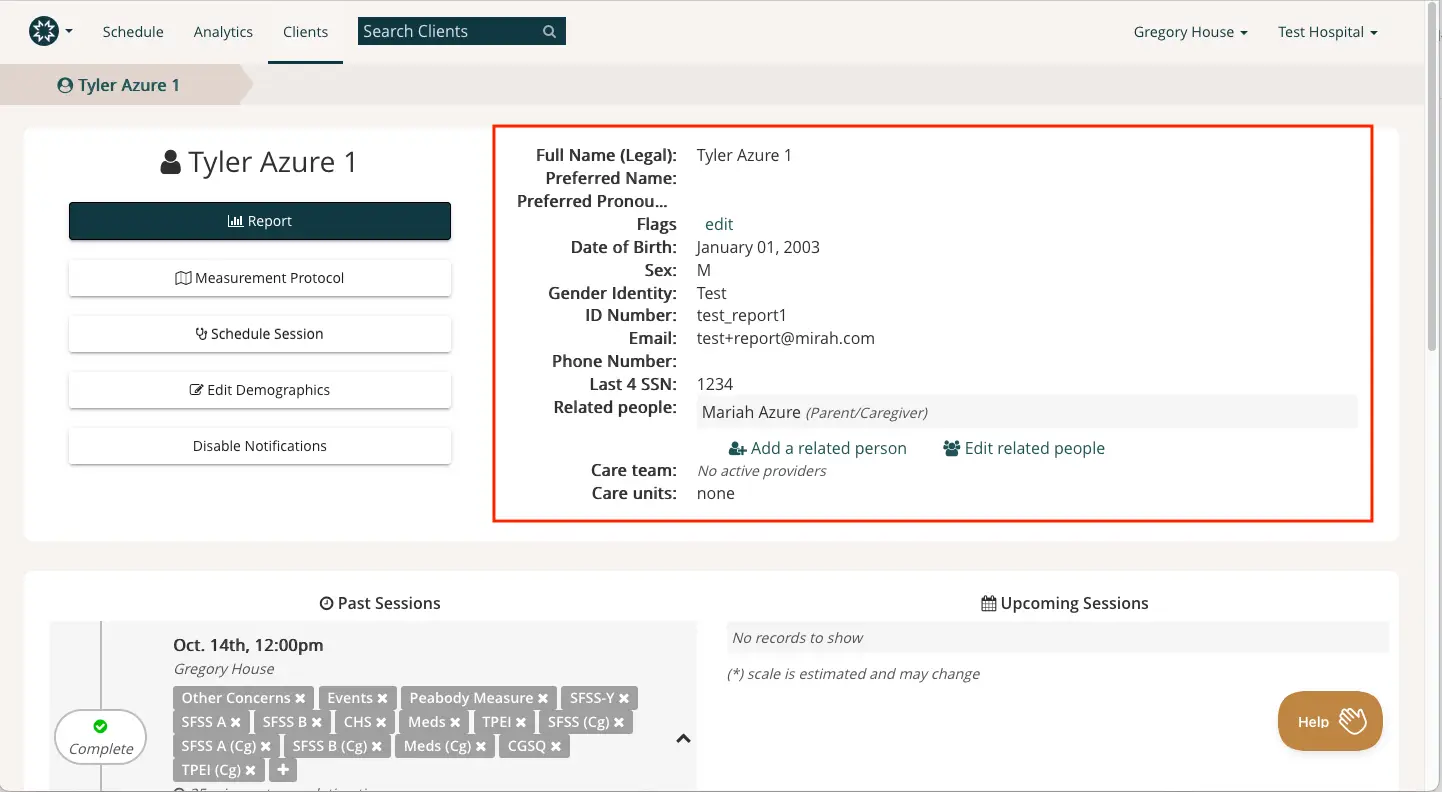
The screenshot displays the client profile page for Tyler Azure 1 within the Mirah Measurement-Based Care platform. At the top, the navigation menu includes options for Schedule, Analytics, and Clients, with a search bar labeled 'Search Clients'. The breadcrumb trail shows 'Tyler Azure 1', indicating the current client's profile. The left side features a vertical menu with buttons for 'Report', 'Measurement Protocol', 'Schedule Session', 'Edit Demographics', and 'Disable Notifications'. The main section on the right provides detailed client information, including Full Name (Legal), Preferred Name, Preferred Pronouns, Flags with an 'edit' link, Date of Birth, Sex, Gender Identity, ID Number, Email, Phone Number, Last 4 SSN, and Related people with an option to 'Add a related person' or 'Edit related people'. The Care team and Care units fields indicate 'No active providers' and 'none', respectively. Below, the 'Past Sessions' section lists a session on Oct. 14th, 12:00 pm with various tags like 'Other Concerns', 'Events', and 'Peabody Measure'. The 'Upcoming Sessions' section shows 'No records to show'. A 'Help' button is located at the bottom right corner.

Confirm that the demographic details in the top right match the information for this patient in your EHR. Find a patient with caregivers or other related people and ensure that they came through as well. These records are sometimes separate from the patient record (for example, in flat file integrations they're sent in a separate file) but are shown here on the patient page.

Appointments​

Click the "Schedule" link on the top to go to the schedule page:
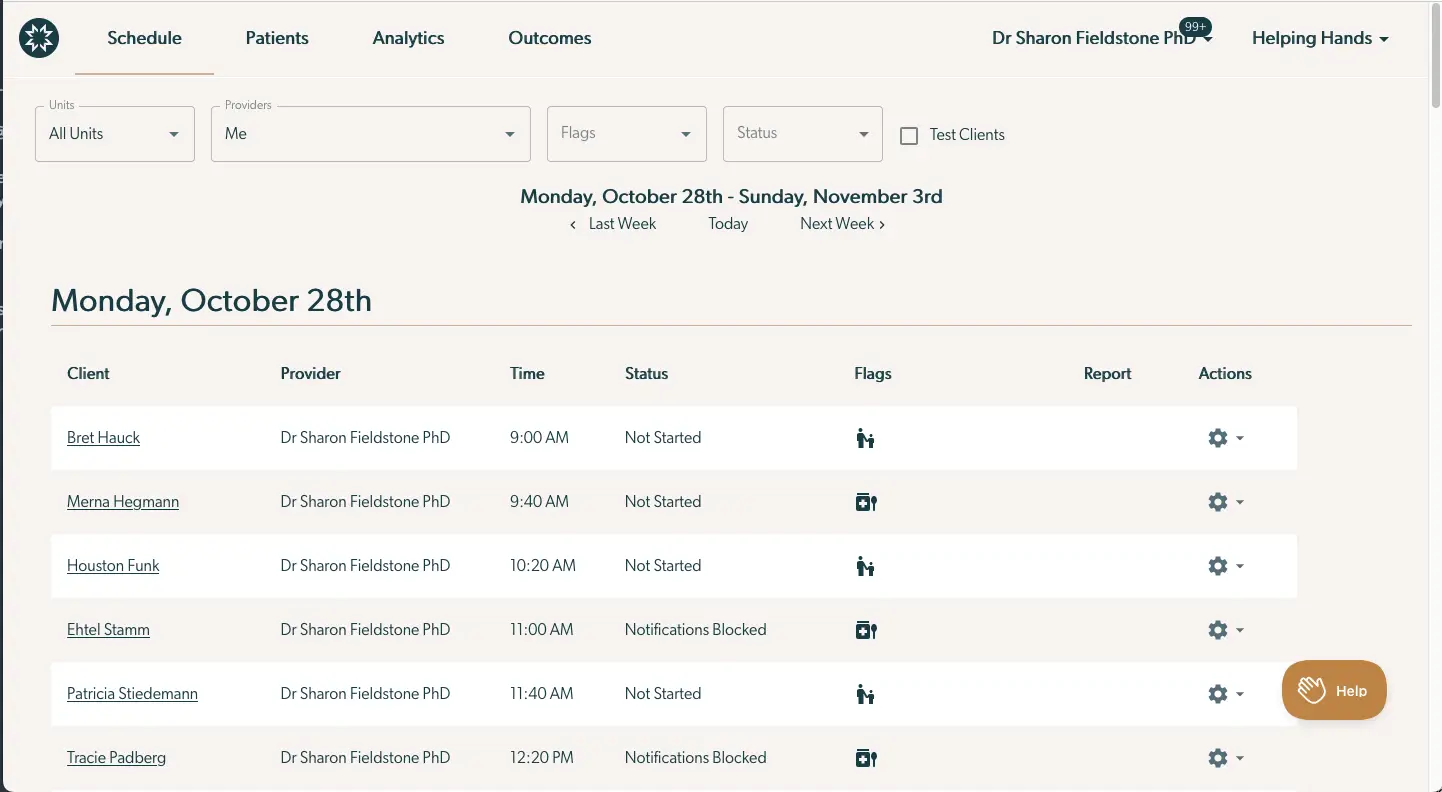
The screenshot displays the 'Schedule' tab of the Mirah Measurement-Based Care platform, showing a weekly schedule for Dr. Sharon Fieldstone PhD. The top navigation bar includes tabs for Schedule, Patients, Analytics, and Outcomes, with a user profile dropdown for Dr. Sharon Fieldstone PhD and a 'Helping Hands' dropdown on the right. Below, there are dropdown filters for Units, Providers, Flags, and Status, along with a checkbox for 'Test Clients'. The date range displayed is Monday, October 28th to Sunday, November 3rd, with navigation options for 'Last Week', 'Today', and 'Next Week'. The schedule for Monday, October 28th lists clients with columns for Client, Provider, Time, Status, Flags, Report, and Actions. Each row includes a client's name, the provider's name, the appointment time, the status of the appointment, and icons representing flags. The 'Actions' column features a gear icon for additional options. A 'Help' button is located at the bottom right corner of the screen.

Use the provider filter to select a provider with upcoming appointments, and confirm that their appointments in Mirah match their appointments in your EHR. Mirah doesn't have a view that lets you see all appointments in the system, so just spot check one or two providers. Note that Mirah integrations only import appointments in a limited time range (generally a few days before the integration was enabled to a few weeks in the future), so if appointments outside that range don't appear, the integration is still working as expected.